
Telegram bot to Track your Expenses in a Spreadsheet
April 2020 update: I created a Youtube tutorial here.
I recently got assigned to help performance manage a remote team. The team uses telegram as one of their communication platforms so I decided to learn how to build a bot that can pull up their latest performance numbers for them when they need it.
Soon enough, I saw other use cases for it in my own life. For example, I use it to track what I eat, my deadlines and expenses. It’s been more effective than the many apps I’ve attempted to track my life with since I already actively use Telegram. Other apps also usually have premium rates or ads that keep me from using them.
If you’re on Telegram, you can easily create your own bot. Here, I encourage anyone, especially beginner developers to take a stab on Telegram bot. Hopefully I can provide answers to questions that I had a hard time searching when I was building mine.
For simplicity, we will create a bot that can (1) store your expenses in a spreadsheet and (2) provide you your total, balance and budget when you ask for it.
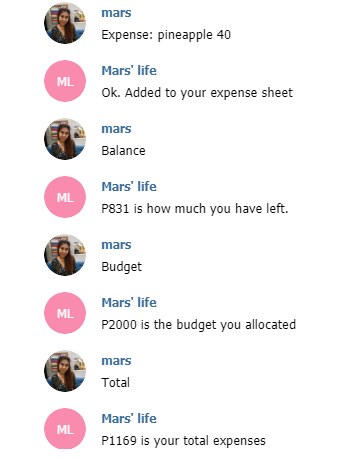
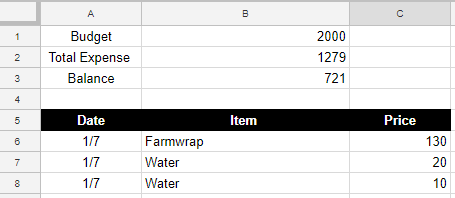
Here’s how you create the bot:
1. Get an API token from Botfather
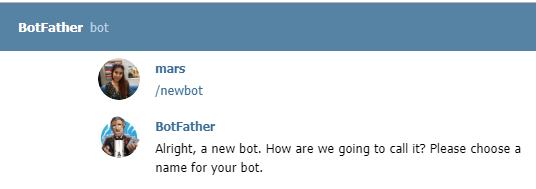
Imagine API tokens as Telegram back door passes. Instead of accessing Telegram through the UI, you access it through the backdoor provided you have a pass code. You get this from the gatekeeper, Botfather. You can search him on Telegram and tell him you’re trying to create a new bot. He will give you easy instructions to get your token.
2. Paste the token to your spreadsheet’s script editor
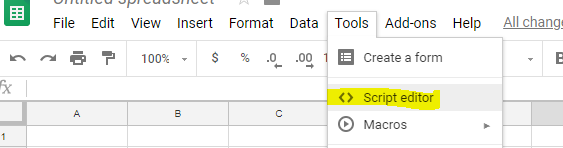
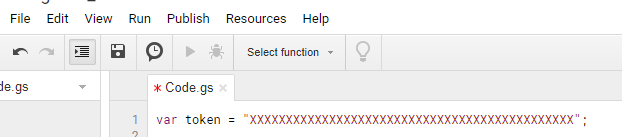
Once you have your token from Botfather, you’re now ready to code. Paste that into a script editor as a variable (var) and give it any name you want (in the snippet above, it’s named as “token”).
3. Deploy your script
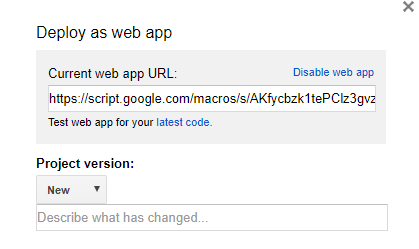
You want to publish your script so Google can assign it a web app address. You need this address to create a webhook. Think of a webhook as your personal courier who will be entering Telegram from the backdoor. He will deliver you the messages that any user who comes in through the main entrance (UI) will send.
To deploy, hit Publish > Deploy as web app
4. Set up your webhook
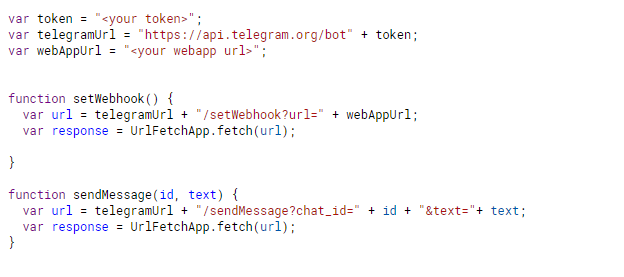
var token = “<your token>”; var telegramUrl = “https://api.telegram.org/bot" + token; var webAppUrl = “<your web app url>”;
function setWebhook() { var url = telegramUrl + “/setWebhook?url=” + webAppUrl; var response = UrlFetchApp.fetch(url); }
Copy the above code to your script editor and your bot will be ready to interact to your spreadsheet.
5. Get Telegram to send data to your web app
Bear with me as we get a lil bit technical:
From Google Apps Script’s guide, we need to have a doPost(e) function so that Telegram can send the user’s info and messages over to our web app.
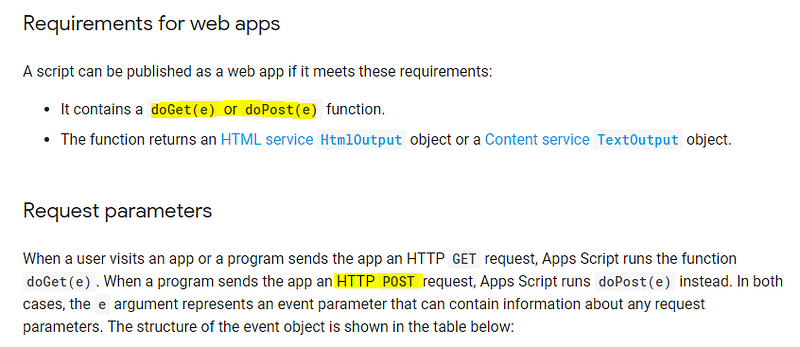
In Google App script, we use e as the event object who listens to the user’s telegram text. Think of it as your courier’s ear- e eavesdrop while user is talking to your bot and your courier runs back to you everytime he hears something new. But we will need to tell the doPost function to do that first.
Storing expenses to a spreadsheet:
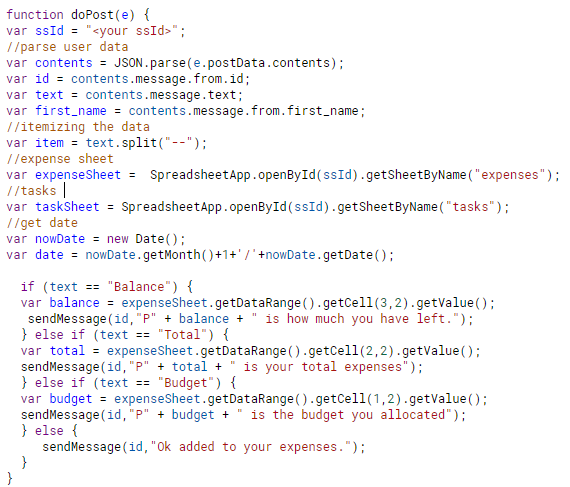
We need to parse the JSON object e and weed out the contents we need:
var contents = JSON.parse(e.postData.contents); var id = contents.message.from.id; var text = contents.message.text; var first_name = contents.message.from.first_name;
We also need to tell the bot which spreadsheet to store the user’s messages to:
var ssId = “<your spreadsheet ID>”;
var expenseSheet =SpreadsheetApp.openById(ssId).getSheetByName(“expenses”);
And we need a way for the bot to determine which part of the message he should store as a “price”. To make it simple, will split text so that a user can assign the price of an item after an “ — ”.
var item = text.split(“ — “);
To add the items on the spreadsheet:
var nowDate = new Date(); var date = nowDate.getMonth()+1+’/’+nowDate.getDate();
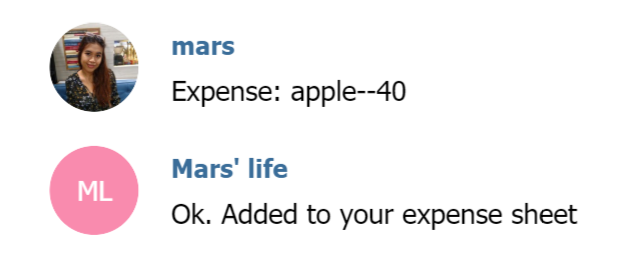
expenseSheet.appendRow([date, item[0], item[1]]);
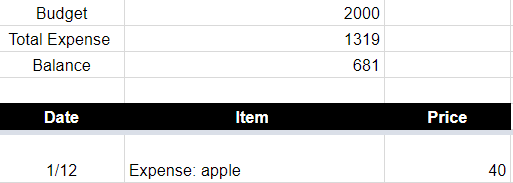
Pulling reports from the spreadsheet
The easiest way to have your bot fetch your balance, budget and total is to have your spreadsheet auto-calculate them for you so that your bot only need to pull the value of a cell.
if (text == “Balance”) { var balance = expenseSheet.getDataRange().getCell(3,2).getValue(); }
To return them to you as a text message, create function:
function sendMessage(id, text) { var url = telegramUrl + “/sendMessage?chat_id=” + id + “&text=”+ text; var response = UrlFetchApp.fetch(url); }
fin


