
Technical Encounter: Low Code With Dash, Streamlit, and Panel — Intro
Developing data applications with ease

The big data period did not innovate only data processing and data storage, but it had a great impact on the types of applications we could develop. If traditional analytics, dashboards, and data visualizations were meant for exploratory data analysis and reporting, nowadays, we can use data visualization to bring insights to our users. This type of dashboard is already integrated into applications that monitor home utility consumption, physical activity, music consumption, digital balance, etc.
If data analysts and data scientists are used to conduct exploratory data analysis in Jupyter Notebooks, now they can leverage tools like Plotly, Dash, Streamlit, and Panel to benefit from software development best practices and to create data products for their end users. More than this, they can now build web data applications without needing the extensive knowledge a full stack developer requires in web development.

In this article, I will go through the differences between Dash, Streamlit, and Panel by showcasing a small data application about website visitors (about the data processing required for the visitor world map I’ve written here). This article focuses on the technical setup of the three types of applications, from package dependencies, docker setup to multi-page and plotting data. Statefullness, caching, and load testing will be detailed in part two of the series.
Package Dependencies
With poetry , package dependencies become manageable (you might want to have a look at deptry too), and we can configure them per group of dependencies, as shown below:
# dependencies for streamlit
[tool.poetry.group.streamlit.dependencies]
python = "^3.11"
plotly = "^5.15.0"
duckdb = "^0.8.1"
streamlit = "^1.24.1"


# dependencies for dash
[tool.poetry.group.dash.dependencies]
python = "^3.11"
plotly = "^5.15.0"
duckdb = "^0.8.1"
pandas = "^2.0.1"
dash = "^2.11.1"
dash-bootstrap-components = "^1.4.1"


# dependencies for panel
[tool.poetry.group.panel.dependencies]
python = "^3.11"
plotly = "^5.15.0"
duckdb = "^0.8.1"
panel = "^1.2.0"
With show --tree, we can visualize the poetry dependency graph per group of dependencies:
 $ poetry show --tree --only streamlit
duckdb 0.8.1 DuckDB embedded database
plotly 5.15.0 An open-source, interactive data visualization library for Python
├── packaging *
└── tenacity >=6.2.0
streamlit 1.24.1 A faster way to build and share data apps
├── altair >=4.0,<6
│   ├── jinja2 *
│   │   └── markupsafe >=2.0
│   ├── jsonschema >=3.0
│   │   ├── attrs >=22.2.0
│   │   ├── jsonschema-specifications >=2023.03.6
│   │   │   └── referencing >=0.28.0
│   │   │       ├── attrs >=22.2.0 (circular dependency aborted here)
│   │   │       └── rpds-py >=0.7.0
│   │   ├── referencing >=0.28.4 (circular dependency aborted here)
│   │   └── rpds-py >=0.7.1 (circular dependency aborted here)
│   ├── numpy *
│   ├── pandas >=0.18
│   │   ├── numpy >=1.21.0 (circular dependency aborted here)
│   │   ├── numpy >=1.23.2 (circular dependency aborted here)
│   │   ├── python-dateutil >=2.8.2
│   │   │   └── six >=1.5
│   │   ├── pytz >=2020.1
│   │   └── tzdata >=2022.1
│   └── toolz *
├── blinker >=1.0.0,<2
├── cachetools >=4.0,<6
├── click >=7.0,<9
│   └── colorama *
├── gitpython >=3,<3.1.19 || >3.1.19,<4
│   └── gitdb >=4.0.1,<5
│       └── smmap >=3.0.1,<6
├── importlib-metadata >=1.4,<7
│   └── zipp >=0.5
├── numpy >=1,<2
├── packaging >=14.1,<24
├── pandas >=0.25,<3
│   ├── numpy >=1.21.0
│   ├── numpy >=1.23.2 (circular dependency aborted here)
│   ├── python-dateutil >=2.8.2
│   │   └── six >=1.5
│   ├── pytz >=2020.1
│   └── tzdata >=2022.1
├── pillow >=6.2.0,<10
├── protobuf >=3.20,<5
├── pyarrow >=4.0
│   └── numpy >=1.16.6
├── pydeck >=0.1.dev5,<1
│   ├── jinja2 >=2.10.1
│   │   └── markupsafe >=2.0
│   └── numpy >=1.16.4
├── pympler >=0.9,<2
├── python-dateutil >=2,<3
│   └── six >=1.5
├── requests >=2.4,<3
│   ├── certifi >=2017.4.17
│   ├── charset-normalizer >=2,<4
│   ├── idna >=2.5,<4
│   └── urllib3 >=1.21.1,<3
│       └── pysocks >=1.5.6,<1.5.7 || >1.5.7,<2.0
├── rich >=10.11.0,<14
│   ├── markdown-it-py >=2.2.0
│   │   └── mdurl >=0.1,<1.0
│   └── pygments >=2.13.0,<3.0.0
├── tenacity >=8.0.0,<9
├── toml <2
├── tornado >=6.0.3,<7
├── typing-extensions >=4.0.1,<5
├── tzlocal >=1.1,<5
│   ├── pytz-deprecation-shim *
│   │   └── tzdata *
│   └── tzdata * (circular dependency aborted here)
├── validators >=0.2,<1
│   └── decorator >=3.4.0
└── watchdog *
$ poetry show --tree --only dash
dash 2.11.1 A Python framework for building reactive web-apps. Developed by Plotly.
├── ansi2html *
├── dash-core-components 2.0.0
├── dash-html-components 2.0.0
├── dash-table 5.0.0
├── flask >=1.0.4,<2.3.0
│ ├── click >=8.0
│ │ └── colorama *
│ ├── itsdangerous >=2.0
│ ├── jinja2 >=3.0
│ │ └── markupsafe >=2.0
│ └── werkzeug >=2.2.2
│ └── markupsafe >=2.1.1 (circular dependency aborted here)
├── nest-asyncio *
├── plotly >=5.0.0
│ ├── packaging *
│ └── tenacity >=6.2.0
├── requests *
│ ├── certifi >=2017.4.17
│ ├── charset-normalizer >=2,<4
│ ├── idna >=2.5,<4
│ └── urllib3 >=1.21.1,<3
│ └── pysocks >=1.5.6,<1.5.7 || >1.5.7,<2.0
├── retrying *
│ └── six >=1.7.0
├── typing-extensions >=4.1.1
└── werkzeug <2.3.0
└── markupsafe >=2.1.1
dash-bootstrap-components 1.4.1 Bootstrap themed components for use in Plotly Dash
└── dash >=2.0.0
├── ansi2html *
├── dash-core-components 2.0.0
├── dash-html-components 2.0.0
├── dash-table 5.0.0
├── flask >=1.0.4,<2.3.0
│ ├── click >=8.0
│ │ └── colorama *
│ ├── itsdangerous >=2.0
│ ├── jinja2 >=3.0
│ │ └── markupsafe >=2.0
│ └── werkzeug >=2.2.2
│ └── markupsafe >=2.1.1 (circular dependency aborted here)
├── nest-asyncio *
├── plotly >=5.0.0
│ ├── packaging *
│ └── tenacity >=6.2.0
├── requests *
│ ├── certifi >=2017.4.17
│ ├── charset-normalizer >=2,<4
│ ├── idna >=2.5,<4
│ └── urllib3 >=1.21.1,<3
│ └── pysocks >=1.5.6,<1.5.7 || >1.5.7,<2.0
├── retrying *
│ └── six >=1.7.0
├── typing-extensions >=4.1.1
└── werkzeug <2.3.0 (circular dependency aborted here)
duckdb 0.8.1 DuckDB embedded database
pandas 2.0.3 Powerful data structures for data analysis, time series, and statistics
├── numpy >=1.21.0
├── numpy >=1.23.2
├── python-dateutil >=2.8.2
│ └── six >=1.5
├── pytz >=2020.1
└── tzdata >=2022.1
plotly 5.15.0 An open-source, interactive data visualization library for Python
├── packaging *
└── tenacity >=6.2.0duckdb 0.8.1 DuckDB embedded database
panel 1.2.0 The powerful data exploration & web app framework for Python.
├── bleach *
│ ├── six >=1.9.0
│ └── webencodings *
├── bokeh >=3.1.1,<3.3.0
│ ├── contourpy >=1
│ │ └── numpy >=1.16
│ ├── jinja2 >=2.9
│ │ └── markupsafe >=2.0
│ ├── numpy >=1.16 (circular dependency aborted here)
│ ├── packaging >=16.8
│ ├── pandas >=1.2
│ │ ├── numpy >=1.21.0 (circular dependency aborted here)
│ │ ├── numpy >=1.23.2 (circular dependency aborted here)
│ │ ├── python-dateutil >=2.8.2
│ │ │ └── six >=1.5
│ │ ├── pytz >=2020.1
│ │ └── tzdata >=2022.1
│ ├── pillow >=7.1.0
│ ├── pyyaml >=3.10
│ ├── tornado >=5.1
│ └── xyzservices >=2021.09.1
├── linkify-it-py *
│ └── uc-micro-py *
├── markdown *
├── markdown-it-py *
│ └── mdurl >=0.1,<1.0
├── mdit-py-plugins *
│ └── markdown-it-py >=1.0.0,<4.0.0
│ └── mdurl >=0.1,<1.0
├── pandas >=1.2
│ ├── numpy >=1.21.0
│ ├── numpy >=1.23.2 (circular dependency aborted here)
│ ├── python-dateutil >=2.8.2
│ │ └── six >=1.5
│ ├── pytz >=2020.1
│ └── tzdata >=2022.1
├── param >=1.12.0
├── pyviz-comms >=0.7.4
│ └── param *
├── requests *
│ ├── certifi >=2017.4.17
│ ├── charset-normalizer >=2,<4
│ ├── idna >=2.5,<4
│ └── urllib3 >=1.21.1,<3
│ └── pysocks >=1.5.6,<1.5.7 || >1.5.7,<2.0
├── tqdm >=4.48.0
│ └── colorama *
├── typing-extensions *
└── xyzservices >=2021.09.1
plotly 5.15.0 An open-source, interactive data visualization library for Python
├── packaging *
└── tenacity >=6.2.0Let’s save the dependencies in text files and make a comparison between them in duckdb:
# bash
$ poetry show --only panel >> panel.txt
$ poetry show --only streamlit >> streamlit.txt
$ poetry show --only dash >> dash.txt

#duckdb
D create table dash_dep as select * from read_csv_auto("/ownyourdata-wordpress/dash.txt");
D create table streamlit_dep as select * from read_csv_auto("/ownyourdata-wordpress/streamlit.txt");
D create table panel_dep as select * from read_csv_auto("/ownyourdata-wordpress/panel.txt");
From the package dependencies, we observe there is quite some overlap between the three tools, including the following:
- Streamlit is the front runner with 50 external dependencies compared with ~30 for dash and panel
- Streamlit and Panel use Tornado as web framework, while Dash uses Flask (relevant for load performance)
- Pandas is a default dependency of Streamlit and Panel, but not of Dash
- Streamlit and Panel provide out-of-the-box frontend components, while for Dash, an extra dependency has to be installed:
dash-bootstrap-components

Application Build and Execution
The applications will be built with docker and executed with docker compose. To use the same Dockerfile, the code is organized as follows:
- a
dashdirectory, which contains the code required for the dash data application - a
streamlitdirectory, which contains the code required for the streamlit data application - a
paneldirectory, which contains the code required for the panel data application - shared constants, helpers, and setting files
- shared
pyproject.toml - shared dockerfile
- shared docker-compose file with dedicated services.
By having a naming convention for the dependency groups and source code directory, with build-args, we can easily generate different docker images from the same dockerfile:
FROM python:3.11.0-slim

ARG BUILDAPP=streamlit

WORKDIR app/
RUN apt-get update && \
      apt-get -y install libpq-dev python3-dev gcc g++

COPY ownyourdata_wordpress/$BUILDAPP ownyourdata_wordpress/$BUILDAPP
COPY ownyourdata_wordpress/helpers.py ownyourdata_wordpress/helpers.py
COPY ownyourdata_wordpress/settings.py ownyourdata_wordpress/settings.py
COPY ./poetry.lock .
COPY ./pyproject.toml .
COPY ./README.md .


RUN pip3 install poetry
RUN poetry config virtualenvs.create false
RUN poetry install -vvv --only $BUILDAPP

RUN export PYTHONPATH=/app

COPY .streamlit/config.toml /root/.streamlit/config.toml
With ARG, we tell docker that we expect a build argument, which is, by default streamlit . The argument is used to copy the dedicated code directory and to install the dedicated group dependency.
In docker-compose, we configure the services and provide the build argument for each. Here’s what that looks like:
version: '3.2'

services:
  ownyourdata_wordpress_streamlit_service:
    container_name: ownyourdata_wordpress_streamlit_container
    deploy:
      resources:
        limits:
          memory: 256M
    restart: on-failure
    image: ownyourdata-wordpress:streamlit
    build:
      context: .
      dockerfile: Dockerfile
      args:
        - BUILDAPP=streamlit
    environment:
      - PYTHONPATH=/app
    volumes:
      - ./ownyourdata_wordpress:/app/ownyourdata_wordpress
      - ./data:/app/data
      - ./.streamlit/config.toml:/root/.streamlit/config.toml
    ports:
      - "8501:8501"
    command:
      - bash
      - -c
      - streamlit run ./ownyourdata_wordpress/streamlit/home.py

  ownyourdata_wordpress_dash_service:
    container_name: ownyourdata_wordpress_dash_container
    deploy:
      resources:
        limits:
          memory: 256M
    restart: on-failure
    image: ownyourdata-wordpress:dash
    build:
      context: .
      dockerfile: Dockerfile
      args:
        - BUILDAPP=dash
    environment:
      - PYTHONPATH=/app
    volumes:
      - ./ownyourdata_wordpress:/app/ownyourdata_wordpress
      - ./data:/app/data
    ports:
      - "8050:8050"
    command:
      - bash
      - -c
      - python ./ownyourdata_wordpress/dash/home.py

  ownyourdata_wordpress_panel_service:
    container_name: ownyourdata_wordpress_panel_container
    deploy:
      resources:
        limits:
          memory: 256M
    restart: on-failure
    image: ownyourdata-wordpress:panel
    build:
      context: .
      dockerfile: Dockerfile
      args:
        - BUILDAPP=panel
    environment:
      - PYTHONPATH=/app
    volumes:
      - ./ownyourdata_wordpress:/app/ownyourdata_wordpress
      - ./data:/app/data
    ports:
      - "5006:5006"
    command:
      - bash
      - -c
      - panel serve ./ownyourdata_wordpress/panel/pages/*.py  --index=home --autoreload
We start the services by executing docker compose up:
# start streamlit app
 $ docker compose up ownyourdata_wordpress_streamlit_service                                 ownyourdata_wordpress_streamlit_service
[+] Running 1/0
 ⠿ Container ownyourdata_wordpress_streamlit_container  Created                                                                                                                 0.0s
Attaching to ownyourdata_wordpress_streamlit_container
ownyourdata_wordpress_streamlit_container  |
ownyourdata_wordpress_streamlit_container  |   You can now view your Streamlit app in your browser.
ownyourdata_wordpress_streamlit_container  |
ownyourdata_wordpress_streamlit_container  |   URL: http://0.0.0.0:8501
ownyourdata_wordpress_streamlit_container  |

# start dash app
 $ docker compose up ownyourdata_wordpress_dash_service
[+] Running 1/0
 ⠿ Container ownyourdata_wordpress_dash_container  Created                                                                                                                      0.1s
Attaching to ownyourdata_wordpress_dash_container
ownyourdata_wordpress_dash_container  | Dash is running on http://0.0.0.0:8050/
ownyourdata_wordpress_dash_container  |
ownyourdata_wordpress_dash_container  |  * Serving Flask app 'app'
ownyourdata_wordpress_dash_container  |  * Debug mode: on

# start panel app
 $ docker compose up ownyourdata_wordpress_panel_service
[+] Running 1/0
 ⠿ Container ownyourdata_wordpress_panel_container  Created                                                                                                                     0.0s
Attaching to ownyourdata_wordpress_panel_container
ownyourdata_wordpress_panel_container  | 2023-07-09 14:46:18,577 Starting Bokeh server version 3.2.0 (running on Tornado 6.3.2)
ownyourdata_wordpress_panel_container  | 2023-07-09 14:46:18,578 User authentication hooks NOT provided (default user enabled)
ownyourdata_wordpress_panel_container  | 2023-07-09 14:46:18,579 Bokeh app running at: http://localhost:5006/
ownyourdata_wordpress_panel_container  | 2023-07-09 14:46:18,579 Bokeh app running at: http://localhost:5006/home
Application Home Page
For all applications, we create an application entry point file, in which we define the main configurations for our app (e.g., the width of the screen). This file is the one executed in the entry point of the docker container.
Streamlit
We define a file home.py in which we define the home page of our web application:
import duckdb
import streamlit as st

from ownyourdata_wordpress.helpers import get_all_time_visitors
from ownyourdata_wordpress.helpers import get_bar_plot
from ownyourdata_wordpress.helpers import get_line_plot
from ownyourdata_wordpress.helpers import load_wp_visitors_duckdb


# initialize duckdb in memory connection
# initial load of data
duckdb_conn = duckdb.connect()
load_wp_visitors_duckdb(duckdb_conn=duckdb_conn)
visitors_df = get_all_time_visitors(duckdb_conn)

# page header
st.header("Wordpress statistics")

# line char of all time WordPress visitors
st.plotly_chart(get_line_plot(visitors_df))

# bar chart of all time WordPress visitors
st.plotly_chart(get_bar_plot(visitors_df))
In docker-compose the service has as an entry point, the bash command streamlit run ./ownyourdata_wordpress/streamlit/home.py , which will start the streamlit application on localhost at http://0.0.0.0:8501.

Dash
Similar to Streamlit, we create a home.py file in which we define what should be displayed on the home page. Here’s what that looks like:
import duckdb
from dash import Dash
from dash import dcc
from dash import html

from ownyourdata_wordpress.helpers import get_all_time_visitors
from ownyourdata_wordpress.helpers import get_bar_plot
from ownyourdata_wordpress.helpers import get_line_plot
from ownyourdata_wordpress.helpers import load_wp_visitors_duckdb


duckdb_conn = duckdb.connect()
load_wp_visitors_duckdb(duckdb_conn)
visitors_df = get_all_time_visitors(duckdb_conn)

# create the dash app
dash_app = Dash(__name__)

# define the layout of the app
dash_app.layout = html.Div(
    children=[
        html.H1(children="Wordpress Statistics"),  # the header of the page
        dcc.Graph(figure=get_line_plot(visitors_df)),  # the line chart
        dcc.Graph(figure=get_bar_plot(visitors_df)),  # the bar chart
    ]
)


# execute the app
if __name__ == "__main__":
    dash_app.run_server(debug=True, host="0.0.0.0")
In docker-compose, the service has as an entry point, the bash command python ./ownyourdata_wordpress/dash/home.py, which will start the dash application on localhost at http://0.0.0.0:8050:

We already observe that Streamlit has a higher abstraction level than Dash — where we need to have some HTML knowledge.
Panel
Panel is not very different from Streamlit. The critical thing to notice is that for any object that needs to be served to the frontend, .servable has to be called. Here’s how to do that:
import duckdb
import panel as pn

from ownyourdata_wordpress.helpers import get_all_time_visitors
from ownyourdata_wordpress.helpers import get_bar_plot
from ownyourdata_wordpress.helpers import get_line_plot
from ownyourdata_wordpress.helpers import load_wp_visitors_duckdb

pn.extension("plotly")

# initialize duckdb in memory connection
# initial load of data
duckdb_conn = duckdb.connect()
load_wp_visitors_duckdb(duckdb_conn=duckdb_conn)
visitors_df = get_all_time_visitors(duckdb_conn)

# page header
pn.pane.Markdown("# Wordpress statistics").servable()

# line char of all time WordPress visitors
pn.pane.Plotly(get_line_plot(visitors_df)).servable()

# bar chart of all time WordPress visitors
pn.pane.Plotly(get_bar_plot(visitors_df)).servable()
In docker-compose, the service has as entry point, the bash command panel serve ./ownyourdata_wordpress/panel/pages/*.py — index=home, which will start the panel application on localhost at http://0.0.0.0:5006:

One thing to notice is that Streamlit will inherit the default mode of the browser (in my particular case, I have the browser set on dark mode), while Dash and Panel are using the light mode.
Plotting Charts Without User Input
To plot the visitors' data in a line chart, we use plotly express to retrieve the chart definition. Here’s the code to do that:
import plotly.express as px


def get_line_plot(visitors_df):
    return px.line(
        data_frame=visitors_df,
        x="time",
        y="measure",
        color="measure_type",
        title="Visitor metrics per day - line chart",
        markers=True,
        color_discrete_sequence=["green", "lightgreen"],
    )
To display the chart:
- in Streamlit, we use plotly_chart:
st.plotly_chart(get_line_plot(visitors_df)) - in Dash, we use dcc.Graph:
dcc.Graph(figure=get_line_plot(visitors_df)) - in Panel, we use pane.Plotly:
pn.pane.Plotly(get_line_plot(visitors_df)).servable()
Multiple pages
To serve multiple pages, let’s create a directory pages under which we place the additional pages. Let’s create a page containing visitors plotted on the world map.
Streamlit
Just by adding the maps.py script to the pages directory, Streamlit will detect the multi-page setup and automatically create a sidebar with the navigation bar. Here’s what that looks like:

import duckdb
import streamlit as st

from ownyourdata_wordpress.constants import COLOR_LIST
from ownyourdata_wordpress.constants import MAP_SCOPE_LIST
from ownyourdata_wordpress.constants import PROJECTION_LIST
from ownyourdata_wordpress.helpers import get_animated_map_plot
from ownyourdata_wordpress.helpers import get_map_plot
from ownyourdata_wordpress.helpers import get_sum_visitors_country
from ownyourdata_wordpress.helpers import get_visitors_country_over_time
from ownyourdata_wordpress.helpers import load_wp_visitors_duckdb


# initialize duckdb in memory connection
# initial load of data
duckdb_conn = duckdb.connect()
load_wp_visitors_duckdb(duckdb_conn=duckdb_conn)
all_time_visitors = get_sum_visitors_country(duckdb_conn)
all_time_visitors_time = get_visitors_country_over_time(duckdb_conn)


st.header("WordPress Visitors Maps")

# create a row with 3 columns to select map configuration
col1, col2, col3 = st.columns(3)
with col1:
    projection = st.selectbox(
        "Select projection",
        PROJECTION_LIST,
    )

with col2:
    color = st.selectbox("Select color", COLOR_LIST)

with col3:
    scope = st.selectbox("Zoom on continent", MAP_SCOPE_LIST)

# display the map with the configurations selected
st.plotly_chart(get_map_plot(all_time_visitors, projection, color, scope))

# display the animated map over time
st.plotly_chart(get_animated_map_plot(all_time_visitors_time, all_time_visitors))
Dash
To make Dash multipage, there are a few things to configure. First, we have to create the dash app with use_pages on True. We also rename the file from home.py to app.py and move the plotting layout from it to pages/home.py.
dash/app.py
import dash
from dash import Dash
from dash import html


# set dash as multi page
dash_app = Dash(__name__, use_pages=True)


# add the navigation bar for pages
dash_app.layout = html.Div(
    children=[
        html.Div(
            [
                html.Div(
                    dcc.Link(
                        f"{page['name']} - {page['path']}", href=page["relative_path"]
                    )
                )
                for page in dash.page_registry.values()
            ]
        ),
        dash.page_container
    ]
)


if __name__ == "__main__":
    dash_app.run_server(debug=True, host="0.0.0.0")
dash/pages/home.py
import dash
import duckdb
from dash import dcc
from dash import html

from ownyourdata_wordpress.helpers import get_all_time_visitors
from ownyourdata_wordpress.helpers import get_bar_plot
from ownyourdata_wordpress.helpers import get_line_plot
from ownyourdata_wordpress.helpers import load_wp_visitors_duckdb

# register the page for the home url
dash.register_page(__name__, path="/")

duckdb_conn = duckdb.connect()
load_wp_visitors_duckdb(duckdb_conn)
visitors_df = get_all_time_visitors(duckdb_conn)


layout = html.Div(
    children=[
        html.H1(children="Wordpress Statistics"),
        dcc.Graph(figure=get_line_plot(visitors_df)),
        dcc.Graph(figure=get_bar_plot(visitors_df)),
    ]
)
dash/pages/maps.py
import dash
import dash_bootstrap_components as dbc
import duckdb
from dash import callback
from dash import dcc
from dash import html
from dash import Input
from dash import Output

from ownyourdata_wordpress.constants import COLOR_LIST
from ownyourdata_wordpress.constants import MAP_SCOPE_LIST
from ownyourdata_wordpress.constants import PROJECTION_LIST
from ownyourdata_wordpress.dash.constants import CONTENT_STYLE
from ownyourdata_wordpress.helpers import get_animated_map_plot
from ownyourdata_wordpress.helpers import get_map_plot
from ownyourdata_wordpress.helpers import get_sum_visitors_country
from ownyourdata_wordpress.helpers import get_visitors_country_over_time
from ownyourdata_wordpress.helpers import load_wp_visitors_duckdb


# register the page under /maps
dash.register_page(__name__)

duckdb_conn = duckdb.connect()
load_wp_visitors_duckdb(duckdb_conn)
all_time_visitors = get_sum_visitors_country(duckdb_conn)
all_time_visitors_time = get_visitors_country_over_time(duckdb_conn)

# create a row with 3 columns to select map configuration
projection_column = dbc.Col(
    children=[
        html.Label("Select projection"),
        dcc.Dropdown(
            id="select-projection",
            options=PROJECTION_LIST,
            value="equirectangular",
        ),
    ],
    width={"size": 3, "order": 1},
)

color_column = dbc.Col(
    children=[
        html.Label("Select color"),
        dcc.Dropdown(
            id="select-color",
            options=COLOR_LIST,
            value="aggrnyl",
        ),
    ],
    width={"size": 3, "order": 2},
)

scope_column = dbc.Col(
    children=[
        html.Label("Zoom on continent"),
        dcc.Dropdown(
            id="select-cont",
            options=MAP_SCOPE_LIST,
            value="world",
        ),
    ],
    width={"size": 3, "order": 3},
)

config_row = dbc.Row(
    children=[
        projection_column,
        color_column,
        scope_column,
    ]
)

layout = html.Div(
    children=[
        html.H1("WordPress Visitors Maps"),
        config_row,
        dcc.Graph(id="all-time-map"),
        dcc.Graph(figure=get_animated_map_plot(all_time_visitors_time, all_time_visitors)),
    ],
    style=CONTENT_STYLE,
)


@callback(
    Output("all-time-map", "figure"),
    Input("select-projection", "value"),
    Input("select-color", "value"),
    Input("select-cont", "value"),
)
def plot_all_time_map(projection, color, continent):
    fig_map = get_map_plot(all_time_visitors, projection, color, continent)

    return fig_map
Panel
To have a multi-page application in Panel, we just need to serve all the pages we want to be available in the web application by specifying them to the entry point: panel serve ./ownyourdata_wordpress/panel/pages/*.py — index=home . By doing so, we serve all pages under the pages directory and set the application's index to the home.py file. Panel does not come by default with a navigation bar.
import duckdb
import panel as pn

from ownyourdata_wordpress.constants import COLOR_LIST
from ownyourdata_wordpress.constants import MAP_SCOPE_LIST
from ownyourdata_wordpress.constants import PROJECTION_LIST
from ownyourdata_wordpress.helpers import get_animated_map_plot
from ownyourdata_wordpress.helpers import get_map_plot
from ownyourdata_wordpress.helpers import get_sum_visitors_country
from ownyourdata_wordpress.helpers import get_visitors_country_over_time
from ownyourdata_wordpress.helpers import load_wp_visitors_duckdb


# initialize duckdb in memory connection
# initial load of data
duckdb_conn = duckdb.connect()
load_wp_visitors_duckdb(duckdb_conn=duckdb_conn)
all_time_visitors = get_sum_visitors_country(duckdb_conn)
all_time_visitors_time = get_visitors_country_over_time(duckdb_conn)


# create a row with 3 columns to select map configuration

projection = pn.widgets.Select(
    options=PROJECTION_LIST,
    name="Select projection",
)

color = pn.widgets.Select(
    options=COLOR_LIST,
    name="Select color",
)

scope = pn.widgets.Select(
    options=MAP_SCOPE_LIST,
    name="Zoom on continent",
)

pn.pane.Markdown("# WordPress Visitors Maps").servable()

pn.Row("", projection, color, scope).servable()

pn.pane.Plotly(get_map_plot(all_time_visitors, projection.value, color.value, scope.value)).servable()

pn.pane.Plotly(get_animated_map_plot(all_time_visitors_time, all_time_visitors)).servable()
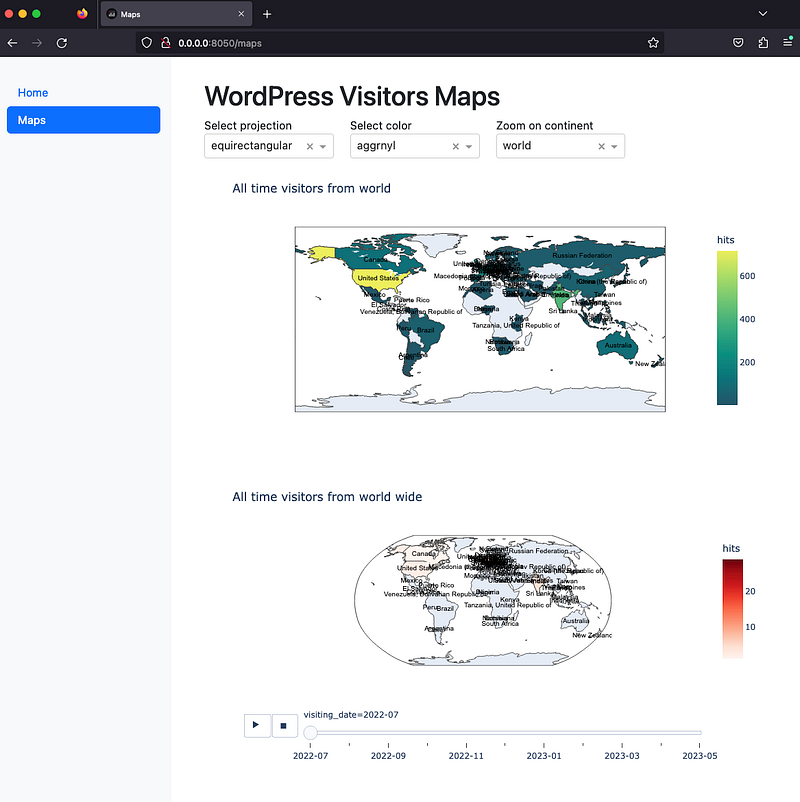
Sidebar and navbar
Streamlit comes by default with the sidebar for multi-page setup, and the community develops a navbar. For Dash, the navbar comes by default, and the community developed the sidebar through the bootstrap package. And for Panel, the default is without a navigation bar, but it can be added through templates.
Dash sidebar
To develop the sidebar in Dash, we need to install dash-bootstrap-components and declare it as an external style to our app. Here’s how to do that:
import dash_bootstrap_components as dbc

from ownyourdata_wordpress.dash.constants import SIDEBAR_STYLE


# add dbc as theme
dash_app = Dash(__name__, use_pages=True, external_stylesheets=[dbc.themes.BOOTSTRAP])


sidebar = html.Div(
    [
        dbc.Nav(
            [dbc.NavLink(page["name"], href=page["path"], active="exact") for page in dash.page_registry.values()],
            vertical=True,
            pills=True,
        ),
    ],
    style=SIDEBAR_STYLE,  # set the sidebar style
)


dash_app.layout = html.Div(
    children=[
        sidebar,
        dash.page_container,
    ]
)
In constants, we can easily define the style of the sidebar:
SIDEBAR_STYLE = {
    "position": "fixed",
    "top": 0,
    "left": 0,
    "bottom": 0,
    "width": "16rem",
    "padding": "2rem 1rem",
    "background-color": "#f8f9fa",
}
But now, with a sidebar, we have an overlap between the pages and the sidebar, hence for each page layout, we need to define the style:
CONTENT_STYLE = {
    "margin-left": "18rem",
    "margin-right": "2rem",
    "padding": "2rem 1rem",
}
Panel sidebar
To implement the sidebar, we can make use of existing templates, for example, the Bootstrap one. Here’s the code:
import panel as pn


def get_template():
    return pn.template.BootstrapTemplate(
        title="BootstrapTemplate",
        sidebar=[
            pn.pane.HTML('<a href=http://localhost:5006/><font size="+2">Home</font></a>'),
            pn.pane.HTML('<a href=http://localhost:5006/maps><font size="+2">Maps</font></a>'),
        ],
    )
We can now use the template on all of the pages, so we can create a sidebar.
panel/pages/home.py
import duckdb
import panel as pn

from ownyourdata_wordpress.helpers import get_all_time_visitors
from ownyourdata_wordpress.helpers import get_bar_plot
from ownyourdata_wordpress.helpers import get_line_plot
from ownyourdata_wordpress.helpers import load_wp_visitors_duckdb
from ownyourdata_wordpress.panel.utils import get_template

pn.extension("plotly")

# initialize duckdb in memory connection
# initial load of data
duckdb_conn = duckdb.connect()
load_wp_visitors_duckdb(duckdb_conn=duckdb_conn)
visitors_df = get_all_time_visitors(duckdb_conn)


template = get_template()

template.main.append(
    pn.pane.Markdown("# Wordpress statistics"),
)

template.main.append(pn.pane.Plotly(get_line_plot(visitors_df)))

template.main.append(pn.pane.Plotly(get_bar_plot(visitors_df)))

template.servable()
panel/pages/maps.py
import duckdb
import panel as pn

from ownyourdata_wordpress.constants import COLOR_LIST
from ownyourdata_wordpress.constants import MAP_SCOPE_LIST
from ownyourdata_wordpress.constants import PROJECTION_LIST
from ownyourdata_wordpress.helpers import get_animated_map_plot
from ownyourdata_wordpress.helpers import get_map_plot
from ownyourdata_wordpress.helpers import get_sum_visitors_country
from ownyourdata_wordpress.helpers import get_visitors_country_over_time
from ownyourdata_wordpress.helpers import load_wp_visitors_duckdb
from ownyourdata_wordpress.panel.utils import get_template

# initialize duckdb in memory connection
# initial load of data
duckdb_conn = duckdb.connect()
load_wp_visitors_duckdb(duckdb_conn=duckdb_conn)
all_time_visitors = get_sum_visitors_country(duckdb_conn)
all_time_visitors_time = get_visitors_country_over_time(duckdb_conn)


# create a row with 3 columns to select map configuration

projection = pn.widgets.Select(
    options=PROJECTION_LIST,
    name="Select projection",
)

color = pn.widgets.Select(
    options=COLOR_LIST,
    name="Select color",
)

scope = pn.widgets.Select(
    options=MAP_SCOPE_LIST,
    name="Zoom on continent",
)

template = get_template()

template.main.append(
    pn.pane.Markdown("# WordPress Visitors Maps"),
)

template.main.append(pn.Row("", projection, color, scope))

template.main.append(pn.pane.Plotly(get_map_plot(all_time_visitors, projection.value, color.value, scope.value)))

template.main.append(pn.pane.Plotly(get_animated_map_plot(all_time_visitors_time, all_time_visitors)))

template.servable()
Rows And Columns
If in Streamlit and Panel, we have wrappers for row/column. In Dash, we again make use of the bootstrap package. Here’s how to do that:
import dash_bootstrap_components as dbc


dbc.Row(
    children=[
        dbc.Col(
            children=[
                html.Label("Select projection"),
                dcc.Dropdown(
                    id="select-projection",
                    options=PROJECTION_LIST,
                    value="equirectangular",
                ),
            ],
            width={"size": 3, "order": 1},
        ),
        dbc.Col(
            children=[
                html.Label("Select color"),
                dcc.Dropdown(
                    id="select-color",
                    options=COLOR_LIST,
                    value="aggrnyl",
                ),
            ],
            width={"size": 3, "order": 2},
        ),
        dbc.Col(
            children=[
                html.Label("Zoom on continent"),
                dcc.Dropdown(
                    id="select-cont",
                    options=MAP_SCOPE_LIST,
                    value="world",
                ),
            ],
            width={"size": 3, "order": 3},
        ),
    ]
)
You can find more details about dbc rows and columns here.
Plotting Charts With User Input
If in Streamlit and Panel, the user input is saved in a variable and used accordingly as input to other methods. In Dash, we make use of callbacks.
Streamlit
col1, col2, col3 = st.columns(3)
with col1:
    projection = st.selectbox(
        "Select projection",
        PROJECTION_LIST,
    )

with col2:
    color = st.selectbox("Select color", COLOR_LIST)

with col3:
    scope = st.selectbox("Zoom on continent", MAP_SCOPE_LIST)

# display the map with the configurations selected
st.plotly_chart(get_map_plot(all_time_visitors, projection, color, scope))
Dash
projection_column = dbc.Col(
    children=[
        html.Label("Select projection"),
        dcc.Dropdown(
            id="select-projection",
            options=PROJECTION_LIST,
            value="equirectangular",
        ),
    ],
    width={"size": 3, "order": 1},
)

color_column = dbc.Col(
    children=[
        html.Label("Select color"),
        dcc.Dropdown(
            id="select-color",
            options=COLOR_LIST,
            value="aggrnyl",
        ),
    ],
    width={"size": 3, "order": 2},
)

scope_column = dbc.Col(
    children=[
        html.Label("Zoom on continent"),
        dcc.Dropdown(
            id="select-cont",
            options=MAP_SCOPE_LIST,
            value="world",
        ),
    ],
    width={"size": 3, "order": 3},
)

@callback(
    Output("all-time-map", "figure"),
    Input("select-projection", "value"),
    Input("select-color", "value"),
    Input("select-cont", "value"),
)
def plot_all_time_map(projection, color, continent):
    fig_map = get_map_plot(all_time_visitors, projection, color, continent)

    return fig_map
By using callbacks, Dash ensures that the callback is called only if the input has changed, compared to Streamlit, which re-executes the page code entirely on any widget change (but uses cache and session state to avoid a full refresh).
Panel
In Panel, one can use the select widgets:
projection = pn.widgets.Select(
    options=PROJECTION_LIST,
    name="Select projection",
)

color = pn.widgets.Select(
    options=COLOR_LIST,
    name="Select color",
)

scope = pn.widgets.Select(
    options=MAP_SCOPE_LIST,
    name="Zoom on continent",
)

get_map_plot(all_time_visitors, projection.value, color.value, scope.value))
Conclusion
In the first part of the data applications’ low-code comparison, we have implemented a multi-page app in Streamlit, Dash, and Panel. We went through how to create a Docker file that dynamically created an image for each low-code utility, and we analyzed the dependencies between them. We have plotted both charts without and with user input, and we have implemented a sidebar.
While I enjoy Plotly's simplicity, Dash (developed by the same team) is lacking compared with Streamlit and Panel. Another important difference between them is that Dash is based on Flask, which is synchronous, while both Streamlit and Panel use Tornado, which is asynchronous and (might) allow more connections at the same time.
But we’ll talk more about the technicalities of performance and user load in the next article!