avatarMateusz Rybczonek

Free AI web copilot to create summaries, insights and extended knowledge, download it at here

8946

Abstract

d bring it back to its original position: <code>{ x: 0, y: 0 }</code>.</p><p id="19aa">We also need to make sure to remove the card element from the <a href="http://interactjs.io/docs/#interactables">Interactable</a> object before it gets destroyed. We do that in the beforeDestroy lifecycle hook by using <code>interact(target).unset()</code>. That removes all event listeners and makes interact.js completely forget about the target.</p><div id="c2c7"><pre><span class="hljs-meta prompt_">...</span></pre></div><div id="3798"><pre><span class="hljs-function"><span class="hljs-title">mounted</span><span class="hljs-params">()</span></span> { const element = this.<span class="hljs-variable">refs</span><span class="hljs-selector-class">.interactElement</span> <span class="hljs-built_in">interact</span>(element)<span class="hljs-selector-class">.draggable</span>({ onmove: event =&gt; { const x = this<span class="hljs-selector-class">.interactPosition</span><span class="hljs-selector-class">.x</span> + event<span class="hljs-selector-class">.dx</span> const y = this<span class="hljs-selector-class">.interactPosition</span><span class="hljs-selector-class">.y</span> + event<span class="hljs-selector-class">.dy</span> this<span class="hljs-selector-class">.interactSetPosition</span>({ x, y }) }, onend: () =&gt; { this<span class="hljs-selector-class">.resetCardPosition</span>() } }) }, </pre></div><div id="1225"><pre><span class="hljs-meta prompt_">...</span></pre></div><div id="e31b"><pre><span class="hljs-function"><span class="hljs-title">beforeDestroy</span><span class="hljs-params">()</span></span> { <span class="hljs-built_in">interact</span>(this.<span class="hljs-variable">refs</span>.interactElement)<span class="hljs-selector-class">.unset</span>() },</pre></div><div id="156d"><pre><span class="hljs-meta prompt_">...</span></pre></div><div id="6039"><pre>methods: { <span class="hljs-built_in">int</span>eractSetPosition(coordinates) { <span class="hljs-keyword">const</span> { x = <span class="hljs-number">0</span>, y = <span class="hljs-number">0</span> } = coordinates <span class="hljs-keyword">this</span>.<span class="hljs-built_in">int</span>eractPosition = {x, y } },</pre></div><div id="0c19"><pre> <span class="hljs-title function_">resetCardPosition</span>(<span class="hljs-params"></span>) { <span class="hljs-variable language_">this</span>.<span class="hljs-title function_">interactSetPosition</span>({ <span class="hljs-attr">x</span>: <span class="hljs-number">0</span>, <span class="hljs-attr">y</span>: <span class="hljs-number">0</span> }) }, },</pre></div><div id="369d"><pre><span class="hljs-meta prompt_">...</span></pre></div><p id="b251">We need to add one thing in our template to make this work. As our <code>transformString</code> computed property returns a string, we need to apply it to the card component. We do that by binding to the <code>:style</code> attribute and then passing the string to the <code>transform</code> property.</p><div id="7ded"><pre><span class="language-xml"><span class="hljs-tag"><<span class="hljs-name">template</span>></span> <span class="hljs-tag"><<span class="hljs-name">div</span> <span class="hljs-attr">class</span>=<span class="hljs-string">"card"</span> <span class="hljs-attr">:class</span>=<span class="hljs-string">"</span></span></span><span class="hljs-template-variable">{ isCurrent: isCurrent }</span><span class="language-xml"><span class="hljs-tag"><span class="hljs-string">"</span> <span class="hljs-attr">:style</span>=<span class="hljs-string">"</span></span></span><span class="hljs-template-variable">{ transform: transformString }</span><span class="language-xml"><span class="hljs-tag"><span class="hljs-string">"</span> ></span> <span class="hljs-tag"><<span class="hljs-name">h3</span> <span class="hljs-attr">class</span>=<span class="hljs-string">"cardTitle"</span>></span></span><span class="hljs-template-variable">{{ card.keyword }</span><span class="language-xml">}<span class="hljs-tag"></<span class="hljs-name">h3</span>></span> <span class="hljs-tag"></<span class="hljs-name">div</span>></span> <span class="hljs-tag"></<span class="hljs-name">template</span>></span></span></pre></div><p id="5e2d">With that done, we have created interaction with our card — we can drag it around!</p><figure id="3917"><img src="https://cdn-images-1.readmedium.com/v2/resize:fit:800/1*bPNfeWG5TkyL2z-92U6s1Q.gif"><figcaption></figcaption></figure><p id="2590">You may have noticed that the behavior isn’t very natural, specifically when we drag the card and release it. The card immediately returns to its original position, but it would be more natural if the card would go back to initial position with animation to smooth the transition.</p><p id="bb92">That’s where <a href="https://css-tricks.com/almanac/properties/t/transition/"><code>transit</code>ion</a> comes into play! But adding it to our card introduces another issue: there’s a lag in the card following as it follows the cursor because <code>transition</code> is applied to the element at all times. We only want it applied when the drag ends. We can do that by binding one more class (<code>isAnimating</code>) to the component.</p><div id="0927"><pre><span class="language-xml"><span class="hljs-tag"><<span class="hljs-name">template</span>></span> <span class="hljs-tag"><<span class="hljs-name">div</span> <span class="hljs-attr">class</span>=<span class="hljs-string">"card"</span> <span class="hljs-attr">:class</span>=<span class="hljs-string">"{ isAnimating: isInteractAnimating, isCurrent: isCurrent }"</span> ></span> <span class="hljs-tag"><<span class="hljs-name">h3</span> <span class="hljs-attr">class</span>=<span class="hljs-string">"cardTitle"</span>></span></span><span class="hljs-template-variable">{{ <span class="hljs-name">card.keyword</span> }}</span><span class="language-xml"><span class="hljs-tag"></<span class="hljs-name">h3</span>></span> <span class="hljs-tag"></<span class="hljs-name">div</span>></span> <span class="hljs-tag"></<span class="hljs-name">template</span>></span></span></pre></div><p id="4633">We can add and remove the animation class by changing the <code>isInteractAnimating</code> property.</p><p id="5f3e">The animation effect should be applied initially and we do that by setting our property in <code>data</code>.</p><p id="16c5">In the mounted hook where we initialize interact.js, we use one more interact hook (<code>onstart</code>) and change the value of <code>isInteractAnimating</code> to <code>false</code> so that the animation is disabled when the during the drag.</p><p id="496d">We’ll enable the animation again in the <code>onend</code> hook, and that will make our card animate smoothly to its original position when we release it from the drag.</p><p id="9751">We also need to update <code>transformString</code> computed property and add a guard to recalculate and return a string only when we are dragging the card.</p><div id="e677"><pre><span class="hljs-built_in">data</span>() { <span class="hljs-keyword">return</span> { <span class="hljs-params">...</span> isInteractAnimating: <span class="hljs-literal">true</span>, <span class="hljs-params">...</span> } },</pre></div><div id="3da4"><pre><span class="hljs-attr">computed</span>: { <span class="hljs-title function_">transformString</span>(<span class="hljs-params"></span>) { <span class="hljs-keyword">if</span> (!<span class="hljs-variable language_">this</span>.<span class="hljs-property">isInteractAnimating</span>) { <span class="hljs-keyword">const</span> { x, y } = <span class="hljs-variable language_">this</span>.<span class="hljs-property">interactPosition</span> <span class="hljs-keyword">return</span> <span class="hljs-string">translate3D(<span class="hljs-subst">${x}</span>px, <span class="hljs-subst">${y}</span>px, 0)</span> } <span class="hljs-keyword">return</span> <span class="hljs-literal">null</span> } },</pre></div><div id="a879"><pre><span class="hljs-function"><span class="hljs-title">mounted</span><span class="hljs-params">()</span></span> { const element = this.<span class="hljs-variable">$refs</span><span class="hljs-selector-class">.interactElement</span> <span class="hljs-built_in">interact</span>(element)<span class="hljs-selector-class">.draggable</span>({ onstart: () => { this<span class="hljs-selector-class">.isInteractAnimating</span> = false },

 ...</pre></div><div id="a6ea"><pre>     onend: <span class="hljs-function"><span class="hljs-params">()</span> =&gt;</span> {
   this.isInteractAnimating = <span class="hljs-literal">true</span>
 },

}) },<

Options

/pre></div><p id="3408">Now things are starting to look nice!</p><figure id="8136"><img src="https://cdn-images-1.readmedium.com/v2/resize:fit:800/1*IjRw9ZSP-_KNJ3ccYMucgQ.gif"><figcaption></figcaption></figure><p id="1094">Our card stack is ready for second set of interactions. We can drag the card around, but nothing is actually happening — the card is always coming back to its original place, but there is no way to get to the second card.</p><p id="275b">This will change when we add logic that allows the user to accept and rejecting cards.</p><h1 id="bf91">Step 4: Detect when the card is accepted, rejected, or skipped</h1><p id="d3a1">The card has three types of interactions:</p><ul><li>Accept card (on swipe right)</li><li>Reject card (on swipe left)</li><li>Skip card (on swipe down)</li></ul><p id="8a03">We need to find a place where we can detect if the card was dragged from its initial position. We also want to be sure that this check will happen only when we finish dragging the card so the interactions do not conflict with the animation we just finished.</p><p id="0914">We used that place earlier smooth the transition during animation — it’s the <code>onend</code> hook provided by the <code>interact.draggable</code> method.</p><p id="dabf">Let’s jump into the code.</p><p id="e05a">First, we need to store our threshold values. Those values are the distances as the card is dragged from its original position and allows us to determine if the card should be accepted, rejected, or skipped. We use X axis for right (accept) and left (reject), then use the Y axis for downward movement (skip).</p><p id="c076">We also set coordinates where we want to place a card after it gets accepted, rejected or skipped (coordinates out of user’s sight).</p><p id="05ec">Since those values will not change, we will keep them in the <code>static</code> property of our component, which can be accessed with <code>this.options.static.interactYThreshold</code>.</p><div id="c7d1"><pre>export <span class="hljs-title class_">default</span> <span class="hljs-punctuation">{</span> <span class="hljs-symbol"> static:</span> <span class="hljs-punctuation">{</span> <span class="hljs-symbol"> interactYThreshold:</span> <span class="hljs-number">150</span>, <span class="hljs-symbol"> interactXThreshold:</span> <span class="hljs-number">100</span> <span class="hljs-punctuation">}</span>,</pre></div><p id="e550">We need to check if any of our thresholds were met in our <code>onend</code> hook and then fire the appropriate method that happened. If no threshold is met, then we reset the card to its initial position.</p><div id="eed1"><pre>mounted() { <span class="hljs-keyword">const</span> element = this.refs.interactElement interact(element).draggable({ onstart: () => <span class="hljs-meta">{...}</span>, onmove: () => <span class="hljs-meta">{...}</span>, onend: () => { <span class="hljs-keyword">const</span> { x, y } = this.interactPosition <span class="hljs-keyword">const</span> { interactXThreshold, interactYThreshold } = this.$options.<span class="hljs-keyword">static</span>

   this.isInteractAnimating = <span class="hljs-literal">true</span>
   
   <span class="hljs-keyword">if</span> (x &gt; interactXThreshold) this.playCard(<span class="hljs-type">ACCEPT_CARD</span>)
   <span class="hljs-keyword">else</span> <span class="hljs-keyword">if</span> (x &lt; -interactXThreshold) this.playCard(<span class="hljs-type">REJECT_CARD</span>)
   <span class="hljs-keyword">else</span> <span class="hljs-keyword">if</span> (y &gt; interactYThreshold) this.playCard(<span class="hljs-type">SKIP_CARD</span>)
   <span class="hljs-keyword">else</span> this.resetCardPosition()
 }

}) }</pre></div><p id="02d5">OK, now we need to create a <code>playCard</code> method that’s responsible for handling those interactive actions.</p><h1 id="b568">Step 5: Establish the logic to accept, reject, and skip cards</h1><p id="e75a">We will create a method that accepts a parameter telling us the user’s intended action. Depending on that parameter, we will set the final position of the current card and emit the accept, reject, or skip event. Let’s go step by step.</p><p id="7537">First, our <code>playCard</code> method will remove the card element from the <a href="http://interactjs.io/docs/#interactables">Interactable</a> object so that it stops tracking drag events. We do that by using <code>interact(target).unset()</code>. Secondly, we set the final position of the active card depending on the user's intention. That new position allows us to animate the card and remove it from the user's view.</p><p id="e31a">Next, we <a href="https://vuejs.org/v2/guide/components-custom-events.html">emit an event</a> up to the parent component so we can deal with our cards (e.g. change the current card, load more cards, shuffle the cards, etc.). We want to follow the DDAU principle that states a component should refrain from mutating data it doesn’t own. Since our cards are passed down to our component, it should emit an event up to the place from where those cards come.</p><p id="befc">Lastly, we hide the card that was just played and add a timeout that allow the card to animate out of view.</p><div id="4650"><pre>methods: { playCard(<span class="hljs-built_in">int</span>eraction) { <span class="hljs-keyword">const</span> { <span class="hljs-built_in">int</span>eractOutOfSightXCoordinate, <span class="hljs-built_in">int</span>eractOutOfSightYCoordinate } = <span class="hljs-keyword">this</span>.$options.static

 <span class="hljs-keyword">this</span>.<span class="hljs-built_in">int</span>eractUnsetElement()</pre></div><div id="03c9"><pre>     <span class="hljs-keyword">switch</span> (<span class="hljs-built_in">int</span>eraction) {
   <span class="hljs-keyword">case</span> ACCEPT_CARD:
     <span class="hljs-keyword">this</span>.<span class="hljs-built_in">int</span>eractSetPosition({
       x: <span class="hljs-built_in">int</span>eractOutOfSightXCoordinate
     })
     <span class="hljs-keyword">this</span>.$emit(ACCEPT_CARD)
     <span class="hljs-keyword">break</span>
   <span class="hljs-keyword">case</span> REJECT_CARD:
     <span class="hljs-keyword">this</span>.<span class="hljs-built_in">int</span>eractSetPosition({
       x: -<span class="hljs-built_in">int</span>eractOutOfSightXCoordinate
     })
     <span class="hljs-keyword">this</span>.$emit(REJECT_CARD)
     <span class="hljs-keyword">break</span>
   <span class="hljs-keyword">case</span> SKIP_CARD:
     <span class="hljs-keyword">this</span>.<span class="hljs-built_in">int</span>eractSetPosition({
       y: <span class="hljs-built_in">int</span>eractOutOfSightYCoordinate
     })
     <span class="hljs-keyword">this</span>.$emit(SKIP_CARD)
     <span class="hljs-keyword">break</span>
 }</pre></div><div id="6d0d"><pre>     <span class="hljs-keyword">this</span>.hideCard()

},</pre></div><div id="7390"><pre> <span class="hljs-title function_">hideCard</span>(<span class="hljs-params"></span>) { <span class="hljs-built_in">setTimeout</span>(<span class="hljs-function">() =></span> { <span class="hljs-variable language_">this</span>.<span class="hljs-property">isShowing</span> = <span class="hljs-literal">false</span> <span class="hljs-variable language_">this</span>.emit(<span class="hljs-string">"hideCard"</span>, <span class="hljs-variable language_">this</span>.<span class="hljs-property">card</span>) }, <span class="hljs-number">300</span>) },</pre></div><div id="3555"><pre> <span class="hljs-built_in">int</span>eractUnsetElement() { <span class="hljs-built_in">int</span>eract(<span class="hljs-keyword">this</span>.<span class="hljs-built_in">ref</span>s.<span class="hljs-built_in">int</span>eractElement).unset() <span class="hljs-keyword">this</span>.<span class="hljs-built_in">int</span>eractDragged = <span class="hljs-literal">true</span> }, }</pre></div><p id="6a3f">And, there we go!</p><figure id="fa0f"><img src="https://cdn-images-1.readmedium.com/v2/resize:fit:800/1*5zst6R0ZQRgsO-cDdVDzyw.gif"><figcaption></figcaption></figure><h1 id="eb66">Summary</h1><p id="791e">Let’s recap what we just accomplished:</p><ul><li>First we created a component for a single card.</li><li>Next we created another component that renders the cards in a stack.</li><li>Thirdly, we implemented interact.js to allow interactive dragging.</li><li>Then we detected when the user wants takes an action with the current card.</li><li>Finally, we established the to handle those actions.</li></ul><p id="f8d0">Phew, we covered a lot! Hopefully this gives you both a new trick in your toolbox as well as a hands-on use case for Vue.</p></article></body>

Swipeable card stack using Vue.js and interact.js

I had an opportunity to work on a project which goal was to create a card game that anyone can play with their friends.

One element of the development process was to create an interactive card stack. The card stack had a set of requirements, including:

  • It should contain a few cards from the collection.
  • The first card should be interactive.
  • The user should be able to swipe the card in different directions that indicate an intent to accept, reject or skip the card.

This article will explain how to create that and make it interactive using Vue.js and interact.js. I created an example for you to refer to as we go through the process of creating a component that is in charge of displaying that card stack and a second component that is responsible for rendering a single card and managing user interactions in it.

Step 1: Create the GameCard component in Vue

Let’s start by creating a component that will show a card, but without any interactions just yet. We’ll call this file GameCard.vue and, in the component template, we’ll render a card wrapper and the keyword for a specific card. This is the file we’ll be working in throughout this post.

// GameCard.vue
<template>
   <div
     class="card"
     :class="{ isCurrent: isCurrent }"
   >
     <h3 class="cardTitle">{{ card.keyword }}</h3>
   </div>
</template>

In the script section of the component, we receive the prop card that contains our card content as well as an isCurrent prop that gives the card a distinct look when needed.

export default {
   props: {
     card: {
       type: Object,
       required: true
     },
     isCurrent: {
       type: Boolean,
       required: true
     }
   }
},

Step 2: Create the GameCardStack component in Vue

Now that we have a single card, let’s create our card stack.

This component will receive an array of cards and render the GameCard for each card. It's also going to mark the first card as the current card in the stack so a special styling is applied to it.

// GameCardsStack.vue
<template>
   <div class="cards">
     <GameCard
       v-for="(card, index) in cards"
       :key="card"
       :card="card"
       :is-current="index === 0"
     />
   </div>
</template>
<script>
   import GameCard from "@/components/GameCard"
   export default {
     components: {
       GameCard
     },
     props: {
       cards: {
         type: Array,
         required: true
       }
     }
   }
</script>

Here’s what we’re looking at so far, using the styles pulled from the demo:
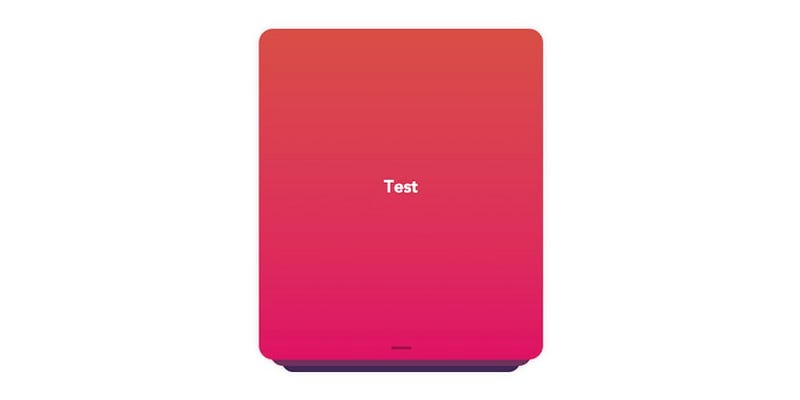
At this point, our card looks complete, but isn’t very interactive. Let’s fix that in the next step!

Step 3: Add interactivity to GameCard component

All our interactivity logic will live in the GameCard component. Let's start by allowing the user to drag the card. We will use interact.js to deal with dragging.

We’ll set the interactPosition initial values to 0 in the script section. These are the values that indicate a card’s order in the stack when it’s moved from its original position.

<script>
  import interact from 'interact.js'
  data() {
   return {
     interactPosition: {
       x: 0,
       y: 0
     },
   }
 }
 ...
</script>

Next, we create a computed property that’s responsible for creating a transform value that’s applied to our card element.

// ...
 computed: {
   transformString() {
     const { x, y } = this.interactPosition
     return `translate3D(${x}px, ${y}px, 0)`
   }
 },
// ...

In the mounted lifecycle hook, we make use of the interact.js and its draggable method. That method allows us to fire a custom function each time the element is dragged (onmove). It also exposes an event object that carries information about how far the element is dragged from its original position. Each time user drags the card, we calculate a new position of the card and set it on the interactPosition property. That triggers our transformString computed property and sets new value of transform on our card.

We use the interact onend hook that allows us to listen when the user releases the mouse and finishes the drag. At this point, we will reset the position of our card and bring it back to its original position: { x: 0, y: 0 }.

We also need to make sure to remove the card element from the Interactable object before it gets destroyed. We do that in the beforeDestroy lifecycle hook by using interact(target).unset(). That removes all event listeners and makes interact.js completely forget about the target.

...
mounted() {
   const element = this.$refs.interactElement
   interact(element).draggable({
     onmove: event => {
       const x = this.interactPosition.x + event.dx
       const y = this.interactPosition.y + event.dy
       this.interactSetPosition({ x, y })
     },
     onend: () => {
       this.resetCardPosition()
     }
   })
}, 
...
beforeDestroy() {
   interact(this.$refs.interactElement).unset()
},
...
methods: {
   interactSetPosition(coordinates) {
      const { x = 0, y = 0 } = coordinates
      this.interactPosition = {x, y }
   },
   resetCardPosition() {
     this.interactSetPosition({ x: 0, y: 0 })
   },
},
...

We need to add one thing in our template to make this work. As our transformString computed property returns a string, we need to apply it to the card component. We do that by binding to the :style attribute and then passing the string to the transform property.

<template>
   <div
     class="card"
     :class="{ isCurrent: isCurrent }"
     :style="{ transform: transformString }"
   >
     <h3 class="cardTitle">{{ card.keyword }}</h3>
   </div>
</template>

With that done, we have created interaction with our card — we can drag it around!
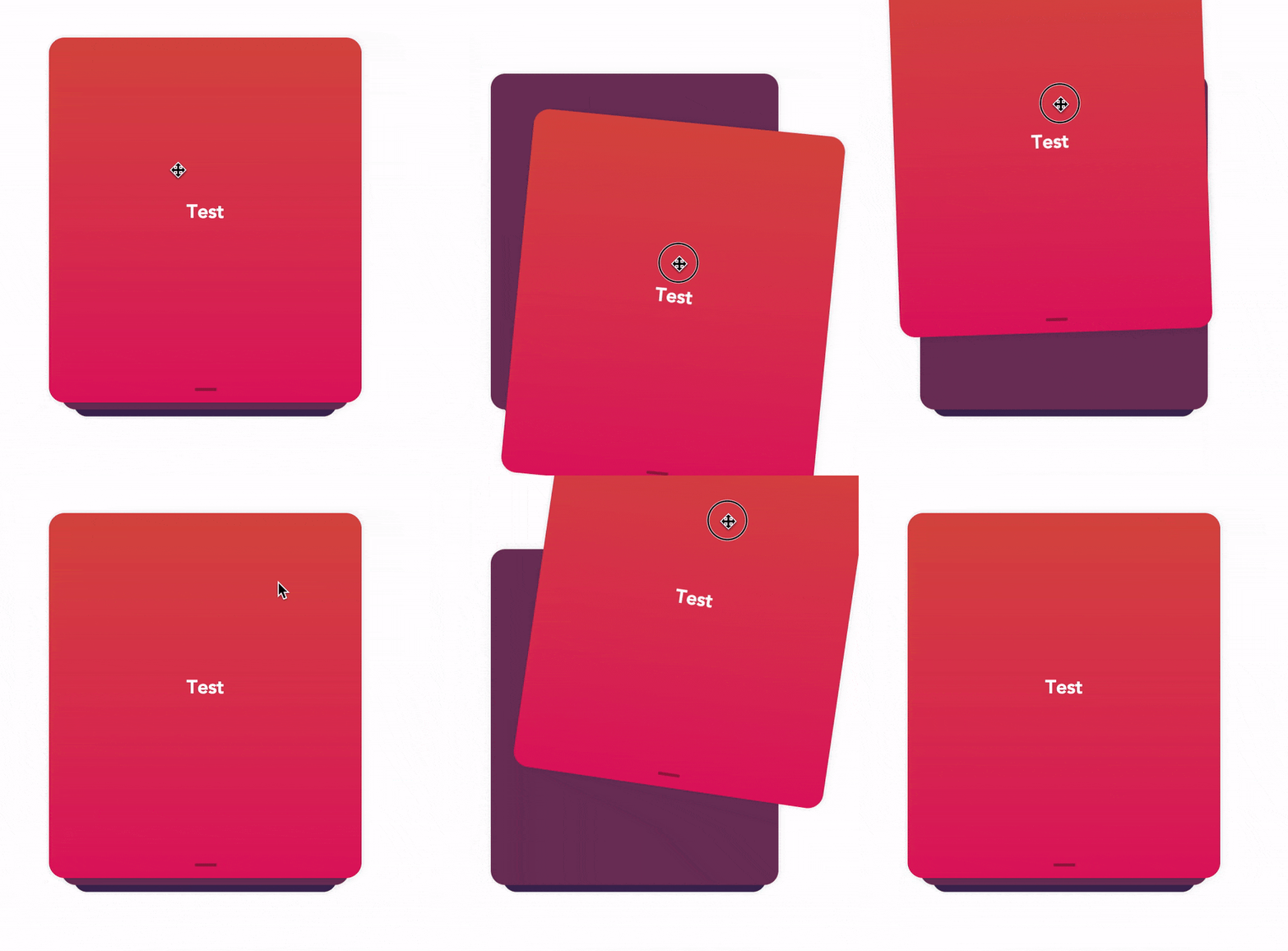
You may have noticed that the behavior isn’t very natural, specifically when we drag the card and release it. The card immediately returns to its original position, but it would be more natural if the card would go back to initial position with animation to smooth the transition.

That’s where transition comes into play! But adding it to our card introduces another issue: there’s a lag in the card following as it follows the cursor because transition is applied to the element at all times. We only want it applied when the drag ends. We can do that by binding one more class (isAnimating) to the component.

<template>
   <div
     class="card"
     :class="{
       isAnimating: isInteractAnimating,
       isCurrent: isCurrent
     }"
   >
     <h3 class="cardTitle">{{ card.keyword }}</h3>
   </div>
</template>

We can add and remove the animation class by changing the isInteractAnimating property.

The animation effect should be applied initially and we do that by setting our property in data.

In the mounted hook where we initialize interact.js, we use one more interact hook (onstart) and change the value of isInteractAnimating to false so that the animation is disabled when the during the drag.

We’ll enable the animation again in the onend hook, and that will make our card animate smoothly to its original position when we release it from the drag.

We also need to update transformString computed property and add a guard to recalculate and return a string only when we are dragging the card.

data() {
   return {
   ...
   isInteractAnimating: true,
   ...
   }
},
computed: {
   transformString() {
     if (!this.isInteractAnimating) {
       const { x, y } = this.interactPosition
       return `translate3D(${x}px, ${y}px, 0)`
     }
     return null
   }
},
mounted() {
   const element = this.$refs.interactElement
   interact(element).draggable({
     onstart: () => {
       this.isInteractAnimating = false
     },
     
     ...
     onend: () => {
       this.isInteractAnimating = true
     },
   })
},

Now things are starting to look nice!

Our card stack is ready for second set of interactions. We can drag the card around, but nothing is actually happening — the card is always coming back to its original place, but there is no way to get to the second card.

This will change when we add logic that allows the user to accept and rejecting cards.

Step 4: Detect when the card is accepted, rejected, or skipped

The card has three types of interactions:

  • Accept card (on swipe right)
  • Reject card (on swipe left)
  • Skip card (on swipe down)

We need to find a place where we can detect if the card was dragged from its initial position. We also want to be sure that this check will happen only when we finish dragging the card so the interactions do not conflict with the animation we just finished.

We used that place earlier smooth the transition during animation — it’s the onend hook provided by the interact.draggable method.

Let’s jump into the code.

First, we need to store our threshold values. Those values are the distances as the card is dragged from its original position and allows us to determine if the card should be accepted, rejected, or skipped. We use X axis for right (accept) and left (reject), then use the Y axis for downward movement (skip).

We also set coordinates where we want to place a card after it gets accepted, rejected or skipped (coordinates out of user’s sight).

Since those values will not change, we will keep them in the static property of our component, which can be accessed with this.$options.static.interactYThreshold.

export default {
   static: {
     interactYThreshold: 150,
     interactXThreshold: 100
   },

We need to check if any of our thresholds were met in our onend hook and then fire the appropriate method that happened. If no threshold is met, then we reset the card to its initial position.

mounted() {
   const element = this.$refs.interactElement
   interact(element).draggable({
     onstart: () => {...},
     onmove: () => {...},
     onend: () => {
       const { x, y } = this.interactPosition
       const { interactXThreshold, interactYThreshold } =
         this.$options.static
       
       this.isInteractAnimating = true
       
       if (x > interactXThreshold) this.playCard(ACCEPT_CARD)
       else if (x < -interactXThreshold) this.playCard(REJECT_CARD)
       else if (y > interactYThreshold) this.playCard(SKIP_CARD)
       else this.resetCardPosition()
     }
   })
}

OK, now we need to create a playCard method that’s responsible for handling those interactive actions.

Step 5: Establish the logic to accept, reject, and skip cards

We will create a method that accepts a parameter telling us the user’s intended action. Depending on that parameter, we will set the final position of the current card and emit the accept, reject, or skip event. Let’s go step by step.

First, our playCard method will remove the card element from the Interactable object so that it stops tracking drag events. We do that by using interact(target).unset(). Secondly, we set the final position of the active card depending on the user's intention. That new position allows us to animate the card and remove it from the user's view.

Next, we emit an event up to the parent component so we can deal with our cards (e.g. change the current card, load more cards, shuffle the cards, etc.). We want to follow the DDAU principle that states a component should refrain from mutating data it doesn’t own. Since our cards are passed down to our component, it should emit an event up to the place from where those cards come.

Lastly, we hide the card that was just played and add a timeout that allow the card to animate out of view.

methods: {
   playCard(interaction) {
     const {
       interactOutOfSightXCoordinate,
       interactOutOfSightYCoordinate
     } = this.$options.static
     
     this.interactUnsetElement()
     switch (interaction) {
       case ACCEPT_CARD:
         this.interactSetPosition({
           x: interactOutOfSightXCoordinate
         })
         this.$emit(ACCEPT_CARD)
         break
       case REJECT_CARD:
         this.interactSetPosition({
           x: -interactOutOfSightXCoordinate
         })
         this.$emit(REJECT_CARD)
         break
       case SKIP_CARD:
         this.interactSetPosition({
           y: interactOutOfSightYCoordinate
         })
         this.$emit(SKIP_CARD)
         break
     }
     this.hideCard()
   },
    hideCard() {
     setTimeout(() => {
       this.isShowing = false
       this.$emit("hideCard", this.card)
     }, 300)
    },
    interactUnsetElement() {
     interact(this.$refs.interactElement).unset()
     this.interactDragged = true
   },
}

And, there we go!

Summary

Let’s recap what we just accomplished:

  • First we created a component for a single card.
  • Next we created another component that renders the cards in a stack.
  • Thirdly, we implemented interact.js to allow interactive dragging.
  • Then we detected when the user wants takes an action with the current card.
  • Finally, we established the to handle those actions.

Phew, we covered a lot! Hopefully this gives you both a new trick in your toolbox as well as a hands-on use case for Vue.

JavaScript
Vuejs 2
Interactjs
Recommended from ReadMedium