
Supercharge Your Data Engineering Skills with This Machine Learning Pipeline
Data modeling, Python, DAGs, Big Data file formats, costs… It covers everything

This is a real-life scenario when I was tasked to create a highly scalable machine learning pipeline with raw event data sent from the mobile application.
The story offers a set of advanced techniques that might be useful for interview preparation.
Learn how to work with raw data, transform it, enrich it to prepare for machine learning, export it to the data lake and archive raw when it is no longer needed.
Everything featured in this story assumes you have a Google Cloud Platform (GCP) account and you are familiar with basic Python and data warehousing concepts.
If not, don’t worry. I’ll try to explain it in detail.
Data Pipeline
Data pipelines are not always straightforward, and I wrote about it before.
This is how it works in real life.
Let’s imagine we have a huge amount of raw event data (Big Data) coming from our mobile application. The application itself has built on IOS and Android, and we connect it to Google Firebase (Google Analytics 4) to gather user engagement data.
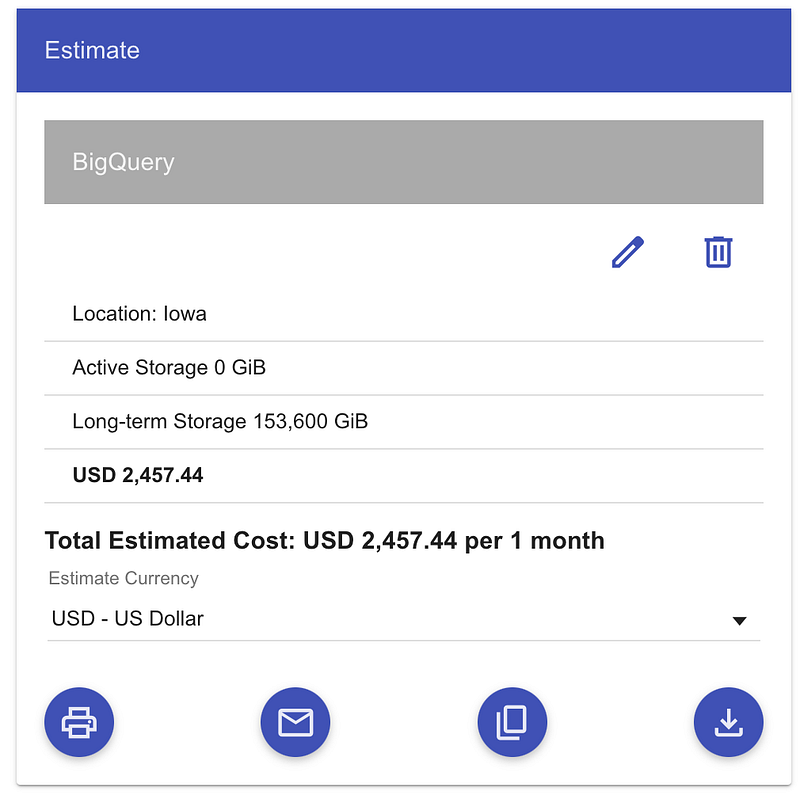
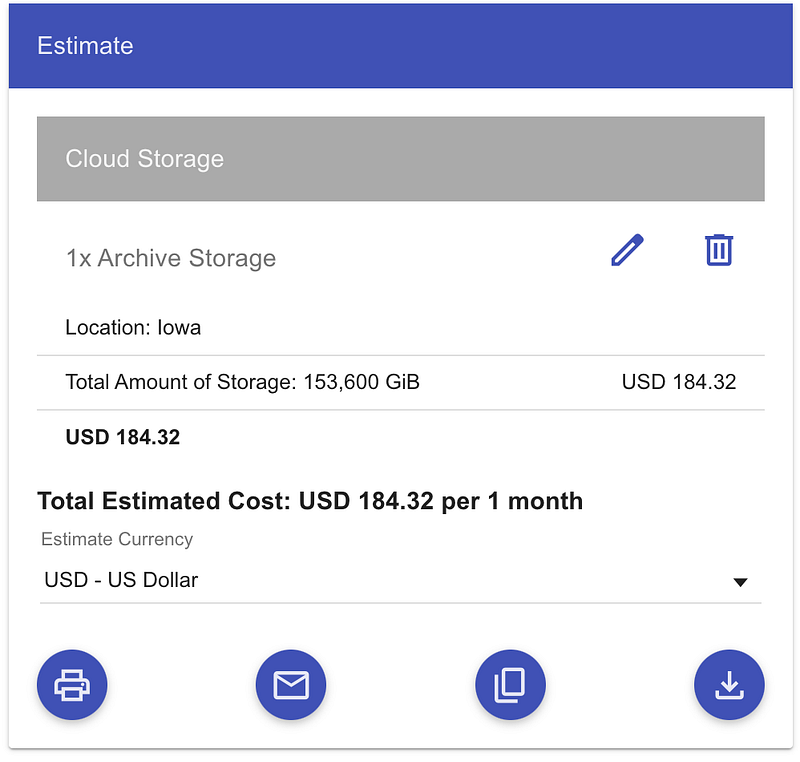
Now we want to use that dataset to activate user behavior or predictions, i.e., user churn, personas, notifications, etc. At some point, I had to unload about 150Tb of data to a cloud storage archive to optimize BigQuery storage costs. We also would like to transform raw event data and create a dataset for the Machine learning (ML) pipeline.
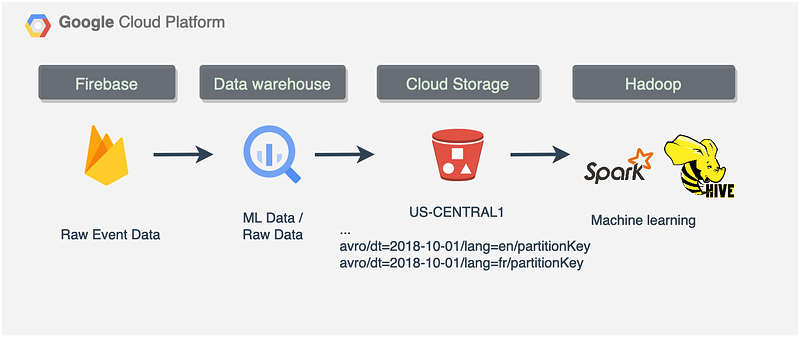
Data will flow as described below:
- Mobile app sends event data to Firebase
- Firebase outputs data into the BigQuery dataset
- We QA and transform the data with SQL to create a new dataset for ML
- We export the ML dataset to the Cloud Storage bucket (standard class)
- We archive raw event data in Cloud Storage (archive type)
Sometimes data pipelines are a bit unconventional, like in this case. A typical data pipeline would start in the data lake.
Data lakes are cheaper to run compared to data warehouse solutions
However, this particular pipeline starts with Firebase event export to BigQuery. It’s a natural data integration that exists in the GCP ecosystem. No coding knowledge is required, and we can connect it with no problem at all.
Why export data to archive or cloud storage?
Until a certain point, we never thought about data exports from the data warehouse per se. Storage there is already optimized, and after 90 days, all tables and partitions go to the near-line storage class, which is 50% cheaper than standard (or active storage in BigQuery terms).
However, these `events_` wildcard tables are very heavy, and over a couple of years, it might result in a huge dataset with petabytes of data.
Here’s a BigQuery Long-term storage costs example to consider. Even though the storage class had been changed after 90 days, there is still a potential for cost-optimization:
Why export data for ML?
We would want to train a bespoke machine-learning model with Spark/PySpark. Of course, you can rightfully mention that BigQuery has its own built-in ML capabilities.
However, it might not be enough if we are on a flat rate pricing model and our model training application requires more compute power.
In this case, we would need something that scales well and can work with data lake data. Ideally, it has to be partitioned and have a certain partitioning layout, i.e., Hive. I wrote about how to add a Hive partitioning layout in this story:
Step 1. Create ML dataset from Firebase / Google Analytics 4 event data
We can use some publicly available Firebase data from `firebase-public-project`.
For example, Google has a sample dataset for a mobile game app called “Flood It!” (Android, iOS) and you can find it here: https://console.cloud.google.com/bigquery?p=firebase-public-project&d=analytics_153293282&t=events_20181003&page=table&_ga=2.124992394.-1293267939.1657258995
This dataset contains 5.7M events from over 15k users. Open the link above and click Preview. It won’t cost anything to run a Preview on any table:
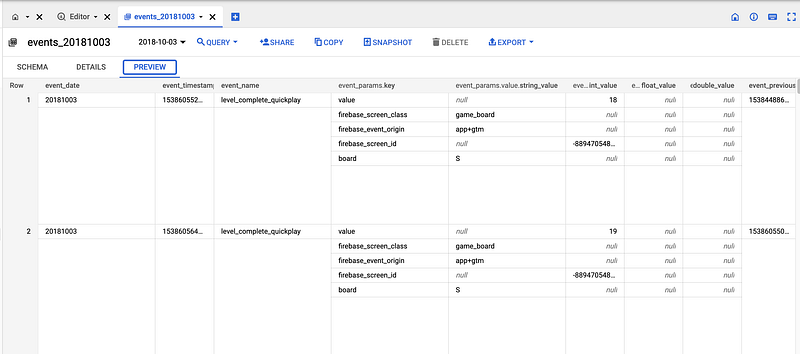
It looks fairly simple and it is 9.7Mb of data only. We have users in the app with their device_ids (`user_pseudo_id`) and we have event parameters from user engagement data.
One major requirement for machine learning data would be to have this dataset available externally in a data lake partitioned by
`date`and`event_name_category`.
In this case, the data science team won’t need to load all raw event data to train the model and will be able to pull only the required event types.
We would want to create a new table using the DML statement and transformations we need. We will use the raw data only once to generate this dataset. After that, raw data go to the archive, and ML data will be transferred to the ML landing area in Cloud Storage.
During this operation, we are going to `unnest` the `event_params` and `user_properties` we need. Let’s take a look at this example for just one day of data and only two events, i.e. `event_name in ('use_extra_steps', 'completed_5_levels')`. The partitioning column must be a top-level field.
Unfortunately, we cannot use a leaf field from a RECORD ( STRUCT ) as the partitioning column, i.e.
`partition by (dt, event_category)`will not work.
However, we are working with just one day of data (a wildcard table), so we can simply partition it by `event_category` and export it to Storage, i.e.
gs://firebase-events-export/public-project/dt=2018-10-02/category=1/partitionKey
After that, we can create a custom script to loop through the categories and export data to the data lake with `category=1/partitionKey`.
Here is a sample script to do it. Feel free to add any nested parameters from events, etc. It can be scheduled daily to run just once and save a lot of money:
create table if not exists `your-project.analytics.ml_data_20181003` (

  dt                DATE
, event_timestamp   TIMESTAMP
, user_id           STRING
, user_pseudo_id    STRING
, platform          STRING
, language          STRING
, country           STRING
, event_name        STRING
, use_extra_steps_virtual_currency_name        STRING
, plays_quickplay       STRING
, event_category        INT64
)
partition by range_bucket(event_category, generate_array(0, 10, 1))
cluster by user_id, user_pseudo_id
;

INSERT `your-project.analytics.ml_data_20181003`

with
event_category as (
   select
      1 as event_category
      ,'use_extra_steps' as event_name
   union all

   select
      2 as event_category
      ,'completed_5_levels' as event_name
)

,data as (
SELECT
   PARSE_DATE('%Y%m%d', event_date) as dt
 , timestamp_micros(event_timestamp) as event_timestamp
 , user_id
 , user_pseudo_id
 , platform
 , device.language
 , geo.country
 , event_name
 , IF(user_properties.key = 'plays_quickplay', user_properties.value.string_value, NULL)                      as plays_quickplay
 , IF(event_params.key = 'virtual_currency_name', event_params.value.string_value, NULL)                      as use_extra_steps_virtual_currency_name


FROM `firebase-public-project.analytics_153293282.events_*`
     , UNNEST(event_params)    AS event_params
     , UNNEST(user_properties) AS user_properties
WHERE
   _TABLE_SUFFIX >= '20181003'
and _TABLE_SUFFIX <= '20181003'
and event_name in ('use_extra_steps', 'completed_5_levels')
)
select d.*  ,e.event_category
from data d
join event_category e on e.event_name = d.event_name
order by
    user_pseudo_id
    , event_name
    , event_timestamp
;

select * from `your-project.analytics.ml_data_20181003` where event_category = 1
;
select * from `your-project.analytics.ml_data_20181003` where event_category = 2
;
In the query results, you will see that we can use `event_category` as a partition to avoid a full table scan in the future.
We processed raw data just once and now can create an externally partitioned data lake bucket with a Hive partition layout
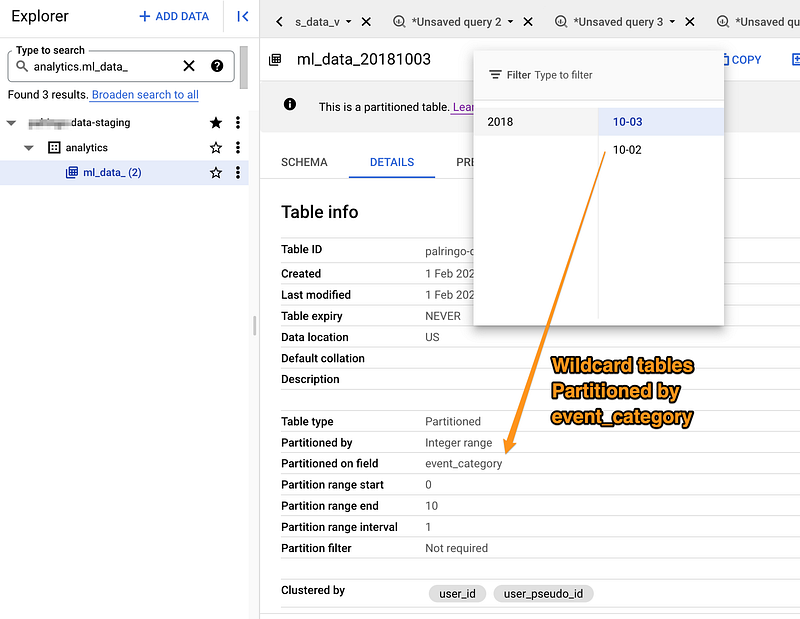
We can loop through each wildcard table and each `event_category` partition to export the data if needed.
We know that certain operations allow suffixing of the table ID with a partition decorator, such as sample_table$20190123. So in our case, it will be:
bq head --max_rows=10 'your-project:analytics.ml_data_20181002$1'We can use it to export data to the data lake with `category` partition, i.e. gs://firebase-events-archive-avro/dt=2018–10–03/category=1/partitionKey/events_*.avro
I’ll explain how to do it in the next step.
What is a Hive partitioning layout?
It is just a way to format object names in the data lake.
Should we choose to use externally partitioned data later, we would want to store it in cloud storage using the default Hive partitioning layout.
In this case, we can create externally partitioned tables on Avro, CSV, JSON, ORC, and Parquet files and
use data lake as a source layer for Hadoop and EMR tools.
Example:
gs://events-export-avro/public-project/avro_external_test/dt=2018-10-01/lang=en/partitionKey
gs://events-export-avro/public-project/avro_external_test/dt=2018-10-02/lang=fr/partitionKey
How to choose the right Big Data file format?
Avro, CSV, JSON, ORC or Parquet?
It could be difficult to determine which format would be superior to the other because each offers advantages and different forms of compression.
When we need a better compression ratio, then ORC or Parquet would suit us better. It actually depends on which tool we are going to use to run analytical queries on our data. ORC is better optimized for HIVE and Pig framework workloads, whereas Parquet is a default file format for Spark.
I previously wrote about it here:
When all fields must be accessible, row-based storage makes AVRO a better option. It proved to be very fast with write-intensive queries and has advanced schema evolution support. Therefore, it might be a better choice for the landing area and data loading.
Step 2. Export data to Cloud Storage
In many modern data warehouse solutions, there is a feature to export data to storage using SQL. So, in theory we could do something like that using BigQuery and a public Firebase project:
EXPORT DATA
  OPTIONS (
    uri = 'gs://firebase-events-export/public-project/dt=2018-10-01/partitionKey/*.json',
    format = 'JSON',
    overwrite = true
)
AS (
SELECT *
FROM `firebase-public-project.analytics_153293282.events_20181001`
);
`uri` option defines the output storage layout, i.e. `uri = 'gs://firebase-events-export/public-project/dt=2018–10–01/partitionKey/*.avro'`
There is one thing to consider, though… When we use SQL and `SELECT * …` it will do a full scan of that table.
So the `export` is not entirely free in this case.
In fact, it is a common misconception, i.e., in BigQuery documentation, it is free, but we will have to pay for the query we use in data export operation.
How to export data from BigQuery for free
We can use a shared pool to export data from BigQuery dataset to Cloud Storage for free. Let’s do some coding with Python. I’ll put a link about the shared pool and data export at the bottom of this article.
We would want to create a simple microservice that works in a Directed Acyclic Graph (DAG) and maybe schedule it to export data after 60 days.
What is DAG?
There are lots of clever mathematical words behind this term but in data engineering, we mean a data pipeline with some actions triggered by some events or outcomes of other actions.
Our app folder would look like that:
.
├── stack
    └── bq_extractor
        ├── app.py
        ├── bq_extractor_env
        ├── event.json
        └── requirements.txt
Let’s create a virtual environment with all the required libraries we are going to use. Our `requirements.txt` will have these Python libraries installed:
google-auth==2.15.0
google-cloud-bigquery==3.4.0
requests==2.28.1
pyyaml==6.0
python-lambda-local==0.1.13
Let’s install them.
cd stack
cd bq_extractor
virtualenv bq_extractor_env
source bq_extractor_env/bin/activate
pip install -r requirements.txt
Now let’s create our microservice. I’ve quickly scribbled this snippet below for this article. Feel free to change the code according to your needs. It will use `google` libraries to authenticate BigQuery client and run the `export` job.
# https://googleapis.dev/python/bigquery/latest/index.html
import json
import requests
from datetime import datetime, date, timedelta
from google.api_core import retry
from google.cloud import bigquery
from google.oauth2 import service_account

# Test your service locally by ruunning
# python-lambda-local -f lambda_handler -t 10 app.py event.json
# It should be able to do a request
response = requests.get('https://api.github.com')
print(response)

# Paste your JSON service account credentials here:
service_acount_str = { "type": "service_account", "project_id": "your-project", "private_key_id": "", "private_key": "-----BEGIN PRIVATE KEY----...\n-----END PRIVATE KEY-----\n", "client_email": "[email protected]", "client_id": "123", "auth_uri": "https://accounts.google.com/o/oauth2/auth", "token_uri": "https://oauth2.googleapis.com/token", "auth_provider_x509_cert_url": "https://www.googleapis.com/oauth2/v1/certs", "client_x509_cert_url": "https://www.googleapis.com/robot/v1/metadata/x509/bigquery-adminsdk%40client.iam.gserviceaccount.com" }


credentials = service_account.Credentials.from_service_account_info(service_acount_str)
# ? https://googleapis.dev/python/google-api-core/latest/auth.html#overview
print(credentials.project_id)

# Simple function to check connectivity:
def bigquery_hello(txt):
    client = bigquery.Client(credentials=credentials, project=credentials.project_id)
    QUERY = ('SELECT "{} nice to meet you";'.format(txt))
    query_job = client.query(QUERY)  # API request
    rows = query_job.result()  # Waits for query to finish
    greet = list(rows)[0][0]
    return greet

# Main helper function
def export_table_to_storage(table_name, bucket_partition):
    # Connect to BigQuery to run jobs programmatically
    client = bigquery.Client(credentials=credentials, project=credentials.project_id)

    # Public project source and test staging buucket
    project = 'firebase-public-project'
    dataset_id = 'analytics_153293282'
    bucket_name = 'firebase-events-archive-avro'

    destination_uri = "gs://{}/{}/partitionKey/events_*.avro".format(bucket_name, bucket_partition)
    dataset_ref = bigquery.DatasetReference(project, dataset_id)
    table_ref = dataset_ref.table(table_name)
    job_config = bigquery.job.ExtractJobConfig()
    # job_config.compression = bigquery.Compression.GZIP
    # https://cloud.google.com/python/docs/reference/bigquery/latest/google.cloud.bigquery.job.ExtractJobConfig
    job_config.destination_format = bigquery.DestinationFormat.AVRO
    job_config.compression = bigquery.Compression.SNAPPY

    extract_job = client.extract_table(
        table_ref,
        destination_uri,
        # Location must match that of the source table.
        location="US",
        job_config=job_config,
    )  # API request
    # extract_job.result()  # Waits for job to complete. Calling client.extract_table starts the job. No need to wait to finish
    print("Export table to {}".format(destination_uri))

def lambda_handler(event, context):
    print(event)

    start_date = date(2018,9,1)
    end_date = date(2018,9,3)

    dates= [start_date+timedelta(days=x) for x in range((end_date-start_date).days)]
    for dt in dates:
        table_name = dt.strftime('events_%Y%m%d')
        partition_name = dt.strftime('dt=%Y-%m-%d')
        export_table_to_storage(table_name, partition_name)

    bigquery_message = bigquery_hello('it is ')

    message = 'Hello {} {}, {}!'.format(event['first_name'], event['last_name'], bigquery_message)
    return {
        'message' : message
    }
Our service will connect to BigQuery to run jobs programmatically including `extract`.
Let’s create our Cloud Storage bucket first. We can do it with a web console or using command line tools. If we have `gsutil` installed run this in the command line:
gsutil mb -c archive -l US-CENTRAL1 -p your-project-name gs://firebase-events-archive-avro
Now let’s run our microservice.
When app.py is ready, you can test it locally:
# Test your service locally by running in command line
python-lambda-local -f lambda_handler -t 10 app.py event.json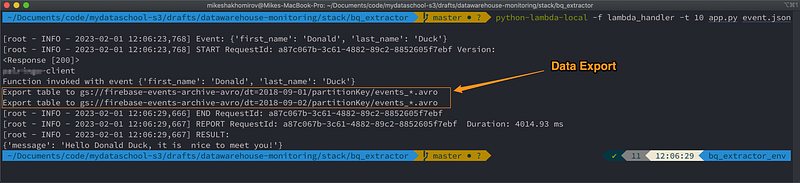
Let’s list our bucket to see if data is there:
gsutil ls gs://firebase-events-archive-avro/
Use this bash script to get all directory sizes in the bucket
For example, we might want to validate that the export operation actually worked.
gsutil ls -l gs://firebase-events-archive-avro/ | xargs -I{} gsutil du -sh {}
How to add an extra bucket partition with the Hive layout?
In case we need to export data with an extra `category` partition key, we would want to use something like this:
    category_number = 1
    for dt in dates:
        table_name = dt.strftime('ml_data_%Y%m%d$1')
        partition_name = dt.strftime('dt=%Y-%m-%d')
        category = "category={}".format(category_number)
        export_table_to_storage(table_name, partition_name, category)
We can simply loop through all dates and all categories to create a data lake output like this:
`gs://firebase-events-archive-avro/dt=2018–10-03/category=1/partitionKey/events_*.avro`
The output would be:
Export table to gs://firebase-events-archive-avro/dt=2018-10-03/category=1/partitionKey/events_*.avro
[root - INFO - 2023-02-01 15:30:22,716] END RequestId: ac865a0b-05dd-4ef3-9b5f-9bfe7f0ce5b7
[root - INFO - 2023-02-01 15:30:22,717] REPORT RequestId: ac865a0b-05dd-4ef3-9b5f-9bfe7f0ce5b7  Duration: 2284.26 ms
Let’s validate the numbers in case we choose to load it back:
select count(*)
from `your-project.analytics.ml_data_20181003`
where event_category = 1
;

LOAD DATA INTO your-project.source.ml_data_20181003_1
 FROM FILES(
   format='AVRO',
   uris = ['gs://firebase-events-archive-avro/dt=2018-10-03/category=1/*']
 )
;

select count(*)
from your-project.source.ml_data_20181003_1
;
Conclusion
I hope this story will be useful for you. It’s a real-life data engineering scenario where we need to prepare raw event data and pass it to a machine learning service further down the pipeline. Data modeling is one of the essential skills in data engineering. This article tells how we apply it to optimize dataset schemas, partitions, and storage when data is no longer needed.
If there is a way to do it for free, then why not?
We created a simple microservice with AWS Lambda to export the data, but there is so much more we can do with it. We can connect it to the API gateway, create another web service to orchestrate pipelines (i.e., DataHub), use other events as triggers, etc.
After the required DML transformations on our event data, it is stored in the data lake where other ML services can access it and process it in a more efficient and scalable way to train machine learning models.
Repository
https://github.com/mshakhomirov/bigquery_extractor
Recommended read
- https://cloud.google.com/bigquery/docs/managing-partitioned-table-data
- https://cloud.google.com/python/docs/reference/bigquery/latest/google.cloud.bigquery.client.Client
- https://cloud.google.com/bigquery/docs/external-data-cloud-storage
- https://cloud.google.com/bigquery/docs/hive-partitioned-queries
- https://cloud.google.com/bigquery/docs/exporting-data
- https://cloud.google.com/bigquery/quotas#export_jobs