
Caffeinated Pandas Part 2 of 4
Optimize Storing in Pandas: 98% Faster Disk Reads and 72% Less Space
A guide on how to reduce disk reading and writing time.
In my series introduction, I described four productivity killers that were slowing down my stock portfolio and financial model development: memory, disk, CPU, and coding efficiency. The solutions I’ve assembled should help anyone working with Python and Pandas, regardless of discipline. This article provides a “fix” for the second problem…
Disk reading and writing take way too long I build models using daily stock quotes data. A recent full download of the quotes database I subscribe to yielded about 50 million rows, which took up 3.3GBs as a .csv file and 1.08 GBs .zip’d.
Opening the .csv or .zip file and loading it into pandas takes nearly 2 minutes. For me, waiting a couple of minutes every time I want to run a model is Level-8 painful on a scale from 1 to 10.
But saving is even worse! If I add enhancements to the file, saving to a .csv increases the pain level to 10 by taking over 6 minutes to save. Saving to a .zip file takes nearly 11 minutes. Pass the morphine, please!
What if…the same dataset only took 2 seconds to read and only 2 seconds to save again? That’s right, a 97.9% reduction in the read time and a 99.3% reduction in the write time! Add to this, a 72% reduction in file size!

Testing File Formats I tested 9 different file formats that are readily supported by Python and Pandas.
I disqualified a couple of formats early on simply because they weren’t up to the task for such a large amount of data. For example, the Excel format is great for writing Dataframe extracts for business users, but it can only store 1 Million rows. The other poor performer was the JSON format — due to a large amount of data and label redundancy it actually wouldn’t run to completion on my computer.
.csv is a “comma separated values” plain text file format that is widely used to exchange data between systems. Virtually any system can import and export .csv files. While not the most flexible or storage efficient of file formats, it is a universal standard.
The downside with the .csv format is that it stores all data in text, human-readable format, whereas more space-efficient methods store data in a binary, non-human readable formats. This makes a big difference: the number 1,000,000,000 takes up 10 characters, which uses 10 bytes of storage in a .csv, while the same number in binary format would only take 4 bytes of storage.
.csv zip’d is a .csv file compressed with .zip compression protocol, which for stock-oriented data will reduce the file size to about 25% of the original. The advantage of a .zip’d file is that it takes up less room on a disk drive, and if it’s a remote file it takes less time to download it.
.parquet is a file format developed in 2013 as an Open Source project between Twitter and Cloudera. While a .csv file processes and stores data by rows, Parquet processes and stores by column, and it can further chunk data into relatively small files This is efficient since columns of text can be compressed differently than columns of numbers, not all data needs to be read and returned if only specific columns of data are required, and files can be distributed across different drives. As an Open Source project, though, Parquet has taken multiple forms and methods. The example script below uses a variant of Parquet called “Arrow”. Another popular variant is “FastParquet”, which oddly seemed to be slower.
.hdf5 / .h5 is the “Hierarchical Data Format”, which has its origins from the National Center for Supercomputing Applications. The format’s selling point is that it can store many different types of data in a single structure. So if you wanted to store 100,000 images and their location metadata in a folder-like structure, you could do this all in one place. In my test, I’ll only use it to save a single file of data, so I won’t really be stretching the full capabilities of this format.
.pickle / .pkl is a Python-specific function that stores Python objects to files. Pickles come in handy when you’re running a program and want to save an interim list or dictionary to a file for use in a future run. For the most part, Pickles are used with relatively small data objects, but we’ll test them anyway. One warning is that Pickles aren’t guaranteed to work across different versions of Python, so for your own processes it’s fine, but sharing might present challenges.
.feather is a project created by Wes McKinney, the creator of Pandas, and Hadley Wickham, Chief Scientist for RStudio (as in the R statistical language). Both platforms are popular among data scientists, and the collaboration was created to develop a fast and efficient file format that would be completely portable between the two. The file structure is similar to Parquet’s columnar file structure.
.sqlite is a small footprint database that has a lot going for it. Unlike a full-blown database management system, there’s nothing to install — a few lines of Python and Pandas creates a database file, writes a Dataframe to a table in the database, and it’s done! The downside is that it’s fairly slow to save large datasets, and it’s also relatively slow to retrieve the full table. However, queries that return just a small portion of the database are lightning fast, so if this is what you need, it might be a good alternative. It’s also a much better option than a .csv if you need to feed a good amount of data to tools such as Tableau or PowerBI.
.json is a format widely used to exchange data between disparate server processes, and it’s great for this purpose. Because of label and data redundancy and lack of compression, it’s actually the worst format for storing and retrieving large amounts of data. In fact, trying to save the 50+ Million rows in my test data crashed after a few minutes, presumably because it used all available RAM and swap.
.xlsx is the Microsoft Excel format, which is popular in business settings. Pandas makes it easy to save one or more Dataframes as worksheets. I use this often to share summary data with colleagues who then create their own dashboards and charts. For a large dataset, though, it’s a no-go because a workbook’s limit is 1,048,576 rows.
Compression In exploring the various Pandas functions to read and write data, the documentation offered numerous compression schemes for each. With cute names like “zip”, “gzip”, “bzip2”, “zlib”, “snappy”, and “brotli” to more cryptic names like “zstd”, “lz4”, “lz4hc”. “lzo”, “blosc”, “blosclz”, “xz”, and “bz2”, it’s quite remarkable to see the innovation that’s evident in data science Open Source communities!
The Tests So then…on with the file taste testing!

You can find the full data sample creation and file testing script run_file_storage_tests.py in my GitHub repo.
The script uses a couple of key functions from caffeinated_pandas_utils.py, which you’ll find in the same repo: read_file() and write_file() consolidate the formats tested below, so at a glance, you can see how to implement each format.
There are three steps in the script.
Step 1: Create a timed test scenario I’ve created a function that writes the Dataframe to the file type specified in the filename’s extension (e.g., “.csv”) and then reads the file back to a Dataframe. Each step is timed, and the size of the Dataframe in each step is recorded. Next, I apply a series of select and sort statements, and I’ll record the times of each.
Each step is performed three times, as specified in the iterations=line. I’ve read that the caching and memory management of an operation can affect run time, so running multiple times and averaging the result is more of a fair test. I didn’t notice much of a variation, but I’ll keep this in for good measure.
Then, to ensure that the interim Dataframes are fully deleted from memory before the next test, I perform explicit deletes and then do a bit of garbage collection.
As you’ll see, the testing procedure calls read_file() and write_file() functions in which I’ve consolidated many (not all) of the functions Pandas provides to read files to and from Dataframes. Most formats also offer compression options specific to the format. If you’re interested in the full range of formats and compression options that Pandas provide, refer to the documentation.
Step 2: Load some data
If you run the demo script in the first article, you’ll have the data you need in a .csv file. If you haven’t run the demo script but skipped to this article, simply uncomment the create_test_dataframe options. If you have your data to test with, by all means, do so — simply load it into a Dataframe as is done below.
As I mentioned before, my Dataframe is over 50 Million rows, but I suggest that you start smaller than that with num_symbols=100 and work your way up. Make sure the program runs to completion, and then step it up to suit your computer configuration. A full run with 50 Million rows will take 8–10 hours to run with 3 iterations.
Step 3: Run the tests I created 20 tests with various file formats and applicable compression schemes. I omitted .xlsx because it maxes out at 1 Million rows, and the and .json formats ate through all of my memory and crashed!
Step 4: Read the results After each test, results are displayed on the screen. In addition to the timings of each step, the sizes of the Dataframe in memory and on disk are presented. I consolidated the results in the table below. Red marks the worst three performers, while green bold marks the three best.
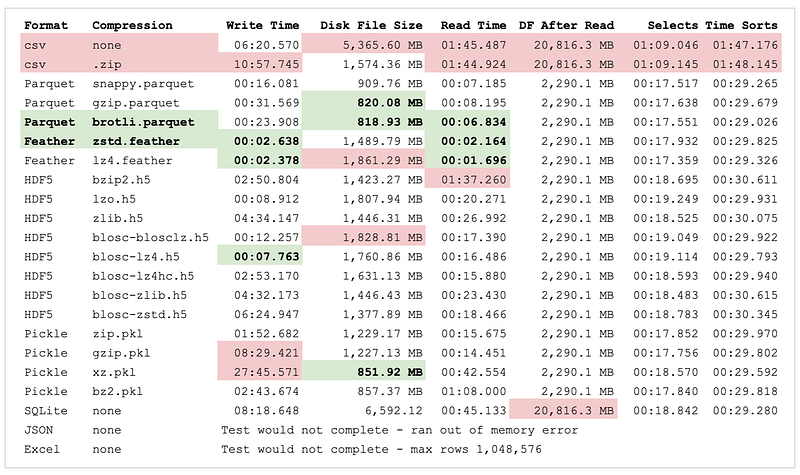
The sample Dataframe at the start of the program was 20.33 GBs. After running it through the utils.squeeze_dataframe() function developed in the first article, the Dataframe has been reduced to just 2.24 GBs.
But as you can see from the chart, .csv/.zip files don’t retain the compression when they are saved and read back in given the plain-text nature of the file formats. So, you have to re-squeeze it every time you read in, making a slow format even slower.
And the winners are… In the 22 tests reported above, there are several strong solutions:
Parquet with brotli compression wins when optimizing for disk space. The file size is half the size of Feather files, but it lags Feather a bit in terms of read and write time (although it is quite respectable).
Feather with either zstd or lz4 compression wins when optimizing for read and write times. The times are faster than Parquet, but the Feather files are twice the size of Parquet (although, still reasonably small).
So then, in terms of picking an actual “winner”, it depends on your goals.
I’m impatient, so I’ll choose speed and go with either of the Feather solutions.
If you’re storing years of tick or option data locally, Parquet+brotli might be a better solution. Or if you’re storing files in the cloud using a service like AWS S3 which charges based on disk space used, then smaller files would be better, and of course downloads to your local computer will be faster.
In my next article, Multiprocessing Pandas — 46 to 95% faster Dataframe enhancements, you’ll discover how to use all of the processing power on your computer.
Not just for stocks While I’m focused on stock quotes in this series of articles, the principles will certainly work on any columnar, Pandas-based data for all types of models and analysis.
Why I’ve written and published this It’s taken me a long time with many false starts to get to this point where I can confidently process large swaths of data. Going into this I had a notion that I’d like to write about it. Just knowing that others would be reading it, I’ve dramatically improved my code and its performance, sometimes by an order of magnitude as I searched for “better” ways. Also, by sharing, I’m hoping others will provide constructive feedback on what I could have done better!

Thanks for reading Caffeinated Pandas! Please FOLLOW ME if you’d like to be alerted about new content.
More content at plainenglish.io. Sign up for our free weekly newsletter here.


