
Stop Using CSVs for Storage — Pickle is an 80 Times Faster Alternative
It’s also 2.5 times lighter and offers functionality every data scientist must know.
Storing data in the cloud can cost you a pretty penny. Naturally, you’ll want to stay away from the most widely known data storage format — CSV — and pick something a little lighter. That is, if you don’t care about viewing and editing data files on the fly.
Today you’ll learn about one of the simplest ways to store almost anything in Python — Pickle. Pickling isn’t limited to datasets only, as you’ll see shortly, but every example in the article is based on datasets.
What is Pickle exactly?
In Python, you can use the pickle module to serialize objects and save them to a file. You can then deserialize the serialized file to load them back when needed.
Pickle has one major advantage over other formats — you can use it to store any Python object. That’s correct, you’re not limited to data. One of the most widely used functionalities is saving machine learning models after the training is complete. That way, you don’t have to retrain the model every time you run the script.
I’ve also used Pickle numerous times to store Numpy arrays. It’s a no-brainer solution for setting checkpoints of some sort in your code.
Sounds like a perfect storage format? Well, hold your horses. Pickle has a couple of shortcomings you should be aware of:
- Cross-language support isn’t guaranteed — Pickle is Python-specific, so no one can guarantee you’ll be able to read pickled files in another programming language.
- Pickled files are Python-version-specific — You might encounter issues when saving files in one Python version and reading them in the other. Try to work in identical Python versions, if possible.
- Pickling doesn’t compress data — Pickling an object won’t compress it. Sure, the file will be smaller when compared to CSV, but you can compress the data manually for maximum efficiency.
You’ll see a work-around for compressing data shortly. Let’s see how to work with Pickle in Python next.
How to work with Pickle in Python?
Let’s start by importing the required libraries and creating a relatively large dataset. You’ll need Numpy, Pandas, Pickle, and BZ2. You’ll use the last one for data compression:
import numpy as np
import pandas as pd
import pickle
import bz2

np.random.seed = 42
df_size = 10_000_000

df = pd.DataFrame({
    'a': np.random.rand(df_size),
    'b': np.random.rand(df_size),
    'c': np.random.rand(df_size),
    'd': np.random.rand(df_size),
    'e': np.random.rand(df_size)
})
df.head()
Here’s how the dataset looks like:
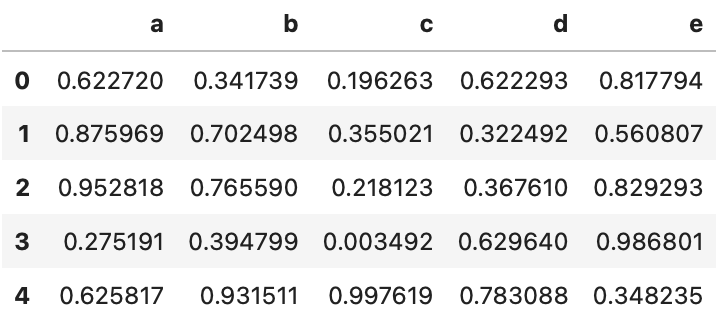
Let’s save it locally next. You can use the following command to pickle the DataFrame:
with open('10M.pkl', 'wb') as f:
    pickle.dump(df, f)
The file is saved locally now. You can read it in a similar manner — just change the mode from wb to rb
with open('10M.pkl', 'rb') as f:
    df = pickle.load(f)
Awesome! As mentioned earlier, Pickle won’t do any compression by default. You’ll have to take care of that manually. Python makes it stupidly easy with the bz2 module:
with open('10M_compressed.pkl', 'wb') as f:
    compressed_file = bz2.BZ2File(f, 'w')
    pickle.dump(df, compressed_file)
It’s just an additional line of code, but it can save you some disk time. The saving process will be significantly longer, but that’s a tradeoff you’ll have to live with.
Reading a compressed file requires an additional line of code:
with open('10M_compressed.pkl', 'rb') as f:
    compressed_file = bz2.BZ2File(f, 'r')
    df = pickle.load(compressed_file)
Just make sure not to mess up the file modes, as providing wb when reading a file will delete all its contents. It would be best to write the helper functions for read and write operations, so you never mess them up.
The following section covers the comparison with the CSV file format — in file size, read, and write times.
CSV vs. Pickle — Which one should you use?
Answering this question isn’t as easy as it seems. Sure, CSVs provide view and edit privileges, as anyone can open them. That could also be considered as a downside, for obvious reasons. Moreover, you can’t save machine learning models to a CSV file.
Still, let’s compare the two in file size, read, and write times.
The following chart shows the time needed to save the DataFrame from the last section locally:
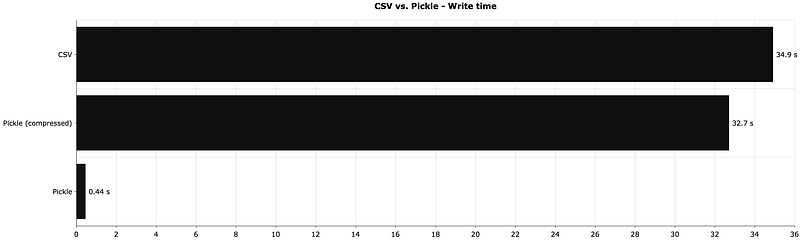
That’s around 80 times speed increase, if you don’t care about compression.
Next, let’s compare the read times — how long does it take to read identical datasets in different formats:
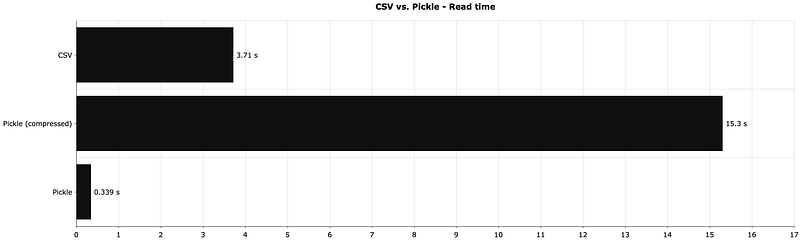
Pickle is around 11 times faster this time, when not compressed. The compression is a huge pain point when reading and saving files. But, let’s see how much disk space does it save.
That’s what the following visualization answers:
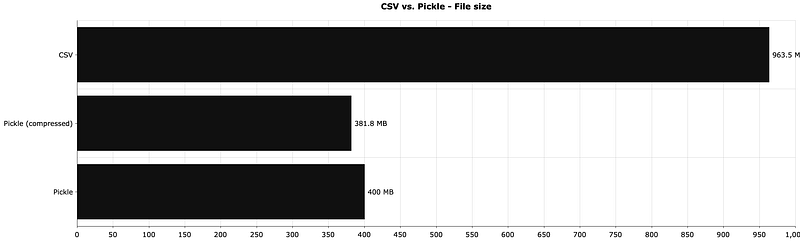
The file size decrease when compared to CSV is significant, but the compression doesn’t save that much disk space in this case.
To recap, going from CSV to Pickle offers obvious advantages. What’s not 100% obvious is that Pickle lets you store other objects — anything built into Python, Numpy arrays, and even machine learning models. CSVs and other data-only formats don’t have that capability.
What are your thoughts and experiences with Pickle? Is it your go-to format for the Python ecosystem? Let me know in the comments below.
Loved the article? Become a Medium member to continue learning without limits. I’ll receive a portion of your membership fee if you use the following link, with no extra cost to you.
Stay connected
- Follow me on Medium for more stories like this
- Sign up for my newsletter
- Connect on LinkedIn