avatarVincent Tsen

Free AI web copilot to create summaries, insights and extended knowledge, download it at here

1124

Abstract

t clean them up first, Android Studio doesn’t seem to generate and overwrites the icon assets correctly. It is less messy in my opinion. You don’t have mixed new and old icon assets.</p><h1 id="0fb1">2. Copy your new icon asset into the drawable folder</h1><figure id="a220"><img src="https://cdn-images-1.readmedium.com/v2/resize:fit:800/1*1wrCrhCBDhKSAjXo6Sxy3w.gif"><figcaption></figcaption></figure><p id="a0c7" type="7">Tip: This step is optional since the actual icon assets are generated later. However, I prefer to copy the icon asset file into the drawable folder so that we can keep a copy of it.</p><h1 id="543f">3. Generate launcher icon from image asset</h1><ul><li>Right-click in the project window, go to <b>New → Image Asset</b></li></ul><figure id="8ceb"><img src="https://cdn-images-1.readmedium.com/v2/resize:fit:800/1*Lvdf72hiYLYRCUbwgNKiEw.gif"><figcaption></figcaption></figure><ul><li>Make sure the <b>Icon Type</b> is <b>Launcher Icons (Adaptive and Legacy)</b>, which is the default)</li><li>In <b>Foreground Layer</b>, <b>Source Asset</b>, select <b>Image Asset Type</b>. Browse to the icon asset i

Options

n the <code>drawable</code> the folder just now.</li><li>In <b>Scaling</b>, <b>Resize</b> the icon accordingly to fit in your app.</li><li>Go to <b>Background Layer</b>, change the <b>Source Asset Type Color</b> to white color (i.e. FFFFFF)</li><li>Click <b>Next</b>-><b>Finish</b>. Different screen resolution icon assets are now generated in the <code>mipmap</code> folders</li></ul><figure id="31da"><img src="https://cdn-images-1.readmedium.com/v2/resize:fit:800/1*BFAKrTsUsftX1gV45NgWpQ.gif"><figcaption></figcaption></figure><blockquote id="21b8"><p>The default <b>Res Directly</b> is <b>debug </b>folder. Make sure you select the <b>main</b> folder, so you app with both debug and release variants.</p></blockquote><h1 id="14ee">Done!</h1><p id="0019">Run the app, and you should see your new icon!</p><figure id="1811"><img src="https://cdn-images-1.readmedium.com/v2/resize:fit:800/0*PFEaN8WI8wG_B9Av"><figcaption></figcaption></figure><p id="3e52"><i>Originally published at <a href="https://vtsen.hashnode.dev/step-by-step-guides-to-add-android-app-icon">https://vtsen.hashnode.dev</a>.</i></p></article></body>

Step-by-step Guides to add Android App Icon

How to add new icon asset to your Android App using Asset Studio in Android Studio?
This assumes you already have the icon asset and would like to import that you into your app using Android Studio.

The following example is based on the new project template from Android Studio.

1. Delete all existing icon assets in Android Studio

  • Delete ic_launcher.background.xml and ic_launcher_foreground.xml in drawable folder. This is just an example, you could be any icon asset file format.
  • Delete all mipmap folders which consist of all the icon assets
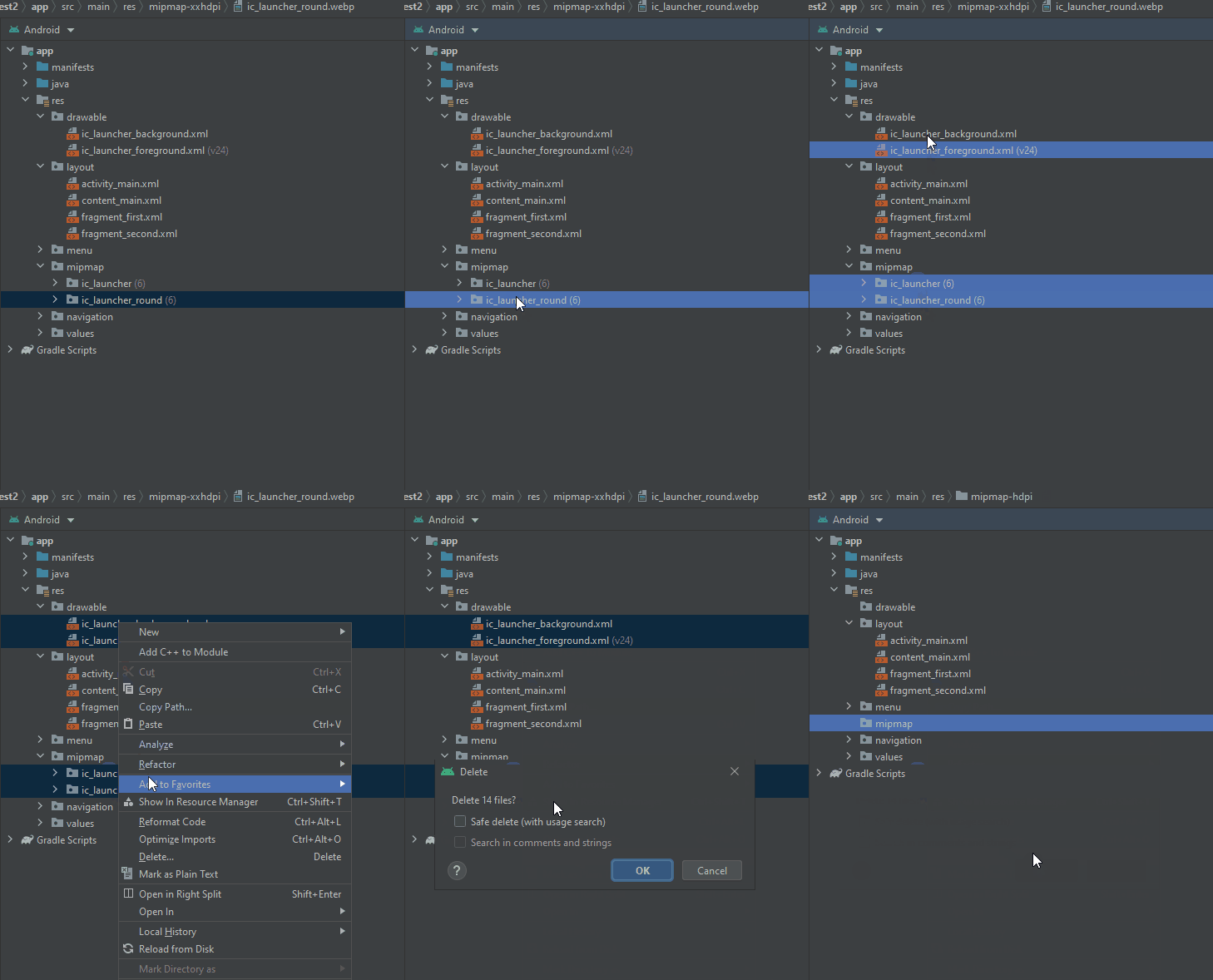
Tip: This step seems necessary. If I don’t clean them up first, Android Studio doesn’t seem to generate and overwrites the icon assets correctly. It is less messy in my opinion. You don’t have mixed new and old icon assets.

2. Copy your new icon asset into the drawable folder
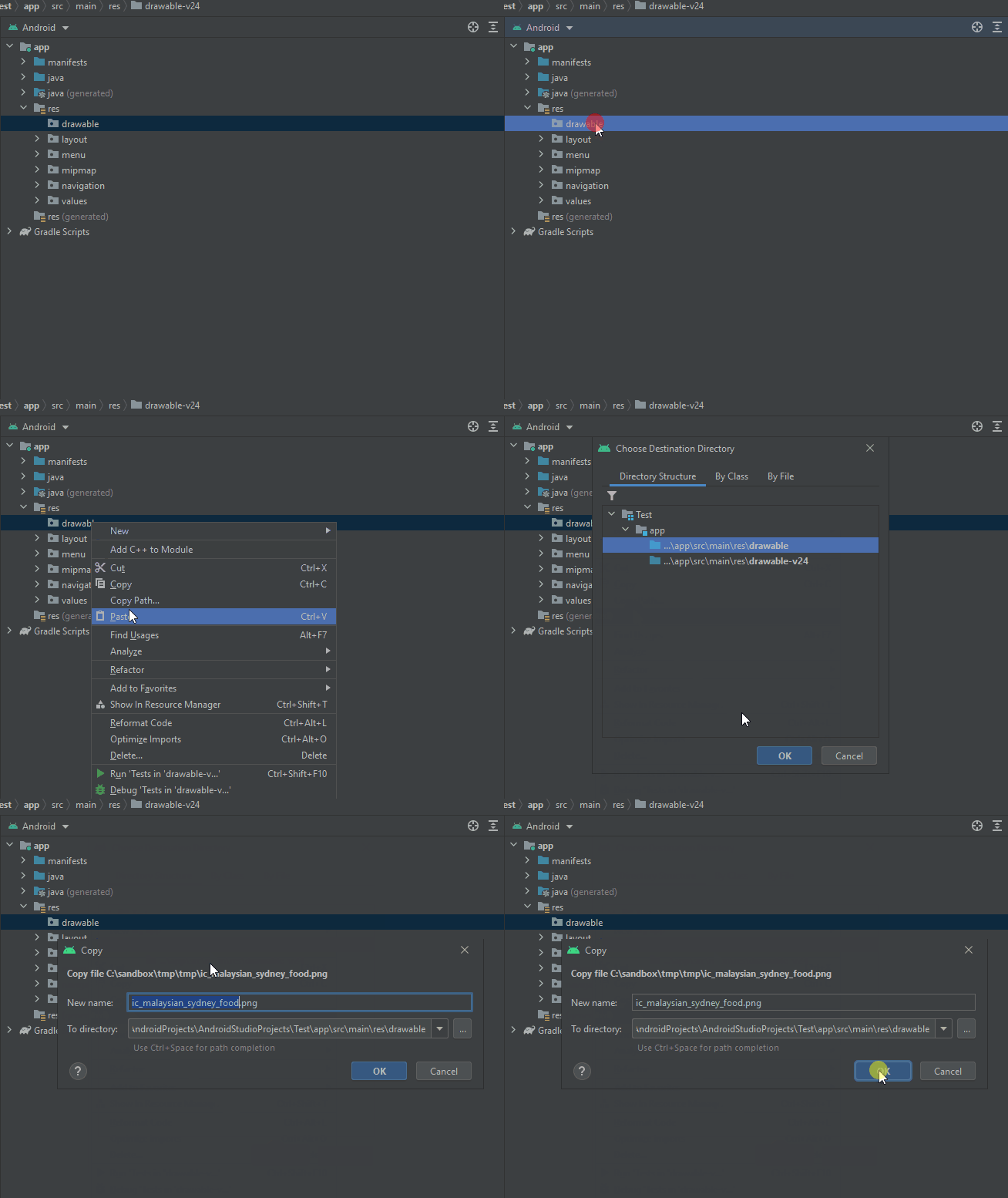
Tip: This step is optional since the actual icon assets are generated later. However, I prefer to copy the icon asset file into the drawable folder so that we can keep a copy of it.

3. Generate launcher icon from image asset

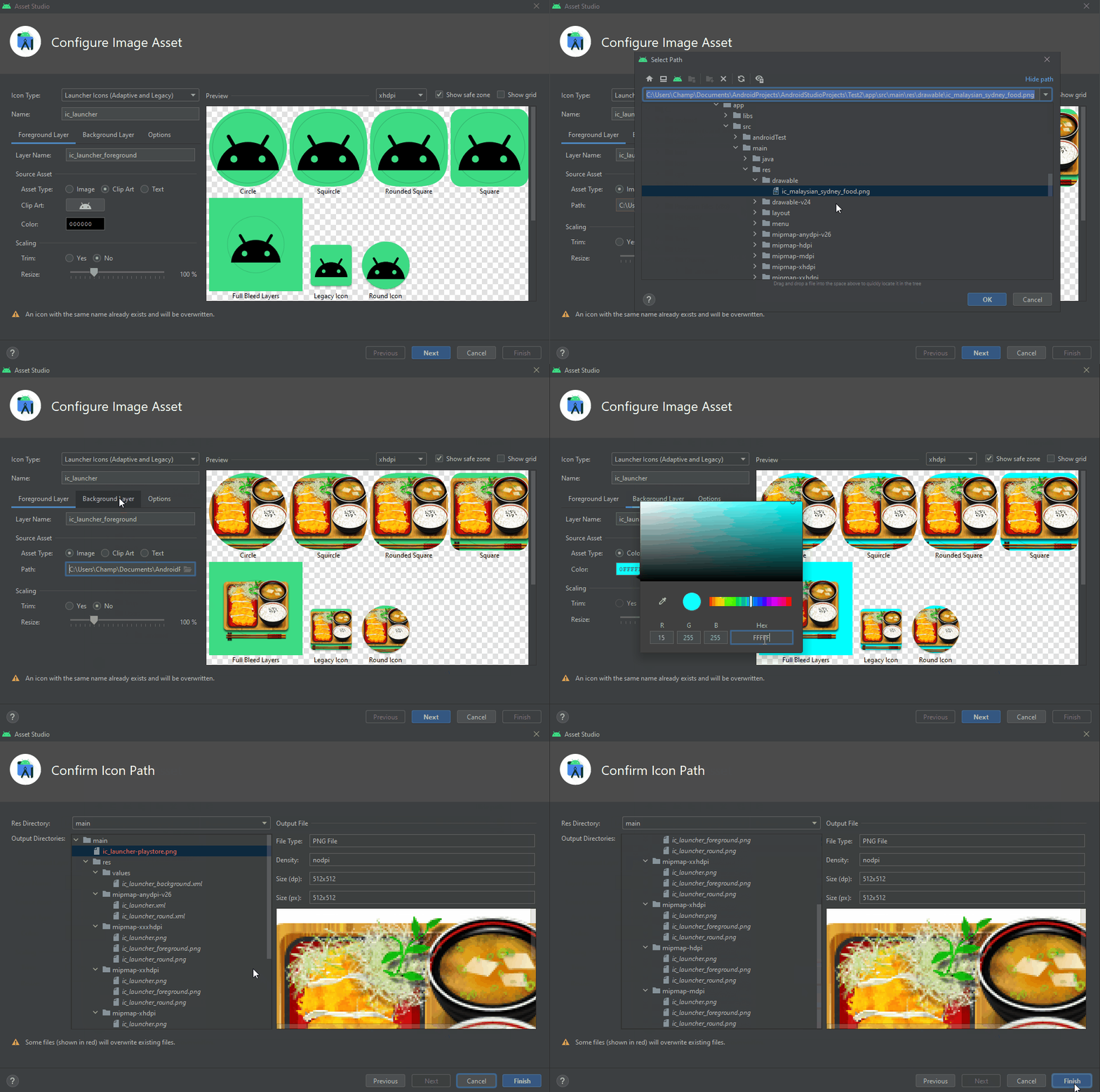
  • Right-click in the project window, go to New → Image Asset
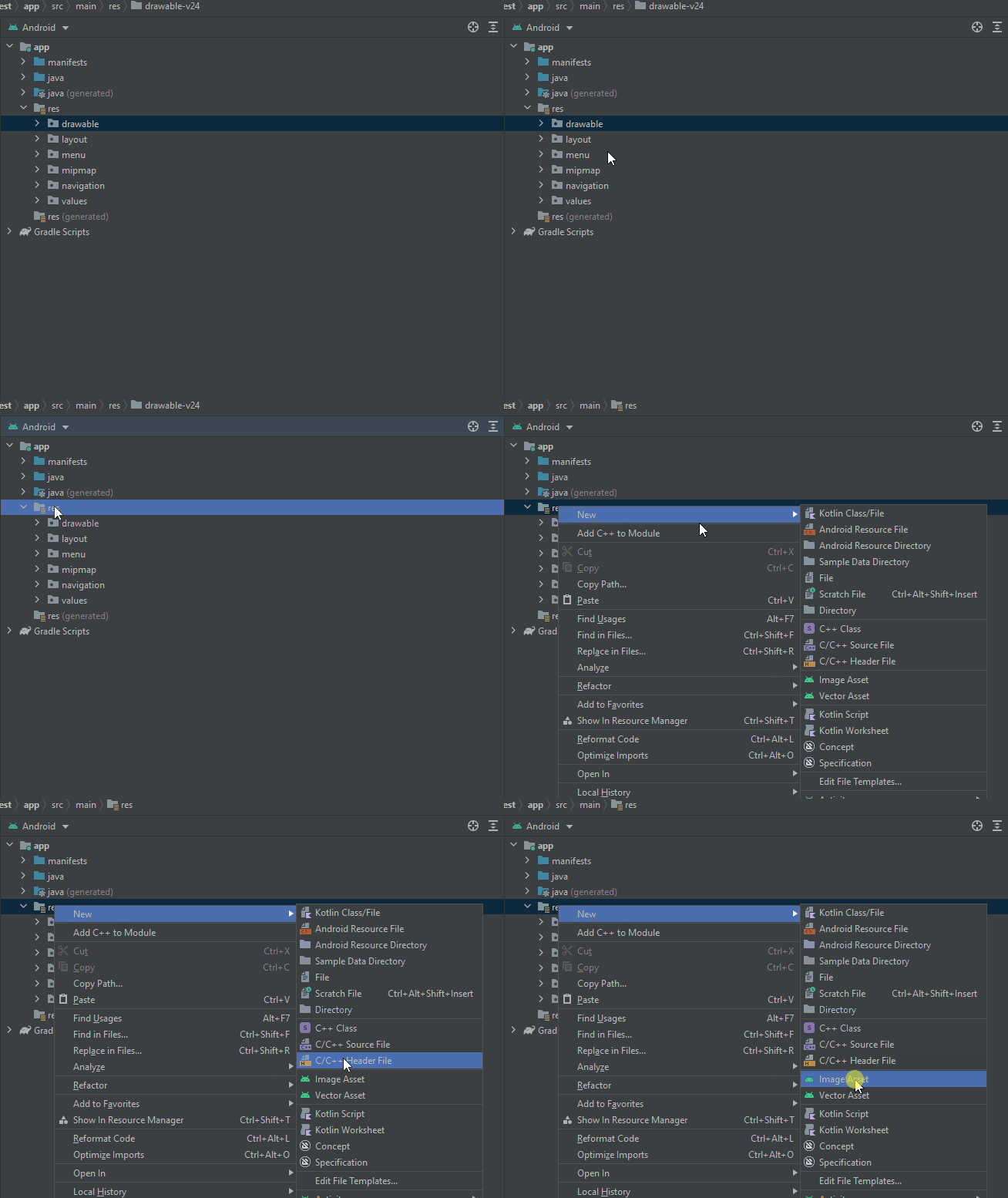
  • Make sure the Icon Type is Launcher Icons (Adaptive and Legacy), which is the default)
  • In Foreground Layer, Source Asset, select Image Asset Type. Browse to the icon asset in the drawable the folder just now.
  • In Scaling, Resize the icon accordingly to fit in your app.
  • Go to Background Layer, change the Source Asset Type Color to white color (i.e. FFFFFF)
  • Click Next->Finish. Different screen resolution icon assets are now generated in the mipmap folders

The default Res Directly is debug folder. Make sure you select the main folder, so you app with both debug and release variants.

Done!

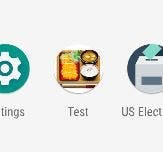
Run the app, and you should see your new icon!
Originally published at https://vtsen.hashnode.dev.

AndroidDev
Android Studio
Android App Development
Android Apps
Android
Recommended from ReadMedium