Step-by-Step Guide to CI/CD for AWS Lambda with Docker and GitHub Actions

Continuous Integration/Continuous Deployment (CI/CD) is an integral part of modern development practices, it allows you to automate and deploy. The aim is to automate the different steps in the software delivery process, from integration and testing phases to deployment to production. AWS Lambda is a serverless computing service that runs your code in response to events and automatically manages the computing resources for you.
In this tutorial we’ll cover:
- Dockerizing the Lambda Function
- Setting up CI/CD with GitHub Actions
- Pushing the Docker image to AWS ECR (Elastic Container Registry)
- Creating and Deploying the Lambda Function
Prerequisites:
- AWS account and AWS CLI installed and configured.
- GitHub account.
- Basic knowledge of Docker and AWS Lambda.
- Node.js (or any other runtime supported by AWS Lambda) installed on your local machine
Dockerizing the Lambda Function
1. Create a new folder for your Lambda function:
mkdir my-lambda-function
cd my-lambda-function
2. Create a file for your Lambda function, e.g., index.js:
touch index.jsLet’s add some code to our index.js file
exports.handler = async (event) => {
    return {
        statusCode: 200,
        body: JSON.stringify('Hello from Lambda!'),
    };
};
3. Create a Dockerfile:
touch DockerfileWe are going to use an AWS base image for Lambda 💅
FROM public.ecr.aws/lambda/nodejs:16

COPY index.js ${LAMBDA_TASK_ROOT}

CMD [ "index.handler" ]
4. Build and tag the Docker Image
docker build -t my-lambda-function .
5. (Optional but highly recommend) Test locally
docker run -p 9000:8080 my-lambda-function:latestOn a separate terminal ping our endpoint.
curl -XPOST "http://localhost:9000/2015-03-31/functions/function/invocations" -d '{}'You should see the following output:
{"statusCode":200,"body":"\"Hello from Lambda!\""}Setting up the AWS Environment
- Create an ECR repository and name it
my-lambda - Create an IAM policy to push to our ECR repository with the following permissions
{
    "Version": "2012-10-17",
    "Statement": [
        {
            "Effect": "Allow",
            "Action": [
                "ecr:CompleteLayerUpload",
                "ecr:GetAuthorizationToken",
                "ecr:UploadLayerPart",
                "ecr:InitiateLayerUpload",
                "ecr:BatchCheckLayerAvailability",
                "ecr:PutImage"
            ],
            "Resource": "*"
        }
    ]
}
3. Create a user and attach the policy
4. Create Access Keys for the user
Select Third-party service when creating the keys
4. Add the Access Keys to your GitHub Repository
In the repository go to Settings>Secrets and Variables>New Repository secret
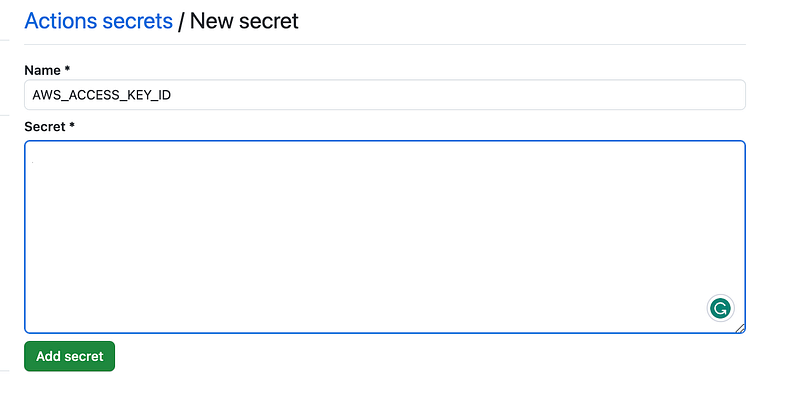
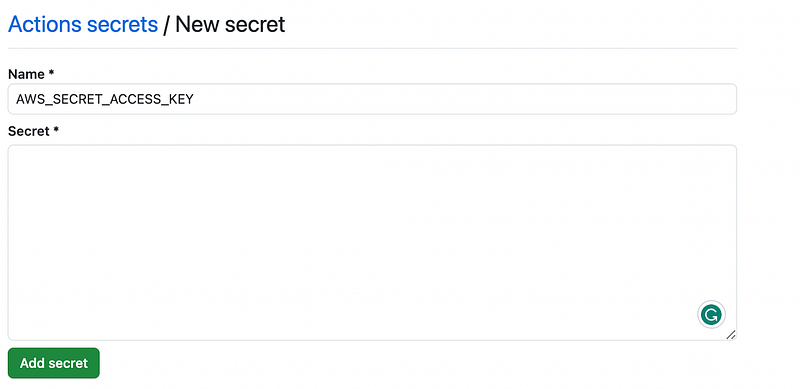
Setting up CI/CD with GitHub Actions
- Create the repository for the Lambda function
git init
git add .
git commit -m "Initial commit"
git remote add origin [your-github-repo-url]
git push -u origin master
2. Create a .github/workflows/deploy.yml file in your repo:
name: Deploy Lambda Function

on:
  push:
    branches:
      - master

jobs:
  deploy:
    runs-on: ubuntu-latest

    steps:
    - name: Checkout code
      uses: actions/checkout@v2

    - name: Configure AWS Credentials
      uses: aws-actions/configure-aws-credentials@v1
      with:
        aws-access-key-id: ${{ secrets.AWS_ACCESS_KEY_ID }}
        aws-secret-access-key: ${{ secrets.AWS_SECRET_ACCESS_KEY }}
        aws-region: [your-aws-region]

    - name: Build Docker Image
      run: docker build -t my-lambda .

    - name: Tag Docker Image
      run: docker tag my-lambda:latest ${{ steps.login-ecr.outputs.registry }}/my-lambda:latest

    - name: Push Docker Image to ECR
      run: docker push ${{ steps.login-ecr.outputs.registry }}/my-lambda:latest
Code Explanation:
- Checkout: This step checks out your repository under
$GITHUB_WORKSPACE, so the workflow can access it. - Configure AWS Credentials: This step will access the secrets we created in the previous step to login to AWS
- Logging into Amazon ECR: After setting up the AWS credentials, this phase utilizes a GitHub Action to authenticate with the Amazon ECR repository.
- Building and Uploading the Docker Image to AWS ECR: Leveraging the successful AWS login from the previous step, we retrieve the ECR registry details. The ECR repository name, then used to dynamically construct and upload a Docker image to AWS. In the code snippet provided, the image is tagged as
latest.
Creating and Deploying the Lambda Function
- Go to the AWS Lambda console and create a new Lambda function.
- For the runtime, select
Custom runtime in a Docker image. - Specify
my-lambdaECR repository, select the latest image
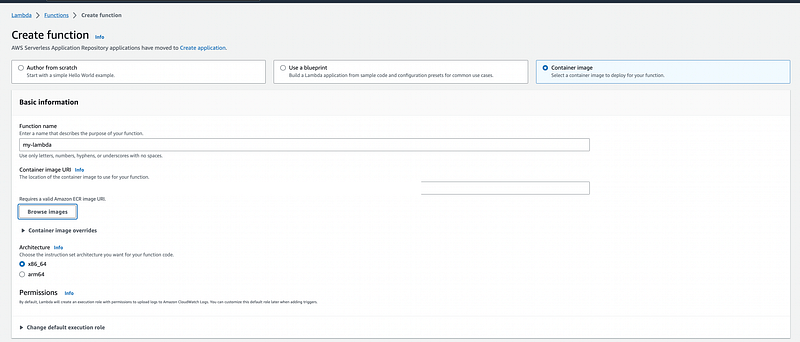
4. (Optional but highly recommend) Test
Send an empty event to your lambda and you should have the following output
{
  "statusCode": 200,
  "body": "\"Hello from Lambda!\""
}


