avatarJames Hinton

Free AI web copilot to create summaries, insights and extended knowledge, download it at here

6423

Abstract

n></figure><h2 id="1c90">Step 3: Get Your Alpaca Markets Authentication Keys</h2><p id="7913">Authentication to Alpaca Markets is handled through the use of an API Key and an API Secret. You receive a different key pair for each Alpaca Markets account you use.</p><p id="9630">In this series, we’ll be using Paper Trading for all the examples. This ensures we don’t lose any money while we’re experimenting.</p><p id="4918">To get your keys, follow these steps:</p><ol><li>Log in to your Alpaca account</li><li>Choose the Paper option</li><li>Find the button “View API Keys”</li><li>Press the button</li><li>Generate your keys</li></ol><p id="8b20"><b>Note.</b> Make sure you record your API secret key immediately (and in a safe place!), as Alpaca Markets keeps no record of the secret key if you lose it.</p><h2 id="4688">Step 4: Add the Keys to Your Trading Bot</h2><p id="26e6">As with all things related to secrets in coding, it’s super critical to keep your keys secure. Losing them can be an absolute pain, and if they get stolen and misused…well, I’m sure you can imagine the hassle!</p><p id="efbb">Fortunately, the <a href="https://github.com/features/codespaces">GitHub Codespace</a> we’re using for our dev environment has some neat secret storage features freely available to us. They’re called GitHub Encrypted Secrets, and you can read more about them <a href="http://Get Any US Stock Price Data You Want with Python and Alpaca&nbsp;Markets">here</a>.</p><p id="33dc">For our purposes, this will allow us to store the secrets in a way that’s both really secure AND easy for you (and only you) to access.</p><p id="181d">Here’s how to add them:</p><ol><li>Go to your GitHub repo (where your Codespace is located)</li><li>Click on your profile picture in the top right</li><li>Navigate to your Settings</li><li>Navigate to the Codespaces section</li><li>Select “New Secret”</li><li>Add the Alpaca API Key, calling it “ALPACA_API” (CAPS included)</li><li>Add the API Secret Key, calling it “ALPACA_SECRET_API” (CAPS included)</li></ol><p id="80c8">At this point, your Codespace should notify you that a new secred has been added. Choose the option to reload your environment.</p><h2 id="0c77">Step 5: Securely Import Your Alpaca Keys to Your Trading Bot</h2><p id="bdd2">It’s time to get some stock data!</p><p id="883a">We’ll start by enabling your trading bot to access your API Key and API Secret Key you just created. Add the following code to your <code>alpaca_interactions.py</code> file:</p> <figure id="c209"> <div> <div>

            <iframe class="gist-iframe" src="/gist/jimtin/dea5286687777677e8511b86c1e57506.js" allowfullscreen="" frameborder="0" height="undefined" width="undefined">
          </div>
        </div>
    </figure></iframe></div></div></figure><p id="bd52">This code imports the OS library to your trading bot, then sets two variables, one for each of your keys.</p><p id="4c60">The <code>requests</code>library is used later.</p><h2 id="7b7c">Step 6: Set Up Market Data Retrieval from Alpaca Markets</h2><p id="f566">In this trading bot, we’ll be using the raw HTTP endpoint for Alpaca Markets, rather than transiting through their Python SDK. The reason for this is that the Python SDK is almost impossibly complex and not very well documented. In contrast, the raw HTTP endpoint is much simpler to use and is well documented. Over the years, this has been a much more effective API for me.</p><p id="85ea">Here’s what you need to do:</p><ol><li>Query the right URL endpoint from Alpaca Markets</li><li>Authenticate to the endpoint</li><li>Retrieve data</li><li>Handle any errors gracefully (i.e. actually tell you what went wrong)</li><li>Convert the responses to JSON</li><li>Return the result</li></ol><p id="0002">To do this, add the code below to your <code>alpaca_interactions.py</code> file:</p>
    <figure id="9142">
        <div>
          <div>
            
            <iframe class="gist-iframe" src="/gist/jimtin/918fb31b13f2450d4e1a8421c0739f04.js" allowfullscreen="" frameborder="0" height="undefined" width="undefined">
          </div>
        </div>
    </figure></iframe></div></div></figure><p id="808b">Finally, head to your <code>requirements.txt</code> and add a line called <code>requests</code> to the bottom.</p><p id="0eca">Nice work!</p><h1 id="1e29">Format Your Stock Market Data for Future Trading Bot Greatness!</h1><p id="d56c">Okies. Right now we can successfully retrieve historical pricing data from Alpaca Markets.</p><p id="84d8">However, if you were to look at the incoming data, you’d quickly find it’s not very easy to read. Furthermore, there’s a few ways we can modify our data so that it’s much easier to convert into strategies further on.</p><h2 id="d3d9">Hello Pandas!</h2><figure id="f757"><img src="https://cdn-images-1.readmedium.com/v2/resize:fit:800/0*y5CFfg--O_Tpzef3.png"><figcaption>Python Pandas Library Image. Part of the AppnologyJames Blog Post: Step-by-Step Guide Get Any US Stock Price Data with Python and Alpaca Markets.</figcaption></figure><p id="8b12">To do this, we’ll be leveraging a famous Python Library called Pandas. This library is one of the truly great Python libraries, and in truly Python style, it’s completely free.</p><p id="81e4">Python is pretty amazing. It’s extremely fast, very flexible, and used throughout the data analysis world. I’m yet to find something data related that I can’t interface with.</p><h2 id="8150">Step 1: Add Pandas to Your Trading Bot</h2><p id="b070">First things first, we’ll need to import the Pandas library to our trading bot. To do this, return to your <code>requirements.txt</code> file and add the Pandas library.</p><p id="b293">At this point, your <code>requirements.txt</code> file should look like this:</p><div id="995d"><pre>requests

pandas</pre></div><p id="c77a">Now, reload your dev environment by running the command <code>pip install -r requirements.txt</code> in your terminal (or bash).</p><h2 id="7654">Step 2: Update Alpaca Interactions File to Retrieve Data</h2><p id="010a">As I mentioned before, all interaction with Alpaca Markets is through our <code>alpaca_interactions.py</code> file. Therefore, we need to update this file to include the API query functionality.</p><p id="da83">To do this, start by adding these two lines to the TOP of your <

Options

code>alpaca_interactions.py</code> file:</p><div id="2fba"><pre><span class="hljs-keyword">import</span> pandas <span class="hljs-keyword">import</span> datetime</pre></div><p id="425f">Next, add the below code to the BOTTOM of this file:</p> <figure id="6356"> <div> <div>

            <iframe class="gist-iframe" src="/gist/jimtin/3a90aaaebd8147ba9e8f4e024c51b85e.js" allowfullscreen="" frameborder="0" height="undefined" width="undefined">
          </div>
        </div>
    </figure></iframe></div></div></figure><p id="5323">This code is pretty powerful, and it does a lot. Here’s an overview:</p><ol><li>Retrieves the stock(s) and timeframe you specify, along with parameters such as the number of candlesticks you want, and a date range to query.</li><li>Checks your inputs (and tells you when they’re wrong)</li><li>Does a series of conversions to match the format the Alpaca Markets endpoint requires</li><li>Converts the retrieved data into a Pandas Dataframe</li><li>Returns the dataframe to you</li></ol><p id="b75b"><b>Note. </b>As a side note, the data format we convert this API into is a data format that is consistent across my entire trading bot series. So even if you look at my series about Polygon, Binance, and so on, you’ll find they’re exactly the same!</p><h1 id="7cda">Let’s Actually Run the Code!</h1><p id="8905">Our trading bot is now ready to retrieve historic candlestick data from Alpaca Markets!</p><p id="eb34">I’ll show you how.</p><h2 id="7d64">Step 1: App.py</h2><p id="a06e">Depending on if you’ve completed some of my other content, you may or may not have already have an <code>app.py</code> setup in your dev environment.</p><p id="0094">If you don’t go ahead and create that now.</p><figure id="54dd"><img src="https://cdn-images-1.readmedium.com/v2/resize:fit:800/1*wGoGk007c3V38KLtPyPCRw.png"><figcaption>Trading bot file system highlighting app.py. Part of the AppnologyJames Blog Post: Step-by-Step Guide Get Any US Stock Price Data with Python and Alpaca Markets.</figcaption></figure><h2 id="8bd6">Step 2: Update App.py</h2><p id="49a1">Add the following code to <code>app.py</code></p>
    <figure id="8cd1">
        <div>
          <div>
            
            <iframe class="gist-iframe" src="/gist/jimtin/705890e0048c69af71600dc1ac958925.js" allowfullscreen="" frameborder="0" height="undefined" width="undefined">
          </div>
        </div>
    </figure></iframe></div></div></figure><p id="02c3">Here, we’ve performed the following steps:</p><ol><li>Imported our <code>alpaca_interactions.py</code> library that we’ve been building throughout this episode</li><li>Defined a symbol (AAPL), timeframe, and number of candlesticks (klines) to retrieve from Alpaca Markets</li><li>Printed a message to the terminal so we know it’s started</li><li>Retrieved the data</li><li>Printed the data to the screen</li></ol><p id="f0fe">If you go to your terminal and run <code>app.py</code> you should be some results.</p><p id="8558">Here’s what I got (note your actual AAPL data will be different as you’re running it at a different day than I am):</p><figure id="0f74"><img src="https://cdn-images-1.readmedium.com/v2/resize:fit:800/0*_Ml6-XcOSFUoeUQf.PNG"><figcaption>AAPL data retrieved from Alpaca Markets. Part of the AppnologyJames Blog Post: Step-by-Step Guide Get Any US Stock Price Data with Python and Alpaca Markets.</figcaption></figure><h2 id="3289">Step 3: Scale Up Your Data Retrieval</h2><p id="cbc0">To demonstrate the power of an algorithmic trading bot, let’s update some of our input parameters.</p><p id="5004"><b>Symbols. </b>For instance, let’s say you wanted to retrieve the daily data for the Facebook (now known as META), Apple, Amazon, Netflix, and Google (now known as Alphabet) tickers. This is known as the original <b>FAANG</b> group of companies.</p><p id="6f1a">To do this, all you need to do is alter your <code>symbols</code> variable to look like this:</p><div id="be96"><pre>symbols = [<span class="hljs-string">"AAPL"</span>, <span class="hljs-string">"GOOGL"</span>, <span class="hljs-string">"META"</span>, <span class="hljs-string">"NFLX"</span>, <span class="hljs-string">"AMZN"</span>]</pre></div><p id="d673"><b>Timeframe.</b> To retrieve different timeframes, update your <code>timeframe</code> variable. For instance:</p><div id="51bc"><pre>timeframe = <span class="hljs-string">'30min'</span></pre></div><p id="a33f"><b>More candlesticks.</b> Update your <code>max_number_of_candles</code> variable. For instance:</p><div id="78b4"><pre>max_number_of_candles = <span class="hljs-number">1000</span></pre></div><p id="2dcc" type="7">With a minimum amount of work, you can drastically increase the power of your trading bot!</p><h1 id="b0dd">Next Steps</h1><p id="c835">You’ve got everything you need to retrieve data for any stock on the US Stock Markets. This set’s the foundation for building an incredibly powerful stock market trading bot.</p><p id="b29f">Follow my blog to see the various types of trading bots you can design and build, such as:</p><ul><li>Adding powerful technical indicators</li><li>Retrieving fundamental data such as earnings per share</li><li>Retrieving sentiment analysis data so you can see what the markets are thinking / feeling</li><li>Adding AI analysis to your trading bot</li><li>Automation all your trading bot functions</li><li>And more</li></ul><h2 id="4b1f">Reach Out and Follow</h2><p id="776d">Don’t forget to reach out to me on <a href="https://discord.com/channels/1143837842745864192/1143837843274342432">Discord</a>, <a href="https://www.linkedin.com/in/appnologyjames/">LinkedIn</a>, and <a href="https://www.youtube.com/channel/UC1sfWAyk-48pGy58lgehKFA">YouTube</a>, or sign up to receive even more powerful insights from my company, <a href="https://www.tradeoxy.com/">TradeOxy</a>.</p><p id="765d">Above all, don’t forget that <b>The Best Is Yet To Come!</b></p><h2 id="a96a">Complete Code for alpaca_interactions.py</h2>
    <figure id="0ba8">
        <div>
          <div>
            
            <iframe class="gist-iframe" src="/gist/jimtin/4a61575d0a7fecde1db6b103550ed5cc.js" allowfullscreen="" frameborder="0" height="undefined" width="undefined">
          </div>
        </div>
    </figure></iframe></div></div></figure></article></body>

Build Your Own Trading Bot

Step-by-Step Guide Get Any US Stock Price Data with Python and Alpaca Markets
Title Image for Building Your Stock Trading Bot with Alpaca Markets. Part of the AppnologyJames Blog Post: Step-by-Step Guide Get Any US Stock Price Data with Python and Alpaca Markets

The US Stock Market is the largest stock market in the world. Worth $50.8 trillion dollars on the 1st January 2024, it remains one of the fastest growing wealth creation mechanisms in world.

The size and complexity of the market is enormous. There are multiple exchanges (i.e. NASDAQ, NYSE) and over 10,000 different companies you could analyze.

Analyzing a market of this size is a perfect opportunity to use automation. In no time at all (or maybe 30 minutes), I’ll show you how to retrieve the price data for any stock or combination of stocks on the market — a perfect setup for the rest of this series.
As investors, when we think about the stock market, we’re thinking about how to access the data, analyze it, and where to get the data from. Part of the AppnologyJames Blog Post: Step-by-Step Guide Get Any US Stock Price Data with Python and Alpaca Markets

So lets jump in.

About this Episode

In this episode, I’ll show you everything you need to retrieve historical market data for any US based stock. You’ll be using a combination of:

  • Market data from Alpaca Markets
  • Python code

What You’ll Need to Complete the Episode

The best way to complete this episode is to have a dev environment set up and ready to go. I’ll be using the dev environment I created in a previous episode.

Level Up Your Learning Experience

I’m passionate about effective learning environments, so this episode includes some wonderful learning resources you can access.

  • Completed code. If you’re someone who likes to view the solution while developing, then check out the completed code, freely available, on my GitHub.
  • Helpful help. If you get stuck and need some helpful help, then jump into our Discord channel and ask questions. Our community loves to help! Note that you’ll need to sign up to access this (although it won’t cost you anything) and it’s for help with my blog content only 😁
  • Video content. If you prefer video content to written content, then head over to my YouTube channel to view my content there. At the time of writing, the video content for this episode is scheduled to go live within the next week.
  • Advanced content. Some of my more advanced content can only be accessed through the TradeOxy blog platform. This allows me to monetize my work and hence continue providing powerful solutions. Sign up here if that’s of interest to you.

Legal Stuff

DYOR. Note that all trading is at your own risk. My goal is to provide you with the self-developed methods, systems, and tools I use — it is up to you to figure out if this solution works for you AND if I’ve provided credible content. Always DYOR (Do Your Own Research)

Referrals. I receive no commissions for any of the products I mention in this blog. They’re all free (or have a free tier), and I simply provide links to simplify your learning experience.

AI Use. No AI was harmed in the creation of this blog. Some of the images are partially generated or enhanced through AI tools, we always use a real human to put them together. I do not use AI to generate the text, just spell check.

Retrieve Stock Market Data from Alpaca Markets

Step 1: Sign Up for Alpaca Markets
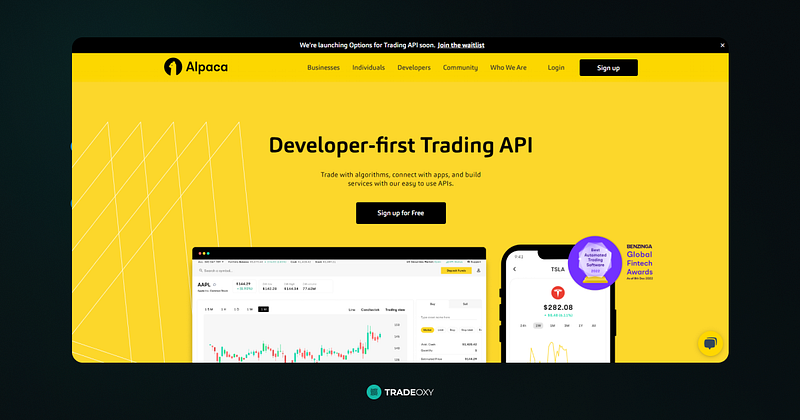
Alpaca Markets web page view. Part of the AppnologyJames Blog Post: Step-by-Step Guide Get Any US Stock Price Data with Python and Alpaca Markets

Alpaca Markets advertises themselves as an API driven platform for trading the stock market. As a long-time user of the platform, I’m always impressed with the ease of use of the platform, the power of their API, and the ongoing addition of various markets to the platform.

Their documentation is pretty good, and you can trade Stocks, Crypto, and Forex.

To sign up for Alpaca Markets, follow this link.

Step 2: Set Up Your Trading Bot

The purpose of this series to build a trading bot. Therefore, we want to make our code as simple as possible.

One of the best ways to do this is to separate out the various pieces of functionality required. That way, we can refer back to them as and when we need to. It also allows us to comply with a powerful development principle called DRY — Don’t Repeat Yourself.

To do this, head to your trading bot dev environment and create a file called alpaca_interactions.py . This file will be where we handle any interactions with the Alpaca Markets API.

Here’s what your file system should look like with this file added:
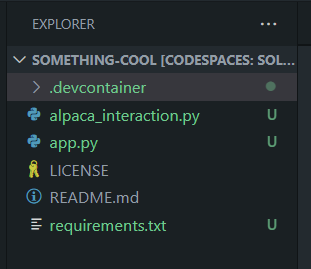
Trading bot file system once alpaca_interaction.py has been added. Part of the AppnologyJames Blog Post: Step-by-Step Guide Get Any US Stock Price Data with Python and Alpaca Markets

Step 3: Get Your Alpaca Markets Authentication Keys

Authentication to Alpaca Markets is handled through the use of an API Key and an API Secret. You receive a different key pair for each Alpaca Markets account you use.

In this series, we’ll be using Paper Trading for all the examples. This ensures we don’t lose any money while we’re experimenting.

To get your keys, follow these steps:

  1. Log in to your Alpaca account
  2. Choose the Paper option
  3. Find the button “View API Keys”
  4. Press the button
  5. Generate your keys

Note. Make sure you record your API secret key immediately (and in a safe place!), as Alpaca Markets keeps no record of the secret key if you lose it.

Step 4: Add the Keys to Your Trading Bot

As with all things related to secrets in coding, it’s super critical to keep your keys secure. Losing them can be an absolute pain, and if they get stolen and misused…well, I’m sure you can imagine the hassle!

Fortunately, the GitHub Codespace we’re using for our dev environment has some neat secret storage features freely available to us. They’re called GitHub Encrypted Secrets, and you can read more about them here.

For our purposes, this will allow us to store the secrets in a way that’s both really secure AND easy for you (and only you) to access.

Here’s how to add them:

  1. Go to your GitHub repo (where your Codespace is located)
  2. Click on your profile picture in the top right
  3. Navigate to your Settings
  4. Navigate to the Codespaces section
  5. Select “New Secret”
  6. Add the Alpaca API Key, calling it “ALPACA_API” (CAPS included)
  7. Add the API Secret Key, calling it “ALPACA_SECRET_API” (CAPS included)

At this point, your Codespace should notify you that a new secred has been added. Choose the option to reload your environment.

Step 5: Securely Import Your Alpaca Keys to Your Trading Bot

It’s time to get some stock data!

We’ll start by enabling your trading bot to access your API Key and API Secret Key you just created. Add the following code to your alpaca_interactions.py file:

This code imports the OS library to your trading bot, then sets two variables, one for each of your keys.

The requestslibrary is used later.

Step 6: Set Up Market Data Retrieval from Alpaca Markets

In this trading bot, we’ll be using the raw HTTP endpoint for Alpaca Markets, rather than transiting through their Python SDK. The reason for this is that the Python SDK is almost impossibly complex and not very well documented. In contrast, the raw HTTP endpoint is much simpler to use and is well documented. Over the years, this has been a much more effective API for me.

Here’s what you need to do:

  1. Query the right URL endpoint from Alpaca Markets
  2. Authenticate to the endpoint
  3. Retrieve data
  4. Handle any errors gracefully (i.e. actually tell you what went wrong)
  5. Convert the responses to JSON
  6. Return the result

To do this, add the code below to your alpaca_interactions.py file:

Finally, head to your requirements.txt and add a line called requests to the bottom.

Nice work!

Format Your Stock Market Data for Future Trading Bot Greatness!

Okies. Right now we can successfully retrieve historical pricing data from Alpaca Markets.

However, if you were to look at the incoming data, you’d quickly find it’s not very easy to read. Furthermore, there’s a few ways we can modify our data so that it’s much easier to convert into strategies further on.

Hello Pandas!

Python Pandas Library Image. Part of the AppnologyJames Blog Post: Step-by-Step Guide Get Any US Stock Price Data with Python and Alpaca Markets.

To do this, we’ll be leveraging a famous Python Library called Pandas. This library is one of the truly great Python libraries, and in truly Python style, it’s completely free.

Python is pretty amazing. It’s extremely fast, very flexible, and used throughout the data analysis world. I’m yet to find something data related that I can’t interface with.

Step 1: Add Pandas to Your Trading Bot

First things first, we’ll need to import the Pandas library to our trading bot. To do this, return to your requirements.txt file and add the Pandas library.

At this point, your requirements.txt file should look like this:

requests
pandas

Now, reload your dev environment by running the command pip install -r requirements.txt in your terminal (or bash).

Step 2: Update Alpaca Interactions File to Retrieve Data

As I mentioned before, all interaction with Alpaca Markets is through our alpaca_interactions.py file. Therefore, we need to update this file to include the API query functionality.

To do this, start by adding these two lines to the TOP of your alpaca_interactions.py file:

import pandas
import datetime

Next, add the below code to the BOTTOM of this file:

This code is pretty powerful, and it does a lot. Here’s an overview:

  1. Retrieves the stock(s) and timeframe you specify, along with parameters such as the number of candlesticks you want, and a date range to query.
  2. Checks your inputs (and tells you when they’re wrong)
  3. Does a series of conversions to match the format the Alpaca Markets endpoint requires
  4. Converts the retrieved data into a Pandas Dataframe
  5. Returns the dataframe to you

Note. As a side note, the data format we convert this API into is a data format that is consistent across my entire trading bot series. So even if you look at my series about Polygon, Binance, and so on, you’ll find they’re exactly the same!

Let’s Actually Run the Code!

Our trading bot is now ready to retrieve historic candlestick data from Alpaca Markets!

I’ll show you how.

Step 1: App.py

Depending on if you’ve completed some of my other content, you may or may not have already have an app.py setup in your dev environment.

If you don’t go ahead and create that now.
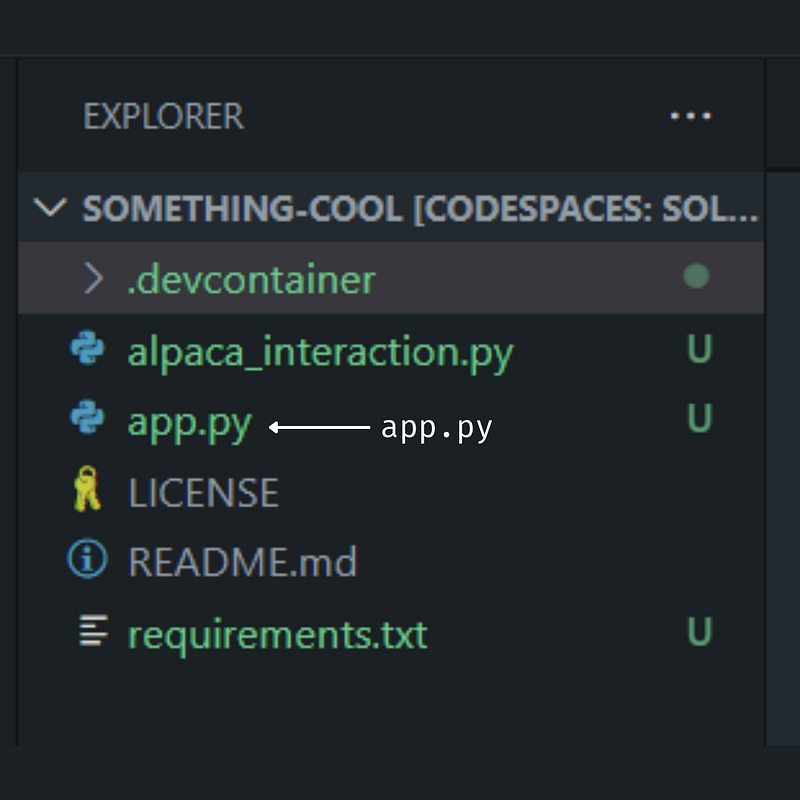
Trading bot file system highlighting app.py. Part of the AppnologyJames Blog Post: Step-by-Step Guide Get Any US Stock Price Data with Python and Alpaca Markets.

Step 2: Update App.py

Add the following code to app.py

Here, we’ve performed the following steps:

  1. Imported our alpaca_interactions.py library that we’ve been building throughout this episode
  2. Defined a symbol (AAPL), timeframe, and number of candlesticks (klines) to retrieve from Alpaca Markets
  3. Printed a message to the terminal so we know it’s started
  4. Retrieved the data
  5. Printed the data to the screen

If you go to your terminal and run app.py you should be some results.

Here’s what I got (note your actual AAPL data will be different as you’re running it at a different day than I am):
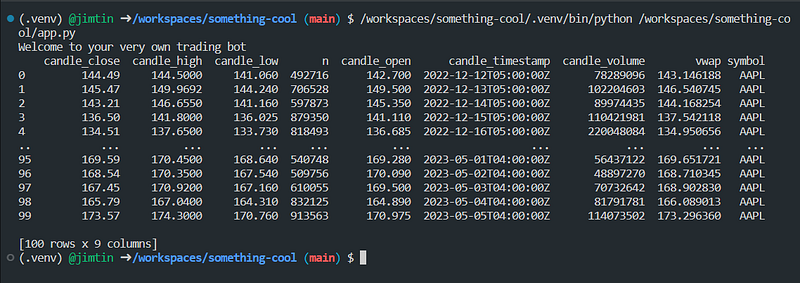
AAPL data retrieved from Alpaca Markets. Part of the AppnologyJames Blog Post: Step-by-Step Guide Get Any US Stock Price Data with Python and Alpaca Markets.

Step 3: Scale Up Your Data Retrieval

To demonstrate the power of an algorithmic trading bot, let’s update some of our input parameters.

Symbols. For instance, let’s say you wanted to retrieve the daily data for the Facebook (now known as META), Apple, Amazon, Netflix, and Google (now known as Alphabet) tickers. This is known as the original FAANG group of companies.

To do this, all you need to do is alter your symbols variable to look like this:

symbols = ["AAPL", "GOOGL", "META", "NFLX", "AMZN"]

Timeframe. To retrieve different timeframes, update your timeframe variable. For instance:

timeframe = '30min'

More candlesticks. Update your max_number_of_candles variable. For instance:

max_number_of_candles = 1000

With a minimum amount of work, you can drastically increase the power of your trading bot!

Next Steps

You’ve got everything you need to retrieve data for any stock on the US Stock Markets. This set’s the foundation for building an incredibly powerful stock market trading bot.

Follow my blog to see the various types of trading bots you can design and build, such as:

  • Adding powerful technical indicators
  • Retrieving fundamental data such as earnings per share
  • Retrieving sentiment analysis data so you can see what the markets are thinking / feeling
  • Adding AI analysis to your trading bot
  • Automation all your trading bot functions
  • And more

Reach Out and Follow

Don’t forget to reach out to me on Discord, LinkedIn, and YouTube, or sign up to receive even more powerful insights from my company, TradeOxy.

Above all, don’t forget that The Best Is Yet To Come!

Complete Code for alpaca_interactions.py

Programming
Data Science
Technology
Machine Learning
Artificial Intelligence
Recommended from ReadMedium