
Stand Out by Personalizing Your GitHub Profile
This feature allows you to display a customizable README on your GitHub profile
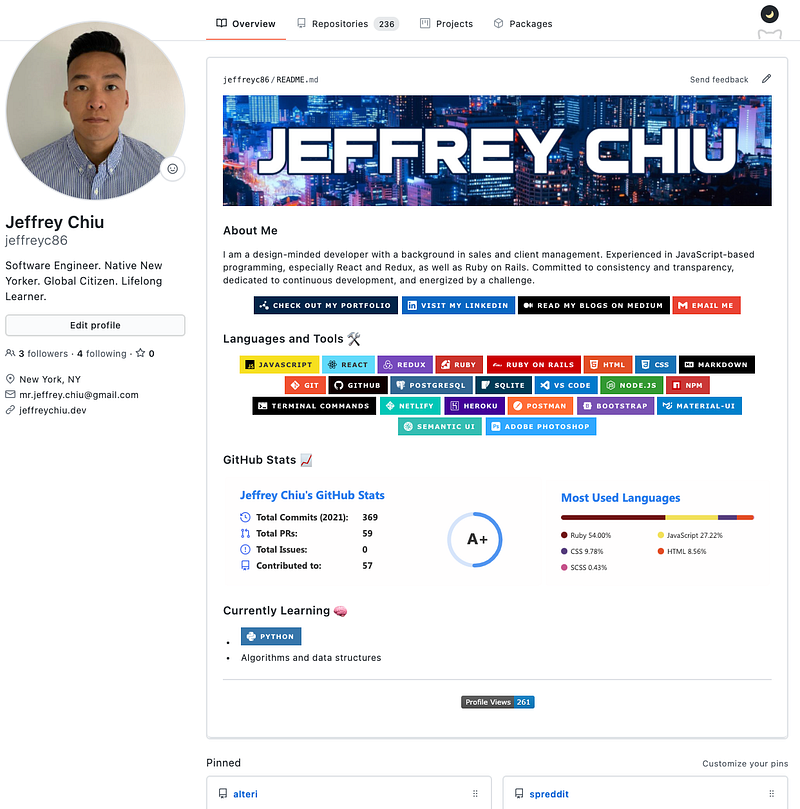
If you’ve ever browsed around on GitHub you may have noticed some user profiles have been personalized with images, skill badges, activity trackers, etc. This feature was introduced by GitHub back in July 2020, allowing users to create a README for their profile. Check out the documentation here.
The profile README is automatically displayed when someone visits your profile and is immediately visible as it’s placed above your pinned repositories. It allows users to add more content than GitHub’s standard bio section and uses Markdown, which means there is much more flexibility with what can be included (ie: images & gifs).
As with any solid repository, a README is a vital component containing information about the project; in this case, the user.
How to Set Up a Profile README
GitHub provides pretty thorough instructions within their documentation, but it can be summed up into three steps.
- Create a public repository with the exact same name as your GitHub username.
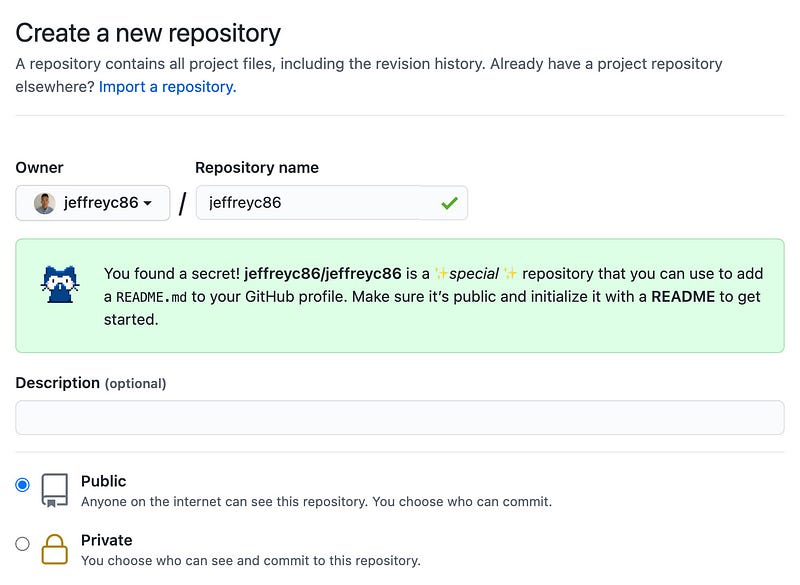
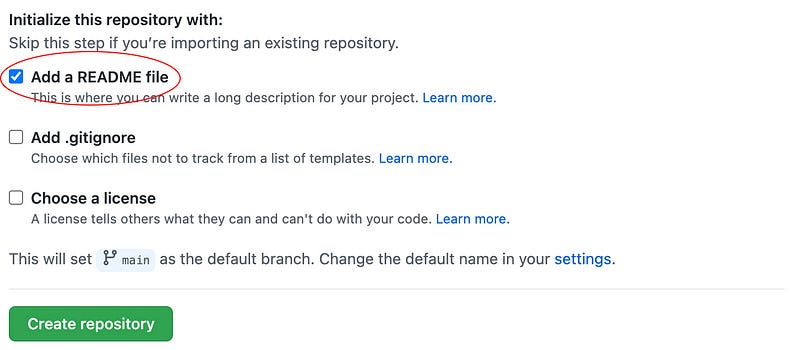
Make sure that it’s initialized with a README.
2. Edit the README file. You can do this directly on GitHub or clone the repository to your local machine and edit the file.
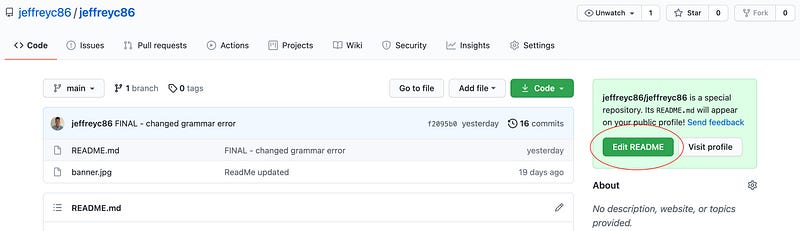
Remember that the README is in Markdown. If you need a refresher on the basic syntax you can visit the documentation here.
This step is where you can let your creative juices run wild, or not if you want to have more of a clean/professional look.
There are also plenty of features out there that you can add, but more on that later.
3. Lastly commit and publish your changes. The finished product will be displayed directly on your profile.
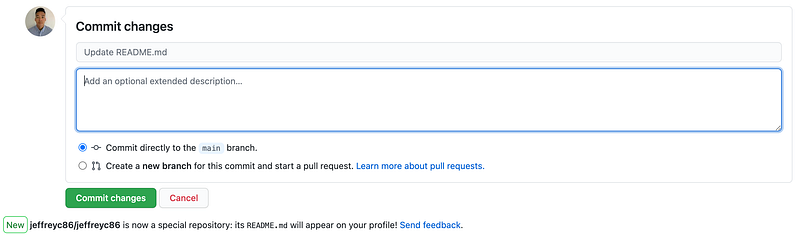
*If you’ve cloned the file down, make sure that you push up your edits.
Note — The profile README is removed from your GitHub profile if any of the following apply:
- The README file is empty or doesn’t exist.
- The repository is private.
- The repository name no longer matches your username.
Features You Can Add to Your Profile
Once you get the hang of how the GitHub profile works, there are plenty of great features you can add. Below is a list highlighting a few.
GitHub README Stats
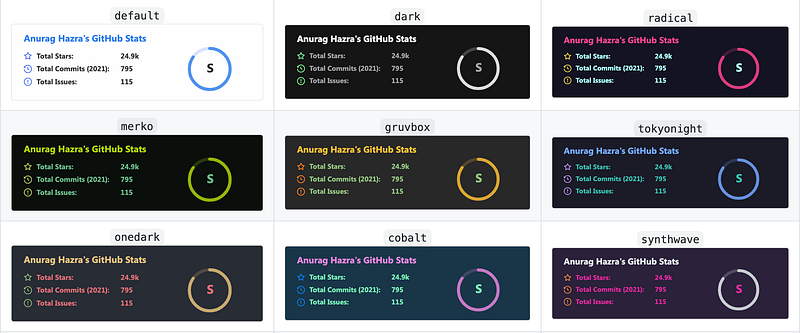
GitHub README Stats tracks your GitHub activity and has plenty of built in themes and features. There’s also an option to track the languages you’ve been working with and if you use Wakatime you can also track the amount of time you spend working in specific languages.
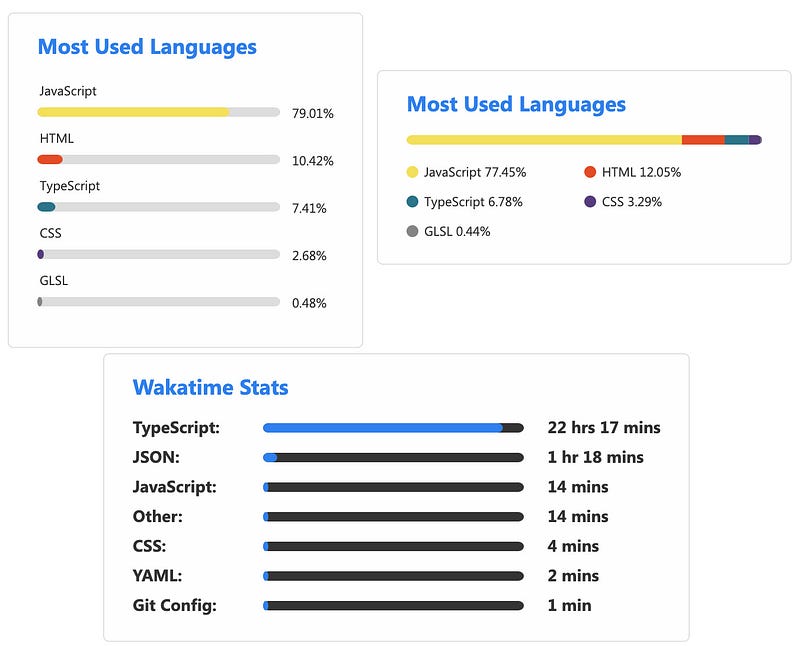
View GitHub README Stats documentation here.
Shields IO
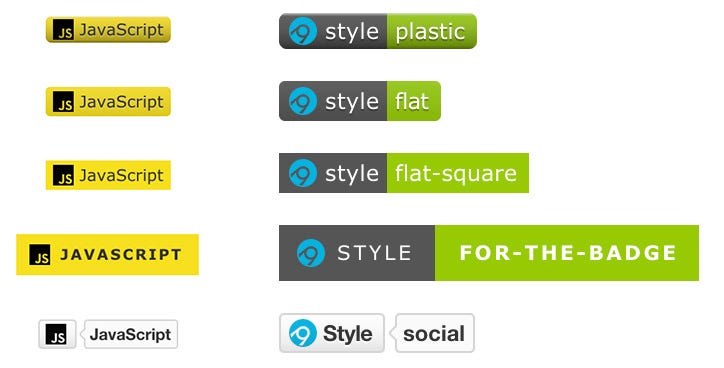
Shields IO isn’t so much a feature, but more of a badge generator. Users are able to showcase their skills with badges that can be customized in style and color. When generating a badge, there is also the option to include a logo from Simple-Icons, which has nearly 2,000 different company logos.
Find out how to create a badge here.
Blog Post Workflow
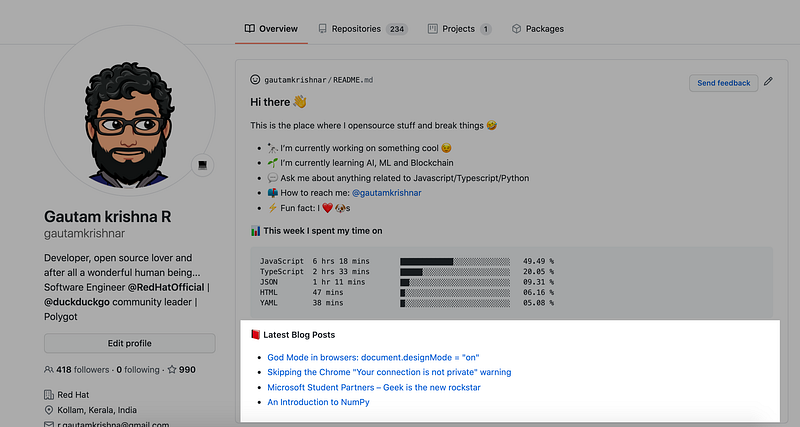
If you blog or post videos regularly, you can include the links directly on your GitHub profile. Blog Post Workflow will sync with your posting site and update the displayed links to reflect any new posts.
Check out the Blog Post Workflow docs here.
Spotify Now Playing
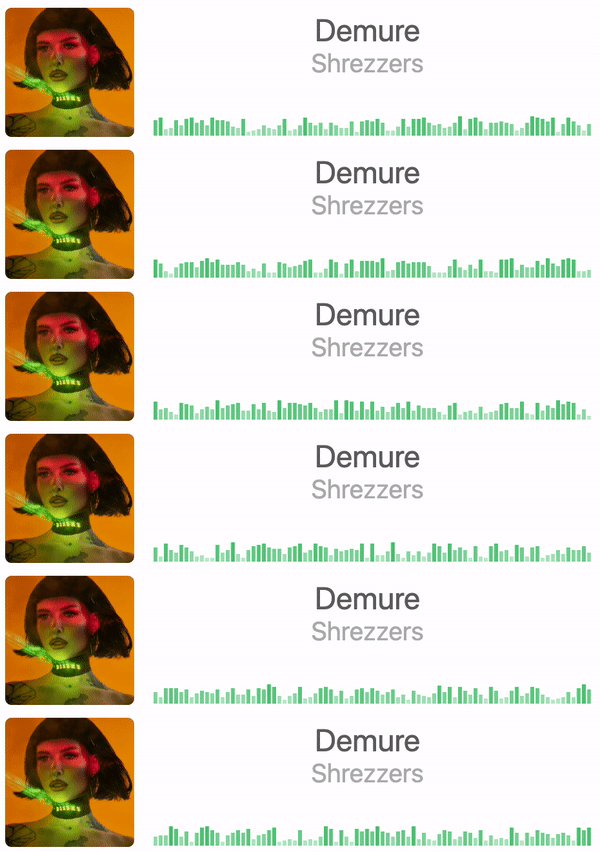
There’s a couple Spotify players out there but this version by codeSTACKr is clean and visually appealing. It does take a bit to set up as it requires a Spotify authorization token and is deployed through Vercel.
Read the set up instructions here. Also check out this other Spotify player.
GitHub Profile Views Counter
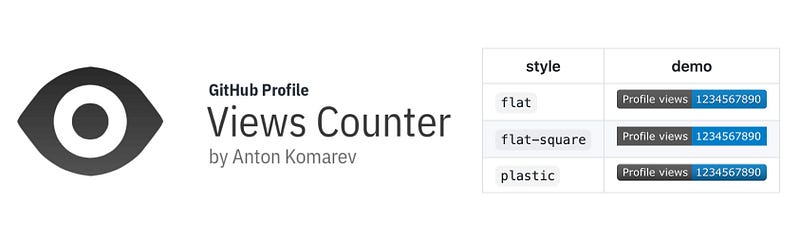
This feature keeps a count of the number of times your GitHub has been visited. It doesn’t keep track of unique visitors, but still a cool feature to implement on your profile. The views counter includes several style and color options.
Check out the documentation here.
In Conclusion
Whether you’re creating a fun and animated version for your fellow developers to see or using it as a pseudo-resume for recruiters to check out, a GitHub profile README is a must. It lets visitors know a little bit more about your skills, your interests, but most importantly you.
If you’re stuck and need some suggestions or inspiration, check out these two repositories that have several profile examples:
If you haven’t already, get started and create yours today!


