
Sql Server to Clickhouse with ODBC driver
Hi everyone; With this article, I try to explain How we can get data from Sql Server to Clickhouse using ODBC driver.
Sql Server version is Microsoft SQL Server 2019 — Enterprise Edition .Clickhouse version is 22.8.1.1440 .ODBC driver is 18 .Operating system is Ubuntu 20.04
Prepare Sql Server Side
On the Sql Server, let’s create TestDB database, create kisi table and insert two data.


Install ODBC driver for Ubuntu20.04
We will explain how to install the Microsoft ODBC driver 18 for ubuntu distributions. You can choose another distributions from this link.
click1@click1:~$ sudo su curl https://packages.microsoft.com/keys/microsoft.asc | apt-key add -click1@click1:~$ curl https://packages.microsoft.com/config/ubuntu/$(lsb_release -rs)/prod.list > /etc/apt/sources.list.d/mssql-release.listclick1@click1:~$ exitclick1@click1:~$ sudo apt-get update
click1@click1:~$ sudo ACCEPT_EULA=Y apt-get install -y msodbcsql18# optional: for bcp and sqlcmd
click1@click1:~$ sudo ACCEPT_EULA=Y apt-get install -y mssql-tools18click1@click1:~$ echo 'export PATH="$PATH:/opt/mssql-tools18/bin"' >> ~/.bashrc source ~/.bashrc# optional: for unixODBC development headers
click1@click1:~$ sudo apt-get install -y unixodbc-devConfigure ODBC and Install Freetds
Freetds is a set of libraries for Unix and Linux that allows your programs to natively talk to Microsoft SQL Server and Sybase databases
click1@click1:~$ sudo nano /etc/odbcinst.ini
[ODBC Driver 18 for SQL Server]
Description=Microsoft ODBC Driver 18 for SQL Server
Driver=/opt/microsoft/msodbcsql18/lib64/libmsodbcsql-18.1.so.1.1
UsageCount=1
click1@click1:~$ sudo nano /etc/odbc.ini
[TSQL_ch_mssql]
Description = ODBC Connection for Sql Server
Driver = ODBC Driver 18 for SQL Server
Server = DESKTOP-OL31FLN
Database = TestDB
USERNAME = test
PASSWORD = test
TrustServerCertificate = yes# Install freetds
click1@click1:~$ sudo apt install freetds-bin# Configure freetds. Host is sql server instance or installed ip.
click1@click1:~$ sudo nano /etc/freetds/freetds.conf
[TSQL_ch_mssql]
host = DESKTOP-OL31FLN
port = 1433
tds version = 7.3
client charset = UTF-8Check ODBC connection to Sql Server with Isql
click1@click1:~$ isql -v TSQL_ch_mssql test test
Clickhouse to Sql Server
Now let’s go to run select query to get data from Sql Server.
click1@click1:~$ clickhouse-client --password tum --user default
ClickHouse client version 22.9.1.168 (official build).
Connecting to localhost:9000 as user default.
Connected to ClickHouse server version 22.9.1 revision 54460.
click1 :) SELECT *
FROM odbc('DSN=TSQL_ch_mssql; Uid=test; Pwd=test;', '', 'kisi')
LIMIT 10Query id: 2d5cd6a0-443c-4335-9b7b-4b6760fed19f┌─id─┬─ad────┬─soyad─┐
│ 1 │ hakan │ mz │
│ 2 │ hasan │ mz │
└────┴───────┴───────┘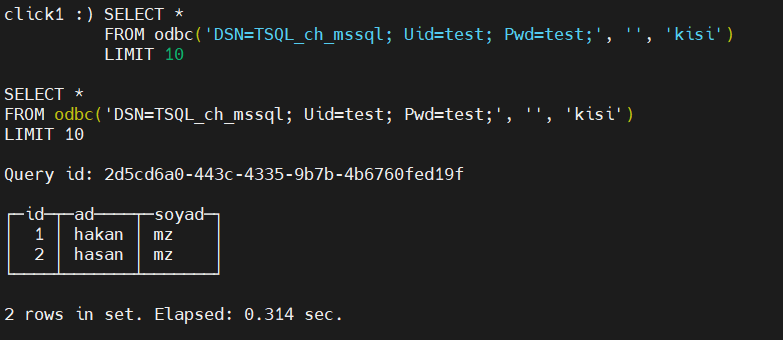
Finally, I get the successful results.
Errors and Solutions
In this area you will find some errors and solutions I encountered throughout the article.
Error and Solution: 1
click1@click1:~$ clickhouse-client --password tum --user defaultclick1 :)SELECT *
FROM odbc('DSN=TSQL_ch_mssql', 'TestDB', 'dbo.kisi')
LIMIT 10Received exception from server (version 22.9.1):
Code: 410. DB::Exception: Received from localhost:9000. DB::Exception: BridgeHelper: clickhouse-odbc-bridge is not responding. (EXTERNAL_SERVER_IS_NOT_RESPONDING)Solution:
Same configuration works for most of users, but some server installs have persistent error clickhouse-odbc-bridge is not responding. I changed the server and fixed it.Error and Solution: 2
click1 :) SELECT *
FROM odbc('DSN=TSQL_ch_mssql', '', 'dbo.kisi')
LIMIT 10Received exception from server (version 22.8.1):
Code: 86. DB::Exception: Received from localhost:9000. DB::Exception: Received error from remote server /columns_info?version=1&connection_string=DSN%3DTSQL_ch_mssql&table=dbo.kisi&external_table_functions_use_nulls=true. HTTP status code: 500 Internal Server Error, body: Error getting columns from ODBC 'std::exception. Code: 1001, type: nanodbc::database_error, e.what() = ../contrib/nanodbc/nanodbc/nanodbc.cpp:1045: 2800: [Microsoft][ODBC Driver 18 for SQL Server][SQL Server]Login failed for user ''. (version 21.8.13.1.altinitystable (altinity build))'
. (RECEIVED_ERROR_FROM_REMOTE_IO_SERVER)Solution:
click1 :) SELECT *
FROM odbc('DSN=TSQL_ch_mssql; Uid=test; Pwd=test;', '', 'dbo.kisi')
LIMIT 10Error and Solution: 3
click1 :) SELECT *
FROM odbc('DSN=TSQL_ch_mssql; Uid=test; Pwd=test;', '', 'dbo.kisi')
LIMIT 10Received exception from server (version 22.8.1):
Code: 86. DB::Exception: Received from localhost:9000. DB::Exception: Received error from remote server /columns_info?version=1&connection_string=DSN%3DTSQL_ch_mssql%3B%20Uid%3Dtest%3B%20Pwd%3Dtest%3B&table=dbo.kisi&external_table_functions_use_nulls=true. HTTP status code: 500 Internal Server Error, body: Error getting columns from ODBC 'Code: 36, e.displayText() = DB::Exception: Table dbo.kisi not found (version 21.8.13.1.altinitystable (altinity build))' (RECEIVED_ERROR_FROM_REMOTE_IO_SERVER)Solution:
click1 :) SELECT *
FROM odbc('DSN=TSQL_ch_mssql; Uid=test; Pwd=test;', '', 'kisi')
LIMIT 10Error and Solution: 4
click1@click1:~$ isql -v TSQL_ch_mssql
[28000][unixODBC][Microsoft][ODBC Driver 18 for SQL Server][SQL Server]Login failed for user ''.
[ISQL]ERROR: Could not SQLConnect
Solution:
click1@click1:~$ isql -v TSQL_ch_mssql test test


