
Split Up Your Work To Beat Procrastination — Use This Free Framework
Splitting up your tasks avoids losing the control

We all want to be as productive as possible without burning out — finding a perfect balance is important while you try.
Many people in my network are procrastinators, it happens a lot in school but also at work and with side hustlers like me.
How often do I delay myself from writing a new post.
Procrastination is nothing more than a habit, it feels comfortable and by trying to get rid of this bad habit you need to break out of your comfort zone and feel uncomfortable.
That’s the whole point.
I see a lot of advertisements online about people that claim they can take away your procrastination problem by some simple tricks — that might be the truth, but in the end, you have to do it yourself.
It’s something in your head.
To track your productivity on a computer or your phone, there are many tools to analyze your behaviors, like Rize.
This app tracks the apps you use and what you do when you use them.
When I first started using the app, I noticed that I spent a lot of time just scrolling on YouTube and on my Medium stats doing literally nothing useful — I wasn’t even watching videos or reading articles.
If you know what’s your issue, you can work on that.
Another major thing that has been keeping down my productivity is the fact that I lose control as soon as the tasks get huge — so that’s why I learned how to split up my work using a template in Notion.
The Benefits of Splitting Up Large Tasks
It might sound a bit obvious, but splitting up larger tasks can help you improve significantly — it might even trigger your competitive part to complete as many mini tasks as possible.
When I’m programming, I have to split up the tasks to avoid stressing out over the complexity of some topics — in programming, you can’t just start off writing some random code when you feel like it.
You need to have a plan to not get overwhelmed by the amount of work.
How To Use The Template
You can download the template for free on my Gumroad page over here — you only need to enter your e-mail address, and it will be sent to you.
If you’ve installed Notion, you will be redirected to a page that allows you to clone the template, and then you can start importing your tasks and splitting them up.
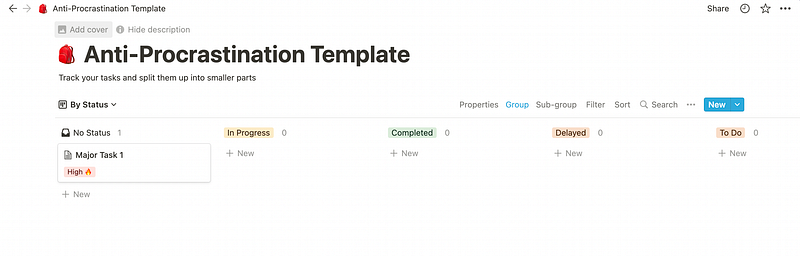
The first thing you see is a table with one major task in it — this is your ‘To-do’ database — you can add more large tasks by clicking the New Button.
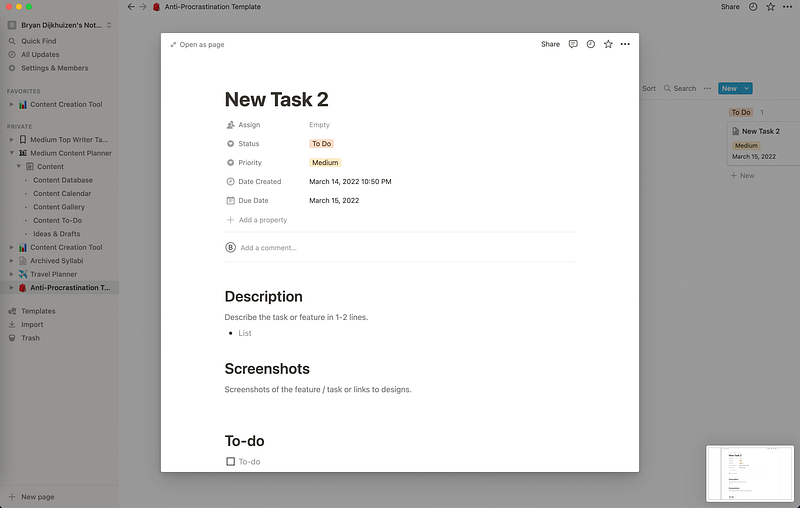
You can select the template for a Task and enter all the details you find relevant for your task — now you can start splitting things up at the bottom.
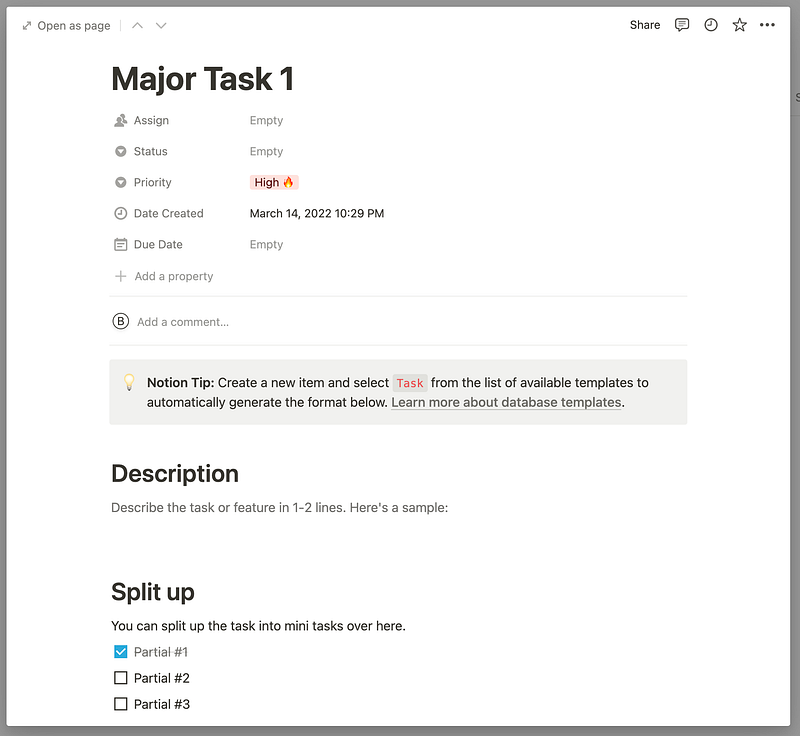
When you’ve split your task, you can use the checkboxes to track your progress.


