
M1 MacBooks And Their Bricking Problem
Should you still buy one?

The Rant:
It is time for me to buy a new computer; I have had my Chromebook for the past 6 years. And it has been a wonderful tool for my business.
Why Do I Need A New Computer?:
Early this year, I woke up to see my full HD screen all pink. The repairers could not find a full HD screen to replace my screen and instead installed a not-HD-washed-out screen.
So, watching movies and videos is not as enjoyable as they once were.
The battery still lasts long, but not as long — I could watch 3 full movies on my Chromebook. Now, I can only watch 1 full-length movie and an hour into another.
Although, it is enough for simple tasks like writing and research. I can get 5–6 hours of work from my Chromebook, unlike the 10–12 hours I got from it a few years back.
I recently got an email from Google that my Chromebook would not be getting any new updates by the end of this year.
Thus my search for a new Chromebook.
My plan was to save up to get the Acer Aspire 713 Spin, but as a writer on Upwork, I need the Upwork timer for my hourly-based jobs.
I have been fortunate to have clients that let me log in my hours manually. But what if I get a once-in-a-lifetime opportunity, and the client only wants me to log my hours using the Upwork hourly timer?
I love Chromebooks. They are snappy, with great keyboards, and all your files back up automatically to the cloud.
I can go on and on about my Chromebook experience, but this article is not about Chromebooks.
I need to get something other than a Chromebook.
So, I was looking:
- For a laptop that has a long battery life (Nigeria still does not have 24/7 electricity)
- Superfast (I do a lot of research and can have up to 20–30 tabs open)
- Great screen
- Superb keyboard
- And I could use it for at least 5 years (no repairs needed)
I did not consider Windows OS, even though they have gotten better over the years. I was looking for something that could offer me similar simplicity my Chromebook does.
During my research, the Apple MacBook M1 laptops fit the bill.
The base models are within my budget (still saving, though). There has been nothing but excellent reviews about these machines.
Enter Apple M1 And Their Bricking Problem:
I searched for problems I might face using these new machines.
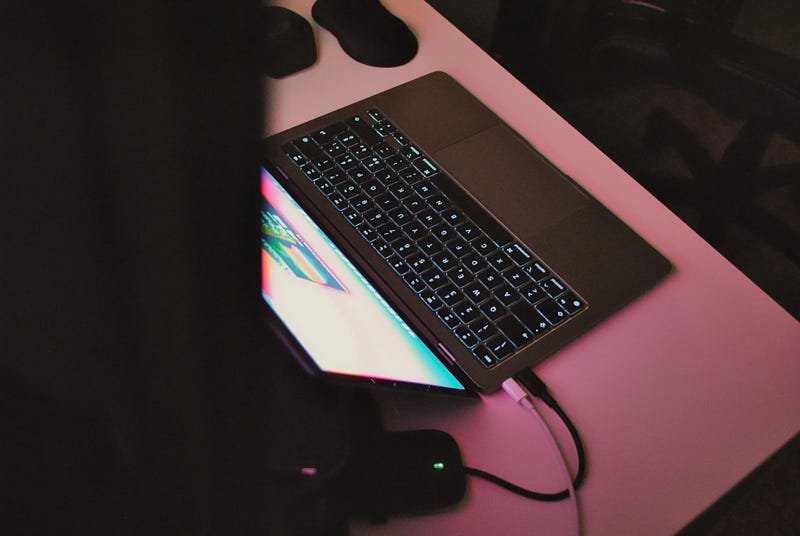
There were complaints about MacBooks not turning on or clicking noise when you try to turn it on. A significant number of M1 MacBooks got bricked when their owners powered them on. (Read the Reddit Thread here, and from MacRumors here.)
Luckily, they have Apple Support in their countries that replaced their laptops or fixed damaged parts.
I am not confident in the Apple support in Nigeria, so I had to figure out what was causing these M1 MacBooks to brick.
I began my second round of research. Surprisingly, the only reason your MacBook M1 would brick is because of the Thunderbolt hub.
You see, Apple, in all their wisdom, thought it best for all owners of MacBook to only have two Thunderbolt hubs.
So, if you have to connect your phone, plug in an external display, and your headphones all at the same time, you’ll need a Thunderbolt hub.
Thunderbolt hubs come with many slots and hubs, even one to charge your MacBook with. And these hubs worked fine with previous generations of MacBooks with thunderbolt ports till the M1 MacBooks arrived.
Why Are Thunderbolt Hubs Damaging M1 MacBook?:
It boils down to one thing, charging your Macbook M1 through the Thunderbolt hub will kill your Macbook M1. Simple as that.

There Are Other Ways To Avoid Your MacBook M1 From Bricking Apple.
Apple says it is a software issue and released Big Sur 11.2.2 to fix this issue. But I am not confident in this, not yet.
If you want to avoid your new MacBook M1 from being killed by a Thunderbolt hub.
1. Don’t Buy Generic Thunderbolts hubs:
Your new MB M1 has a higher chance of bricking when you buy cheap thunderbolt hubs. Buy from known brands like Anker and Satechi. I have come across one or two users’ complaints on Reddit about their MB M1 bricking after using an Anker hub.
2. Buy A Hub That Will Only Connect To One Port On Your MacBook At A Time:
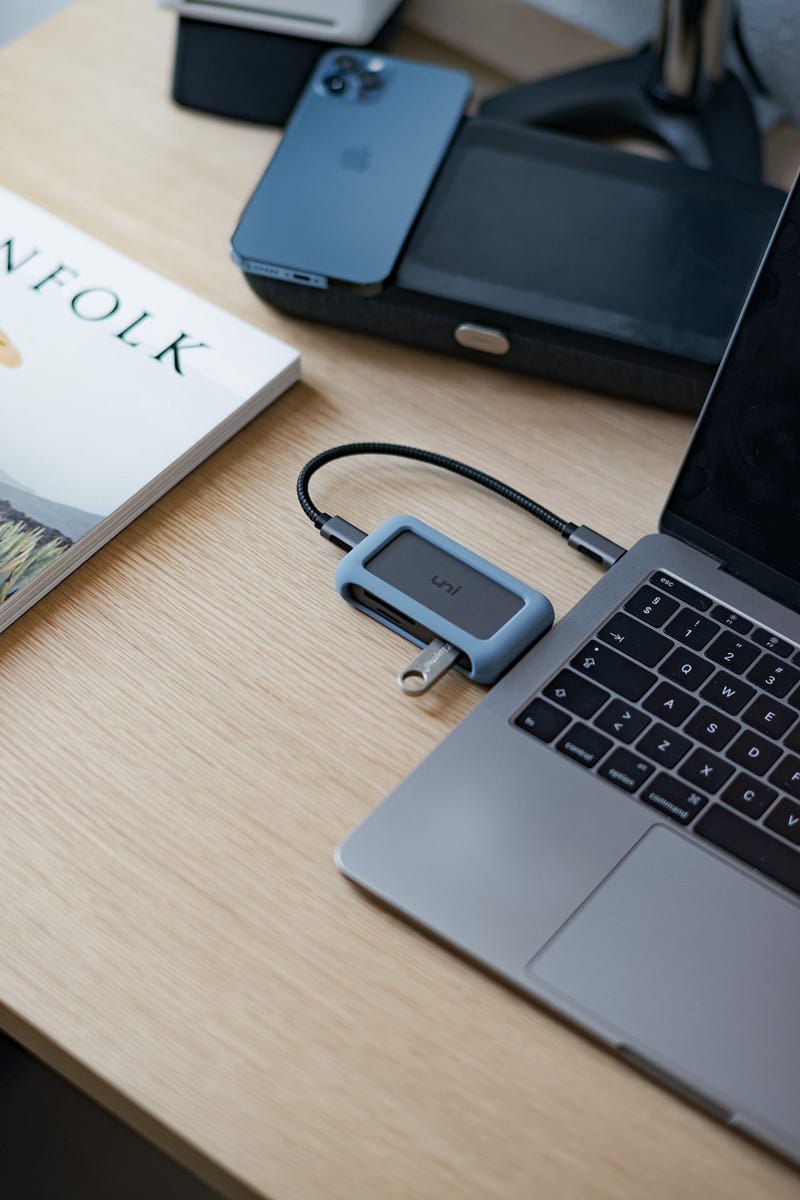
Avoid hubs that you have to plug into both ports simultaneously. A single plug hub uses just one port so you can charge your laptop with the other. Like the one below.
3. Never Ever Charge Your MacBook With A Hub:
I don’t care if you have an original hub, or if you have updated your MacBook to the latest Big Sur update. As long as you use a MacBook M1, never ever charge your laptop through the hub.
Therefore I advise you buy a hub with just one USB plug. So, when you have all your devices plugged into the hub, you can always plug in your charger directly to your laptop when you need to charge.
Final Thoughts:
Most forums advise you to wait till the M1X, an upgraded version by Apple that might not have this charging hub issue. Because the M1 is a new release, we can expect some problems with it. It makes sense that Apple will learn from these problems and fix them in the M1X.
But all these are speculations. If you want to get the MacBook M1 laptops, go ahead; they are wonderful machines.
The question is, will I still get the MacBook M1? Yes, I will, and you should too if you’re in the market for a new laptop. Just don’t charge them through the Thunderbolt hubs.
Did you enjoy this article? You can read many more interesting articles from very talented and creative writers for just $5/month. Join Medium today and have access to life changing stories and insightful articles anytime, and anywhere. Click here to join.


