
Shared Element using MaterialContainerTransform in Android
How to build MaterialContainerTransform transition and resolve a problem come with it
Introduction
Material design is all about creating a ubiquitous and intuitive user experience. The Material motion system for Android is a set of transition patterns that can help users understand and navigate an app.
The four main Material transition patterns are as follows:
- Container Transform.
- Shared Axis.
- Fade Through.
- Fade.
Please have a look at https://material.io/develop/android/theming/motion for detailed guidelines and principles.
What is MaterialContainerTransform?
The Container Transform is similar to the Shared Element which transforms one container to another, such as CardView into a detail container. The power of this kind of transition is that it can draw the users eye during the transition from one layout to another.
What is the problem?
“If I had an hour to solve a problem I’d spend 55 minutes thinking about the problem and five minutes thinking about solutions.” — Albert Einstein
According to the Android documentation:
This transition captures a start and end View which are used to create a Drawable which will be added to the view hierarchy. The drawable will be added to the view hierarchy as an overlay and handles drawing a mask that morphs between the shape of the start View to the shape of the end View.
So what happens when the transition ends? Well, let’s look at the source code for MaterialContainerTransform:
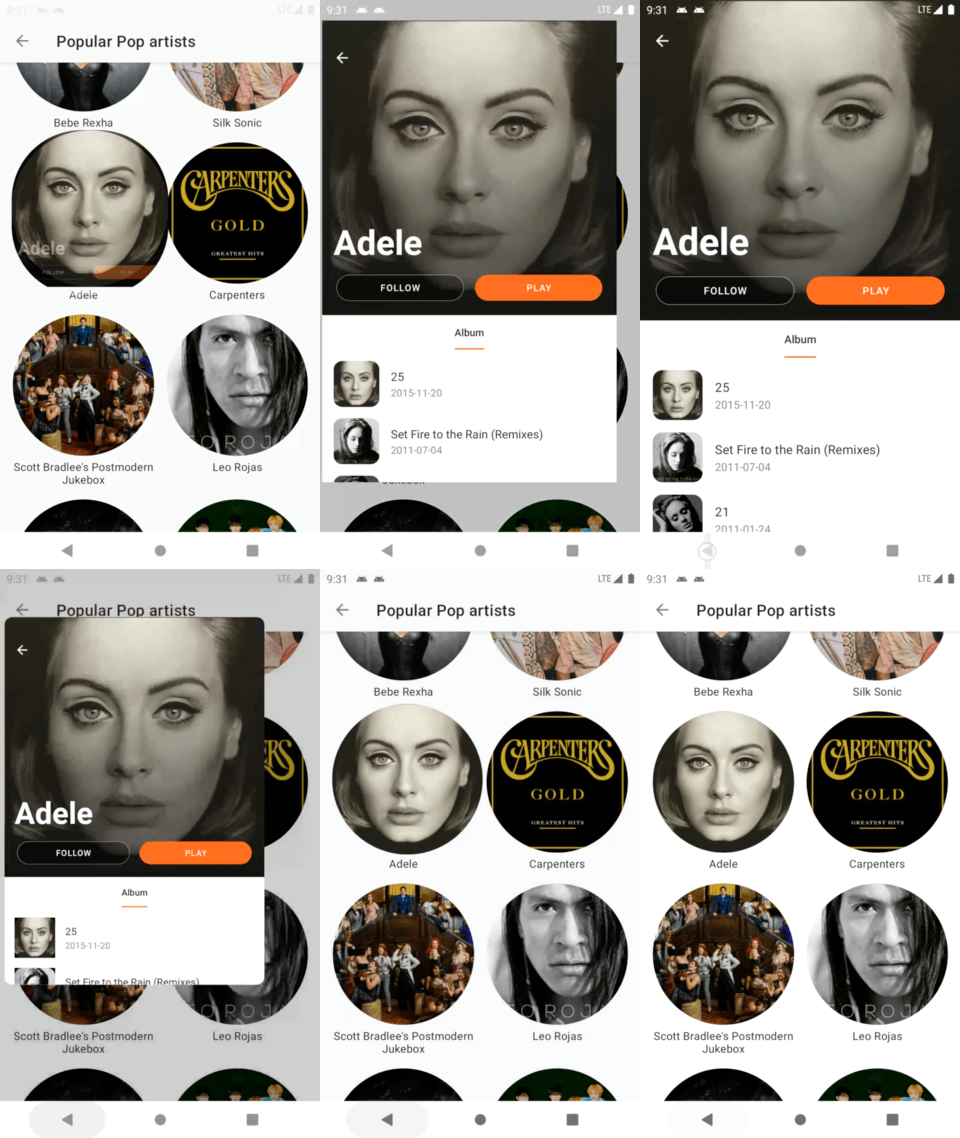
The drawingView, which is the overlay drawable used to morph from one container to another, will be removed. At this time, the destination container will be shown. The transition is about 300 milliseconds, so ideally the destination container should finish loading its view before the overlay is removed. It would be something like below if it doesn’t load in time:

Coding Part
I have divided the coding part into 4 steps as shown in the following:
Step1: Project Setup
First, please check the Material components android website to get the latest version of MaterialContainerTransform. And then add the below to your app’s build.gradle.kts:
dependencies {
    implementation('com.google.android.material:material:1.4.0')
}
A container transform can be configured to transition between a number of Android structures including Fragments, Activities and Views. In this example, we use transition between an artist list fragment and an artist detail fragment.
Step2: The Start Fragment
a. Set transitionName
MaterialContainerTransform operates as shared element transition which picks up two views in different layouts when marked with a transitionName. Begin by adding a transitionName which is unique in our start view. I use the id which BE returns to be a transitionName and add it in onBindViewHolder():
override fun onBindViewHolder(holder: ArtistViewHolder, position: Int) {
    ...
    holder.binding.imgv.transitionName = getItem(position).id
}
b. Define a shape
Next step, we have to define a shape to the start view. To implement a circle shape, let’s first try to use CircleCrop() in Glide to load a circle image:
requestManager
    .load(url)
    .placeholder(R.drawable.image_placeholder)
    .transform(CircleCrop())
    .into(this)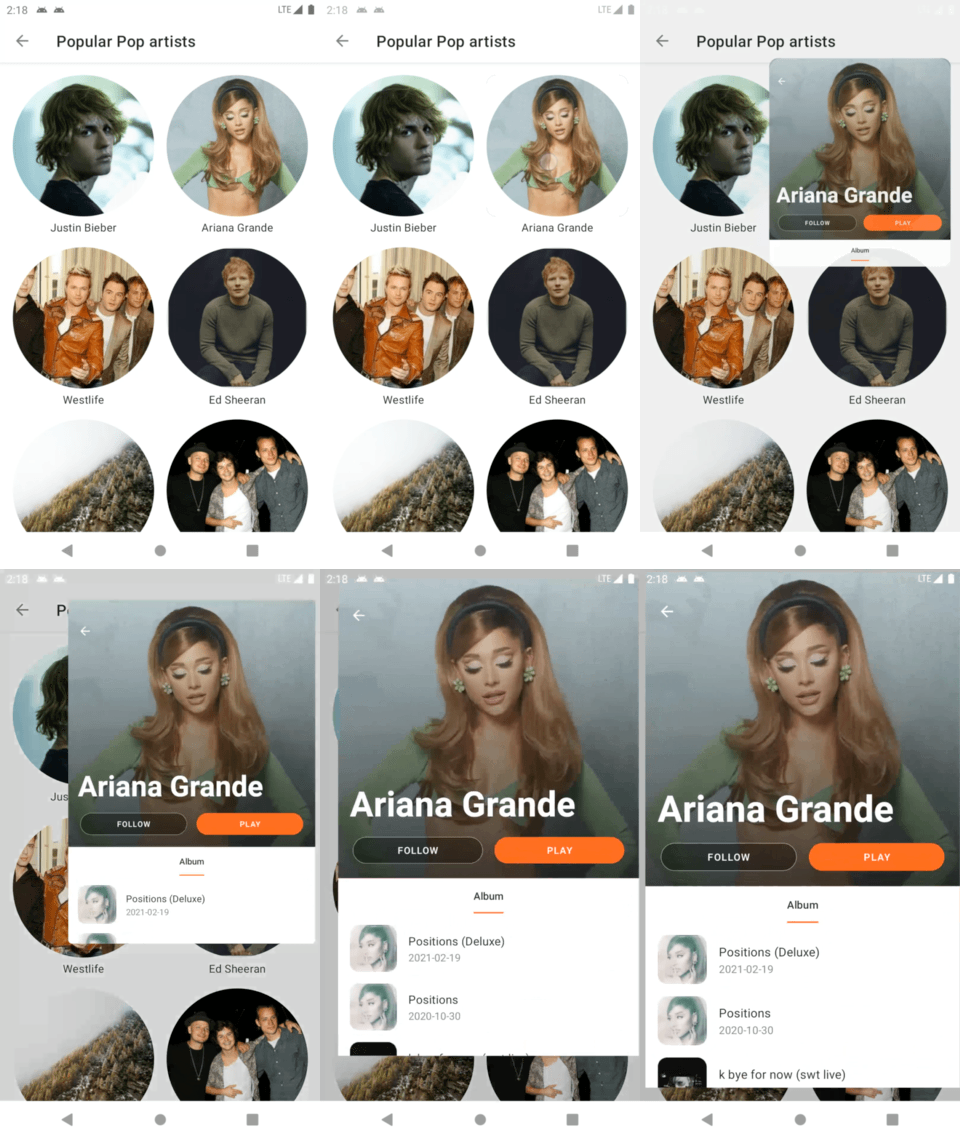
As we see, CircleCrop() just circle crops an image, the view containing it still has a square shape.
There are 2 ways to resolve it:
- Use
app:shapeAppearancein XML file.
<com.google.android.material.imageview.ShapeableImageView
    ...
    app:shapeAppearance="?attr/shapeAppearanceCircleComponent"/>
By using this way, we don’t have to use CenterCrop() when loading image.
- If we need to use
CenterCrop(), we have to manually set a shape appearance by usingsetStartShapeAppearanceModel()supplied in classMaterialContainerTransform.
Try re-running the app. Morphing shapes become better. Nice! Let’s keep improving the animation.
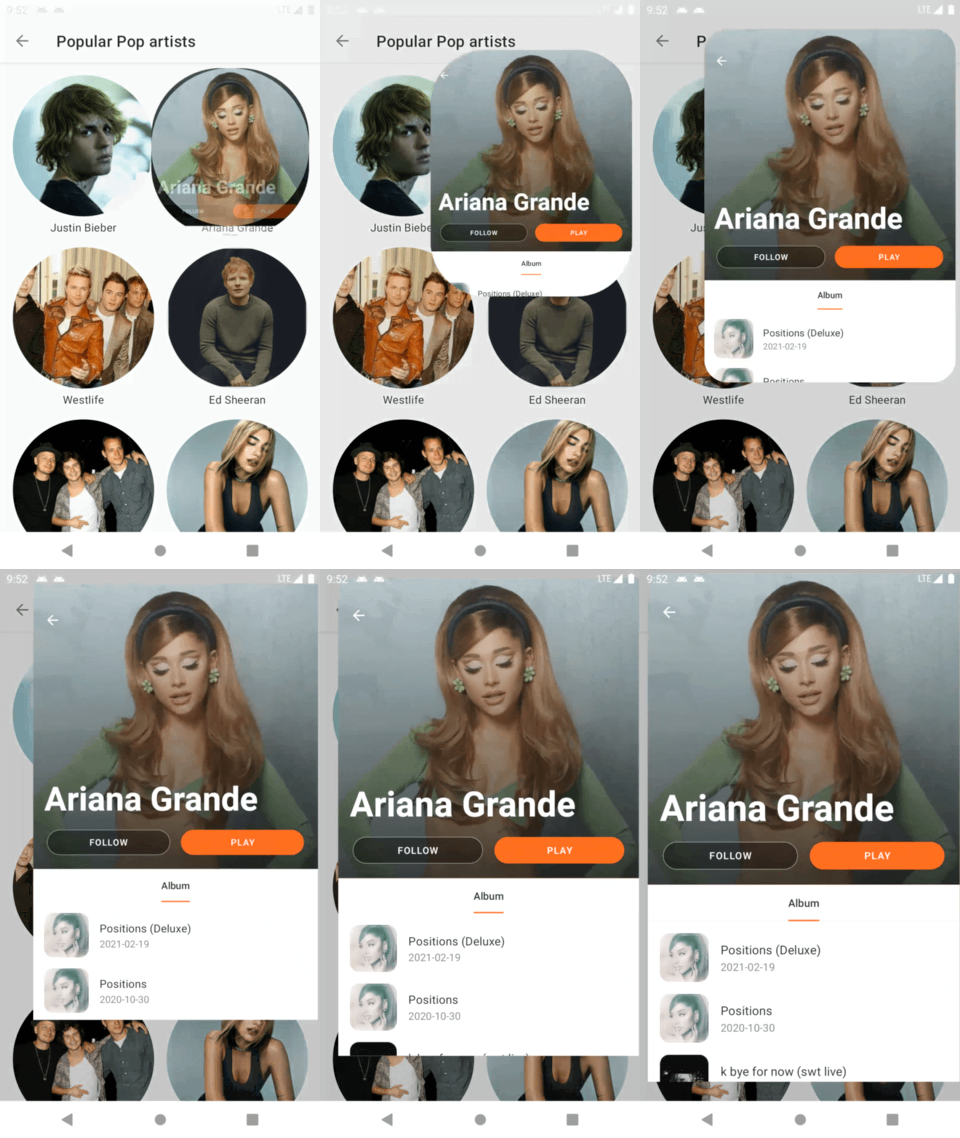
app:shapeAppearance in XML filec. Configure the transition
val targetFrag = ArtistDetailFragment.newInstance(it.artist, it.view.transitionName, it.view.width, it.view.height, it.imageUrl).apply {
    sharedElementEnterTransition = MaterialContainerTransform()
}
supportFragmentManager.commit(true) {
    addSharedElement(it.view, it.view.transitionName)
    replace(R.id.content, targetFrag)
    addToBackStack(null)
}
Notice the following:
targetFrag: is the destination fragment.transitionName,width,height,imageUrl: is related to glide cache key.addSharedElement(): we supply aviewfrom the start fragment used for mapping to a view from the destination fragment and atransitionName.
d. The glide cache key
As per doc, the cache key is consist of multiple elements. In this example, we are using 3 elements:
- Url
- Width
- Height
That’s why I pass the artist object, which contains the url, with width and height to the destination fragment. By doing this, we can generate the same cache key and the destination fragment can get the bitmap from memory cache for fast loading.
e. The returning transition
By default, the transition system will automatically reverse the enter transition when navigating back, if no return transition is set. However, notice how pressing back doesn’t collapse the artist detail back into the artist list.

Because when we do the returning, the start fragment hasn’t been inflated yet, so there are no mapping views for shared element to create a returning transition. We have to wait until the start fragment lays out.
In this case, the transition system provides 2 methods for helping us:
postponeEnterTransitde>ion: postpone the entering Fragment transition until startPostponedEnterTransition() has been called.startPostponedEnterTransitde>ion: begin postponed transition.
Add the following two lines to the onViewCreated method and try re-running the app:
postponeEnterTransition()
view.doOnPreDraw { startPostponedEnterTransition() }
We start the transition when the view tree is about to be drawn, it means the view has already laid out. Nice! 🥰
Step3: The Destination Fragment
We want to transform a view in start fragment to a whole view in destination fragment, so set the transitionName from the argument to the view root in onCreateView() method:
override fun onCreateView(inflater: LayoutInflater, container: ViewGroup?, savedInstanceState: Bundle?): View? {
    viewBinding = FragmentArtistDetailBinding.inflate(inflater, container, false)
    return viewBinding.root.apply {
        transitionName = this@ArtistDetailFragment.transitionName
    }
}
Get the key from the argument and load into the thumbnail() method. This method is best used for loading thumbnail resources that are smaller and will be loaded more quickly than the full size resource. We should set the priority for this load to IMMEDIATE, in case when there are more than one load is queued at a time, the load with the higher priority will be started first:
Glide.with(this@ArtistDetailFragment)
    .asBitmap() .thumbnail(Glide.with(this).asBitmap().load(imageUrl).priority(Priority.IMMEDIATE).override(widthImage, heightImage))
    .load(artist.model.pictureBig)
    .placeholder(R.drawable.image_placeholder)
    .into(viewBinding.artistImageView)
Step4: Glide — Debugging
So far, all good now! But we need to make sure whether there are unexpected cache misses or not, why images you have in memory in one place aren’t being used in another place…
First, enable engine tag logging by using adb in your terminal:
adb shell setprop log.tag.Engine VERBOSEIt is used to see the cache keys in the logcat like below:
V/Engine: Loaded resource from active resources in 0.009458ms, key: EngineKey{model=https://cdns-images.dzcdn.net/images/artist/7e2efcc3fdbfaaed13b07d8c87929615/250x250-000000-80-0-0.jpg, width=477, height=477, resourceClass=class java.lang.Object, transcodeClass=class android.graphics.drawable.Drawable, signature=EmptySignature, hashCode=-807288796, transformations={}, options=Options{values={}}}Second, enable glide tag by adding the below class:
@GlideModule
class MyGlideModule : AppGlideModule() {
    override fun applyOptions(context: Context, builder: GlideBuilder) {
        builder.setLogLevel(Log.VERBOSE)
    }
}
It is used to check the image which comes from whether remote, disk or memory:
D/Glide: Finished loading BitmapDrawable from MEMORY_CACHE for https://cdns-images.dzcdn.net/images/artist/7e2efcc3fdbfaaed13b07d8c87929615/250x250-000000-80-0-0.jpg with size [477x477] in 0.051165999999999996 msNotice the Glide tag informs us that it finished loading BitmapDrawable from MEMORY_CACHE for… It’s the thing what we want. If not, try to check again the cache keys in engine log tag and figure out what is the different between them.
My tip for generating the same cache keys in both start and end fragment is the scaleType of ImageView should be center. Let’s look at the source code for RequestBuilder() in Glide:
Glide will automatically generates a transformation when we use the scaleType other than center or matrix. Transformation is involved in generating a cache key, if we eliminate it, the cache key becomes easier to control.
But if the scaleType is center, it’s just center the image in the view, but perform no scaling. We have to supply the width and height to the override method() to make it fulfill the view:
doOnLayout {
    requestManager
        .load(url)
        .placeholder(R.drawable.image_placeholder)
        .override(it.width, it.height)
        .into(this)
}
That’s all! If you find issues in executing the code snippets please check out the GitHub repo for help:
Thanks a lot for reading my article. If you enjoyed this story, please click the 👏 button and share it to help others! Follow me on Medium for more awesome Android tips. You can also find me on LinkedIn. Have a nice day! 😄
Continue Reading Android Stuff
How to create like button animation in Android
Android Button Morphing Animation
MotionLayout — Collapsing Toolbar
Jetpack Compose
Implement Snackbar in Jetpack Compose
Implement TabLayout in Jetpack Compose
Implement TabLayout with ViewPager in Jetpack Compose
Create an Auto-Scroll ViewPager with transformation and ken burns effect in Jetpack Compose


