
Setting up GrowthBook with WordPress to free A/B split testing
If you are looking in the WordPress plugins market, you won’t find anything decent for split-testing, except Nelio, which is great but paid after 500 views / month, and if you have a small website and only want to experiment with a few buttons but on a much larger scale, let’s say 2000 views, it’s not worth to pay 30 USD.
Here it comes GrowthBook, which is free with unlimited views for 3 users / organization, not to mention that it is open source, and you can self-host if you want to bypass some other limits, but it’s not the case here.
It is also compliant with GDPR and other privacy policies around the world.
Note: for the example below, you should already have set up the Google Analytics 4 for your WordPress website. If you don’t, you can use Site Kit.
This is for intermediate and advanced users, as it will require a bit of knowledge of CSS and JavaScript to fully implement your experiment, but it will give you unlimited flexibility.
First steps
Create an account on the GrowthBook, it’s easy, fast.
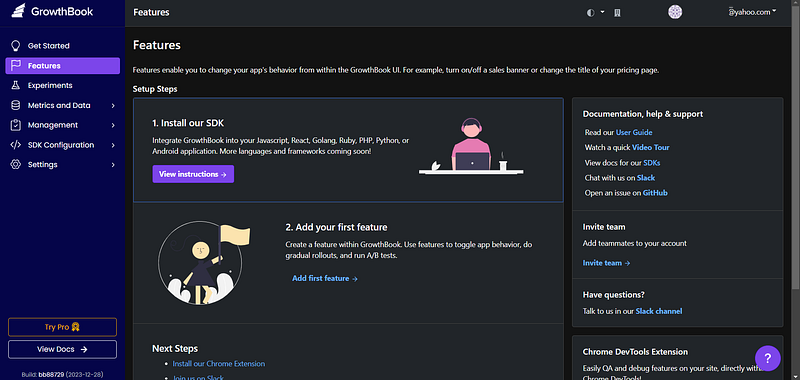
Next, let’s connect the Google Analytics 4 domain as data source.
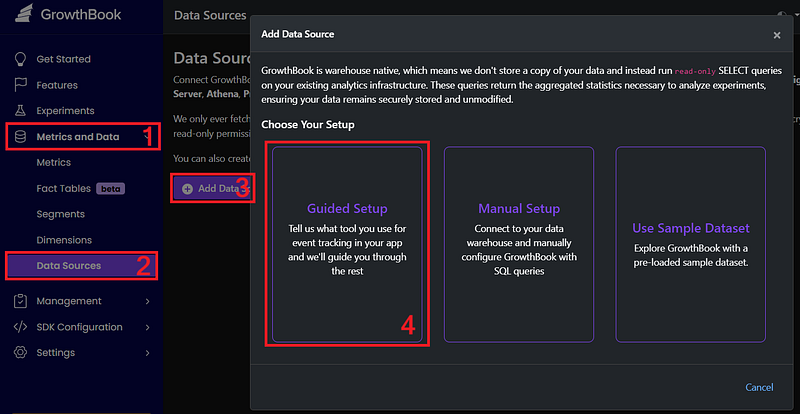
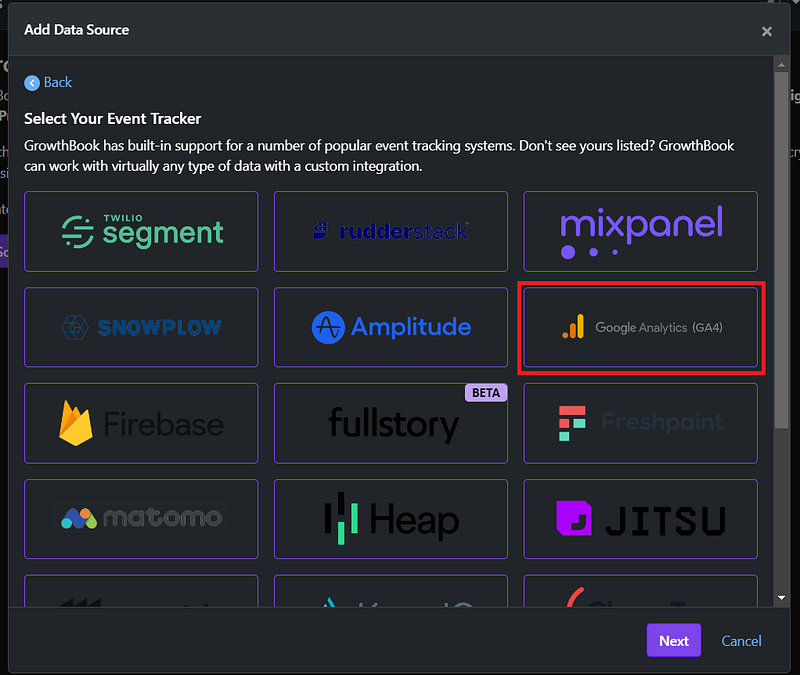
Now you have to connect the GA4 using Google Cloud BigQuery as data warehouse.
According to the BigQuery page, “All customers get 10 GB storage and up to 1 TB queries free per month.”, fair enough for many experiments on small user-base websites.
To get the requested JSON file from Google Cloud, follow this video between 0:20 and 3:52. At data location, select your region to comply to privacy policy, e.g., for E.U. GDPR select EU.
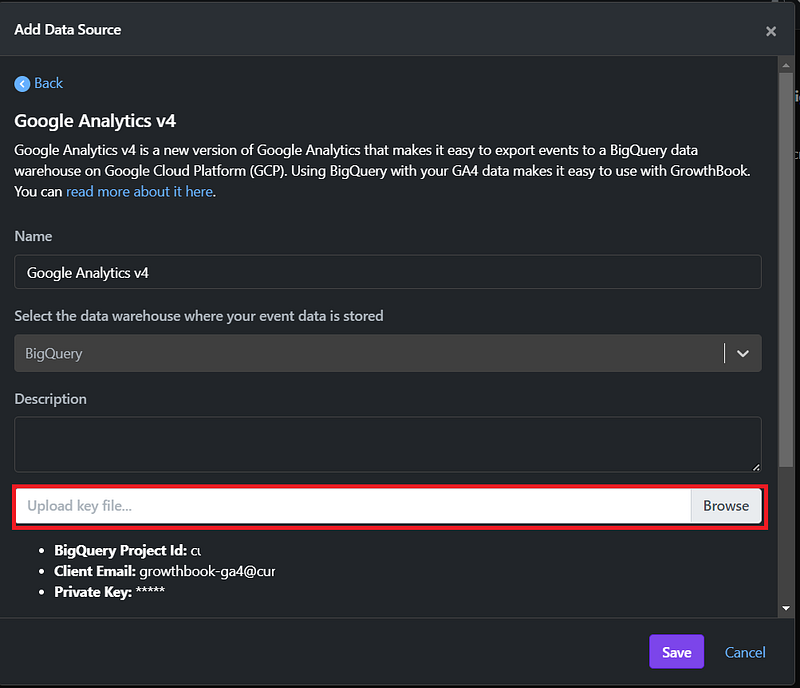
After you obtained the JSON to the service account, you can add it to the GrowthBook.
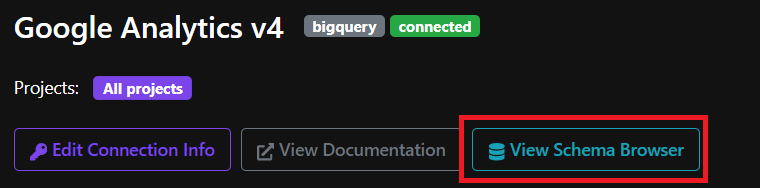
After you save, you can click to “View schema browser” to see your data.
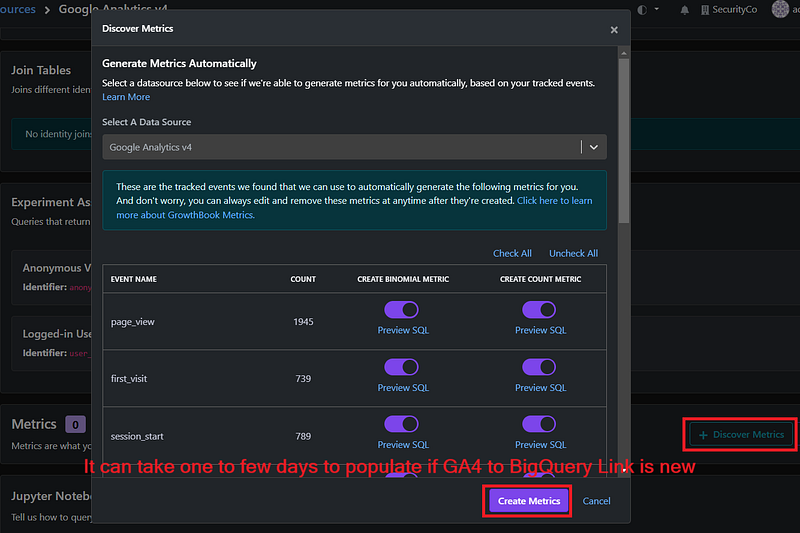
Please note that if your Google Analytics 4 integration with the BigQuery Link is fresh, then you have to wait at least one day to get data into the BigQuery, then you can see the metrics inside GrowthBook.
You can continue to WordPress connection even with no data yet.
Connecting to WordPress
This can be done using JavaScript SDK of the GrowthBook quite easy.
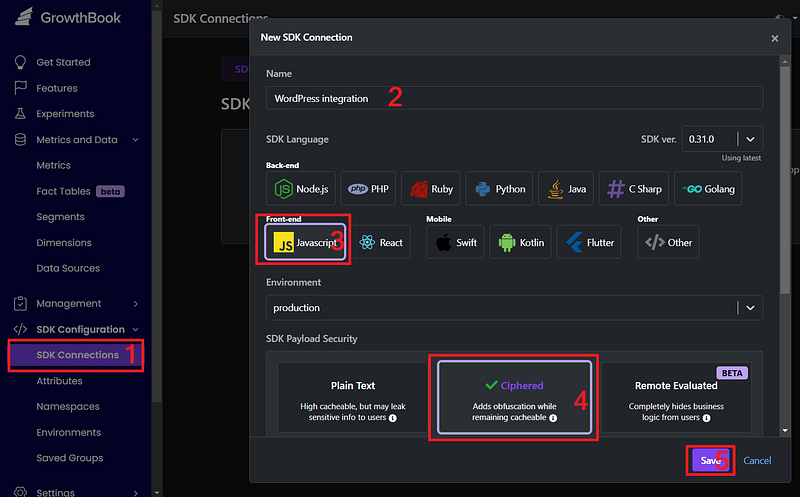
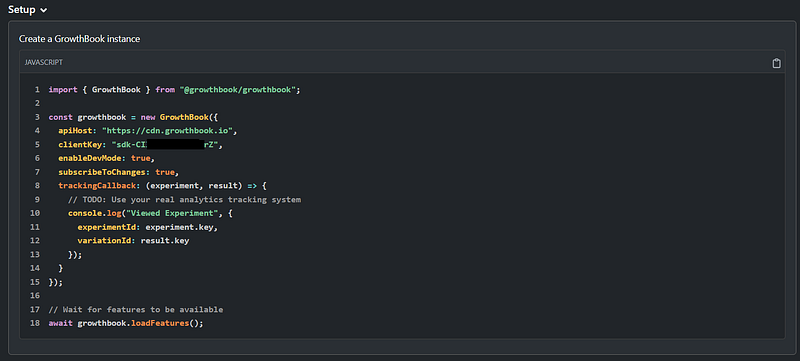
Please note the “clientKey” and modify in the code below!
Add the loader script to your WordPress page <head> using a script inserter plugin, like WPCode. Check here for updated script link.
<!-- Creates `window.growthbook` with all of the exported classes -->
<script id="growthbook-sdk" src="https://cdn.jsdelivr.net/npm/@growthbook/growthbook/dist/bundles/index.min.js"></script>
This is using the GA4 cookie, so if you handle the privacy policy in your region, like GDPR, using a plugin, this script will comply by not running till user will accept the statistics tracking.
Be sure the code below is put after the Google Tag for GA4 script (gtag). You can check the console for “no gtag” message, should be none.
<!-- Note: modify the script with GrowthBook JavaScript SDK setup key -->
<script>
  (function() {
    // Using the GTAG clientID, so this way we don't set any new cookie - GDPR, cookie law
    const ga_cookie = document.cookie.match(/_ga=(.+?);/);

    // Wait for the SDK to load before starting GrowthBook
    if (window.growthbook) {
      startGrowthbook();
    } else {
      document.querySelector("#growthbook-sdk").addEventListener("load", startGrowthbook);
    }

    function startGrowthbook() {
      if (!window.growthbook) return;
      // Do not run if the GA4 cookie is not set
      if (!ga_cookie) return;
      let clientId = ga_cookie[1].split('.').slice(-2).join(".");
      let gb = new growthbook.GrowthBook({
        apiHost: "https://cdn.growthbook.io",
        clientKey: "sdk-YOUR-SDK-KEY",
        enableDevMode: true,
        // TODO: Add decryptionKey if using encryption
        attributes: {
          id: clientId
          // Add any other attributes here
        },
        trackingCallback: function(experiment, result) {
          // Track using GA4
          if ("gtag" in window) {
            window.gtag("event", "experiment_viewed", {
              event_category: "experiment",
              experiment_id: experiment.key,
              variation_id: result.variationId,
              gb_user_id: clientId,
            });
          } else {
            console.log("no gtag");
          }
        }
      })

      // TODO: Instrument DOM with AB test logic
      gb.loadFeatures().then(function() {
        // Run your experiment code here
        // START: Adjust or delete this, according to your experiment

        /*
         * Note: this is just an example for a feature named "buttom-button-color".
         * Will add CSS to the head according to the experiment feature value.
         * Look below at feature configuration.
         */

        // Get the value of a string/JSON/number feature with a fallback
        const color = gb.getFeatureValue("bottom-button-color", "blue");

        // Create a style element
        const styleElement = document.createElement('style');
        styleElement.type = 'text/css';

        // Define the CSS rules based on the feature value
        let cssRules = '';

        // Change buttons css color according to the value
        // By default they are blue so no changes for that
        switch (color) {
          case "red":
            console.log("Set buttons to red theme.");
            cssRules = '.buttonbottom { background: red; }';
            break;
          case "yellow":
            console.log("Set buttons to yellow theme.");
            cssRules = '.buttonbottom { background: black; color: yellow; }';
            break;
        }

        // Add the CSS rules to the style element
        styleElement.appendChild(document.createTextNode(cssRules));
        // Append the style element to the head of the document
        document.head.appendChild(styleElement);

        // END: Adjust or delete this, according to your experiment
      });
    }
  })();
</script>
After you save, and clean the WordPress cache if you are using any cache plugin, you can refresh the front-page and then check if the GrowthBook SDK is connected properly.
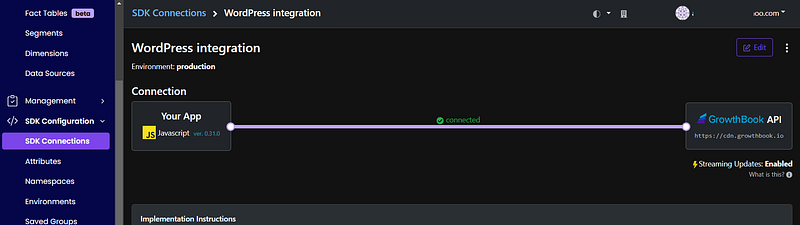
Experimenting
Now you have finish set up the connection of the GrowthBook it’s time to start A/B experimenting. You can read more about data you can pass to GrowthBook on the JavaScript SDK page and modify the script above.
Create a new experiment in the “Experiments” menu:
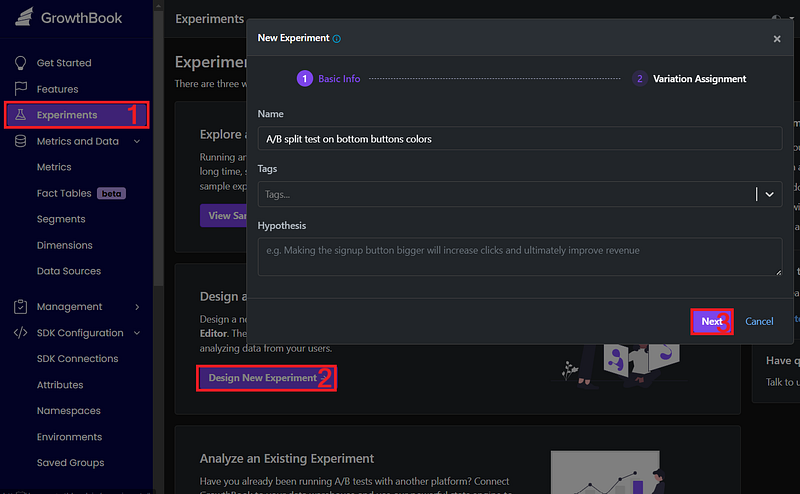
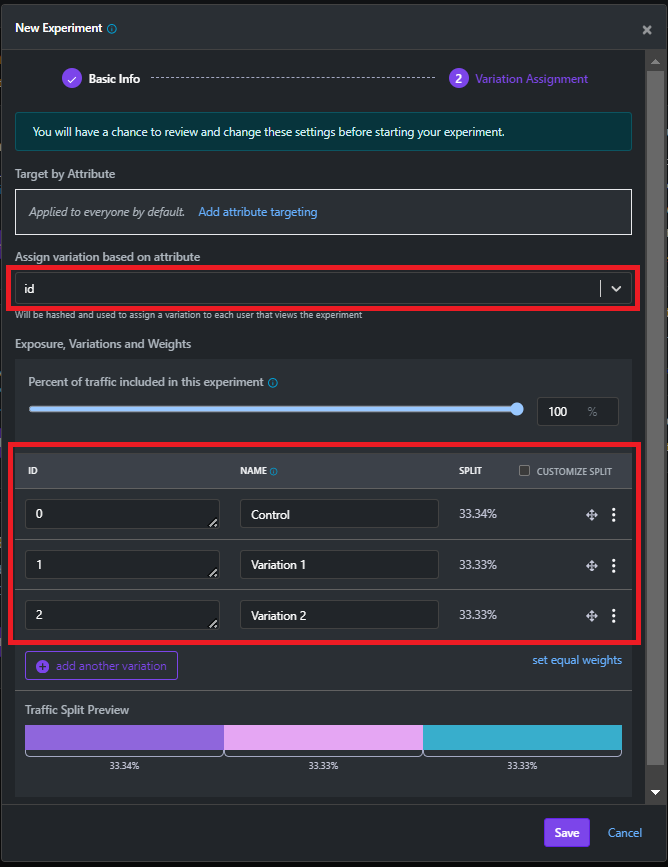
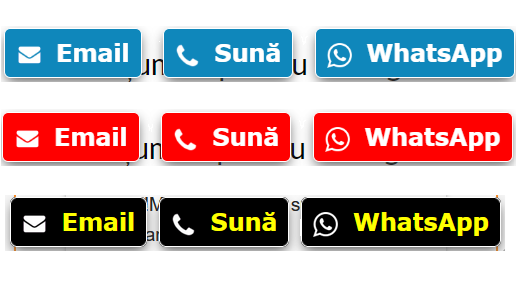
I want to change the colors of floating buttons at the bottom of the website for a total of 3 variants, let’s say blue, red, yellow.
Of course, you have a lot of options and targeting features here. You can read more in the documentation.
Let’s “Add Feature Flag”:
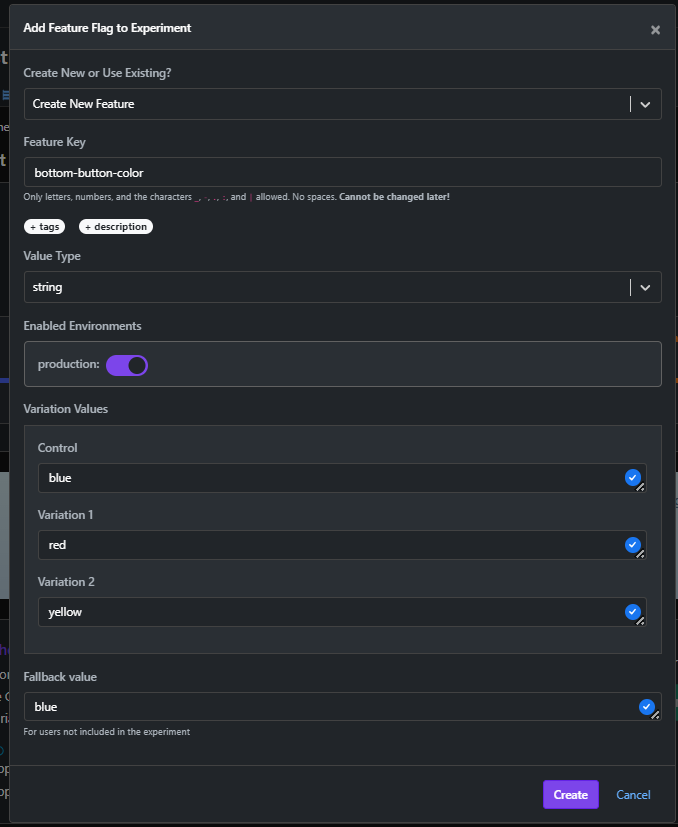
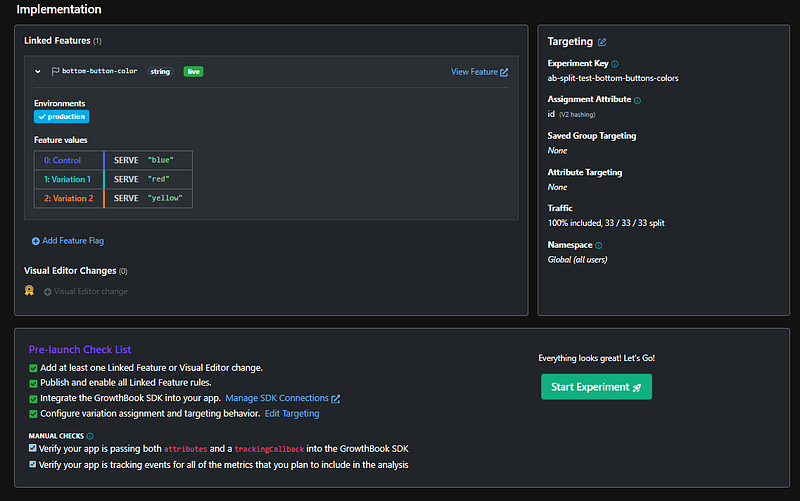
After you're adding the feature and start the experiment, or ideally before starting it, you can handle the feature change inside the code above, that already include an example for this specific feature.
Start the experiment 🚀!
Congratulations!
Now wait to get your awesome experiment results 🥳.
Don’t forget the next days to go back to the “Data Sources” and add metrics.
You can check how to use the GrowthBook extensively on this Youtube channel made by one of the creators. Documentation is also quite good.


