node.js</b>, <b>npm</b> is automatically installed.</p><p id="ba9b"><b>So, the question is arising in your mind what is npm right?</b></p><ol><li>Npm is stand for node package manger.</li><li>Npm is a package manager for Node.js packages.</li><li>A package in Node.js contains all the files you need for a module.</li><li>Modules are JavaScript libraries you can include in your project.</li></ol><p id="6ba1">To ensure that npm is installed in your system then run the command below:</p>
<figure id="d06a">
<div>
<div>
<iframe class="gist-iframe" src="/gist/rocksinghajay/9552ae73b0afb14d1fbb2e870bfdfdd5.js" allowfullscreen="" frameborder="0" height="undefined" width="undefined">
</div>
</div>
</figure></iframe></div></div></figure><p id="8f0c">This command give you npm version details something like this below:</p>
<figure id="0cb8">
<div>
<div>
<iframe class="gist-iframe" src="/gist/rocksinghajay/0a1ff6ed5a692c9cc24b4a053ea585ea.js" allowfullscreen="" frameborder="0" height="undefined" width="undefined">
</div>
</div>
</figure></iframe></div></div></figure><p id="644e">Step one is completed node.js is installed in your system and npm is also. If you having an error please follow the first step again and carefully follow the instructions given above.</p><p id="f86e">Then, take one step towards the second step that one is easy much!!</p><p id="ea4d"><b>Step two install react application in your system.</b></p><p id="9c93">The is the easiest way to get started on a new React project is by using this simple method.</p><p id="fd4a">So let’s start by running the command in your terminal below:</p>
<figure id="f5b6">
<div>
<div>
<iframe class="gist-iframe" src="/gist/rocksinghajay/7b6dd95c9a45592e9c43ba9fcfcc65f5.js" allowfullscreen="" frameborder="0" height="undefined" width="undefined">
</div>
</div>
</figure></iframe></div></div></figure><p id="15a7">This command will install create-react-app globally in your system, after running this command successfully then you can create react project in your system and named the project name with your choice by running the command&nbs
Options
p;below:</p>
<figure id="0698">
<div>
<div>
<iframe class="gist-iframe" src="/gist/rocksinghajay/b83b4320e39e0af6cdeffac2cafb03ee.js" allowfullscreen="" frameborder="0" height="undefined" width="undefined">
</div>
</div>
</figure></iframe></div></div></figure><p id="39ea">This command will take few’s minutes to complete after completed the all of the processes then you can change the current directory to the react project directory by running the command below:</p>
<figure id="d23b">
<div>
<div>
<iframe class="gist-iframe" src="/gist/rocksinghajay/c57cdf7800357ed06e1954f385be35df.js" allowfullscreen="" frameborder="0" height="undefined" width="undefined">
</div>
</div>
</figure></iframe></div></div></figure><p id="3dc8">After running this command now you are on the react app directory,then start react app in your local environment by running this command:</p>
<figure id="97f2">
<div>
<div>
<iframe class="gist-iframe" src="/gist/rocksinghajay/ae8ef089ce774031181eb7fc80614521.js" allowfullscreen="" frameborder="0" height="undefined" width="undefined">
</div>
</div>
</figure></iframe></div></div></figure><p id="556b">After running the npm start command your react app will be run in the default browser of your system on <a href="http://localhost:3000">http://localhost:3000</a></p><p id="5d2e">And your react app will look like this in your browser, see below:</p><figure id="9c2d"><img src="https://cdn-images-1.readmedium.com/v2/resize:fit:800/1*SkgCuRBOyXo_Z7kF2_MZBQ.png"><figcaption>Your react app</figcaption></figure><p id="1a8f">And your folder structure should look like this:</p><figure id="cb6b"><img src="https://cdn-images-1.readmedium.com/v2/resize:fit:800/1*kO_FpD10uKLUJGONQ6SkEg.png"><figcaption>React App Directory</figcaption></figure><p id="461a">Then finally this is your react app looked like this in your system.Then start coding in your src/App.js file.</p><p id="58d0">And thank you for reading this article if you like it then share it, with your friends and enemies. And I will be writing more about react.js, stay connected with me.</p></article></body>
Node.js is an open source, cross-platform runtime server environment for developing server-side and networking applications.
Node.js applications are written in javascript.
Let’s install node.js in your system with terminal
Note: This command is for Linux based OSDebian and Ubuntu.
If you have different OS then please visit the official site of node.js and select the OS you have and go through the installation process.And then come back here.
Open Terminal in your system and run the commands below:
For Node.js 9.x:
To verify that the installation is successful, then you can check the node.js version :
This command give you node.js version details something like this below:
When you installed node.js, npm is automatically installed.
So, the question is arising in your mind what is npm right?
Npm is stand for node package manger.
Npm is a package manager for Node.js packages.
A package in Node.js contains all the files you need for a module.
Modules are JavaScript libraries you can include in your project.
To ensure that npm is installed in your system then run the command below:
This command give you npm version details something like this below:
Step one is completed node.js is installed in your system and npm is also. If you having an error please follow the first step again and carefully follow the instructions given above.
Then, take one step towards the second step that one is easy much!!
Step two install react application in your system.
The is the easiest way to get started on a new React project is by using this simple method.
So let’s start by running the command in your terminal below:
This command will install create-react-app globally in your system, after running this command successfully then you can create react project in your system and named the project name with your choice by running the command below:
This command will take few’s minutes to complete after completed the all of the processes then you can change the current directory to the react project directory by running the command below:
After running this command now you are on the react app directory,then start react app in your local environment by running this command:
After running the npm start command your react app will be run in the default browser of your system on http://localhost:3000
And your react app will look like this in your browser, see below:
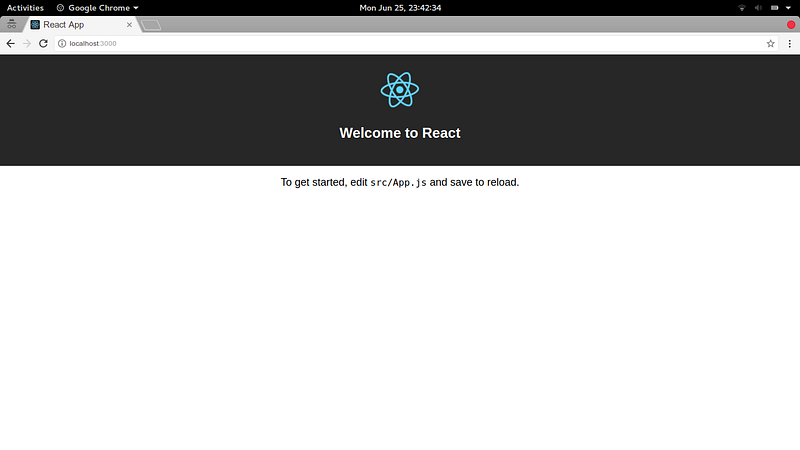
Your react app
And your folder structure should look like this:
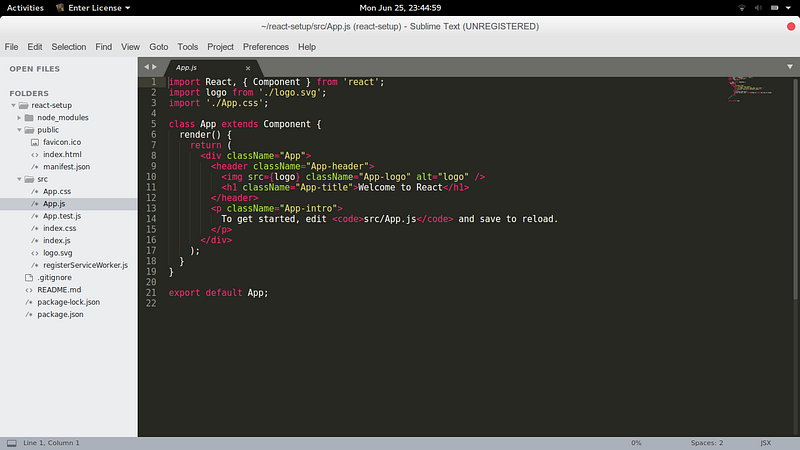
React App Directory
Then finally this is your react app looked like this in your system.Then start coding in your src/App.js file.
And thank you for reading this article if you like it then share it, with your friends and enemies. And I will be writing more about react.js, stay connected with me.