
Setting Up a New Laravel Project with Vue 3 and TailwindCSS
Laravel, Vue, and TailwindCSS: A trifecta of modern web development that promises rapid development, reactive user interfaces, and beautiful styling out of the box. In this article, I’ll guide you step-by-step on how to set up a brand new Laravel project integrated with Vue 3 and TailwindCSS.

Install Laravel
Run the following commands to create a new Laravel project locally:
curl -s “https://laravel.build/laravel-vue-tailwindcss-demo" | bash
cd laravel-vue-tailwindcss-demo && ./vendor/bin/sail up
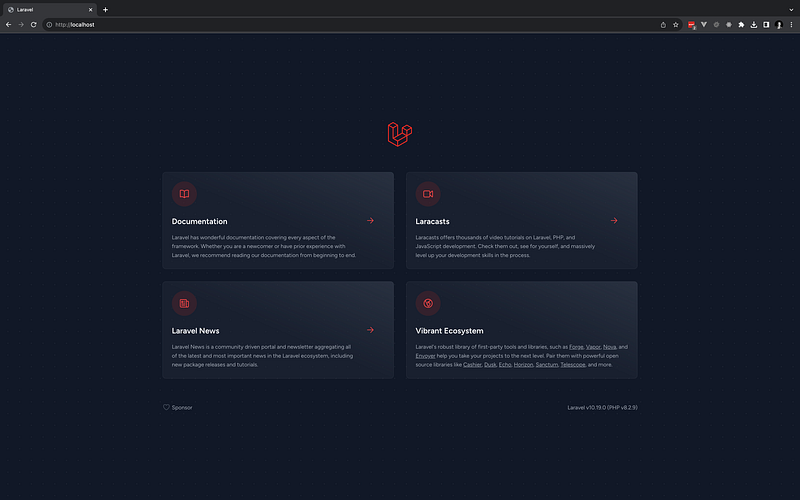
You can navigate to http://localhost in your browser to ensure the install was successful.
Intall and Configue Vue
Step 1: Install Vue
Installing Vue is simple, we just need to tell node to install it for us:
npm i vue@next
Step 2: Install Vite
In order to use Vue, we need to install the Vite Vue plugin. Vite.js is a development tool that comes with a dev server and is used for modern web applications. It offers a faster and smoother workflow in terms of development. Run the following command:
npm i @vitejs/plugin-vue
Step 3: Configure Vite
In the base directory of your project you will find a file called vite.config.js, let’s add the Vue configuration to this file:
import { defineConfig } from 'vite';
import laravel from 'laravel-vite-plugin';
import vue from '@vitejs/plugin-vue'

export default defineConfig({
    plugins: [
        vue(),
        laravel({
            input: ['resources/css/app.css', 'resources/js/app.js'],
            refresh: true,
        }),
    ],
});
Step 4: Create App.vue
This will be the entry point for our Vue app.
<template>
    <h1>Welcome to the Laravel, Vue Tailwindss Demo</h1>
</template>

<script setup>

</script>

<style>

</style>
Step 5: Edit app.js
In resources/js directory your will see there is a file called app.js. We need to make some changes to this file, so that we are importing the App.vue file we just created. createAppwill mount the app element in our blade file which we will create next.
import {createApp} from 'vue'
import App from './App.vue'

createApp(App).mount("#app")
Step 6: Create Main Blade File
In resources/views there is a file called welcome.blade.php. Replace the contents with the following:
<!DOCTYPE html>
<html lang="{{ str_replace('_', '-', app()->getLocale()) }}">
<head>
    <meta charset="utf-8">
    <meta name="viewport" content="width=device-width, initial-scale=1">
    <title>ًApplication</title>
    @vite('resources/js/app.js')
</head>
<body>
    <div id="app"></div>
</body>
</html>
I prefer to rename this file to index.blade.php.
Step 7: Update routing
Update routes/web.php to the following:
<?php

use Illuminate\Support\Facades\Route;

Route::get('/', function () {
    return view('index');
});
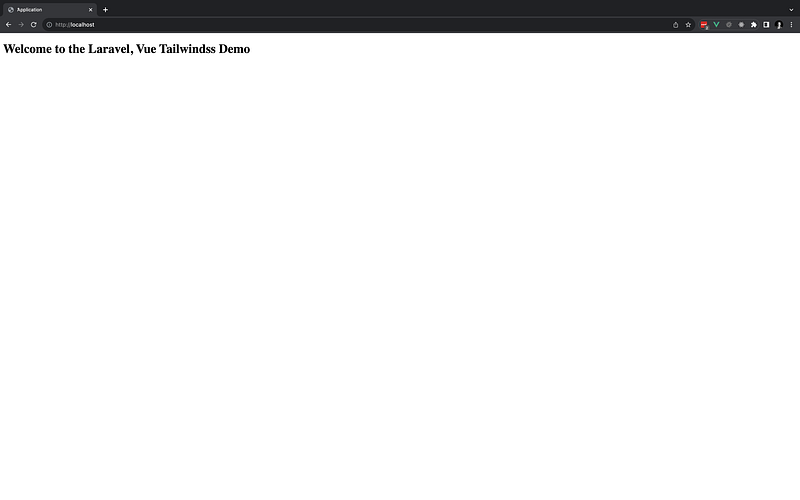
You can now test that the Vue installation is working. Run npm run dev and head over to http://localhost and you should see the following in your browser:
Install TailwindCss
Step 1: Install with NPM
Let’s get TailwindCss installed. run the following commands to install TailwindCss and its peer dependencies via npm:
npm install -D tailwindcss postcss autoprefixer
npx tailwindcss init -p
Th init command will create a tailwind.config.js file and postcss.config.js. Within the tailwind.config.js file, you can customize your design system as needed.
Step 2: Configure Template Paths
Add the paths to all of your template files in your tailwind.config.js file.
/** @type {import('tailwindcss').Config} */
module.exports = {
  content: [
    "./resources/**/*.blade.php",
    "./resources/**/*.js",
    "./resources/**/*.vue",
  ],
  theme: {
    extend: {},
  },
  plugins: [],
}
Step 3: Add the Tailwind directives to your CSS
In your resources/css directory, import Tailwind's directives in your main stylesheet (app.css):
@tailwind base;
@tailwind components;
@tailwind utilities;
Step 4: Include app.css in index.blade.php
We can now importapp.css file into index.blade.php using Vite.
<!DOCTYPE html>
<html lang="{{ str_replace('_', '-', app()->getLocale()) }}">
<head>
    <meta charset="utf-8">
    <meta name="viewport" content="width=device-width, initial-scale=1">
    <title>ًApplication</title>
    @vite(['resources/js/app.js', 'resources/css/app.css'])
</head>
<body>
    <div id="app"></div>
</body>
</html>
Step 5: Add TailwindCss to Vue Component
Let’s add a few TailwindCss utility classes to our App.vue component to make sure it is working correctly.
<template>
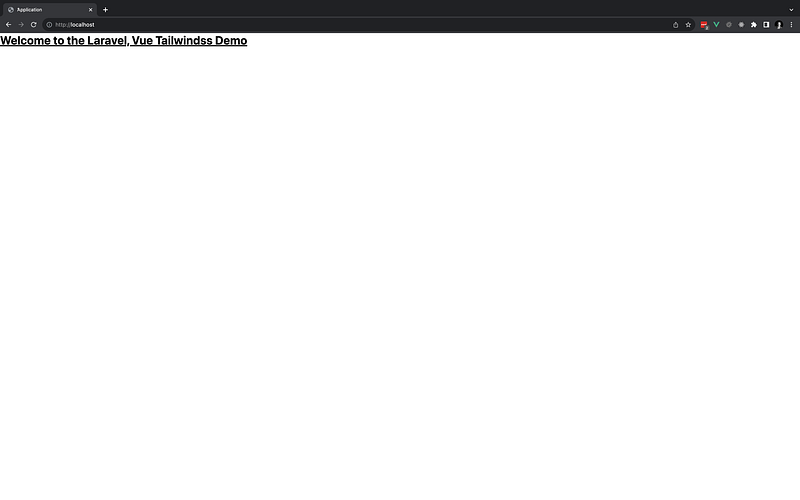
    <h1 class="text-3xl font-bold underline">Welcome to the Laravel, Vue Tailwindss Demo</h1>
</template>

<script setup>

</script>

<style>

</style>
Open up your teminal and restart npm server:
npm run dev
Head over to your browser and you should see the following:
Conclusion
With Laravel, Vue 3, and TailwindCSS working harmoniously, you have a powerful setup for building web applications with ease and style. By following the steps above, you can seamlessly integrate these tools, ensuring a productive development experience. I have included a link below to the Github repo so you can browse the code yourself. Happy coding!
Resources
Github: https://github.com/shaunthornburgh/laravel-vue-tailwindcss-demo


