
Setting up a local environment for DBT (BigQuery) using conda
Recently dbt has been increasing in popularity as a structured and robust framework for writing SQL logic. Although the dbt documentation is a great resource, it is not too specific on local configuration. So here is a quick article on setting up a local dbt-bigquery environment with anaconda that works on both Windows and a Mac …

Introduction
Before we begin, I assume you already have:
- The gcloud CLI installed and configured.
- Anaconda installed and configured.
- You have a billable GCP project setup.
In this tutorial we are going to create a conda environment called dbt-demo . Once the tutorial is complete you can create a new conda environment for your own projects by taking a copy:
conda env export -n dbt-demo -f /path/to/environment.yml
conda env create -n <NAME_OF_ENVIRONMENT> -f /path/to/environment.yml
Setting up a conda environment
To setup a conda environment for dbt-bigquery run the following code on the anaconda prompt:
conda create --name dbt-demo python
conda activate dbt-demo
conda install pip
pip install dbt-bigquery
When the installation is complete run to confirm dbt is working run dbt --version . The output should look like:
installed version: [installed version of dbt] (e.g. 1.0.4)latest version: [latest version of dbt] (e.g. 1.0.4)Up to date!Plugins:- bigquery: 1.0.0 - Up to date!BigQuery Setup
To initialize a new dbt project, it must be connected to a GCP project and BigQuery dataset within that project.
Assuming you have a billable project for GCP already setup, open up the BigQuery tab and create a new dataset for the project called dbt-demo .
Authentication
Once you have created a new dataset you will need to create a service account (unless you would like to use oauth). This is the authentication used to connect locally to GCP.
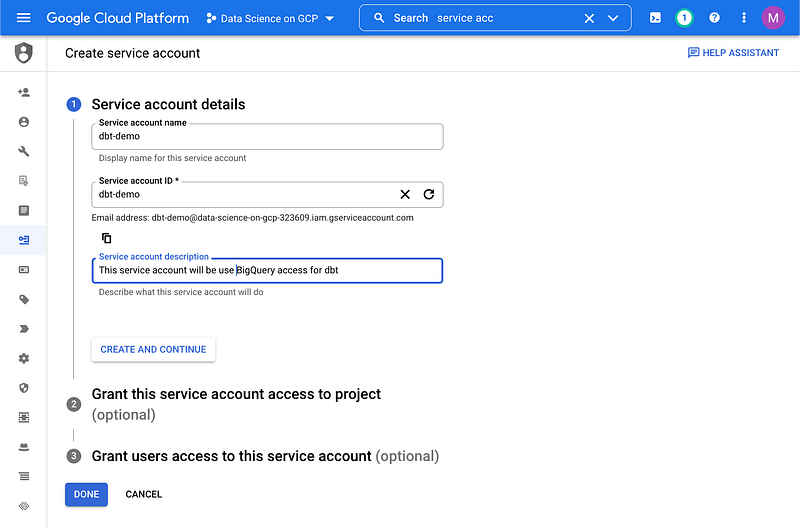
When you have a service account setup, you will need to create a new json key and download it locally.
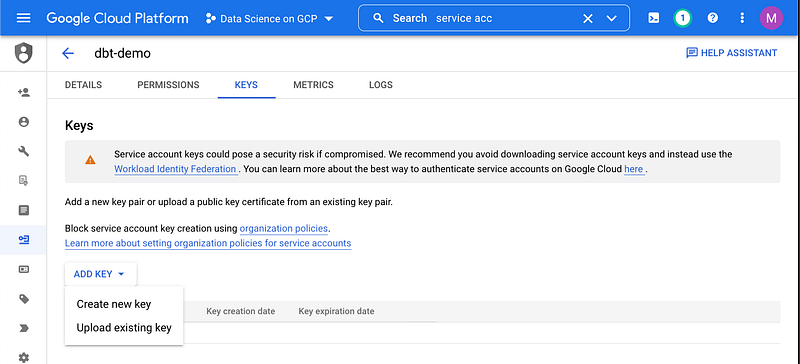
Configuring your profile
When you install dbt it will create a hidden configuration file in ~/.dbt/profiles.yml . For each dbt project you create a new block of code is required within this file with all of the details needed to connect to your data warehouse, in this case, bigquery. The dbt CLI helps to fill out these details by prompting you to choose an option for each of the required configurations.
Tip: You can open up the contents of profiles.yml on a text editor by running code ~/.dbt/profiles.yml from your default directory
To create a new dbt project first make a new directory called dbt-demo on your computer. Next, open up a anaconda/command prompt and cd into the new directory:
conda activate dbt-demo
cd /path/to/dbt-demo
Once you are in the repository, initialize a new dbt project by running:
dbt init dbt_demoWhen you run this you will be prompted with a number of questions, these will be used to fill out the profiles.yml configuration file. We want the final block in profiles.yml to look like below, so fill out the questions accordingly:
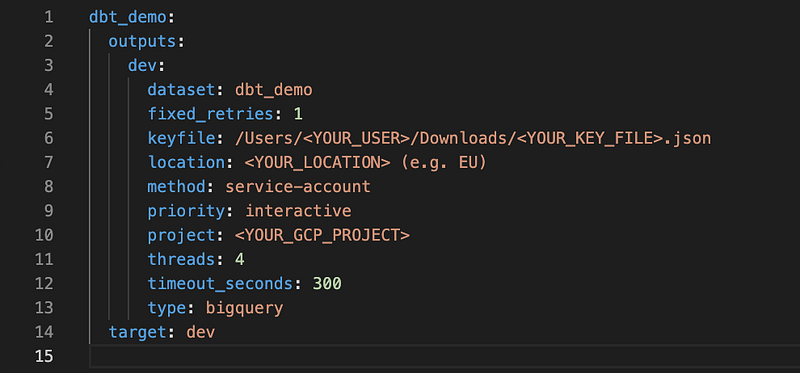
When you have filled this in the dbt structure will appear in your repository and you are ready to start using dbt locally. Happy modeling!


