Setting Up OpenGL for Windows

OpenGL( Open Graphics Library) is a cross-platform and cross-language Application Programming Interface (API) for rendering the graphics in the computer system. It covers wide range of dimensions from 2D-3D.
Writing the code and being creative is one part, but it becomes so irritating and annoying when we cannot initially setup the OpenGL API in Windows OS. Linux system has simpler method for installing it with less than two lines of code or so.
In this tutorial, we will dissect the problem of setting up the OpenGL in Windows OS. For that we are using a command line interface for initial configuration and code blocks IDE for running the OpenGL program.
So let’s get started!
1. Install and Setup MSYS

Head over to this link https://www.msys2.org/ and download the mysy2 installer. From there you can download the complete program.
2. Open MSYS2

Search for MSYS2 in search box and open it. You will get a Command Prompt-like UI as:

3. Install Pacman in the MSYS2
Hit the below command in your brand new MSYS2 CLI
$ pacman -Syu3. Install MinGW package via CLI
After Pacman is installed you will be able to use Pacman manager to install the MinGW package easily with the command below
$ pacman -S mingw-w64-x86_64-toolchain4. Install Freeglut
Hit the below command to install freeglut
$ pacman -S mingw-w64-x86_64-freeglut5. Install Glew
Now install glew with the following command
$ pacman -S mingw-w64-x86_64-glew6. Download Code Blocks
Here you have to be super careful on how to download the specific version of code blocks.
Since we have already set up MinGW package we don’t need code block with mingw setup so install simple code block without mingw-setup as shown below :
Head over to this link http://www.codeblocks.org/downloads and download the binary release of code blocks as shown below:

7. Set up the compiler in Code Blocks
After you are done with the installation of the code blocks, we have to do some compiler configuration in it.
Click on Settings > Compiler > Global Compiler Settings
Under Toolchain Executables Tab there is Compiler’s Installation Directory
You have to replace that with the mingw64 which resides inside the msys64 in the Local Disk C which is C:\msys64\mingw64 as shown in the below figure:

After setting up the path in Toolchain executables now Click on the Linker Settings Tab. In the Right Portion, there is Other linker options where you have to add the following command.
-lfreeglut -lglew32 -lopengl32Why are we adding these libraries ?
The command -lfreeglut -lglew32 -lopengl32 tells the linker to link the following libraries to the program being compiled:
freeglut: A free and open-source cross-platform windowing toolkit for OpenGL.glew: A library that loads OpenGL extensions at runtime.opengl32: The OpenGL library itself.
These libraries are necessary for OpenGL programs to run, so this step is essential for setting up OpenGL development in Code Blocks.
Here is a more detailed explanation of each library:
- freeglut: FreeGLUT is a free and open-source implementation of the OpenGL Utility Toolkit (GLUT). GLUT provides a simple way to create and manage OpenGL windows and contexts.
- glew: GLEW is a library that loads OpenGL extensions at runtime. OpenGL extensions are additional features that are not part of the core OpenGL specification. GLEW makes it easy to use OpenGL extensions without having to worry about which extensions are supported by the user’s hardware and driver.
- opengl32: opengl32 is the OpenGL library itself. It provides all of the functions and constants that are needed to write OpenGL programs.
Without these libraries, OpenGL programs would not be able to run. By linking these libraries to the program, the linker ensures that the program has all of the resources it needs to run correctly.
After adding it, the tab looks like as :

All done. Now you can create a new project for creating your OpenGL program. But before that we have to get some ground idea to start a project for OpenGL program in code blocks.
8. Creating a OpenGL program
Click on File > New > Project

Now a New From Template Tab pops out in which you have to select Console Application and Click Go as illustrated below:

Now a console application tab pops out as

Click on Next.
Now there will be given an option for C and C++. Choose the language in which you are going to write the program. For now we are choosing C++ language as :
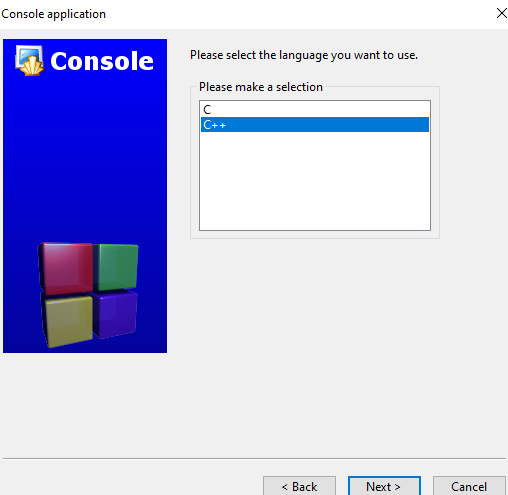
After selecting the language, click Next
Now give a project title and click on Next as

Finally click on Finish

Now our IDE starts and a sample Hello World Program is given under Sources > main.cpp file. Build and Run it and check the Setup runs successfully.

Check your OpenGL programs in the same file main.cpp by replacing the hello world program with the following sample code :
#include <GL/glut.h>void displayMe(void)
{
glClear(GL_COLOR_BUFFER_BIT);
glBegin(GL_POLYGON);
glVertex3f(0.0, 0.0, 0.0);
glVertex3f(0.5, 0.0, 0.0);
glVertex3f(0.5, 0.5, 0.0);
glVertex3f(0.0, 0.5, 0.0);
glEnd();
glFlush();
}int main(int argc, char** argv)
{
glutInit(&argc, argv);
glutInitDisplayMode(GLUT_SINGLE);
glutInitWindowSize(300, 300);
glutInitWindowPosition(100, 100);
glutCreateWindow("SAMPLE TEST");
glutDisplayFunc(displayMe);
glutMainLoop();
return 0;
}After build and run you will get a pop up as :

Congrats! All set you are ready to go!