
Serve NCBI Taxonomy in AWS, Serverlessly
The world is moving towards the cloud computing fast. This is because the cloud is very easy, cheap, accessible and secure. Cloud providers such as Amazon Web Service (AWS) take over many repetitive tedius IT maintenance tasks for their customers. As a result, cloud users can focus on their own business logics. The cloud also provide different pricing options that may be more cost effective than on-premises servers. In addition, unlike its on-premises counterparts, the cloud is very accessible and secure through the internet.
In this tutorial, I am going to show you how I managed a serverless NCBI taxonomy API service in AWS. In microbial bioinformatics, one of the most frequent tasks is the traverse of the NCBI taxonomy, because biologists needs to unambiguously define the taxonomic names in computer programs. This includes these operations: retrieving the scientific names, the taxonomic ranks, the parent taxa and the daughter taxa given a taxid and conversly, retrieving the taxid given a taxonomic name:
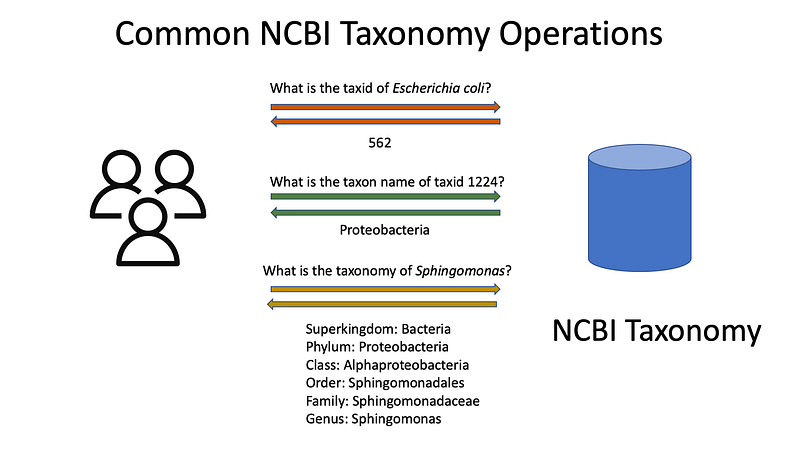
The problem: NCBI provides us with all this information in a group of text files, and they are not structured in an easily accessible way. The task is clear: to make this information programmatically accessible. And the access should be fast since these operations are performed very frequently.
Previously, I have written a blog post and a Python library Pyphy just for this purpose. Apart from my approach, there are other implementations out there in the Python world (etetoolkit, ncbi-taxonomist and taxadb). But some drawbacks comes to mind:
- It is language specific. So the users need to write their programs in that language such as Python to make use of the libraries.
- It is local. Whoever wants to use it, needs to set up the whole thing in their local environment. Each local copy needs updates individually afterwards. And you cannot access my installation via internet.
- It scales poorly. Its performance depends on the hardware where it is installed. And there is no way to automatically scale it up when needed.
For this reason, I moved Pyphy into the AWS cloud and make it into a REST API service. It basically solves all the three drawbacks at once:
- It is language agnostic. Not only virtually all programming languages can use REST API, in fact, you can even just use an app like Postman or even a browser to interact.
- It is on the cloud. As long as it is up and running, everybody with access to internet can use it right away without installing anything.
- It scales. It is possible to set it up so that Amazon can increase the computation resources to meet the demand surge.
I have thought about various ways to make Pyphy onto AWS. But finally I settled onto the easiest and cheapest way:
- Backend: Aurora serverless. I uploaded the data via a Cloud9 session.
- Frontend: API gateway with Lambda Function
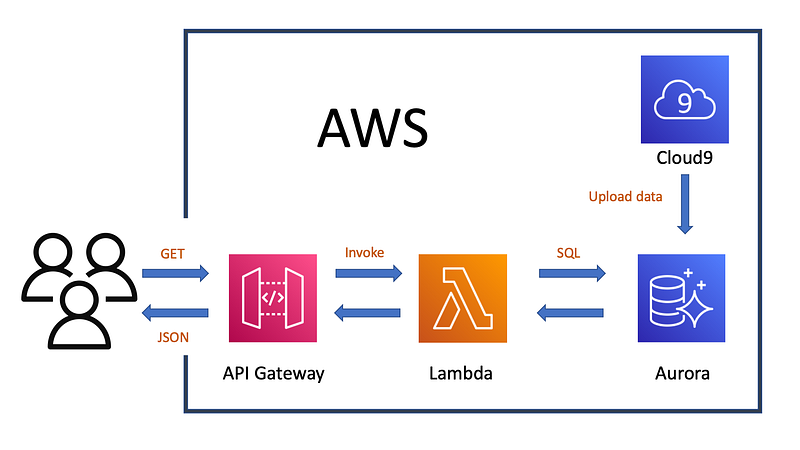
However, serverless Aurora skips a few calls after a certain period of inactiviy, because it needs to wake up after inactivity (the Stackoverflow discussion and solution is here). Therefore, if you need a persistent service, please consider using the provisioned Aurora.
The finished product looks like:
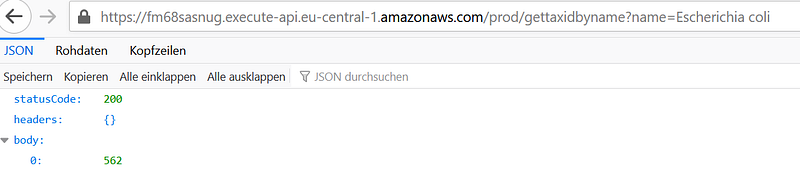
The code can be found in my Github repository here.
1. Data Preparation
First download the NCBI taxonomy data from its FTP. For my purposes, I only need “names.dmp” and “nodes.dmp”. The file “nodes.dmp” contains the taxid, parent taxid and rank, while “names.dmp” contains the mapping between taxids and their various taxonomic names and synonyms.
To make my database design simple, I consolidated them into two tsv files: “tree.tsv” and “synonym.tsv”. “tree.tsv” keeps the main information in one place, while “synonym.tsv” provides auxillary information about the synonyms for some taxids. I accomplished this task with a Python script “prepyphy.py”. I finished this step on my local machine. Of course, you do it the “cloud native” way: upload the two “dmp” file and my “prepyphy.py” onto AWS Cloud9 and perform the same task.
2. Set up serverless Aurora
Now it is time to head to AWS. After logging into the AWS account, open Amazon RDS and create a severless Aurora: select the “Serverless” under “Capacity type”:
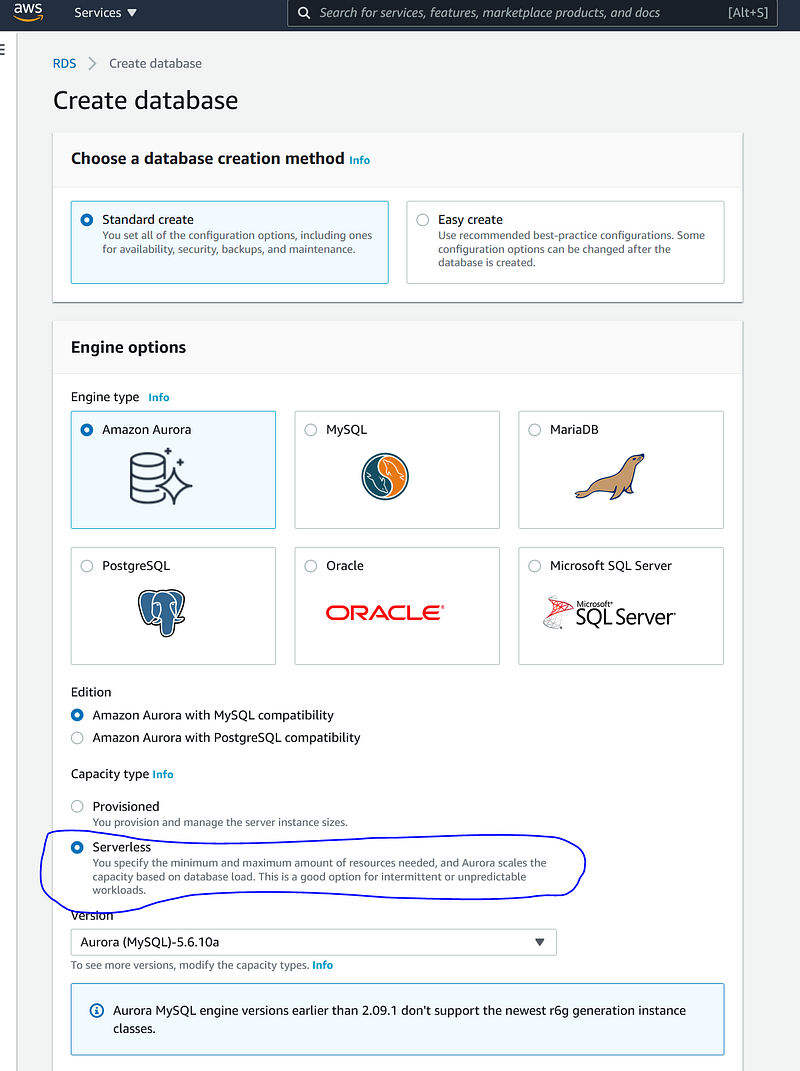
I named my DB cluster identifier “ncbi” and created a master username and master password. This credential is necessary later for the data import.
As to “Connectivity”, create a new VPC “pyphy” for this tutorial. Under “Additional configuration”, please check “Data API” for debugging. All the other options and parameters are default. Click “Create database” to let AWS prepare the database.
3. Import data into Aurora
Now switch to Cloud9. Select the same region as our Aurora database. Start by clicking “Create environment” and name it as “pyphy-import”. In Step 2 “Configure settings”, unfold “Network settings (advance)” and choose the same VPC as our Aurora database. Then go on to finish creating the Cloud9 environment.
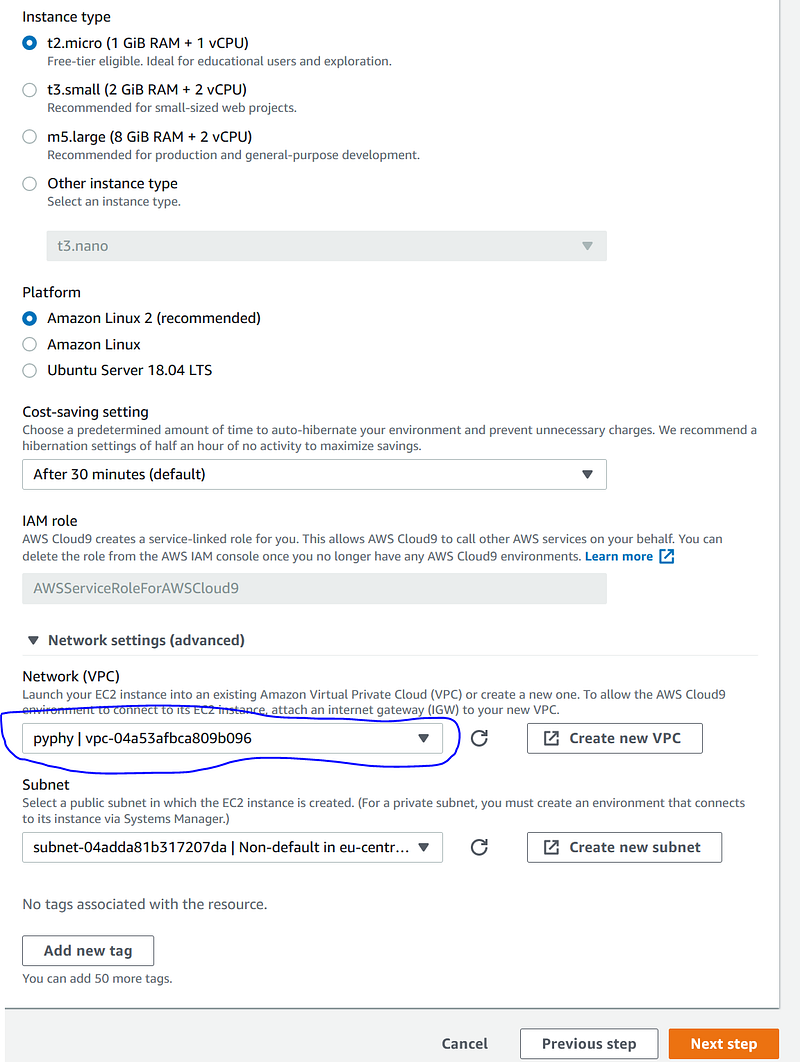
3.1. Allow connection bewteen Cloud9 and Aurora
Before moving on, we need to configure the security group so that our Cloud9 environment can communicate with our database cluster. First, click into the detail page of our newly created “pyphy-import” environment and copy the Security groups identifier.
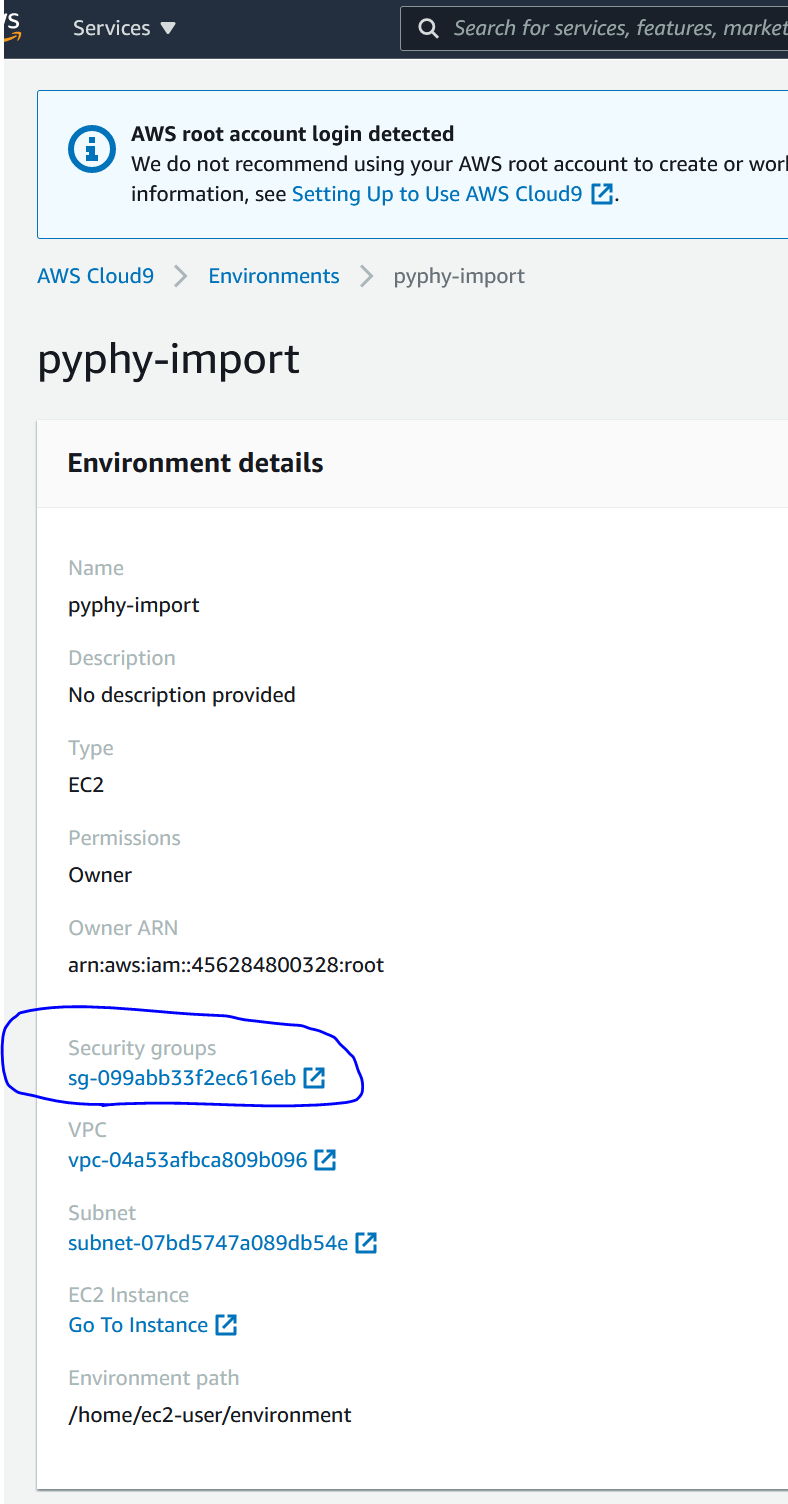
Then head over to RDS page and click into the detail page of our database “ncbi”. Under its “Connectivity & security” tab, take a note of the “Endpoint”. Then click open the “VPC security groups” link.
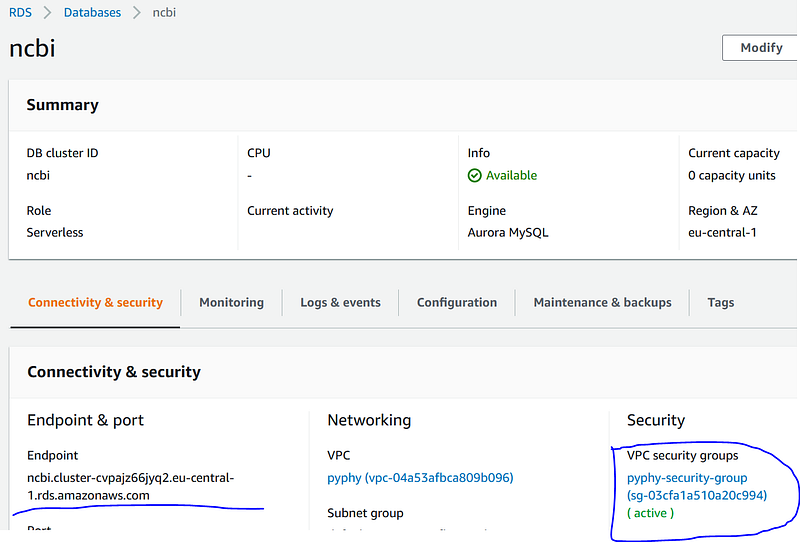
In the security group page, click “Inbound” and “Edit”, add a rule of type “MYSQL/Aurora”. In the “Source”, select “Custom” and paste the Cloud9 environment security group name into the text field.
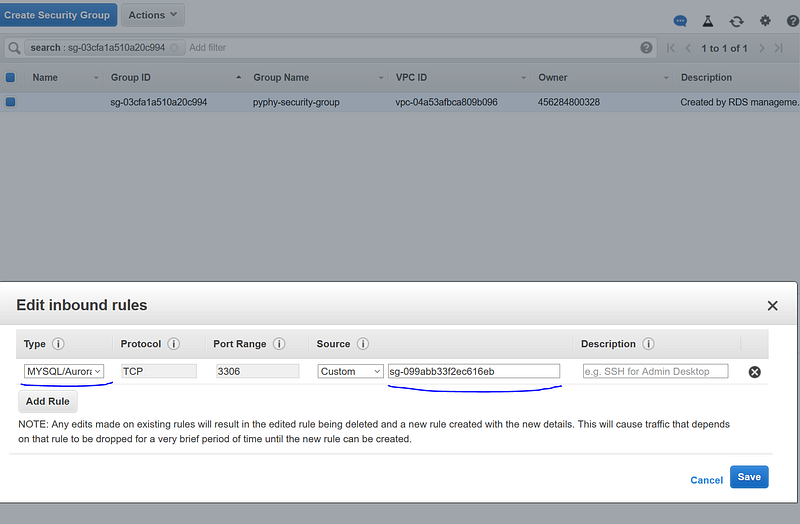
3.2. Import tsv files into Aurora
Now we are ready for the data import. In our newly created Cloud9 environment, click “File -> Upload Local Files…” to upload both “synonym.tsv” and “tree.tsv”.
In the console panel in the lower half of the screen, we can use the normal mysql command to log into our Aurora database by:
mysql -h [database endpoint] -P 3306 -u [database master username] -p[database endpoint] is the URL that we wrote down in 3.1. Master username is the one that we set when we created the Aurora database in 2. This command will then ask for the master password from Step 2. Once logged in, we can issue a series of commands to set up a database “pyphydb”. Inside it, we can import and index two tables: “tree” and “synonym”.
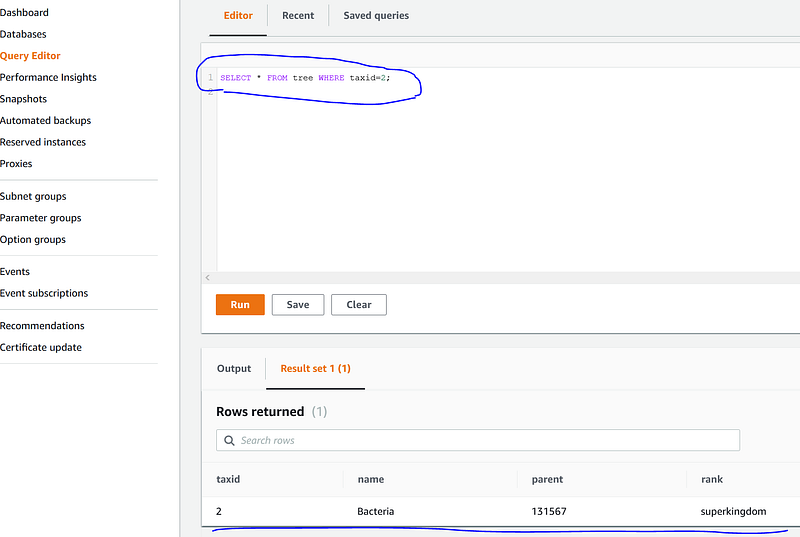
Once done, we can check whether everything is OK back in Amazon RDS by issuing a query in “Query Editor”. In “Connect to database” popup, enter the DB cluster name “ncbi”, master username and password, and the database name “pyphydb”. Be aware that it may take some minutes until serverless Aurora is set up. Once inside, issue a simple SQL
USE pyphydb;
SELECT * FROM tree WHERE taxid=2;
to confirm that the data are imported properly:
4. Set up AWS Lambda
With the backend database done, it is time to move onto the frontend. Our frontend consists of two AWS components: Lambda Function and API Gateway. The latter takes care of the URL handling. And Lambda takes care of the querying of our Aurora database. To understand this, imagine that Alice and Bob both work in a baker shop. Alice stands in the front and takes orders from the customers. She then gives a concise message to Bob, who goes to the storage and fetches the bread to Alice. And Alice hands over the bread to the customers. In our case, Alice is the API Gateway and Bob is the Lambda Function. The storage is the Aurora database.
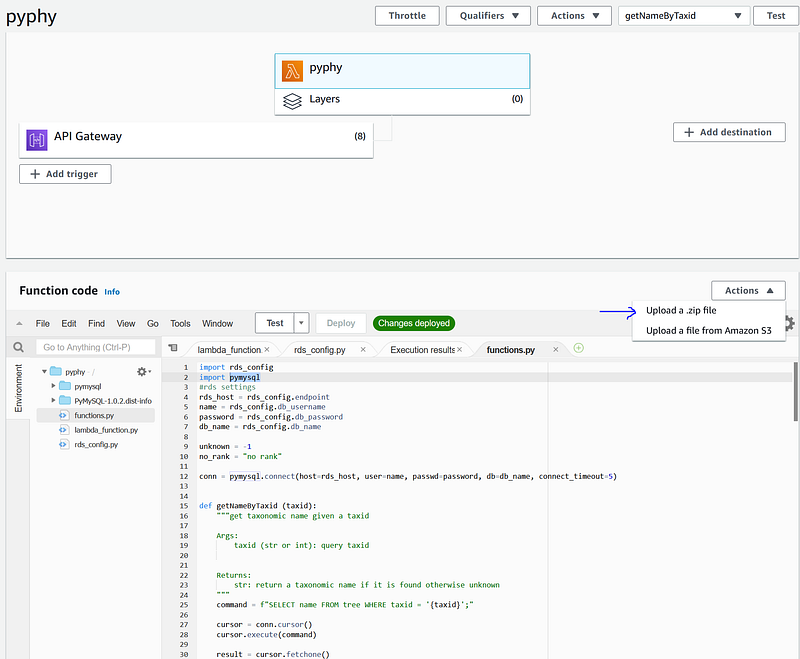
Currently, there are some gotchas in working with Lambda Functions in AWS. In our case, we need the Python library “pymysql” to interact with our Aurora database. But I could not find a way to install it in Lambda web editor. Instead, I need to create a deployment package (the files are also in my repository) and upload it to Lambda.
To do this, I created a folder in my local machine and installed the “pymysql” in it by issuing:
pip install PyMySQL -t .Afterwards, I wrote three Python scripts. “functions.py” takes care of the SQL queries and returns the desired outputs. “lambda_function.py” will handle the messages from API gateway and route the requests to the correct functions. And “rds_config.py” stores the database credential. Remember to enter all the database credentials in “rds_config.py”. Zip these files in the folder level (do not zip the folder). Call it deployment.zip.
Now in Lambda, click “Create function” -> “Author from scratch”. Enter a function name such as “pyphy” and under “Runtime” select “Python 3.8”. Under “Advanced settings”, choose the same VPC and the same security group as our Cloud9 environment.
Once inside Lambda’s editor, click “Actions” -> “Upload a .zip file” to upload the deployment.zip. After a short while, you can see the code in main area. Make sure that the Handler is “lambda_function.lambda_handler” in the “Runtime settings”. Click the orange “Deploy” button to make the “pyphy” Lambda function online.
5. Set up AWS API Gateway
First off, I have structured my API URL as such:
method?field=identifierFor example, in order to get the taxid of “Flavobacteriia”, I can issue the following query URL:
https://[api gateway invoke URL]/gettaxidbyname?name=FlavobacteriiaI have so far implemented six methods in my Lambda functions in Step 4. They should be sufficient to take care of the most commonly used NCBI taxonomy operations. Except the method “gettaxidbyname” that requires an the field of “name”, all the other five functions require a field of “taxid”.
We need to define these in API Gateway. In the API Gateway page, click “Create API”. Click the orange “Build” button in the third “REST API” (not the “Private” one). Make sure “New API” is selected and give the API a name like “pyphy”.
5.1 Create the first resource and its GET method
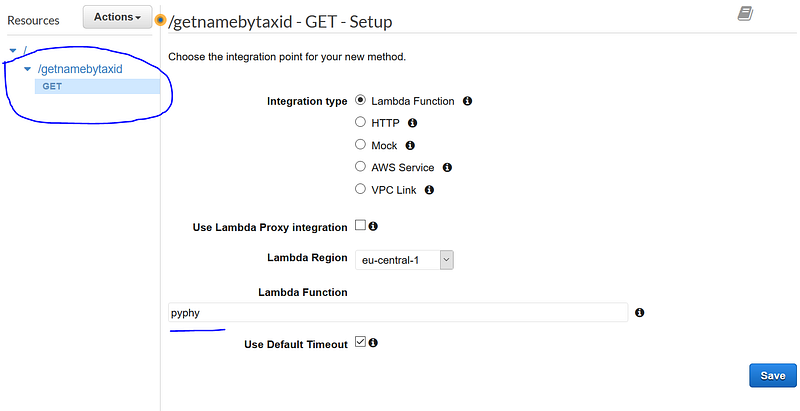
Once created, we are onto the API editor page. Click the “Actions” dropdown and click “Create Resource”. In “Resource Name*”, enter our first method name “getnamebytaxid”, click “Create Resource”. When “/getnamebytaxid” is highlighted, click “Actions” dropdown again and click “Create Method”. A small dropdown will appear beneath our “/getnamebytaxid” resource. Open that small dropdown and select “GET” and click the small “check” icon to confirm. On the right side panel, a setup page appears. Make sure “Integration type” is “Lambda Function”. In “Lambda Function” input field enter “pyphy” (a hint dropdown should show up and let us auto-complete it). Click “Save”.
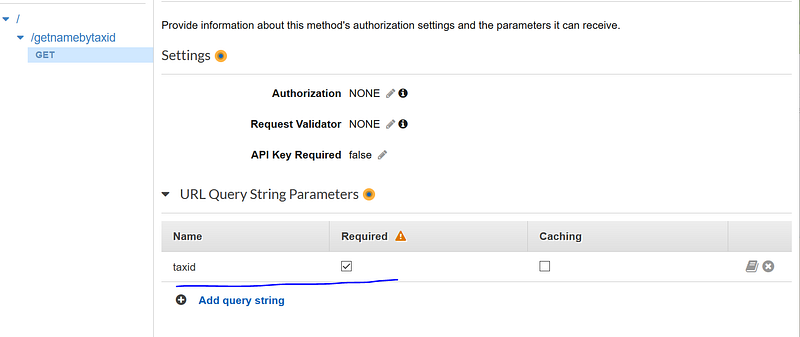
Now the “Method Execution” panel appears. Click “Method Request” on the first box. Unfold “URL Query String Parameters” and click “Add query string” to add “taxid”. Click the check box under “Required”.
Return to “Method Execution” by clicking “← Method Execution”. Now click “Integration Request” and unfold “Mapping Templates”. Choose “When there are no templates defined (recommended)”. Click “Add mapping template” and enter “application/json” and click the small “check” icon to confirm. A text box will appear below. Enter and save:
This concludes the configuration of “/getnamebytaxid”.
5.2 Repeat the same for the other four “bytaxid” resources
Now we can set up the other four “bytaxid” resources “/getdictpathbytaxid”, “/getparentbytaxid”, “/getrankbytaxid” and “/getsonsbytaxid”. The procedures are exactly the same.
5.3 Add the final resource
The last resource “/gettaxidbyname” requires a “name” input field. Its setup is nearly identical to those above and it only differs in:
- in “URL Query String Parameters” under “Method Request”, “name” is the required field.
- in “Mapping Templates” under “Integration Request”, the text box should be:
5.4 Deploy the API
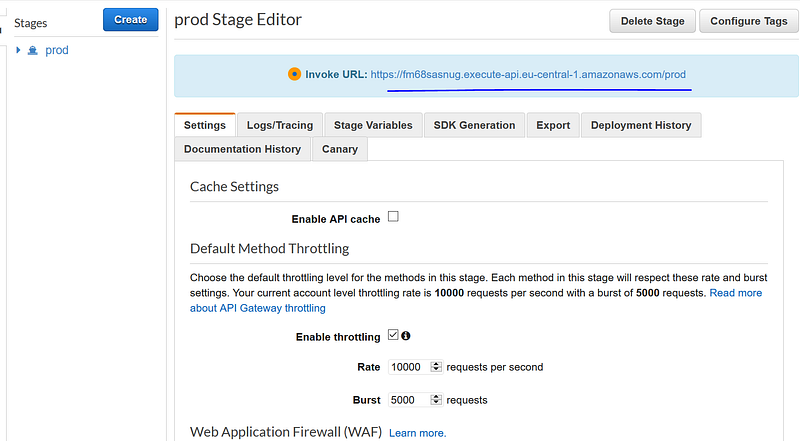
Now it is time to deploy the API. Click “Actions” and click “Deploy API”. In the popup, enter “prod” as Deployment stage and click “Deploy”. This will lead to a new page in the right panel. Under “Invoke URL”, we can find our individual URL endpoint.
5.5 Test the API
Now let’s test whether the API works.
- Get the taxid of “Escherichia coli” by issuing:
https://[your Invoke URL]/prod/gettaxidbyname?name=Escherichia%20coliAnd I got back “562” in the body section:
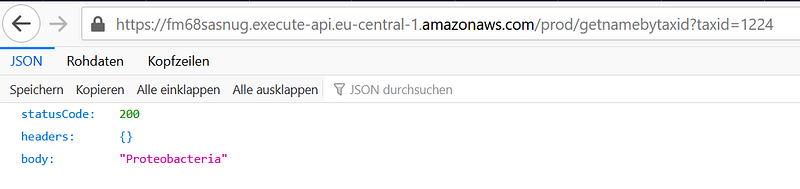
2. Get the name of taxid 1224 by issuing:
https://[your Invoke URL]/prod/getnamebytaxid?taxid=1224And I got “Proteobacteria”:
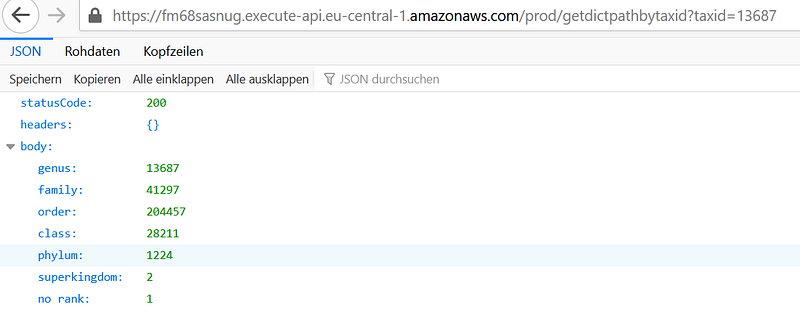
3. Get the taxonomic path for Sphingomonas (taxid 13687) by issuing
https://[your Invoke URL]/prod/getdictpathbytaxid?taxid=13687And I got back:
6. Conclusion
Success! Now we have an online API that can serve the whole world with NCBI taxonomy. It is language agnostic, scalable and easy to use. It is also relatively easy to maintain: just upload the newer version of tree.tsv and synonym.tsv and it is done.
Certainly, there are other ways to achieve the same goal in AWS. For example, I can think of using the Application Load Balancer to distribute the input traffic to Fargate that queries the Aurora database with node.js. Maybe I can get rid of Aurora and run a fleet of nodes orchestrated by EKS.
This tutorial shows the hard way to set up the whole thing. I am now planning to summarize this tutorial in Terraform, so that the whole infrastructure can be set up in a heartbeat. Also, other tools such as Ansible and Chef may also come into play for configuring the database. The learning possibility in such a project is truely endless.
Now, it is your turn to use your creativity to show me some interesting AWS projects!
Update: in my new article “Five Commands Build Two NCBI APIs on the Cloud via Pulumi”, I coded the infrastructure with the help of Pulumi. So now only three commands are needed for the setup.


