
Sending Slack Notifications in Python with Prefect
Get Updated with the Progress of Your Python Code with Slack Notifications
Motivation
Your Python code might take hours to run. For example, you might need to train your machine learning model overnight to get the best performance. Instead of constantly checking the progress of your code, wouldn’t it be nice if you could send notifications to your Slack channel if your code runs successfully?
In this article, you will learn how to use Prefect to send notifications to your Slack channel when your code is completed or failed.
What is Prefect?
Prefect is an open-source library that enables you to orchestrate your data workflow in Python. If you are completely new to Prefect, check out this article:
To install Prefect 2.0, type:
pip install -U "prefect>=2.0b"To install the version of Prefect that will be used in this article, type:
pip install -U "prefect==2.0.2"What We Will Do?
At a high level, to create send notifications when our code reaches a certain state, we will:
- Create a Prefect flow
- Deploy that flow
- Create a notification on Prefect Orion Server
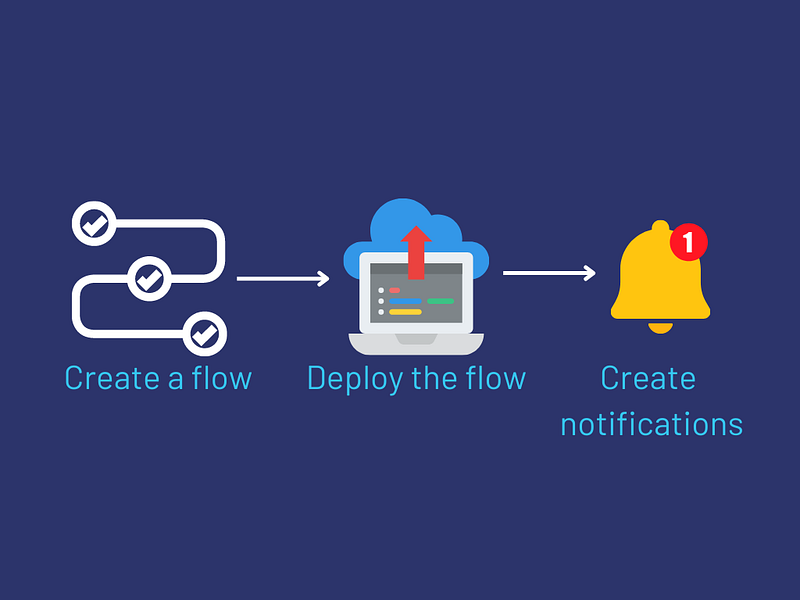
Let’s dive into each of these steps in the next few sections.
Create a Flow
Imagine you have the code to train the model and you want to send notifications when your code fails:
The function train includes the functions to train data. To turn this function into a Prefect flow, simply add the decorator flow to it:
Deploy a Flow
To deploy a flow, we will:
- Deploy our flow
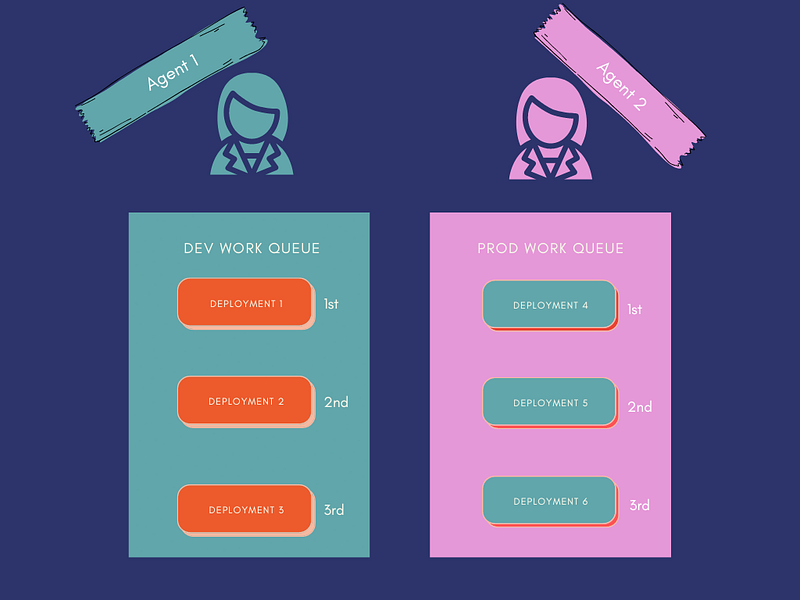
- Create a work queue to organize deployments into queues for execution
- Create an agent to execute deployments inside a work queue
Create a Deployment
A deployment encapsulates your flow, allowing it to be scheduled and triggered via API.
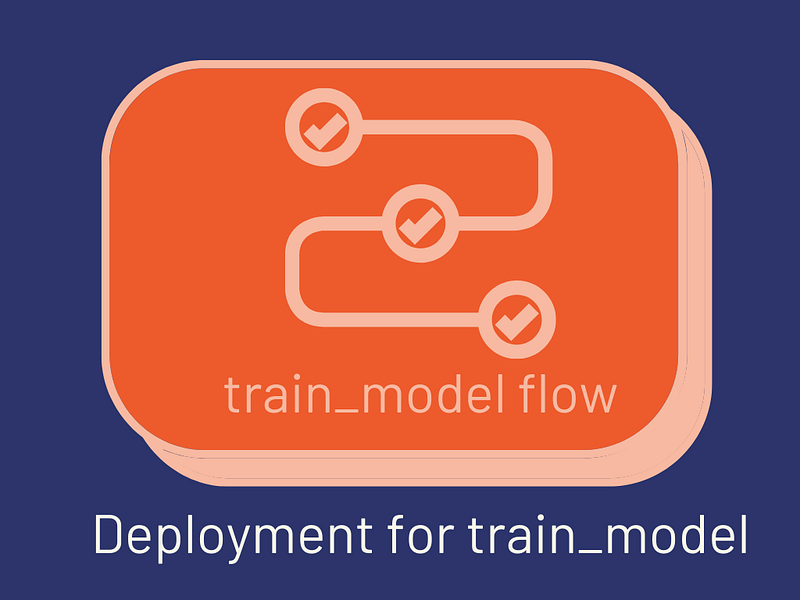
To deploy the flow train_model, start with building a deployment manifest and deployment.yaml that describes the files and settings needed to create your deployment.
The syntax to build the deployment artifacts is:
prefect deployment build <path>:<flow-function-name> -n <deployment-name> -t <tag>In our example, to build the deployment artifacts for the development flow from the file src/development.py , type the following command in the current directory:
prefect deployment build src/train_model.py:train -n train-deployment -t devwhere:
-n train-deploymentspecifies the name of the deployment to betrain-deployment-t devspecies the tag of the deployment to bedev
Now the manifest file and deployment.yaml will be created in your directory:
.
├── train-deployment.yaml
├── train-manifest.json
Learn more about deployment artifacts here.
To create the deployment from train-deployment.yaml, run the following:
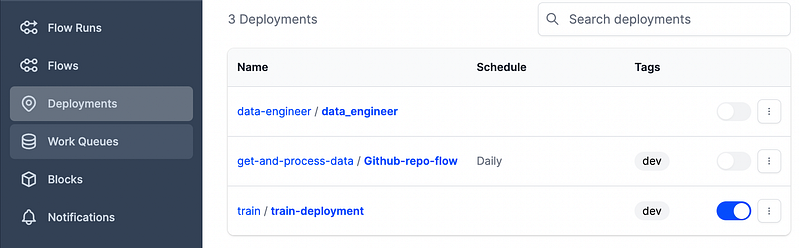
prefect deployment apply train-deployment.yamlNow, you should see the new deployment under the Deployments tab.
Create a Work Queue and Agent
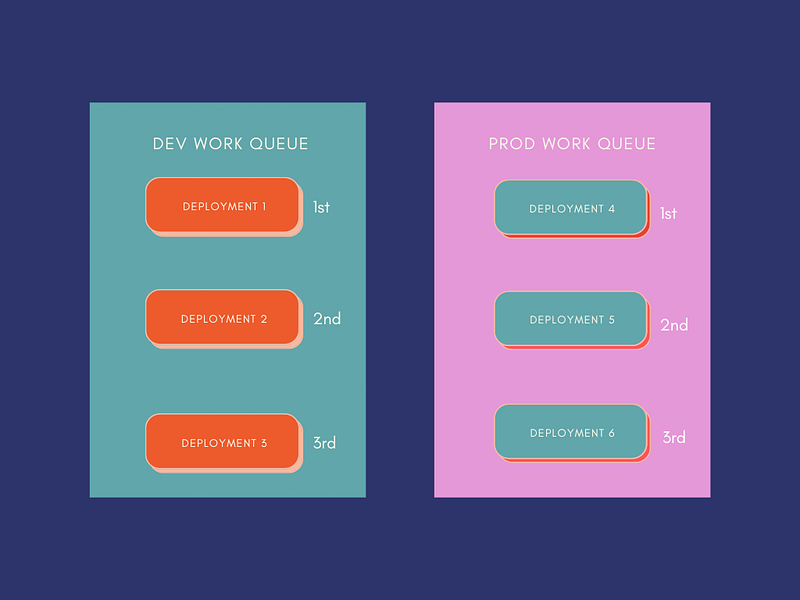
Each work queue also organizes deployments into queues for execution.
Each agent executes deployments in a specific work queue.
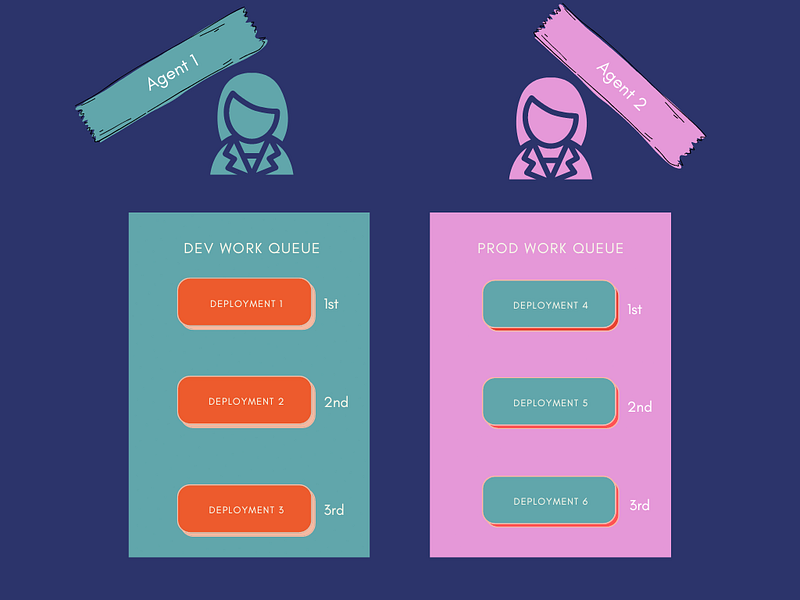
To run an agent and create a work-queue a specific tag, type prefect agent start -t <tag> . The tag tells the work queue to only serve deployments that include that tag.
For example, to create a work queue with the dev tag, type:
prefect agent start -t devCreate Notifications
Now it comes to the fun part: creating notifications for your flow! Prefect allows you to create notifications through an intuitive user interface.
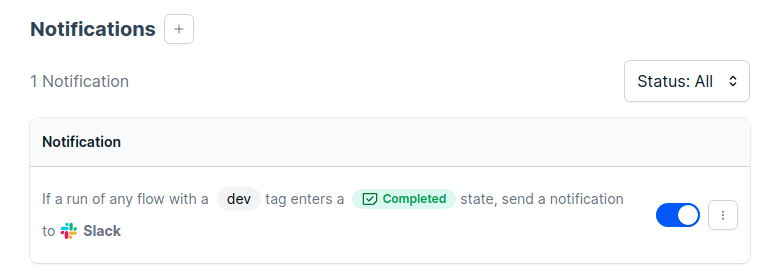
Prefect Orion Server allows you to manage your runs, deployments, schedules, and notifications through a UI. To spin up Prefect Orion Server, type:
prefect orion startAnd you will see an interface like below:
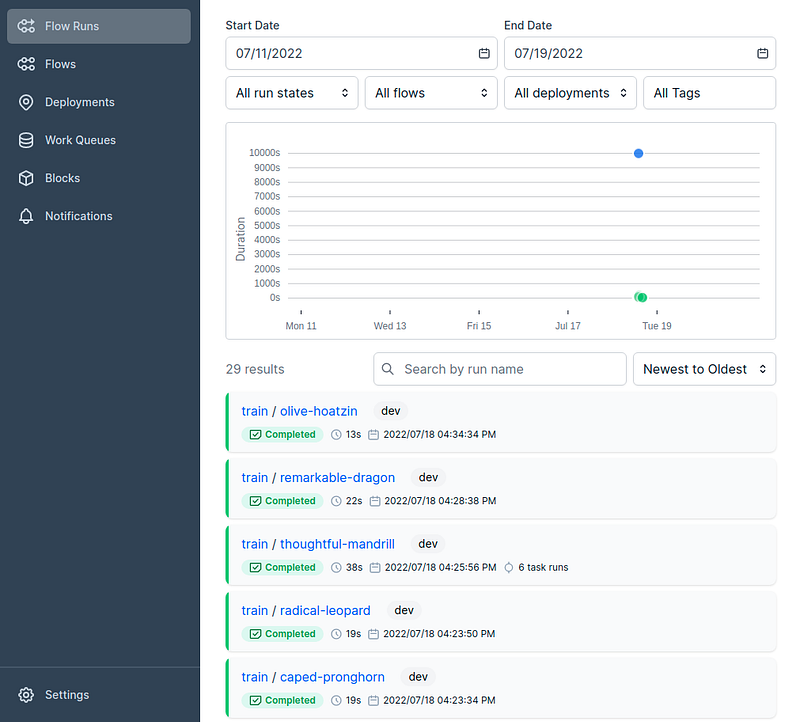
Click the tab Notifications then click Create Notifications to create a new notification.
To send the notifications to a Slack channel, we need to give Prefect the information about that channel through a Slack Webhook URL.
To get a Slack Webhook URL of your Slack channel, go to Using Webhooks in Slack API then create your Slack app.
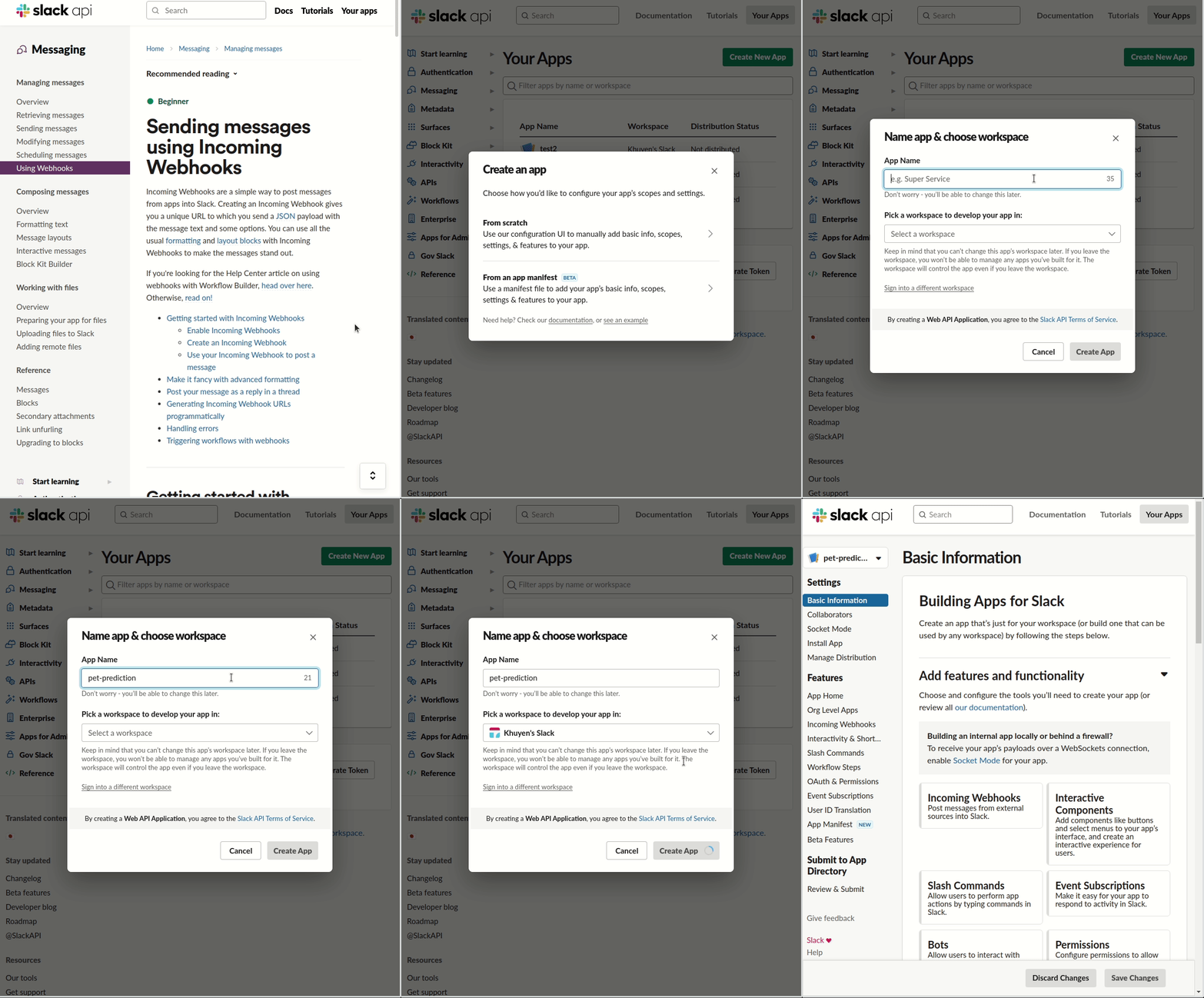
After creating a Slack app, click the app → Add features and functionality → Incoming Webhooks → Activate Incoming Webhooks → Add New Webhook to Workspace.
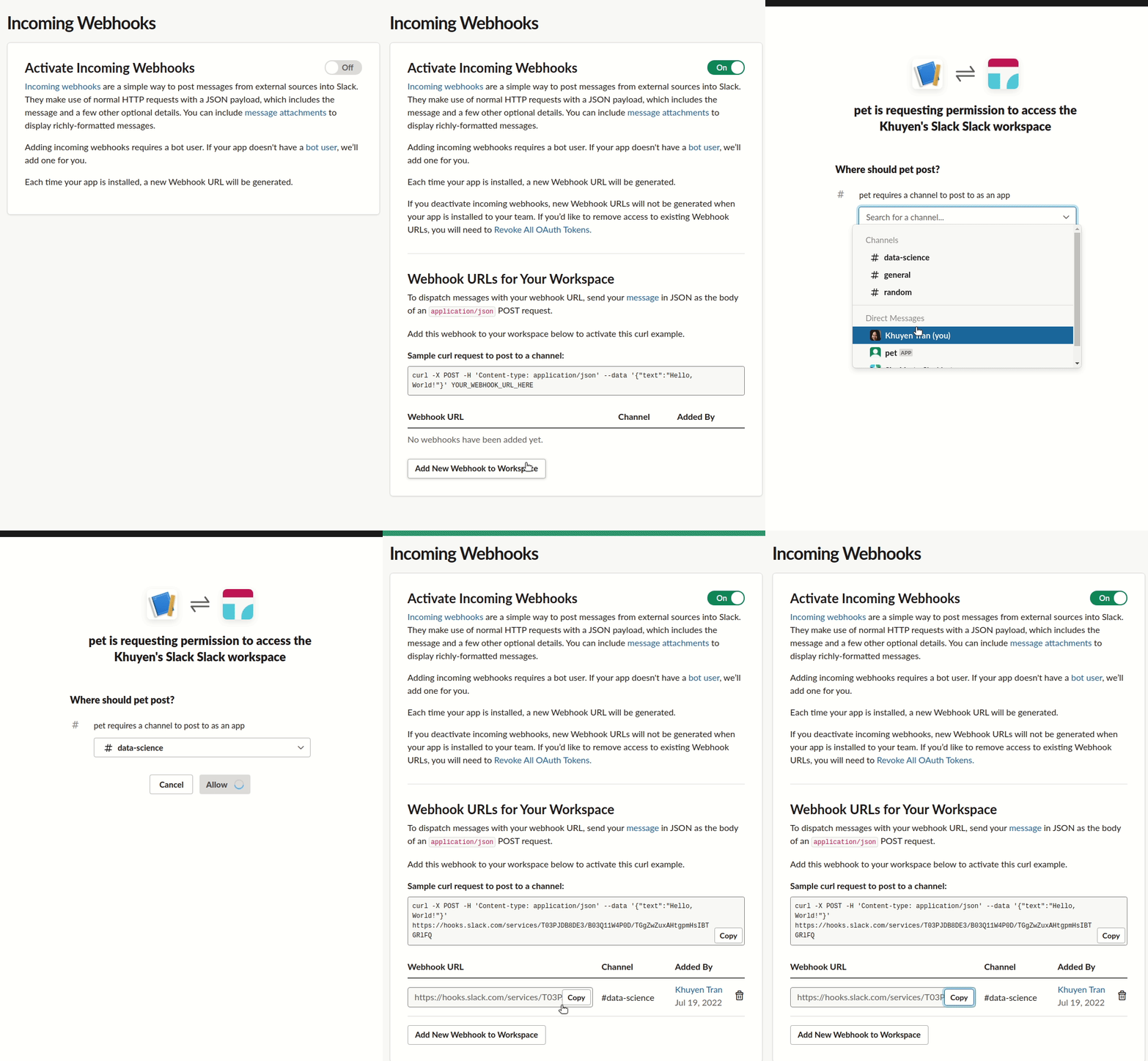
Go back to the section Creation Notification on Prefect Orion Server. Copy the Webhook URL you have just created and paste it into the box Webhook URL.
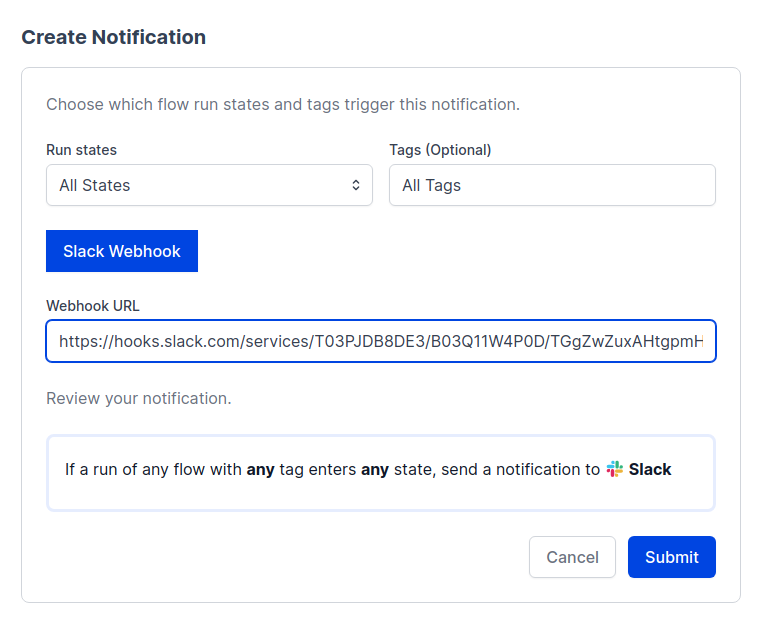
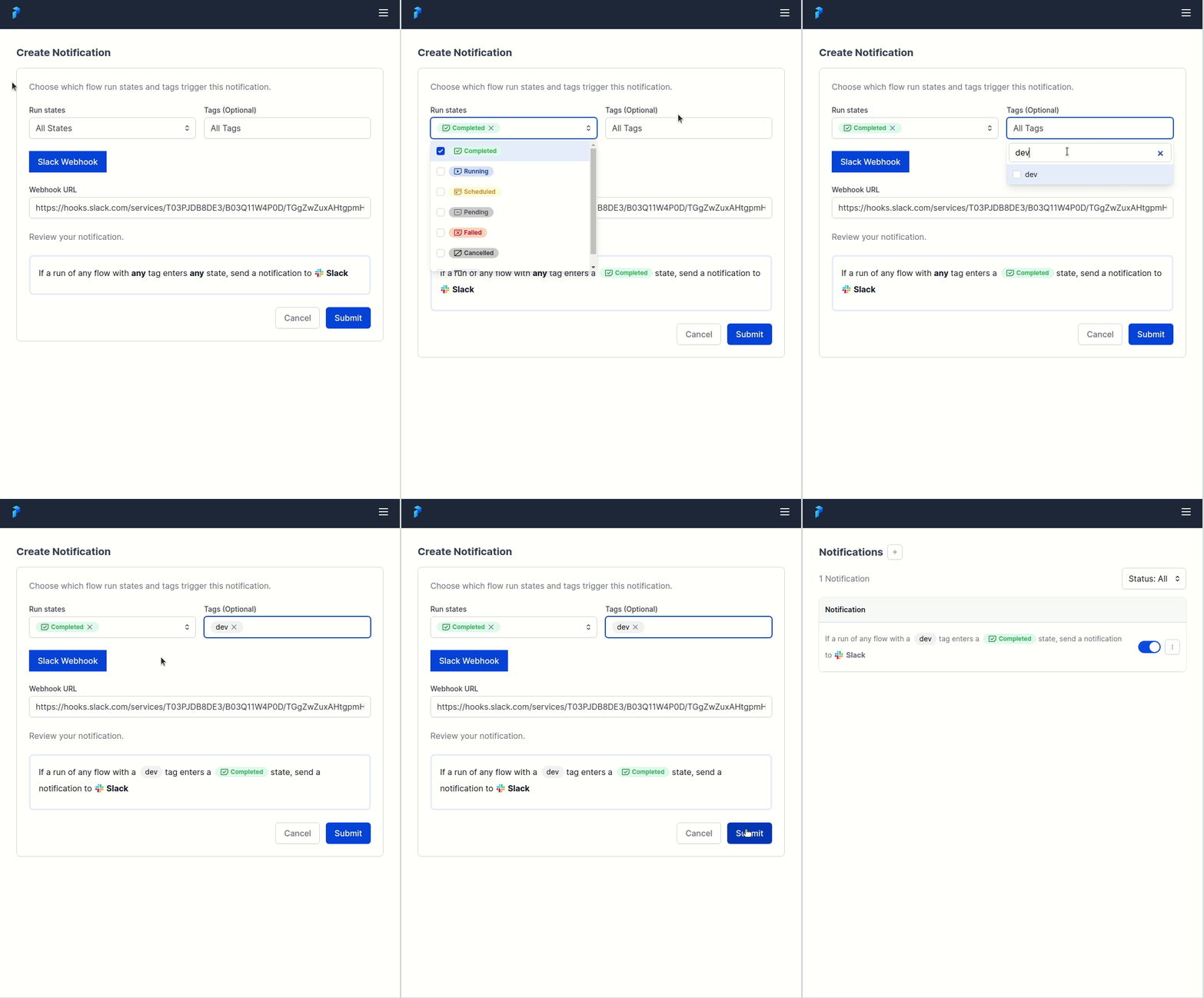
Next, set Run states and Tags. Run states tells Prefect to send notifications when a flow reaches certain states. Tags tells Prefect to send notifications for all flows with certain tags.
In the GIF below, we set Run states to be Completed and Tags to be dev. This means that if a run of any flow with a dev tag enters a Completed state, Prefect will send a notification to Slack.
Try Out Notifications
Now that we have set up the notifications, let’s try this out to see if the feature works.
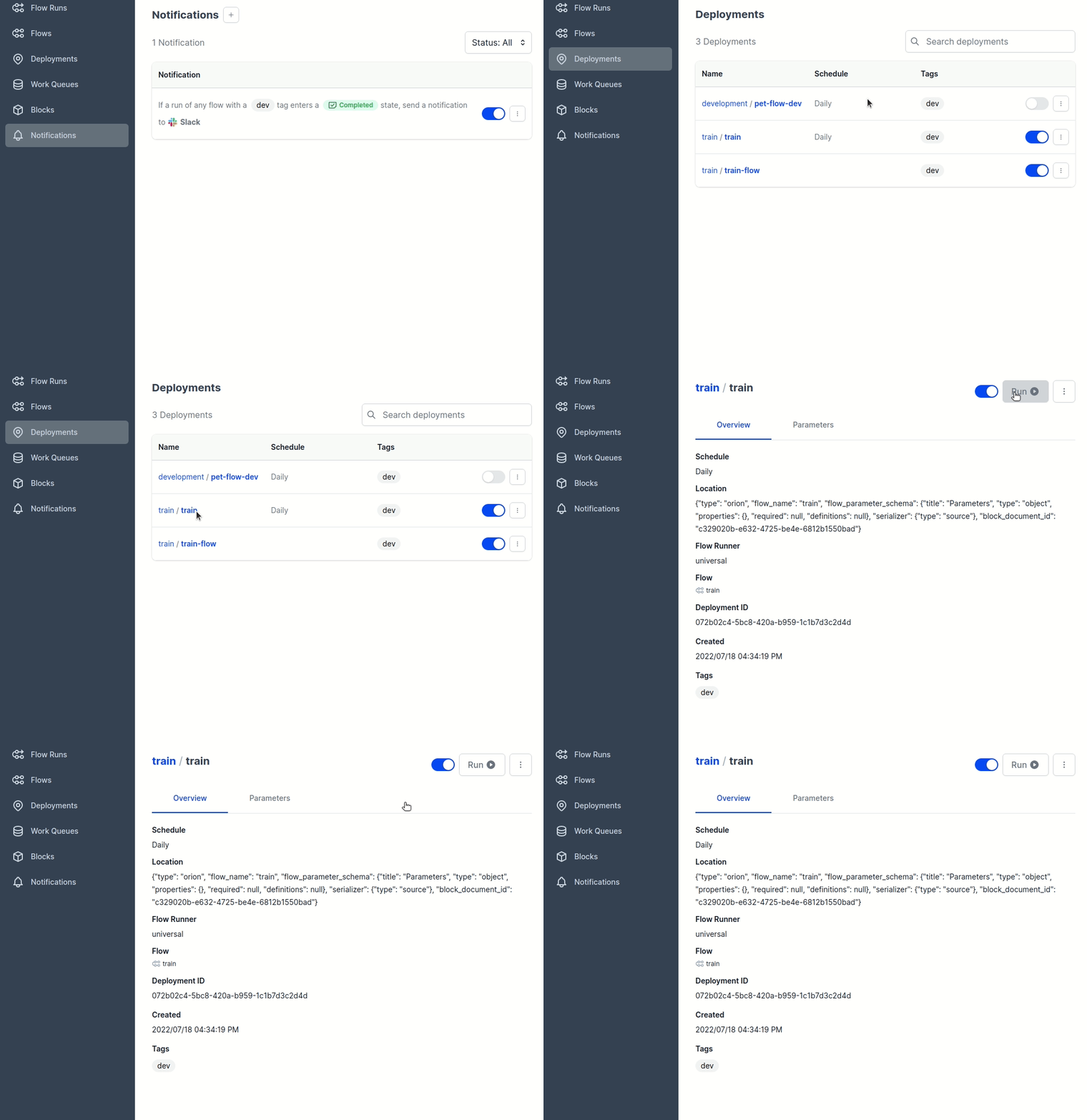
Now if you check your Slack channel, you should see a message like the one below!

How cool is that?
Next Step
To recap, we have just set up notifications by
- Turning your code into a flow by adding one decorator
- Deploying the flow by creating a Python script and running several commands
- Creating notifications through a UI
With notifications set up, you no longer need to constantly check your code anymore. Now you and your team will get updated with the status of your workflows.
The source code of this article can be found here:
You can find more about Prefect 2.0 on our documentation page.
Happy engineering!


