avatarBhargav Bachina

Free AI web copilot to create summaries, insights and extended knowledge, download it at here

3763

Abstract

images</pre></div><div id="bbf7"><pre>// run the conatiner docker run -d -p <span class="hljs-number">3000</span>:<span class="hljs-number">3000</span> --name nodeapi bbachin1/<span class="hljs-keyword">node</span><span class="hljs-title">-api</span></pre></div><div id="76aa"><pre>//<span class="hljs-built_in"> check </span>the running container docker ps</pre></div><div id="149c"><pre><span class="hljs-comment">// exec into docker container</span> <span class="hljs-symbol">docker</span> exec -<span class="hljs-keyword">it</span> nodeapi /bin/sh</pre></div><figure id="18d3"><img src="https://cdn-images-1.readmedium.com/v2/resize:fit:800/1*Z6lmQeR3RdbL1qfpDa5YdA.png"><figcaption><b>running on port 3000</b></figcaption></figure><h1 id="ac18">Launch EC2 instance</h1><p id="7404">Now we ran the container on your local machine and set up our AWS account and created an IAM user with Administrator access. It’s time to launch the EC2 instance by going to the EC2 dashboard.</p><figure id="c130"><img src="https://cdn-images-1.readmedium.com/v2/resize:fit:800/1*B-SZpOStJCBLoReDkUSJhw.png"><figcaption><b>EC2 dashboard</b></figcaption></figure><p id="d1fb">Select free tier eligible Linux instances</p><figure id="8083"><img src="https://cdn-images-1.readmedium.com/v2/resize:fit:800/1*eDrKOQZpupTpf-bTj-BjHQ.png"><figcaption><b>free tier eligible Linux AMI</b></figcaption></figure><figure id="194a"><img src="https://cdn-images-1.readmedium.com/v2/resize:fit:800/1*rbB5FSKguzQw91sxymZDAA.png"><figcaption><b>instance type</b></figcaption></figure><p id="47dd">You need to make sure you added security group rules for HTTP so that you can access this instance public.</p><figure id="adb8"><img src="https://cdn-images-1.readmedium.com/v2/resize:fit:800/1*0_KgXyoau2ndgVhbKZkUcQ.png"><figcaption><b>add HTTP rule</b></figcaption></figure><p id="194f">You need to have key-pair so that you can access this instance securely from the AWS CLI. If you don’t have already this ley you can create one before launching. You should download this key and keep this in a secure location.</p><figure id="7331"><img src="https://cdn-images-1.readmedium.com/v2/resize:fit:800/1*ehzloqCUwQOA1F4wYtVzhA.png"><figcaption><b>key pair for connecting instance securely</b></figcaption></figure><p id="a5e1">You will have a running instance after some time.</p><figure id="15c9"><img src="https://cdn-images-1.readmedium.com/v2/resize:fit:800/1*xKl8MI2js_8IcBcqxq2aBA.png"><figcaption><b>running instance</b></figcaption></figure><p id="a2d3">If you click on the connect button on the top you can see the instructions on how to connect to this instance securely.</p><figure id="9c4c"><img src="https://cdn-images-1.readmedium.com/v2/resize:fit:800/1*-qxaHnKlj5V0OxDf-8a0XQ.png"><figcaption><b>instructions</b></figcaption></figure><figure id="ee13"><img src="https://cdn-images-1.readmedium.com/v2/resize:fit:800/1*gp7evWyx7FbmFZnXvD9Umg.png"><figcaption><b>connected</b></figcaption></figure><h1 id="6c4c">Install Docker</h1><p id="bddc">Once you securely connected to the EC2 instance and let's run the following commands to install Docker.</p><div id="6e46"><pre>// <span class="hljs-keyword">update</span> sudo yum <span class="hljs-keyword">update</span> -y</pre></div><div id="6d9f"><pre><span class="hljs-comment">// install most recent package</span> sudo amazon-linux-extras install docker</pre></div><div id="f6ef"><pre>// <span class="hljs-built_in">start</span> <span class="hljs-keyword">the</span> service docker sudo service docker <span class="hljs-built_in">start</span></pre></div><div id="4620"><pre>// add the ec2-docker <span class="hljs-keyword">user</span> <span class="hljs-title">to</span> the <span class="hljs-keyword">group</span> <span class="hljs-t

Options

itle">sudo</span> usermod -a -G docker ec2-user</pre></div><div id="e3dd"><pre><span class="hljs-comment">// you need to logout to take affect</span> logout</pre></div><div id="3e74"><pre><span class="hljs-comment">// login again</span> ssh -<span class="hljs-selector-tag">i</span> <span class="hljs-string">"ec2-docker.pem"</span> ec2-user@ec2-<span class="hljs-number">3</span>-<span class="hljs-number">18</span>-<span class="hljs-number">220</span>-<span class="hljs-number">172</span><span class="hljs-selector-class">.us-east-2</span><span class="hljs-selector-class">.compute</span><span class="hljs-selector-class">.amazonaws</span>.com</pre></div><div id="ce85"><pre>//<span class="hljs-built_in"> check </span>the docker version docker --version</pre></div><figure id="47c4"><img src="https://cdn-images-1.readmedium.com/v2/resize:fit:800/1*VGMKXqbxH8CcBqhQZcMNXw.png"><figcaption><b>checking the docker version</b></figcaption></figure><h1 id="59e1">Running Docker container on AWS EC2</h1><p id="95bb">We need to repeat the same steps that we have done in the second step in which we run the container on our local machine.</p><p id="49ea">Let’s pull this image from the Docker Hub and run this container with the following commands. One thing we need to notice here is that we need to expose on <b>port 80 because this is the port we can access this instance publicly.</b></p><div id="088c"><pre>// pull the image docker pull bbachin1/<span class="hljs-keyword">node</span><span class="hljs-title">-api</span></pre></div><div id="bc5d"><pre><span class="hljs-comment">// list the images</span> docker images</pre></div><div id="a99d"><pre>// run the conatiner docker run -d -p <span class="hljs-number">80</span>:<span class="hljs-number">3000</span> --name nodeapi bbachin1/<span class="hljs-keyword">node</span><span class="hljs-title">-api</span></pre></div><div id="444f"><pre>//<span class="hljs-built_in"> check </span>the running container docker ps</pre></div><div id="367d"><pre><span class="hljs-comment">// exec into docker container</span> <span class="hljs-symbol">docker</span> exec -<span class="hljs-keyword">it</span> nodeapi /bin/sh</pre></div><p id="cb8a">Let’s take the public DNS address and check the node api running on this instance.</p><figure id="c84d"><img src="https://cdn-images-1.readmedium.com/v2/resize:fit:800/1*DzZwAlnqUrO8YyMgT_xQVg.png"><figcaption><b>public DNS address</b></figcaption></figure><figure id="defc"><img src="https://cdn-images-1.readmedium.com/v2/resize:fit:800/1*U8l98MIxKeWl6Jq93oOL_Q.png"><figcaption><b>Running successfully</b></figcaption></figure><h1 id="13f0">Disadvantages</h1><ul><li>First of all, this is the manual process and we should avoid doing this.</li><li>You deployed the applications on Docker which runs on one EC2 instance. That great but, what if you want to deploy a fleet of instances with docker images that when AWS ECS comes to rescue.</li><li>It’s going to be extremely difficult to connect to other Docker containers as well.</li></ul><h1 id="5ad9">Summary</h1><ul><li>You can run Docker containers on AWS EC2 by installing Docker.</li><li>You need to install Docker CLI, AWS account setup and you need to create an IAM user as an administrator.</li><li>You can pull Docker images from Docker Hub and when you run those containers you should expose on port 80.</li><li>You need to add a security group rule for HTTP for accessing publicly.</li><li>This is the manual process and it’s not suitable if you want to launch a fleet of instances.</li><li>You should use AWS ECS.</li></ul><h1 id="3990">Conclusion</h1><p id="aa86">You can use this approach if you want to run Docker containers quickly on Linux. Consider using AWS ECS for production use.</p></article></body>

Running Docker Containers On AWS EC2

Learn how to run your own containers on AWS EC2

Photo by Mohamed Nohassi on Unsplash

Have you ever wondered how to run docker containers on AWS? AWS provides other services to run containerized applications such as ECS, EKS, etc. In this post, we actually see how you can launch EC2 instances, install Docker and finally run containers on it.

  • Prerequisites
  • Running Docker container on your local
  • Launch EC2 instance
  • Install Docker
  • Running Docker container on AWS EC2
  • Disadvantages
  • Summary
  • Conclusion

Prerequisites

There are some tools that you need to understand before going through this tutorial.

  • Install Docker on your machine to run containers on your local machine. If you already know how to run a container on your local machine you can skip this step.
  • AWS account setup: AWS offers a free tier for one year here is the link to set it up.
  • Once you set it up you have a root account. It’s not a best practice to use your root account to do any tasks instead you should create an IAM group that has permissions for administrator access and add a user to it and log in with that user.
  • Install AWS CLI
  • Configure AWS CLI for the user you just created above. You should use this command aws configure and it will ask access key id and secret key.
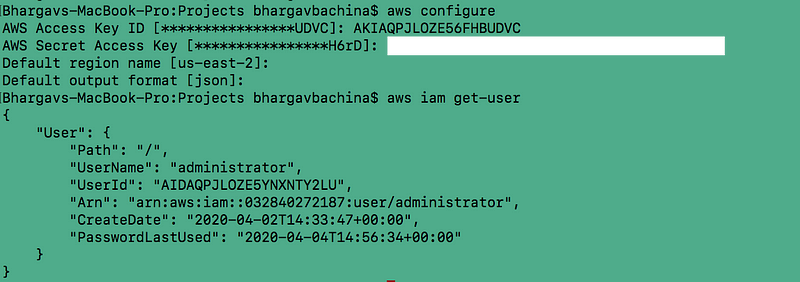
log in with a user credentials

Running Docker container on your local

Once you installed the Docker desktop on your laptop just pull this Docker image from the Docker hub here. This is the simple nodejs express API with two routes and listening on port 3000.

Here is the Dockerfile for this project

Let’s pull this image from the Docker Hub and run this container with the following commands.

// pull the image
docker pull bbachin1/node-api
// list the images
docker images
// run the conatiner
docker run -d -p 3000:3000 --name nodeapi bbachin1/node-api
// check the running container
docker ps
// exec into docker container
docker exec -it nodeapi /bin/sh

running on port 3000

Launch EC2 instance

Now we ran the container on your local machine and set up our AWS account and created an IAM user with Administrator access. It’s time to launch the EC2 instance by going to the EC2 dashboard.
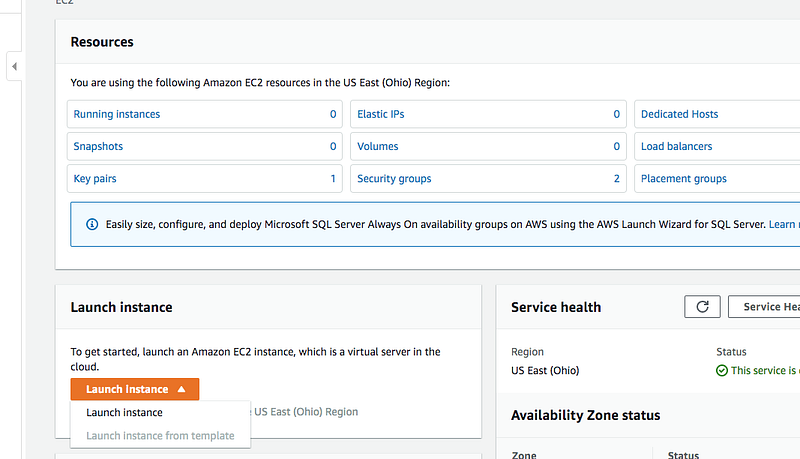
EC2 dashboard

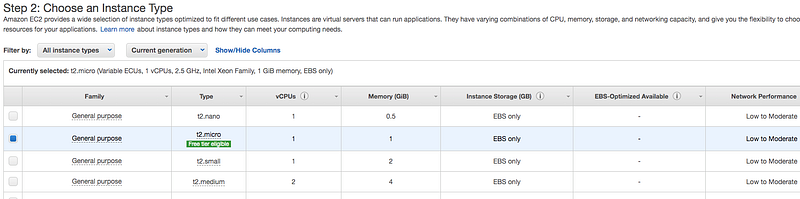
Select free tier eligible Linux instances

free tier eligible Linux AMI
instance type

You need to make sure you added security group rules for HTTP so that you can access this instance public.
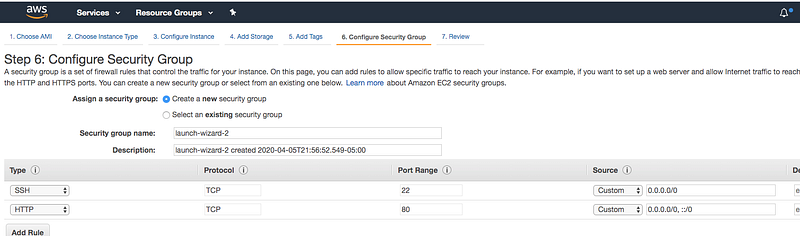
add HTTP rule

You need to have key-pair so that you can access this instance securely from the AWS CLI. If you don’t have already this ley you can create one before launching. You should download this key and keep this in a secure location.
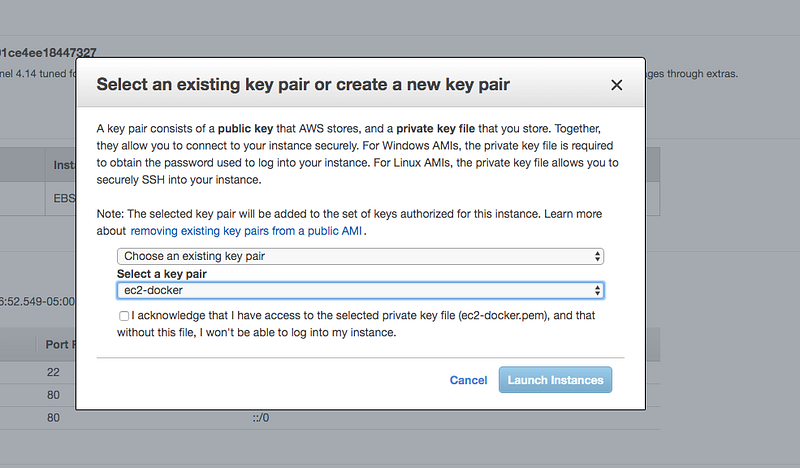
key pair for connecting instance securely

You will have a running instance after some time.

running instance

If you click on the connect button on the top you can see the instructions on how to connect to this instance securely.
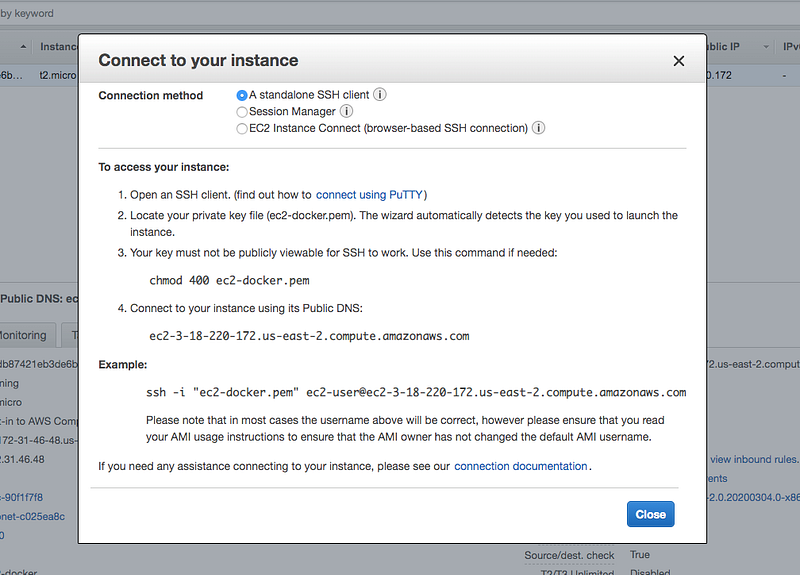
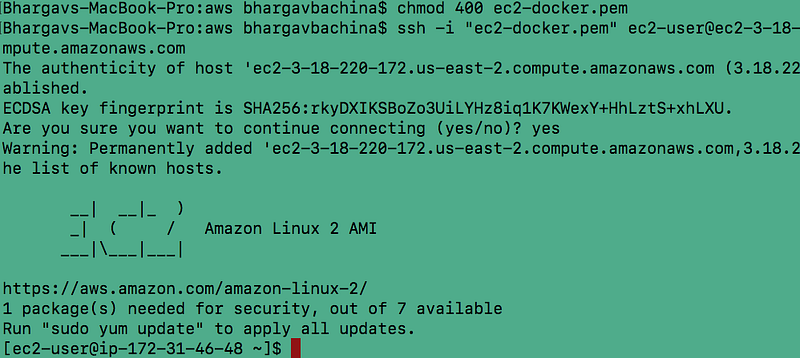
instructions
connected

Install Docker

Once you securely connected to the EC2 instance and let's run the following commands to install Docker.

// update
sudo yum update -y
// install most recent package
sudo amazon-linux-extras install docker
// start the service docker
sudo service docker start
// add the ec2-docker user to the group
sudo usermod -a -G docker ec2-user
// you need to logout to take affect
logout
// login again
ssh -i "ec2-docker.pem" ec2-user@ec2-3-18-220-172.us-east-2.compute.amazonaws.com
// check the docker version
docker --version

checking the docker version

Running Docker container on AWS EC2

We need to repeat the same steps that we have done in the second step in which we run the container on our local machine.

Let’s pull this image from the Docker Hub and run this container with the following commands. One thing we need to notice here is that we need to expose on port 80 because this is the port we can access this instance publicly.

// pull the image
docker pull bbachin1/node-api
// list the images
docker images
// run the conatiner
docker run -d -p 80:3000 --name nodeapi bbachin1/node-api
// check the running container
docker ps
// exec into docker container
docker exec -it nodeapi /bin/sh

Let’s take the public DNS address and check the node api running on this instance.

public DNS address
Running successfully

Disadvantages

  • First of all, this is the manual process and we should avoid doing this.
  • You deployed the applications on Docker which runs on one EC2 instance. That great but, what if you want to deploy a fleet of instances with docker images that when AWS ECS comes to rescue.
  • It’s going to be extremely difficult to connect to other Docker containers as well.

Summary

  • You can run Docker containers on AWS EC2 by installing Docker.
  • You need to install Docker CLI, AWS account setup and you need to create an IAM user as an administrator.
  • You can pull Docker images from Docker Hub and when you run those containers you should expose on port 80.
  • You need to add a security group rule for HTTP for accessing publicly.
  • This is the manual process and it’s not suitable if you want to launch a fleet of instances.
  • You should use AWS ECS.

Conclusion

You can use this approach if you want to run Docker containers quickly on Linux. Consider using AWS ECS for production use.

AWS
Docker
Programming
Software Development
Web Development
Recommended from ReadMedium