
Image classification on Raspberry Pi Zero (part 1) — Introduction
Five lessons worth to know before you start working with Raspberry Pi Zero
{0} Table of Contents
{1} 32-bit vs 64-bit {2} Actual RAM size {3} Default SWAP is too small {4} Keep attention to module versions
{1}💡32-bit vs 64-bit
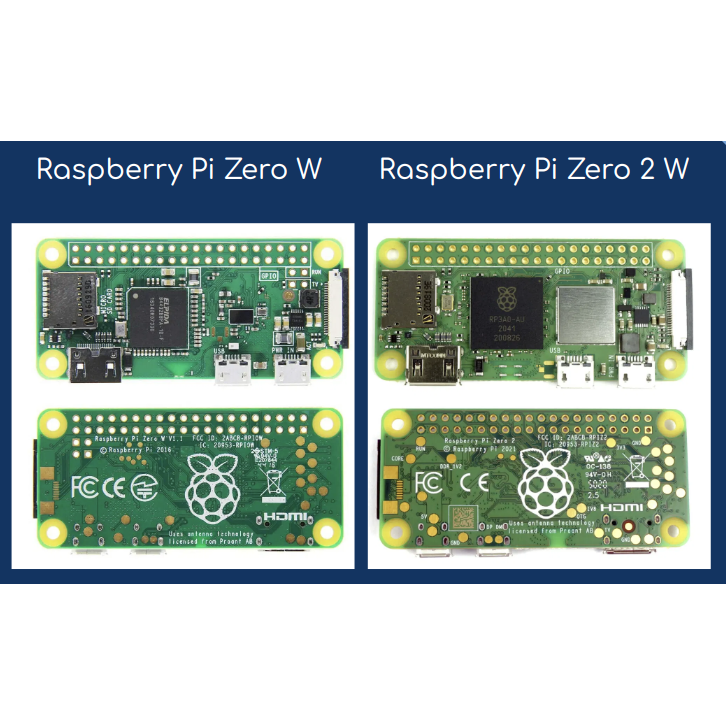
Raspberry Pi Zero has two variants: 32-bit (W) and 64-bit (2 W). The physical size is the same, but the difference is essential. Torch (a machine learning framework) can be easily installed on the 64-bit version but not on the other. There are no official builds of the torch for 32-bit ARM systems, and you would need to install it from the source.
{2}💡Actual RAM size
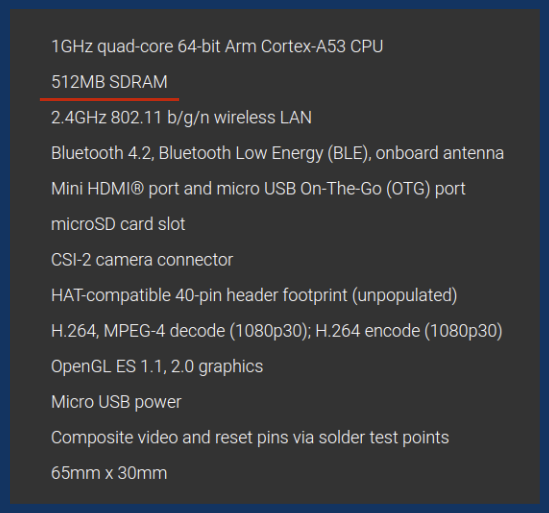
According to the official specification, Raspberry Pi Zero 2 W has 512 MB SDRAM memory. However, when you run htop you will see just 419 MB. Moreover, the OS Lite will already use 60 MB out of 419 MB. For OS with desktop, it will be even.
{3}💡Default SWAP is too small
The default SWAP size is 100 MB. In many applications, this might be insufficient. Even while installing Python libraries, you can encounter 100% SWAP usage, leading to a system freeze. You can easily increase the SWAP size up to 2 GB, which is a huge convenience.
# Stop Swap
sudo dphys-swapfile swapoff
# Modify the size of the swap
sudo vi /etc/dphys-swapfileCONF_SWAPSIZE=2024# Initialize Swap File
sudo dphys-swapfile setup# Start Swap
sudo dphys-swapfile swaponTo check your current SWAP, you can use, for example, htop.
htop
View before any changes:

And increasing the SWAP using dphys-swapfile:

To recognize if your freezes are caused by the too small SWAP you can also use htop. Before running a script, open the htop in a new terminal. Then, run your script and observe the level of SWAP. When you reach the 99% SWAP usage and the terminal stops responding, you can be sure that you have to increase SWAP.

{4} 💡Keep attention to module versions
This universal rule applies to any scenario using third-party modules and libraries. It can be frustrating when, while setting up the environment, one day, everything works, and the next day, you get errors. For example, in the case of PyTorch, it is a convenient way to copy-paste the installation instructions from the home page.
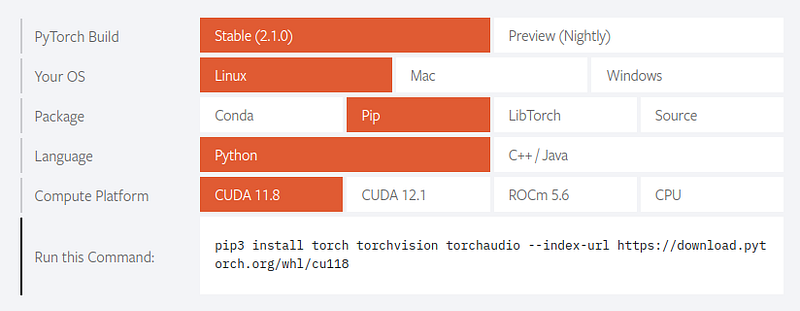
This form always points to the latest release. Sometimes, the newest release might need some fixing. It might have some bug, or the dependent modules might not be compatible with the latest version. To see how event new versions are released, you can go to the history of releases: https://pypi.org/project/torch/#history
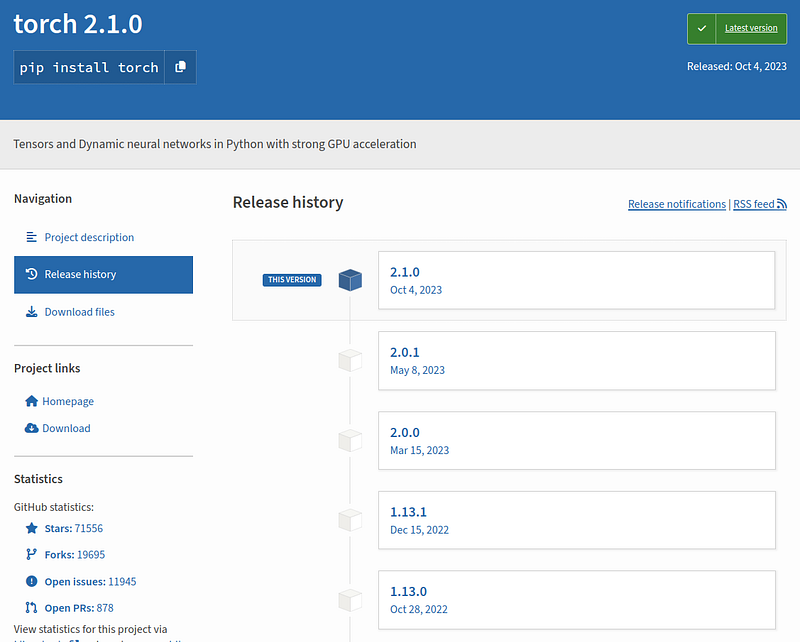
As you can see in the above picture, until 4 October 2023, the default version of the torch was 2.0.1. Since 4th October, it has been 2.1.0. After that day, I encountered unexpected problems with the Segmentation fault caused by the latest version.
It is a good practice to track versions of your modules and not rely on the default/latest releases. Remember to write down exact versions when you find a combination of working modules. For Python, you can use pip:
pip freeze
Sample output:
accelerate==0.23.0
aiohttp==3.8.6
aiosignal==1.3.1
async-timeout==4.0.3
attrs==23.1.0
...


