avatarCoucou Camille

Free AI web copilot to create summaries, insights and extended knowledge, download it at here

1616

Abstract

iv id="0ab9"><pre>@echo <span class="hljs-keyword">off</span> <<span class="hljs-keyword">full</span> <span class="hljs-type">path</span> <span class="hljs-keyword">of</span> python interpreter> <quoted <span class="hljs-keyword">full</span> <span class="hljs-type">path</span> <span class="hljs-keyword">of</span> script></pre></div><p id="1e81">As an example, it should look something like this:</p><div id="c122"><pre>@echo <span class="hljs-literal">off</span> C:<span class="hljs-string">\Users\User\anaconda3\python.exe</span> <span class="hljs-string">"D:\Hello.py"</span></pre></div><p id="e09e">Save the file and rename it as “<b><i>Hello.bat</i></b>”. Now double click to run it, and you should see a Command Prompt window popped up like this:</p><figure id="de99"><img src="https://cdn-images-1.readmedium.com/v2/resize:fit:800/1*m_PBDCSvdKscgMI1jMzT2w.png"><figcaption>Image by Author</figcaption></figure><h2 id="dbb3">4. Schedule the day and time to run it</h2><p id="cf59">Now to the final part, search for “<i>Task Scheduler</i>” in Windows Search bar, click on “<i>Create Basic Task…</i>”.</p><figure id="0a83"><img src="https://cdn-images-1.readmedium.com/v2/resize:fit:800/1*XI4Kw3Tn6CqRxw3Sc8PYJw.png"><figcaption>Image by Author</figcaption></figure><p id="8279">Name the task so that it is easier for you to distinguish and manage in the future, and hit “Next”.</p><figure id="e415"><img src="https://cdn-images-1.readmedium.com/v2/resize:fit:800/1*ezzzH5_f5Ky0tlMmWyC1IA.png"><figcaption>Image by Author</figcaption></figure><p id="40cf">Set the trigger frequency and exact time as

Options

you wish.</p><figure id="30fc"><img src="https://cdn-images-1.readmedium.com/v2/resize:fit:800/1*de21XA0ESb4GaJeCsOQdJw.png"><figcaption>Image by Author</figcaption></figure><figure id="dac5"><img src="https://cdn-images-1.readmedium.com/v2/resize:fit:800/1*XBMSZ2iayienVJoQeYr7NA.png"><figcaption>Image by Author</figcaption></figure><figure id="6d1a"><img src="https://cdn-images-1.readmedium.com/v2/resize:fit:800/1*cAPFuaG4jCFH66WkDeVhRg.png"><figcaption>Image by Author</figcaption></figure><p id="5aac">At the next step, browse and locate the bat file created in Step 3.</p><figure id="1628"><img src="https://cdn-images-1.readmedium.com/v2/resize:fit:800/1*j-vpF9NPf1fNM7UV7BWacg.png"><figcaption>Image by Author</figcaption></figure><p id="fde6">Check for the settings before hitting “Finish”.</p><figure id="c0a4"><img src="https://cdn-images-1.readmedium.com/v2/resize:fit:800/1*a8M01Fot1aiCDAmSJYTe8Q.png"><figcaption>Image by Author</figcaption></figure><p id="1470">You should be able to find the newly created task in the <i>Task Scheduler Library</i> in <b>Ready </b>status. To edit or disable it, double left click on the task to open its settings page.</p><figure id="f38a"><img src="https://cdn-images-1.readmedium.com/v2/resize:fit:800/1*zEsUZztvH9oM7xPlqt7sCg.png"><figcaption>Image by Author</figcaption></figure><h2 id="84f7">Final Note</h2><p id="7a5f">To confirm the task has run at the scheduled time and successfully, you may want to write the task output in a log file, maybe even email it to you after the task completes, so that it is easier to check to keep track.</p></article></body>

Run Python Scripts at Scheduled Time Everyday

Four simple steps to schedule your script to run at a fixed time automatically.

1. Write the Script 2. Locate your python interpreter 3. Create a bat file to run the script 4. Schedule the day and time to run it

1. Write the Script

Definitely the most important part, but for the purpose of this article, we will only use a simplest script and save it as “Hello.py

print("Hello World!")

2. Locate your python interpreter

For Windows users, if you are using Anaconda environment, the interpreter is mostly likely located under C:\Users\<User>\anaconda3\python.exe or if you have created your own environment: ...\anaconda3\envs\<env name>\python.exe

For those who installed Python manually, simply go to the python folder and you should see python.exe in it. Copy the full path with \ and without quoting marks.

3. Create a bat file to run the script

Right click in your File Explorer to create a new text document. You could name it “Hello.txt” for now.

Get the full path of your Python script, and edit the text file in the following format:

@echo off
<full path of python interpreter> <quoted full path of script>

As an example, it should look something like this:

@echo off
C:\Users\User\anaconda3\python.exe "D:\Hello.py"

Save the file and rename it as “Hello.bat”. Now double click to run it, and you should see a Command Prompt window popped up like this:
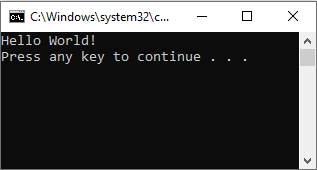
Image by Author

4. Schedule the day and time to run it

Now to the final part, search for “Task Scheduler” in Windows Search bar, click on “Create Basic Task…”.
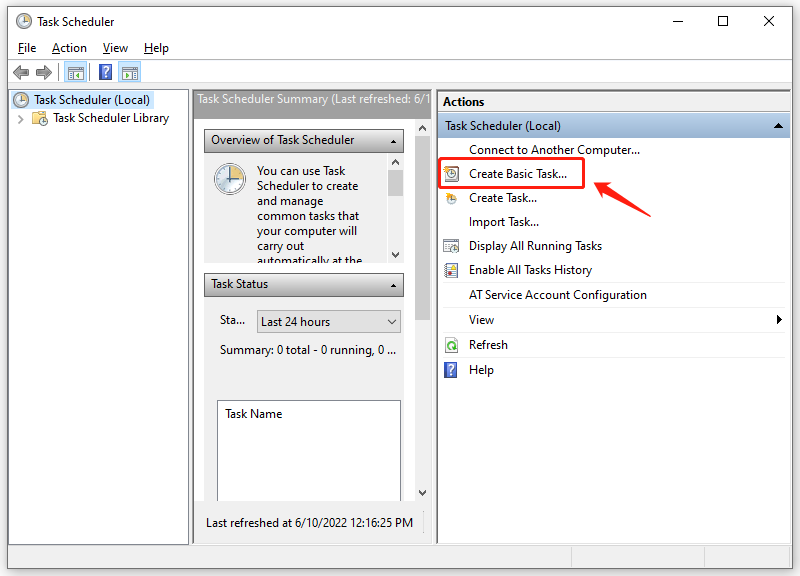
Image by Author

Name the task so that it is easier for you to distinguish and manage in the future, and hit “Next”.
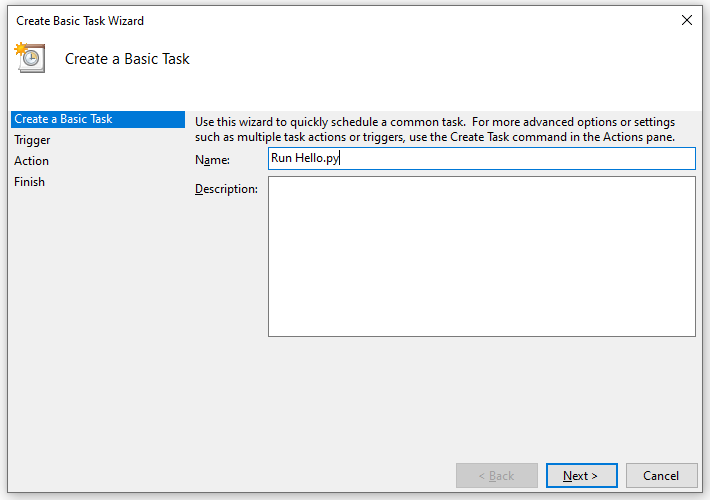
Image by Author

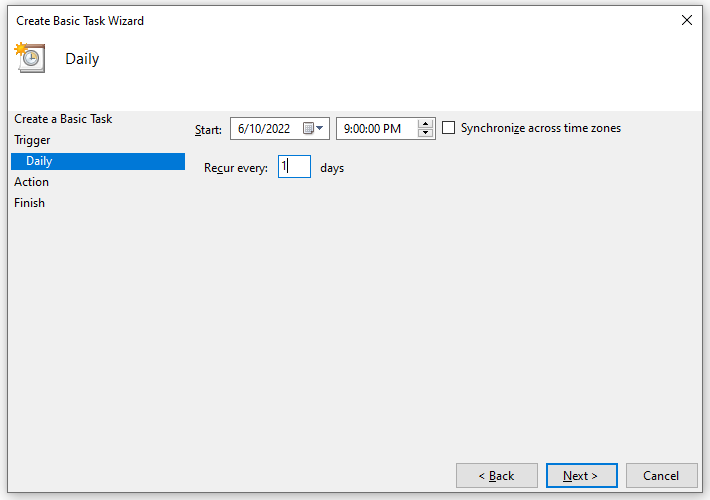
Set the trigger frequency and exact time as you wish.
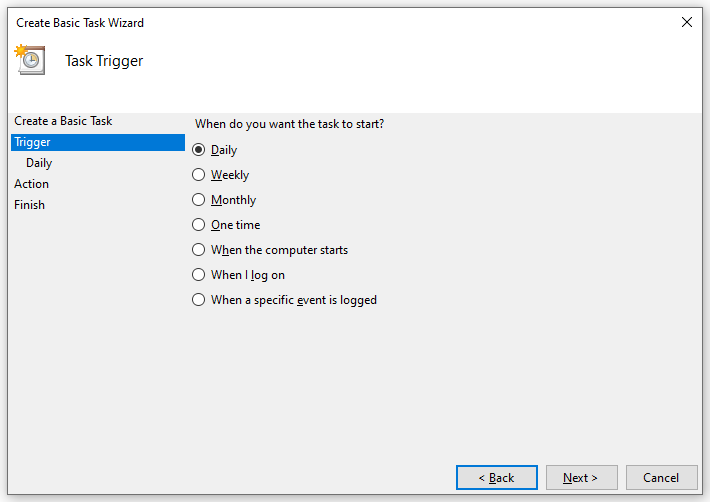
Image by Author
Image by Author
Image by Author

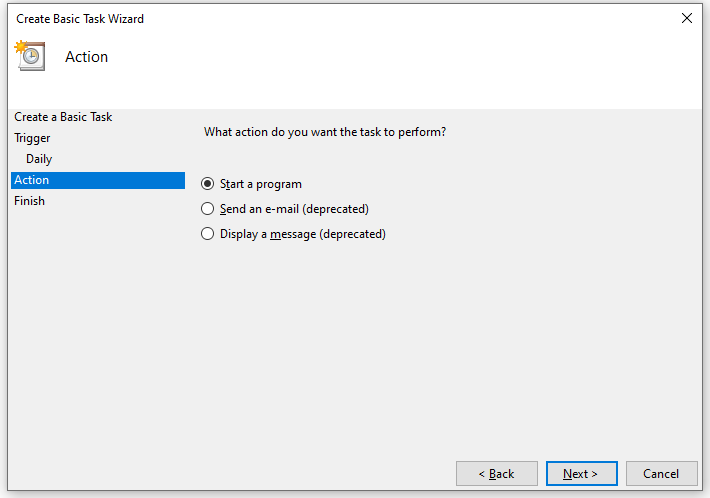
At the next step, browse and locate the bat file created in Step 3.
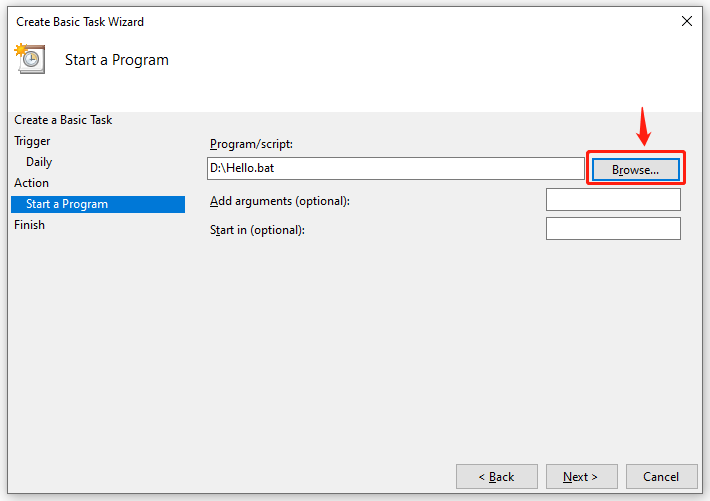
Image by Author

Check for the settings before hitting “Finish”.
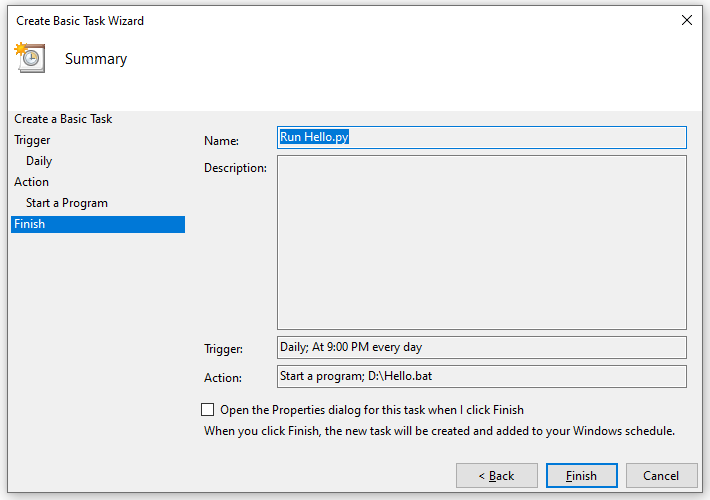
Image by Author

You should be able to find the newly created task in the Task Scheduler Library in Ready status. To edit or disable it, double left click on the task to open its settings page.
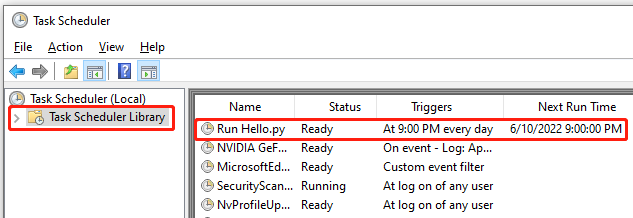
Image by Author

Final Note

To confirm the task has run at the scheduled time and successfully, you may want to write the task output in a log file, maybe even email it to you after the task completes, so that it is easier to check to keep track.

Python
Automation
Scheduler
Windows
Task Management
Recommended from ReadMedium