
Run and Access GUI inside VS Code DevContainers
VS Code DevContainers allow us to easily configure and run a container with our development tech stack for the specific project or product we are working on — and have that fully integrated with our VS Code development environment. It does so leveraging Docker Desktop and WSL2. With just a few simple configuration steps, we can run the container from VS Code and work seamlessly with terminals that open in the container and exchange code changes back and from the container. This picture from the Code Visual Studio website visualizes the setup.

One thing we can easily do is add and subsequently expose the container’s GUI. In its simplest appearance, that gives us a basic desktop manager. It also allows us to run tools with a GUI inside the development container.
The steps to expose the GUI are simple:
In the features section in the devcontainer.json, add an entry for desktop-lite
,"desktop-lite": {"password": "vscode","webPort": "6080","vncPort": "5901"}

Based on this feature definition, VS Code will add Fluxbox to the container — a Window Manager that exposes the GUI display via VNC and Web channels.
When the container has started, forward the webPort where the GUI is exposed in the browser — in this example port 6080 — and forward the vncPort if you want to work with the GUI in a VNC viewer (in this case port 5901).

At this point, the GUI for the running container can be opened on the host (my laptop) in a browser at http://localhost:6080/ — the local port that the webPort was forwarded to is 6080. I am prompted to login — using the password defined in the devcontainer.json file (vscode in this case).
I get the Fluxbox desktop in my browser. With a context menu (right mouse click) I can open file manager, text editor and any GUI application that I could have added into the container (image). For example, to add Firefox, add the following to .devcontainer/Dockerfile:
RUN apt-get update && export DEBIAN_FRONTEND=noninteractive && apt-get install -y firefox-esr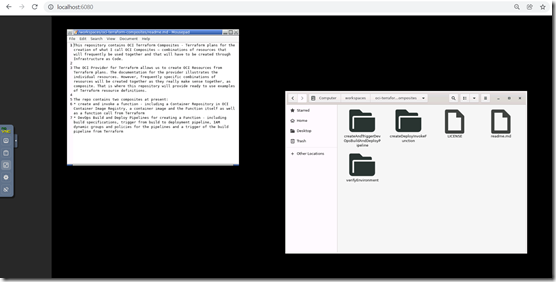
You can customize the contents of the application menu by editing ~/.fluxbox/menu (just type code ~/.fluxbox/menu or code-insiders ~/.fluxbox/menu to edit). See the menu documentation for format details. More information on additional customization can be found in Fluxbox's help and general documentation.
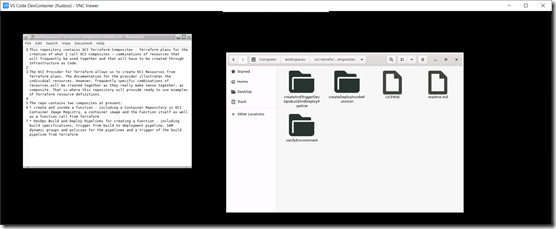
Using a VNC Viewer I can open the GUI display on port 5901.
I have installed the VNC Viewer from VNC Connect: https://www.realvnc.com/en/connect/download/viewer/
When it starts, provide connection details:

and the connection is established:
Note: the VNC Viewer in combination with Fluxbox can be used as shown here with VS Code DevContainers — and also with any other container. Read this article for very valuable instructions: https://spin.atomicobject.com/2021/10/14/cypress-running-docker-container/ .
Resources
Introduction to DevContainers — https://code.visualstudio.com/docs/remote/containers
Desktop install script for DevContainer — https://github.com/microsoft/vscode-dev-containers/blob/main/script-library/docs/desktop-lite.md
Fluxbox: http://fluxbox.org/
Getting started with GUI in devcontainer — https://fossies.org/linux/vscode/.devcontainer/README.md
Originally published at https://technology.amis.nl on December 6, 2021.


