
An Insight into Midjourney V5.2’s Innovative Feature for Mock-up Creation
In the world of digital art, mock-ups are essential tools. They are prototypes or scale models that show how a product works, how it looks, or what features it has. These are valuable assets, especially when showing potential buyers how artwork can be used and put to use. They offer the consumer what the final product might look like and give them a realistic idea of what it will be like.
Mock-ups are even more critical when selling digital art on online marketplaces like Etsy, Amazon, Redbubble, and others. The way an artwork looks on a physical item, like a T-shirt, mug, or book cover, helps bridge the gap between the digital world and the real world. Before moving on to printing or production, the main goal is to agree with the customers on the final design.
Making mock-ups is a multi-step process using software or online apps. It takes some creativity and technical know-how to make it work. Typically, the mock-up is created by putting the artwork made in Midjourney or any other graphic software on a mock-up template.
Print-on-Demand platforms offer online sellers a sophisticated mock-up generator, but they often fall short when it comes to customization and creativity. The templates that are given are very limited, so mock-ups can look very generic and not like anything special. These templates can make the products seem boring and less attractive. So, sellers must balance efficiency and creativity when making mock-ups to ensure their artwork stands out in the crowded digital marketplace.
Generate Mock-ups with Custom Zoom
Midjourney V5.2 will change the way we make mock-ups for good. Its “outpainting” feature is better than Adobe’s because it lets you zoom out, add details to the image’s surroundings, and make mock-ups with text prompts!
To be exact, after you’ve scaled up your image, you can click the “Custom Zoom” button to make it easy to make great mock-ups. Let’s start with a simple idea for a cat drawing:
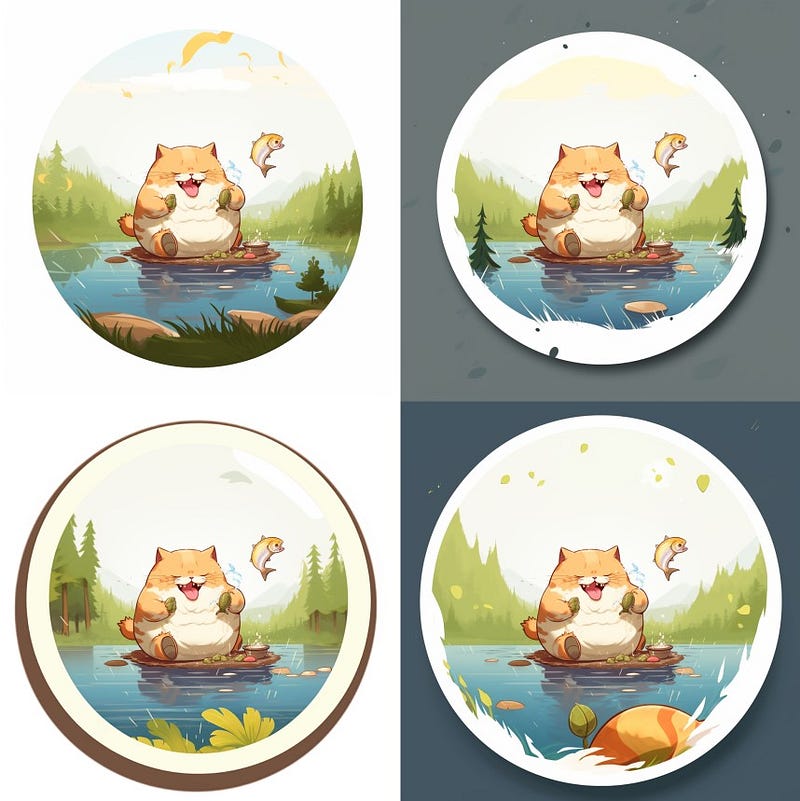
/imagine prompt: chubby cat eating, big fish, comic, kawaii 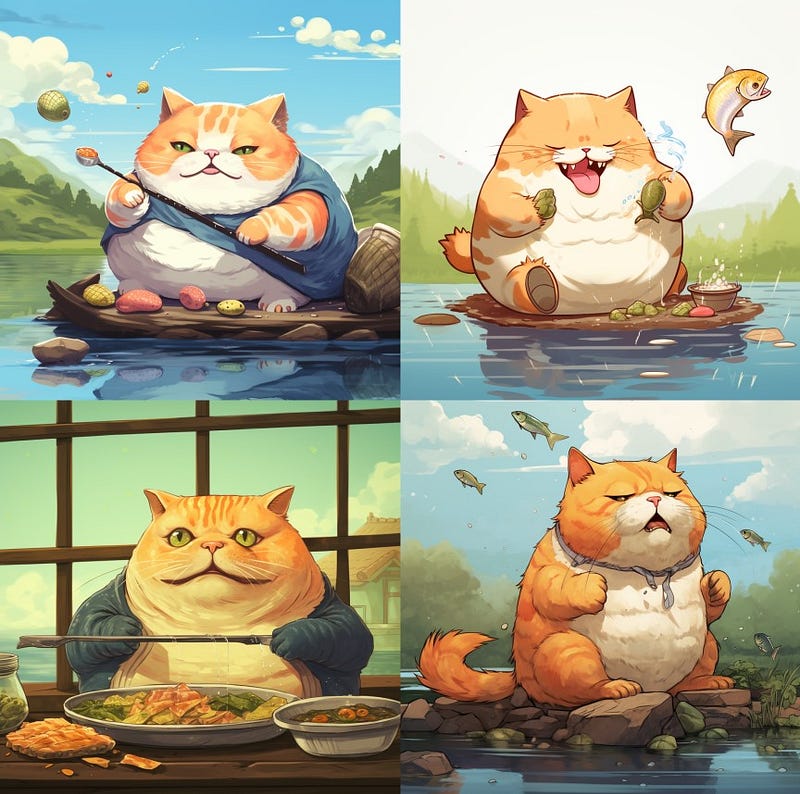
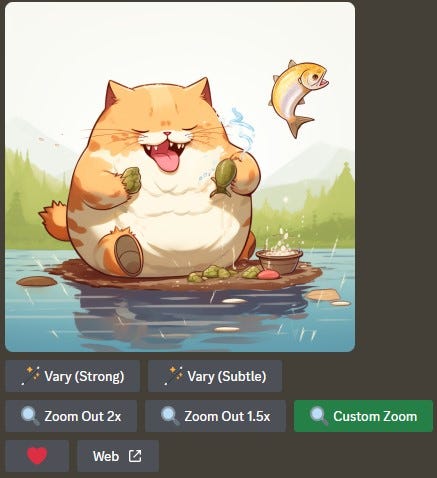
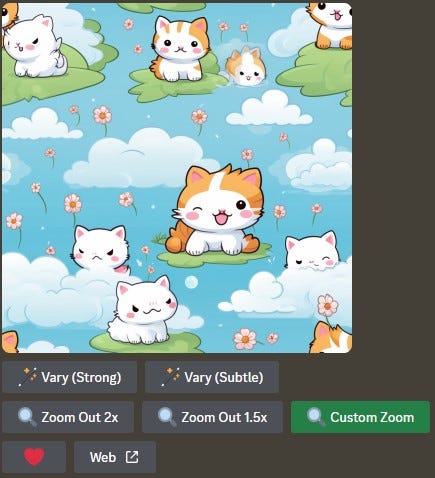
I picked and upscaled image 2. Then, I clicked on the “Custom Zoom” button, and this window will pop up:
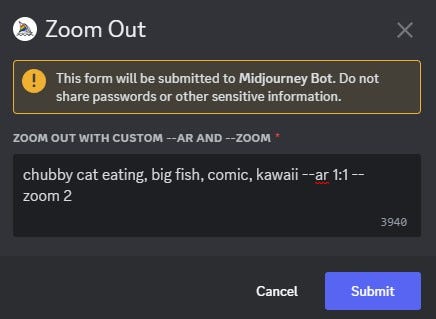
· Delete everything except the “- — zoom 2” suffix from the box.
· Removing the zoom suffix will result in the Custom Zoom not working. Zoom Out 2x is denoted by the number “2” here. 1–2 is an acceptable value. You can, for example, change the zoom levels by entering values 1.5 and 1.8.
· You can also keep the aspect ratio suffix (- — ar) or switch to another ratio that works. I’ll ignore it for now, to concentrate on the mock-up creation.
· Also, do not enter “/imagine prompt:” in the box. Just type in your prompt.
Create a mock-up with a subject
Now comes the exciting part: let’s make some mock-ups! Pasting in the following prompts, one after another, to generate the mock-ups:
A t-shirt for kids --zoom 2
A design on a mug --zoom 2
A framed photo in living room --zoom 2
A book cover --zoom 2
A bag of premium cat food --zoom 2
A sticker --zoom 2
A giant movie signboard in the busy street of Tokyo --zoom 2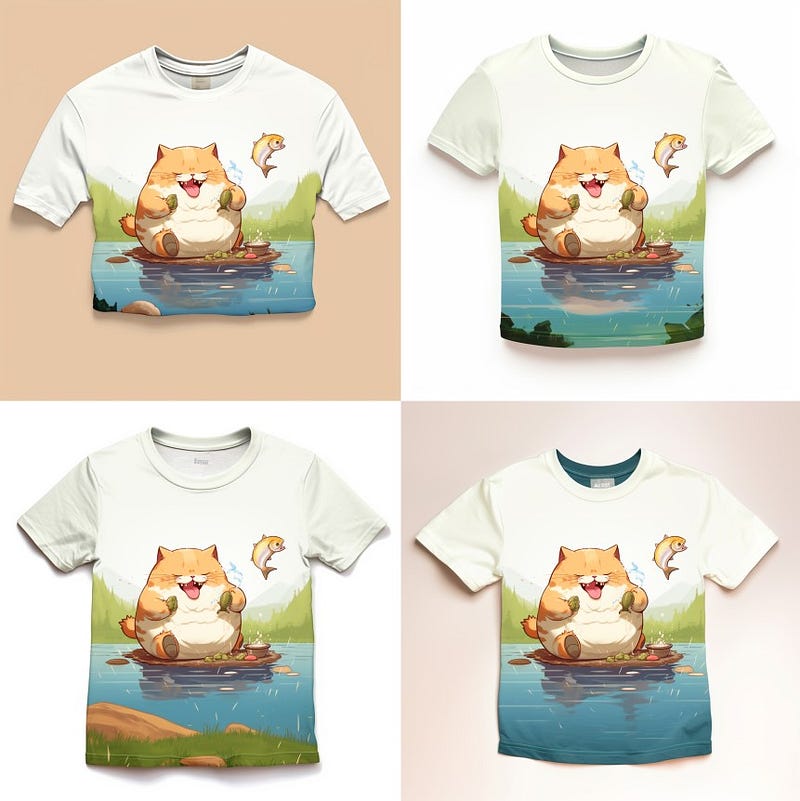
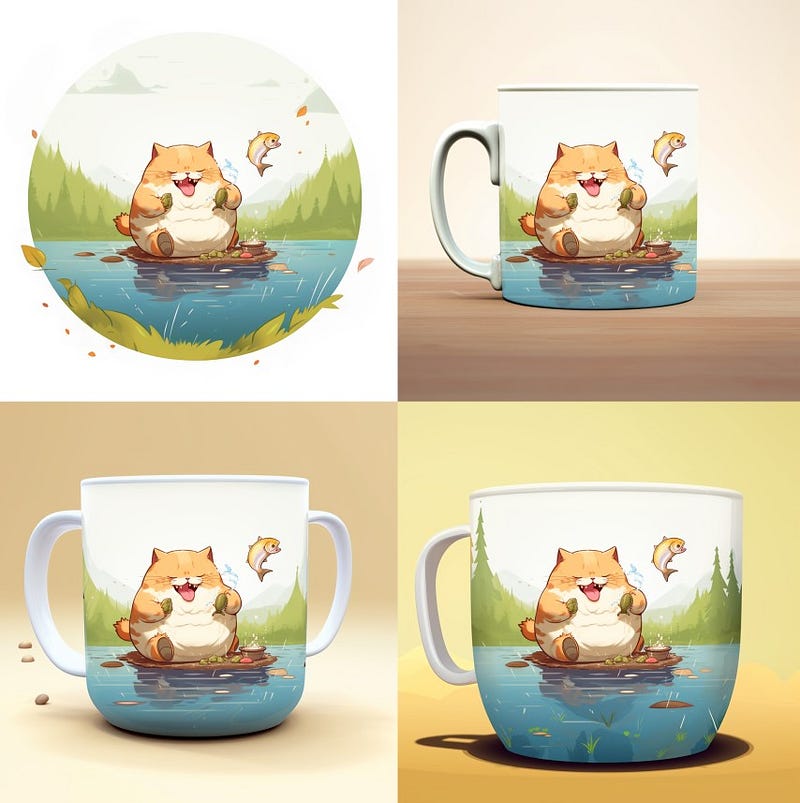
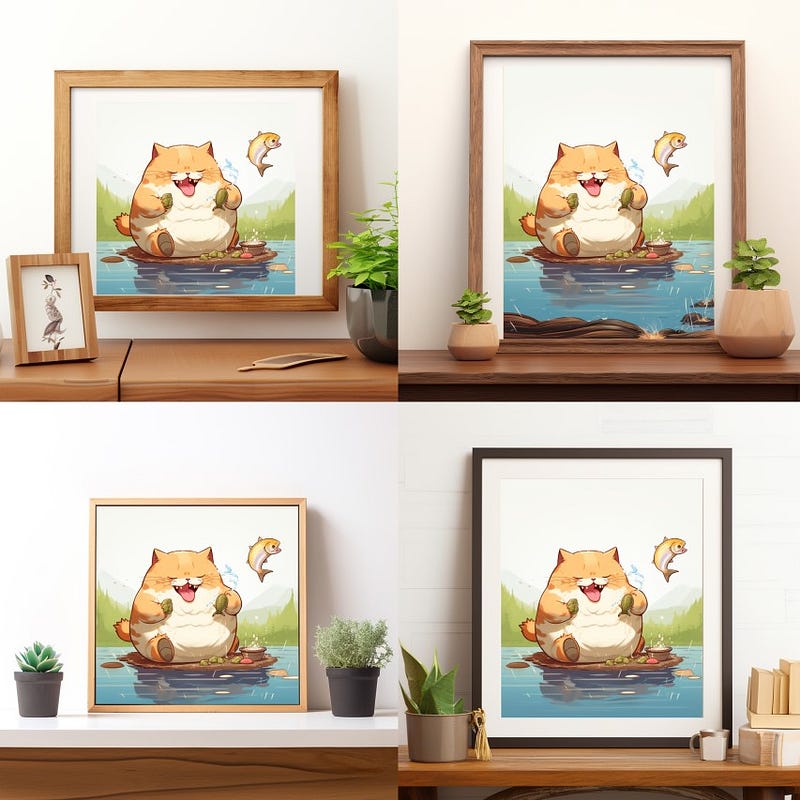
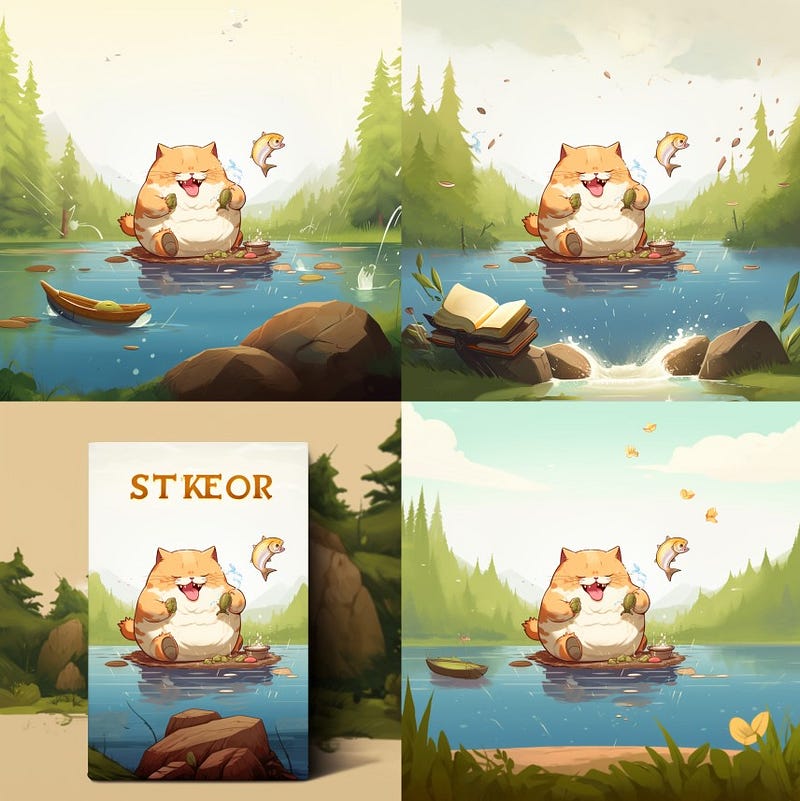
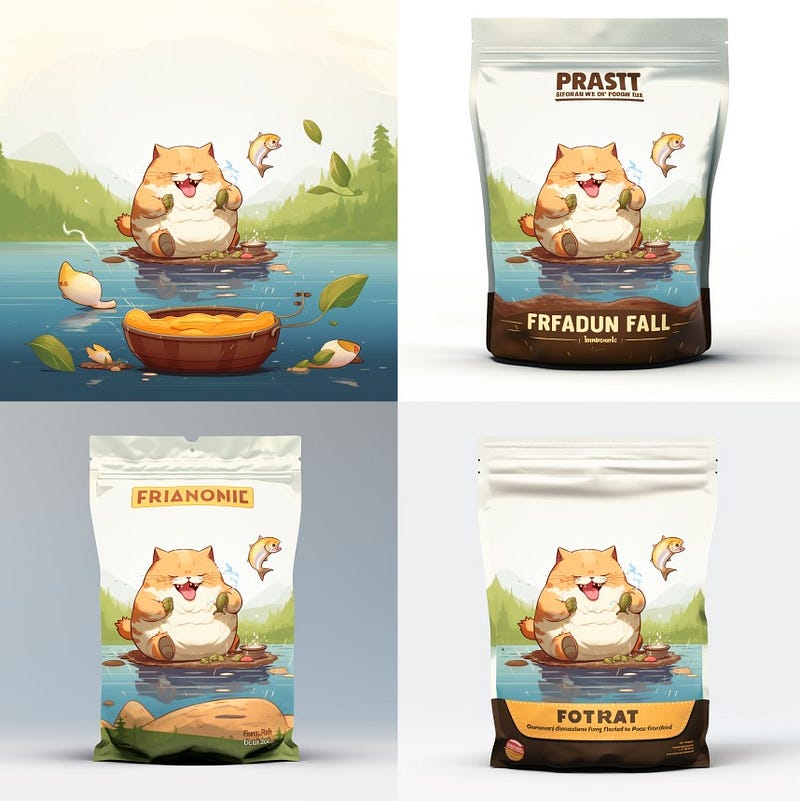
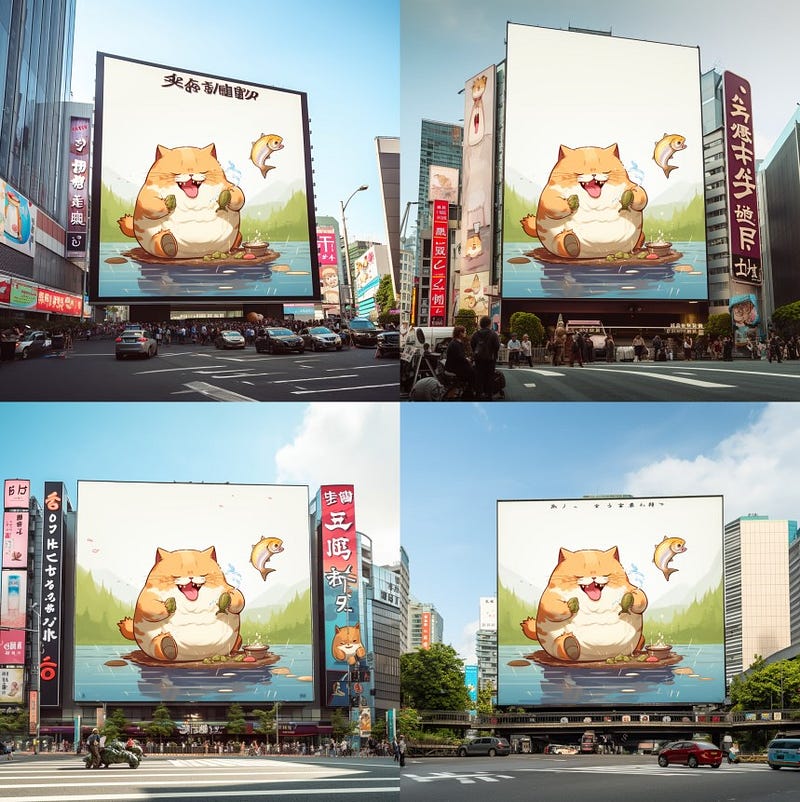
Isn’t it amazing? What about a seamless pattern? Will the pattern repeat itself and cover the entire surface of a mockup?
Create a mock-up with a seamless pattern
Seamless patterns can be easily created in Midjourney using the — — tile suffix. Let’s create one to see if the seamless pattern will work in the generated mock-ups.
/imagine prompt: kittens playing in the style of comic, kawaii, --tile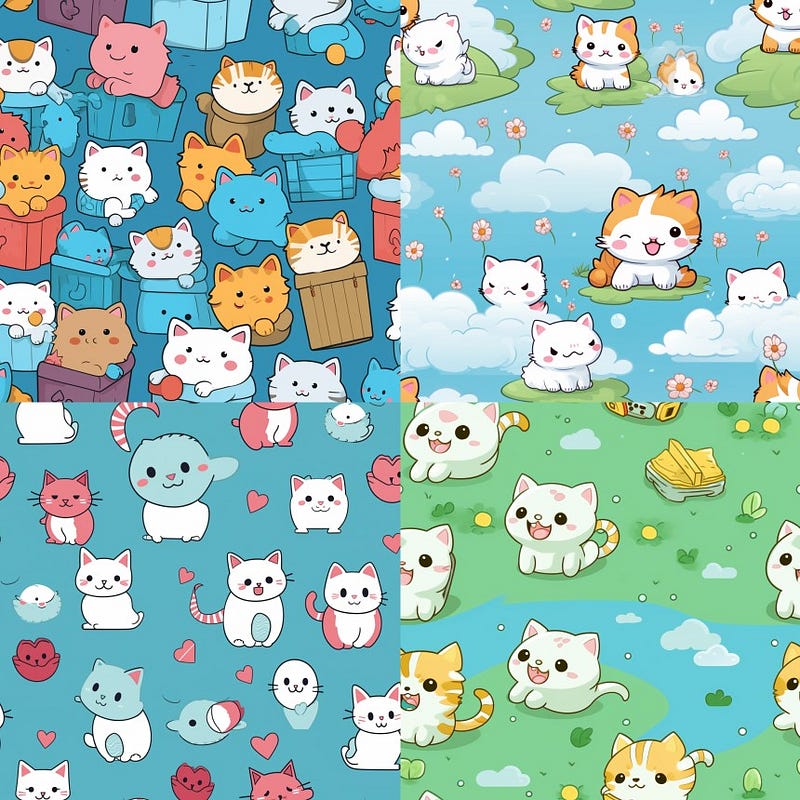
Here’re the codes to paste over into the Custom Zoom pop-up box:
A shirt for a lady –zoom 2
A shower curtain in a bathroom --zoom 2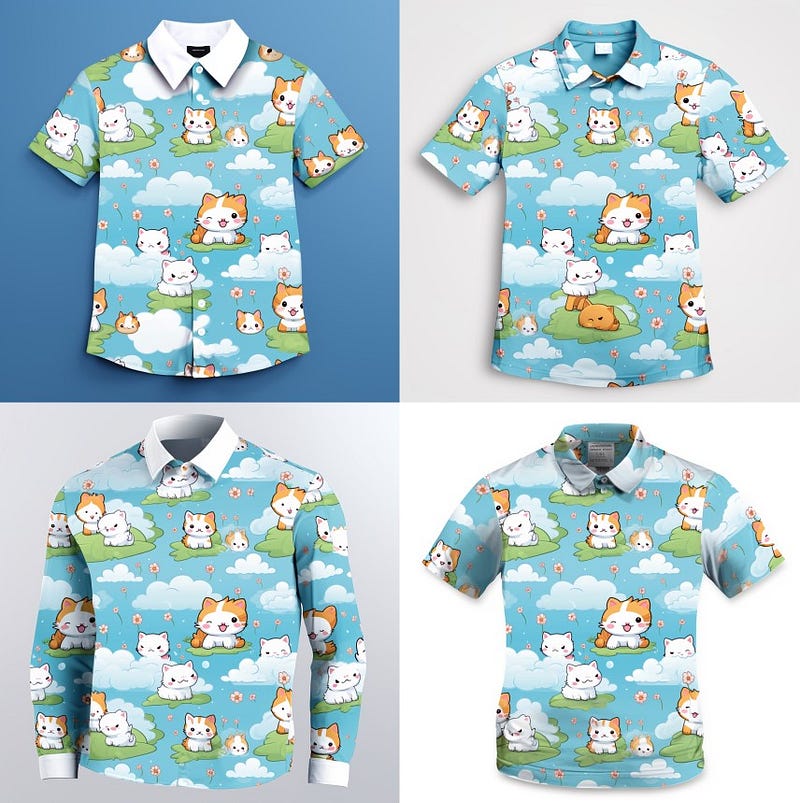
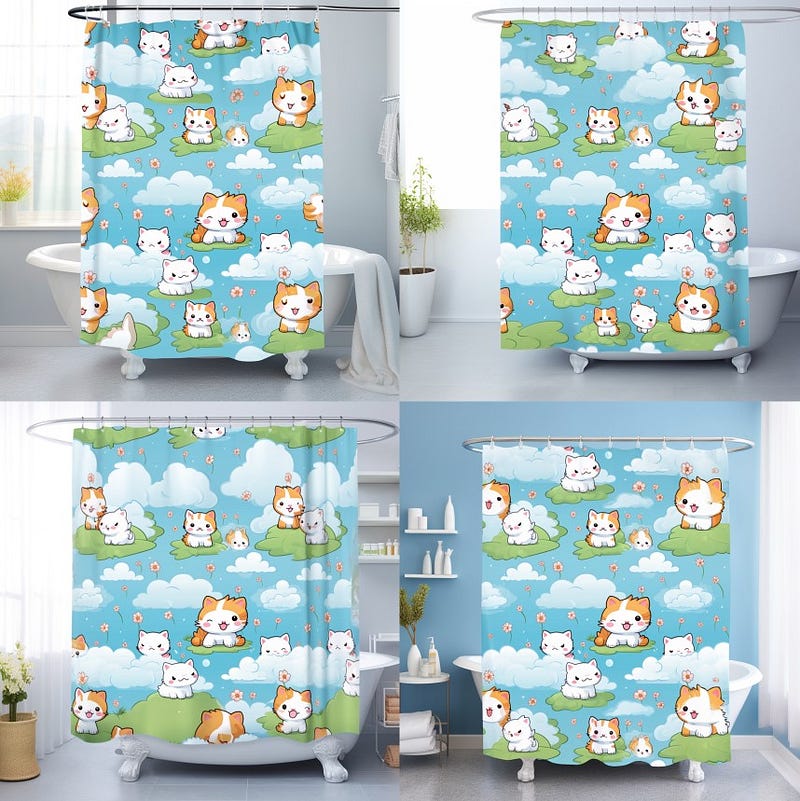
It works great! The tiles are automatically repeated and cover the entire surface of the mock-up.
A work in progress
The “Custom Zoom” mock-up generator isn’t perfect in its current state. Here are some of the issues I discovered.
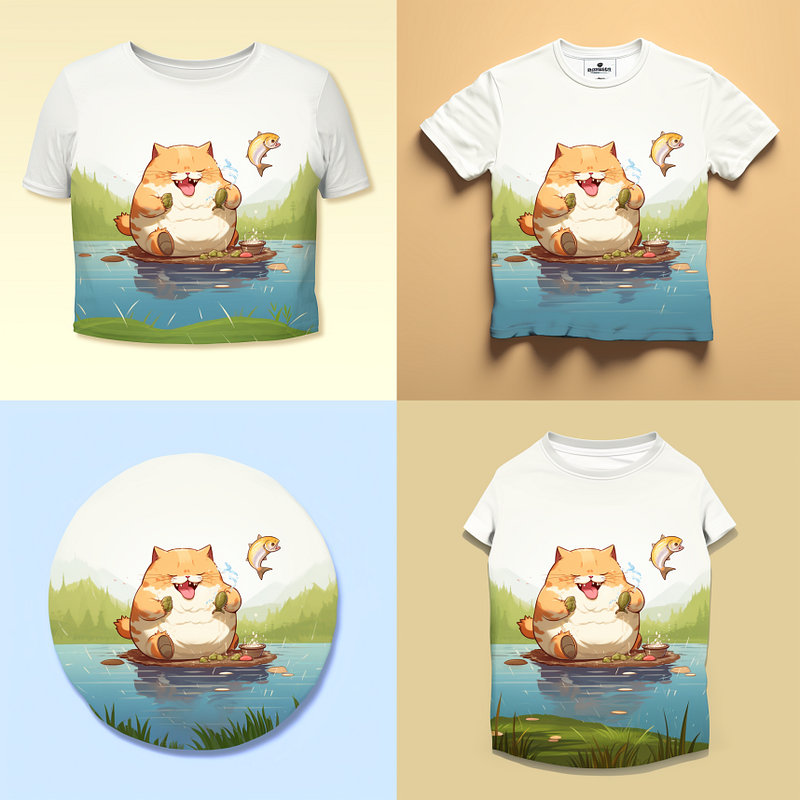
(1) Unexpected mock-up output
I specified the mock-up to have a green background, but the output is anything but green.
(2) The “blotchy effect”
I discovered that the MJ bot tries to paste a large chunk or the entire artwork over something, resulting in the “blotchy effect.” See the example below where it tries to paste the artwork over two separated slippers. The “blotchiness” became more obvious when I tried to create a mock-up of dress for a lady (see below).
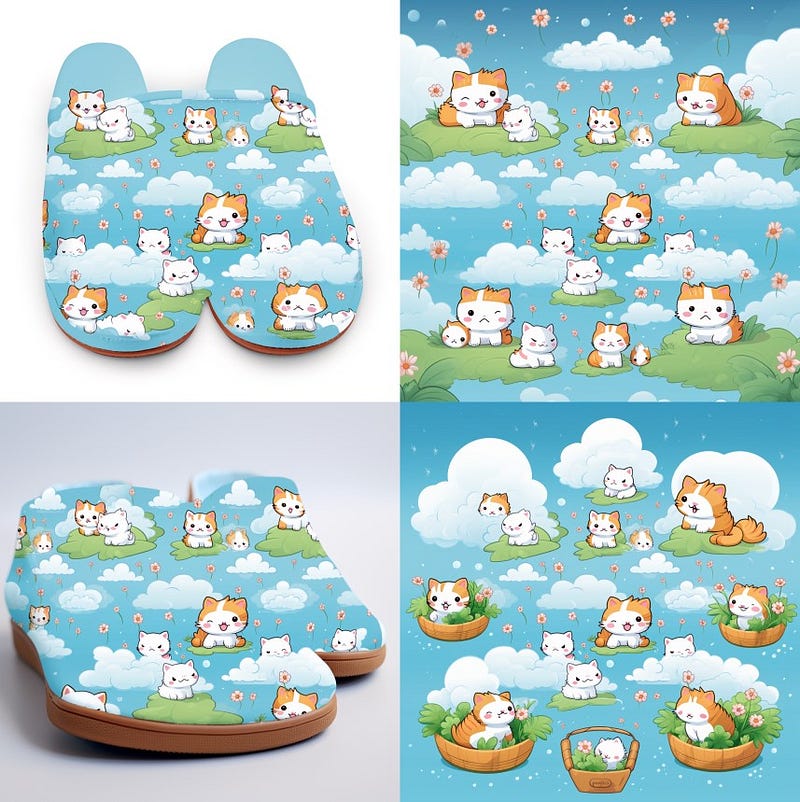
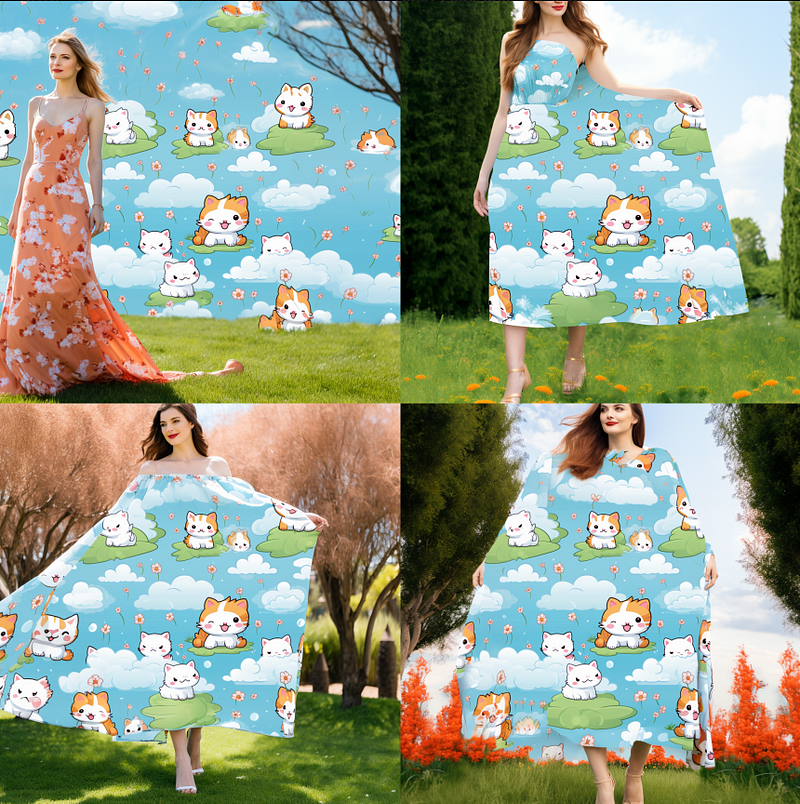
At the moment, Midjourney V5.2 upscale options cannot keep the same canvas. When you click the “V” button, it will reset the canvas entirely. Your original artwork will be gone. But I tried it anyway.
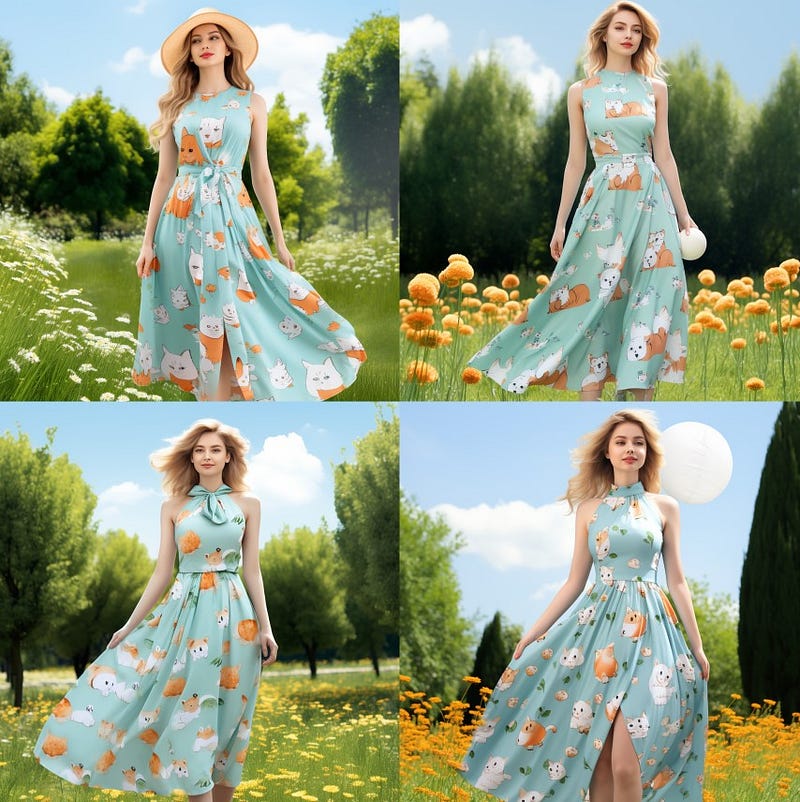
Yes, the original artwork design has been changed completely, but the result still looks gorgeous. I have no doubt, and I’m absolutely confident that the Midjourney developer will figure out how to make the “V” button work for creating mock-up variations for the same artwork in the (near) future!
Conclusion
(1) “Custom Zoom” in Midjourney V5.2 is a great mock-up generator that lets you make mock-ups for t-shirts, mugs, wall art, t-shirts, etc.
(2) You can create a mock-up using a subject or a seamless tile/ pattern.
(3) You can now use the images you made in Midjourney to make mock-ups easily without having to switch to other graphic editing software.
That’s all for this update from me.
If you like this article, please give me a “Clap” or comment to show your support. Your support means a lot to me!
Follow me for more articles, tips, and news about Midjourney.
Thank you very much!
Join Medium today and read all my stories: