
Learn How to Turn your Image into a Cartoon Using Python
This article will cover the various methods of turning a normal image into a cartoon version using Python. We will be using Python libraries and packages like OpenCV, Pillow, scikit-image and matplotlib. By the end of this article, you should have a better understanding of what it takes to convert any image into a cartoon image with just a few lines of code.
Here is the basic outline of the process:
- Import the necessary packages.
- Load the image using one of the three libraries we are using (
OpenCV,Pilloworscikit-image). - Convert the image to grayscale.
- Get the edges of the image.
- Convert the image into a cartoon version.
- Display image using
matplotlib.pyplotorOpenCv
Using OpenCV
#import the packages
import cv2
import matplotlib.pyplot as plt

# Load the image using cv2
img = cv2.imread("4.jpg")
img = cv2.cvtColor(img,cv2.COLOR_BGR2RGB)

#Convert to grayscale and apply median blur to reduce image noise
grayimg = cv2.cvtColor(img, cv2.COLOR_BGR2GRAY)
grayimg = cv2.medianBlur(grayimg, 5)

#Get the edges
edges = cv2.adaptiveThreshold(grayimg, 255, cv2.ADAPTIVE_THRESH_MEAN_C, cv2.THRESH_BINARY, 5, 5)

#Convert to a cartoon version
color = cv2.bilateralFilter(img, 9, 250, 250)
cartoon = cv2.bitwise_and(color, color, mask=edges)

#Display original image
plt.figure(figsize=(2,2))
plt.imshow(img)
plt.axis("off")
plt.title("Original Image")
plt.show()

#Display cartoon image
plt.figure(figsize=(2,2))
plt.imshow(cartoon)
plt.axis("off")
plt.title("Cartoon Image")
plt.show()
Because cv2 uses BGR color format and matplotlib uses RGB color format, we have to convert BGR to RGB. This can be done using the code below:
img = cv2.cvtColor(img,cv2.COLOR_BGR2RGB)
If you want to use a GUI window to display the output using cv2 you do not need to convert the color format. You can use the following code to view in the GUI window:
#Display original image
cv2.imshow("Original Image", img)

#Display cartoon image
cv2.imshow("Cartoon", cartoon)

#To keep the window open until the user closes it we can use
# the cv2.waitKey method passing 0 as parameter
cv2.waitKey (0)

#Remove the window from screen and memory after exiting the script
cv2.destroyAllWindows()
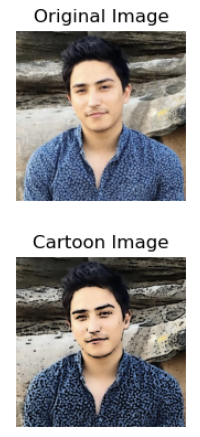
The outcome appears to be this:
Using scikit-image
#import the packages
from skimage import io, color
from skimage.filters import sobel
from skimage.segmentation import felzenszwalb

import matplotlib.pyplot as plt

# Load the image
img = io.imread("original.jpg")

# Convert to grayscale
grayimg = color.rgb2gray(img)

# Apply the felzenszwalb segmentation
segments_fz = felzenszwalb(img, scale=100, sigma=0.5, min_size=50)

# Convert to a cartoon version
cartoon = color.label2rgb(segments_fz, img, kind='avg')

#Display original image
plt.figure(figsize=(2,2))
plt.imshow(img)
plt.axis("off")
plt.title("Original Image")
plt.show()

#Display cartoon image
plt.figure(figsize=(2,2))
plt.imshow(cartoon)
plt.axis("off")
plt.title("Cartoon Image")
plt.show()
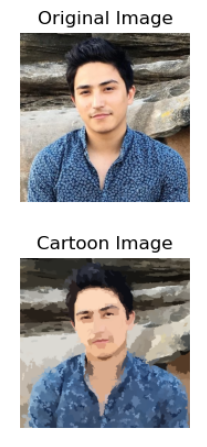
The outcome appears to be this:
Using Pillow
#Import the packages
import matplotlib.pyplot as plt
from PIL import Image, ImageOps, ImageFilter

# Load the image
img = Image.open("original.jpg")

# Convert to a cartoon version
cartoon = ImageOps.posterize(img, 2)

#Display the original image
plt.figure(figsize=(2,2))
plt.imshow(img)
plt.axis("off")
plt.title("Original Image")
plt.show()

#Display the cartoon image
plt.figure(figsize=(2,2))
plt.imshow(cartoon)
plt.axis("off")
plt.title("Cartoon Image")
plt.show()
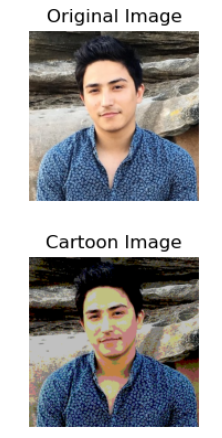
The outcome appears to be this:
In conclusion, turning images into cartoons using Python is a simple yet powerful task. With the help of packages such as OpenCV, Pillow and scikit-image it is possible to cartoonizing effects to images in just a few lines of code. You can experiment with these tools and learn how you can turn your pictures into amazing cartoons.
Happy Coding!
We appreciate you reading this article. If you enjoyed my writing but aren’t a member of Medium, you can sign up for a Medium membership to have unlimited access to all content and support us as writers.
Level Up Coding
Thanks for being a part of our community! Before you go:
- 👏 Clap for the story and follow the author 👉
- 📰 View more content in the Level Up Coding publication
- 🔔 Follow us: Twitter | LinkedIn | Newsletter
🚀👉 Join the Level Up talent collective and find an amazing job


