
Responding to Gestures Using GestureDetector widget in Flutter
This article presents an example of how to respond to gestures in Flutter apps using a specific widget — the GestureDetector. In Flutter, the GestureDetector widget is not the only way for gesture detection and response. However, this article presents an example using the GestureDetector widget for greeting gestures in Flutter apps.
Introduction
Applications must respond to gestures, i.e., user reactions such as touch and drag. In fact, applications initiate some action as a response to gestures such as tap, long-press etc. Acknowledging gestures is what makes an app interactive. Flutter has various widgets to make an app interactive, i.e., to respond to gestures on touch-based devices.
In this article, I will present an example of detecting, receiving and responding to gestures using the GestureDetector widget.
The GestureDetector widget is designed for gesture detection, hence it enables many widgets such as Container, Row, Column, Text, etc. to detect gestures since these widgets do not have built-in capability of detecting gestures.
As the GestureDetector widget is used for gesture detection, it is not a visible widget.
The GestureDetector widget is an effortless way to detect and respond to various gestures. What you have to do is just wrap the widget on which you would like to receive gestures inside the GestureDetector widget. For example, if you want to greet gestures on a Text widget, then make the Text widget a child of the GestureDetector widget.
The GestureDetector widget is a stateless widget and receives different callback functions to respond to different gestures. For example, its onTap property takes a callback function to respond to Tap gestures of its child widget. This means, the callback function’s code block will be executed when the user taps on the child widget. GestureDetector widget.
The properties of GestureDetector
child
This property takes a widget.
The GestureDetector is a single-child widget, i.e., it can only have one child widget. However, if that only child is a multi-child widget such as Row, Column, and Stack, etc., it can layout multiple widgets
onTap
This property and many more such as onTapDown, onTapUp, onTapCancel, onDoubleTap, onLongPress, onLongPressStart, onLongPressEnd, onLongPressUp, onHorizontalDragStart, onHorizontalDragUpdate, onHorizontalDragEnd, onVerticalDragStart, onVerticalDragUpdate, onVerticalDragEnd etc.;takes a callback function to be executed when onTap (or any other) event occurs.
However, all of them are not the same, for example onTap (see below example) callback will not take any parameters, but onTapUp and onTapDown callback will take relevant parameters. It is not possible in this article to list the details of parameters of all possible callback functions. Hence, as an example consider the signature of onTapUp and onTapDown callbacks.
onTapUp: (TapUpDetails tapUpDetails) {
    // Write the code-block for actions here when onTapUp event fires
  }
onTapDown: (TapDownDetails tapDownDetails) {
// Write the code-block for actions here when onTapDown event fires
}You can see that onTapUp takes a parameter of type TapUpDetails, but onTapDown takes a parameter of type TapDownDetails
Example (demo) app
The below code-snippet shows the code of the example app.
import 'package:flutter/material.dart';void main() {
runApp(const MyApp());
}class MyApp extends StatelessWidget {
const MyApp({super.key}); // This widget is the root of your application.
@override
Widget build(BuildContext context) {
return MaterialApp(
title: 'Gesture Detector',
theme: ThemeData(
// This is the theme of your application.
primarySwatch: Colors.blue,
),
home: const AppHomePage(title: 'Gesture Detector Demo'),
);
}
}class AppHomePage extends StatelessWidget {
const AppHomePage({super.key, required this.title});
final String title; @override
Widget build(BuildContext context) {
return Scaffold(
appBar: AppBar(
title: Text (title),
),
body: GestureDetector(
child: Container(
color: Colors.green,
height: 200,
width: 200,
margin: const EdgeInsets.all(50),
),
onTap: () {
print ("Container Tapped");
Feedback.forTap(context); // plays small sound when Tapped
},
onLongPress: () {
print ("Container long pressed");
Feedback.forLongPress(context); // plays small sound when long-pressed
},
));
}
}Code explanation
I created a container which has a green background, a width and height of 200 pixels. The container is placed at a margin of 50 pixels in each direction within the parent (GestureDetector) widget.
The container is wrapped inside a GestureDectetor widget, i.e., the Container widget is made a child of GestureDectetor widget for gesture detection.
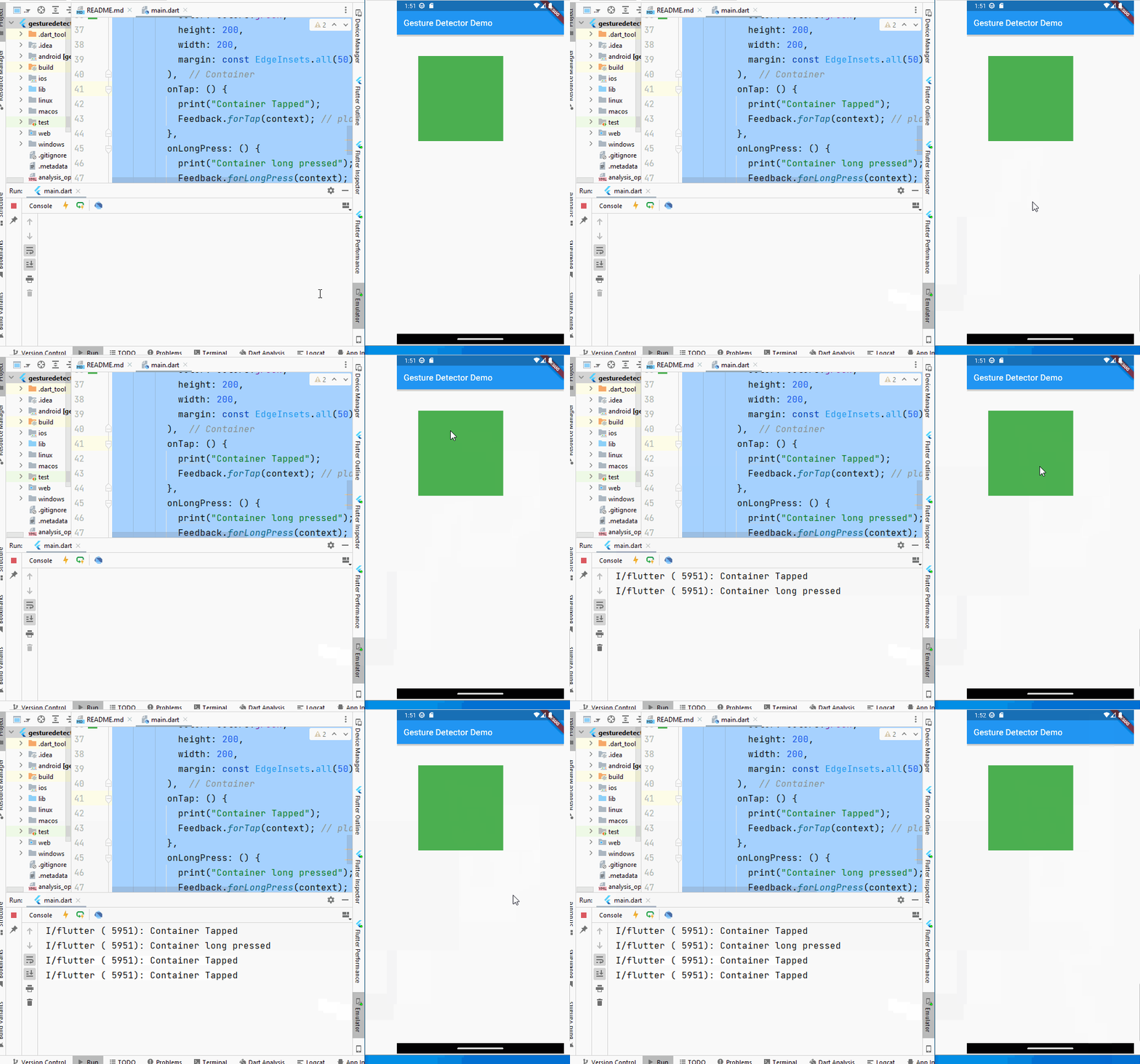
onTap() property of GestureDetecor widget is passed a function which is called back when user taps the Container. For demonstration purposes, I have just printed a message “Container Tapped” in the console window (see below video). The statement Feedback.forTap(context)plays a small sound as feedback of a tap gesture to the user.
In production apps, some action such as displaying a new screen (page) of the app is initiated within the callback function.
The preview video is shown below.
Recapitulate
The article has demonstrated gesture detection using the GestureDetector widget. Another article will discuss what happens when — (1) GestureDetectorhas no child widget and (2) has a non-visible child widget.
With that we have reached the end of this article. Thank you once again for reading. Don’t forget to 👏 and follow 😍. Also subscribe our newsletter at https://www.devtechie.com