avatarSuragch

Summary

The article outlines the process for reading a text file from the assets bundle in a Flutter application, including setting up the assets directory, registering assets in the pubspec.yaml file, and using rootBundle or DefaultAssetBundle to load the text file in code.

Abstract

The provided content is a step-by-step guide on how to load a text file from assets into a Flutter app. It begins with the creation of an assets folder within the project's root directory, where developers can place their text files. The article emphasizes the importance of registering this folder in the pubspec.yaml file, with the option to include either specific files or entire directories. Once registered, the text file can be accessed programmatically using Dart's rootBundle for simple cases or DefaultAssetBundle when the BuildContext is available, the latter being recommended for multilingual asset support. The article concludes with references to Flutter's official documentation for further reading on loading text assets and including images in an app.

Opinions

  • The author suggests that using DefaultAssetBundle is preferable to rootBundle when loading text assets, as it allows for runtime asset bundle switching, which is particularly useful for multilingual applications.
  • The article implies that organizing assets into subfolders is a good practice, but it also points out that developers must then include the relative path in the pubspec.yaml file.
  • By providing a direct link to the original Stack Overflow answer, the author indicates the reliability and authority of the provided information.
  • The inclusion of images demonstrating the steps in Android Studio suggests that visual aids can be helpful for developers, especially those new to Flutter or mobile app development.

Reading a text file from assets in Flutter

This is a repost of an answer I wrote on Stack Overflow.
In this brief article I’ll show all the steps for how to load a text file from assets into your Flutter app.

Create an assets folder

Create an assets folder in your project’s root folder. In Android Studio you can right click the Project outline and go to New > Directory.
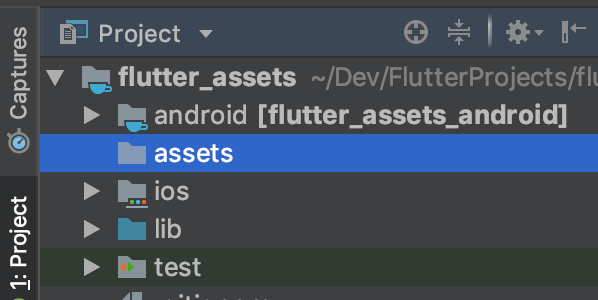
You can create another subfolder for text files in assets if you like. But if you do, you have to include the relative path in pubspec.yaml. See below.

Add your text file to the new folder

You can just copy your text file into the assets directory. The relative path of my_file.txt, for example, would be assets/my_file.txt.

Register the assets folder in pubspec.yaml

Open the pubspec.yaml file that is in the root of your project.

Add an assets subsection to the flutter section like this:

flutter:
  assets:
    - assets/my_file.txt

If you have multiple files that you want to include, then you can leave off the file name and just use the directory name (include the final /):

flutter:
  assets:
    - assets/

Get the text in code

You can use the global rootBundle to get the text file asset:

import 'dart:async' show Future;
import 'package:flutter/services.dart' show rootBundle;
Future<String> loadAsset() async {
  return await rootBundle.loadString('assets/my_text.txt');
}

Or if you have the BuildContext (inside a widget) you can use DefaultAssetBundle. This is recommended because it allows switching asset bundles at runtime, which is useful for multilingual assets.

Future<String> loadAsset(BuildContext context) async {
  return await DefaultAssetBundle.of(context).loadString('assets/my_text.txt');
}

See also

Flutter
Dart
Mobile App Development
Recommended from ReadMedium