
Read Medium on your Kindle
A cross platform solution.
I like reading Medium articles. Not only these short and sweet ones, but also those long and nutritious. While reading them, even though my mind is happy, my eyes are sour. Luckily digital ink is born to resolve this issue, and I have kindles at home.
I know from Google search, there is already one article to describe how to send Medium content to Kindle from an iOS device.
This article focus on the other major platforms: Windows, Mac, and Android. I do not have an Android device, so I could testify for that one. But theoretically, it should work.
In one word: the solution is to use Chrome Extension: Send To Kindle.
Install Extension
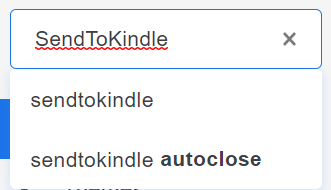
Open up your Chrome-based browsers, such as Google Chrome/Microsoft Edge (Chrome-based version), etc. Go to Chrome Web Store. Search for SendToKindle. Install the one with the above icon. This is the Amazon official Chrome Extension.
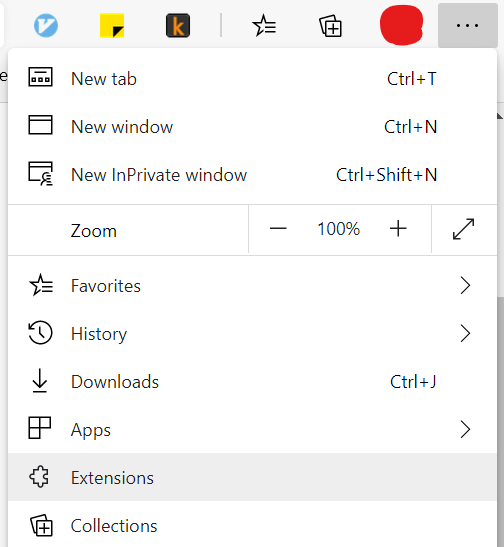
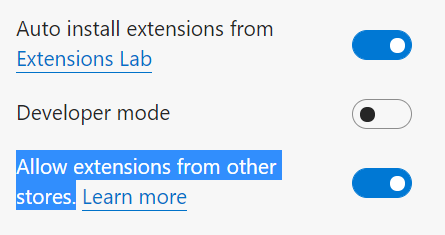
Tip: For Microsoft Edge Users, please turn on Allow extensions from other stores. That is located on the lower right corner, once you click on the Top Right 3 Dots -> Extensions.
Extension Setting:
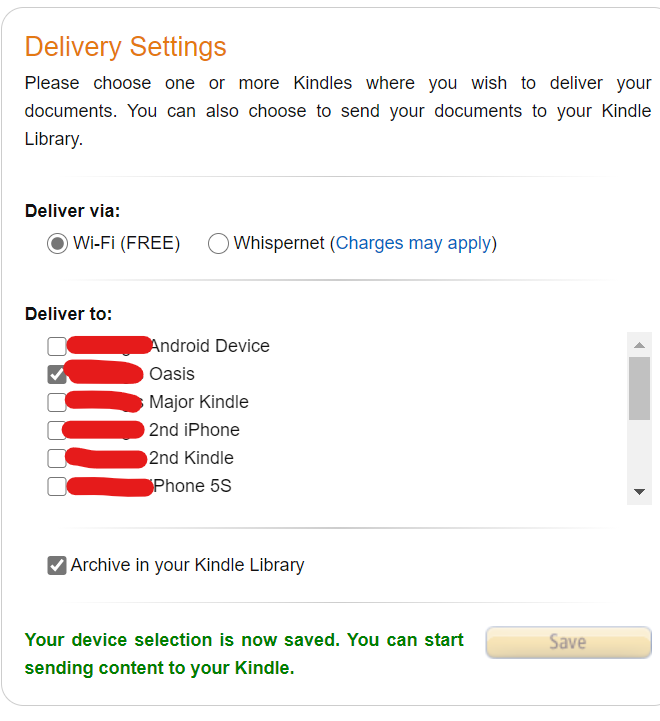
Once the extension installed, it will bring you to the setting page, such as the screenshot below. Notice, the Save button is grey. You would like to toggle any devices listed there on/off, to enable the Save button.
Usage:
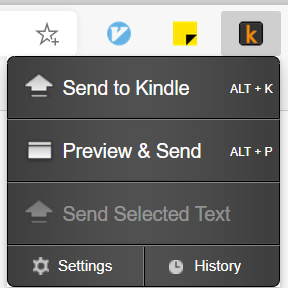
Visit any interesting blogs, and click on the extension -> SendToKindle (or Preview). A moment later, the article is on your Kindle.
Pro and Con:
Pro: Chrome Extension could work on almost all platforms, with help from the browser. It could handle almost all the blog formats.
Con: Images are not converted, also as GitHub linked Gist.
Summary:
We introduce a straight forward way to read articles, especially longer ones, in Kindle devices. Also mentioned the Pro/Con for this method. Please be aware of all the limitations.
Enjoy the reading.


