
NEXT.JS
Read And Write Local JSON Data With Next.js
Read And Write Local JSON Data With Next.js, getStaticProps, And Node.js fs/promises
In the previous post, I showed one way to read data from a local JSON file located in json/data.json.
I created a utility function called getLocalData in lib/localData.js that reads data from data.json whenever it is invoked.
// lib/localdata.js

import fsPromises from 'fs/promises';
import path from 'path'

export async function getLocalData() {
  // Get the path of the json file
  const filePath = path.join(process.cwd(), 'json/data.json');
  // Read the json file
  const jsonData = await fsPromises.readFile(filePath);
  // Parse data as json
  const objectData = JSON.parse(jsonData);

  return objectData
}
In this post, we write data in the same local JSON file.
Write JSON Data
In the previous post, we invoked getLocalData in getStaticProps.
However, since getStaticProps is executed during the build process, any changes made to the data.json file will only be reflected when you rebuild your app, which is not what you want in production.
One way to write data on a local JSON file is by using API Routes.
Setting Up An API
According to the docs, Any file inside the folder pages/api is mapped to /api/* and will be treated as an API endpoint instead of a page. They are server-side only bundles and won’t increase your client-side bundle size.
So we create a file in pages/api and we call it store.js. In this file, we will create a little backend.
This file will be treated as an endpoint, meaning that it will handle HTTP requests. In our case, we will see those requests at the URL: http://localhost:3000/api/store.
Testing The API
To make sure everything works fine, we test the newly created API by adding the following code in store.js.
The handler function handles GET requests to the url: /api/store and returns status 200 and some data in a JSON format.
// pages/api/store.js

export default function handler(req, res) {
  res.status(200).json({ name: 'John Doe' })
}
Then, we can create the following function inside the Home component. The fetchJoe function is an asynchronous function that sends a GET request to the url: /api/store.
Then, it receives a response that is a Promise. When the Promise completes we parse it as JSON and finally we log the data we receive.
// pages/index.js

...
export default function Home({ localData }) {
    const fetchJoe = async () => {
      const response = await fetch('/api/store')
      const data = await response.json();
      console.log(data);
    }
    ...
}
The function can be triggered in several ways. For a quick test, use a button in the template of the Home component and click it.
<button onClick={fetchJoe}>Fetch</button>You should see the following log in the console:
{name: 'John Doe'}As you can see from the code above, fetchJoe is a function in the component and it is not inside a getStaticProps. This is something to remember: You should not fetch an API Route from getStaticProps or getStaticPaths because they run on the server-side and not on the client-side.
GET And POST Requests
The previous example makes sure everything works.
Now we write a GET request that reads data from the JSON file.
HTTP GET
In store.js we write the logic to read data.json. If the request method of the HTTP request is GET,
- read data in data.json, and
- when the Promise completes send a response with status 200 and data.
// pages/api/store.js

import fsPromises from 'fs/promises';
import path from 'path';

const dataFilePath = path.join(process.cwd(), 'json/userData.json');

export default async function handler(req, res) {

  if (req.method === 'GET') {
    const jsonData = await fsPromises.readFile(dataFilePath);
    const objectData = JSON.parse(jsonData);
    res.status(200).json(objectData);
  }

}
Now, we can update the fetchJoe function and call it fetchData to send an HTTP GET request to api/store and log the response.
// pages/index.js

...
export default function Home({ localData }) {
  const fetchData = async () => {
      const response = await fetch('/api/store')
      const data = await response.json();
      console.log("data", data);
    }
    ...
}
Since we are just logging the data in the console, you should simply see the content of data.json in your console.
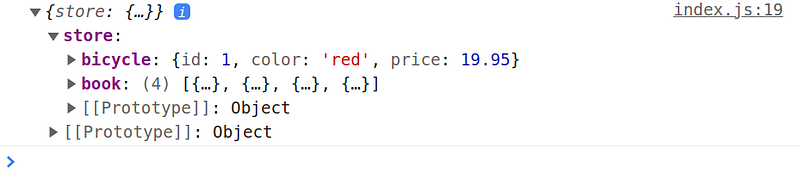
We can create the logic to write data in store.json through HTTP POST requests.
HTTP POST
Let’s expand the code in store.js to take into consideration POST requests as follow:
if (req.method === 'GET') {
    const jsonData = await fsPromises.readFile(dataFilePath);
    const objectData = JSON.parse(jsonData);
    res.status(200).json(objectData);
  } else if (req.method === 'POST') {
    // Code for POST requests goes here
  }
Inside the condition, we can write the following logic and add some error handling:
try {
      const jsonData = await fsPromises.readFile(dataFilePath);
      const data = JSON.parse(jsonData);

      // Get the data from the request body
      const { bicycle } = req.body;
      // Create new object
      const newData = {
        store: {
          book: data.store.book,
          bicycle: bicycle,
        },
      };

      // Convert the object back to a JSON string
      const updatedData = JSON.stringify(newData);
      // Save data in data.json
      await fsPromises.writeFile(dataFilePath, updatedData);
      // Send a success response
      res.status(200).json({ message: 'Bike updated successfully' });
    } catch (error) {
      console.error(error);
      // Send an error response
      res.status(500).json({ message: 'Error storing data' });
    }
You might notice some repetitions and it could be good to refactor the code to follow DRY principles.
However, that is up to you.
In index.js we can add a function called writeData. Every time this function is called, it will send a bicycle object with a random price. Then, it will log the response e.g. the whole data.json with updated data.
// pages/index.js

...
export default function Home({ localData }) {
  const fetchData = async () => { ... }

  const writeData = async () => {
      const response = await fetch('/api/store', {
        method: 'POST',
        headers: {
          'Content-Type': 'application/json',
        },
        body: JSON.stringify({
          bicycle: {
            color: 'green',
            id: 1,
            price: Math.floor(Math.random() * 1000),
          },
        }),
      });
      const data = await response.json();
      console.log(data);
    };
}
With this piece of code, every time you click on the Write button, you will overwrite the data on the bicycle in data.json.
// pages/index.js

...
export default function Home({ localData }) {
  ...

  return (
    ...
    <button onClick={fetchData}>Fetch</button>
    <button onClick={writeData}>Write</button>
    ...
  )
You can find the code on Stackblitz.

In Plain English
Thank you for being a part of our community! Before you go:
- Be sure to clap and follow the writer! 👏
- You can find even more content at PlainEnglish.io 🚀
- Sign up for our free weekly newsletter. 🗞️
- Follow us on Twitter, LinkedIn, YouTube, and Discord.


