Rapidly Explore Jupyter Notebooks (Right in Your Terminal)
Optimize Searching Through Notebooks
Written by: Amal Hasni & Dhia Hmila
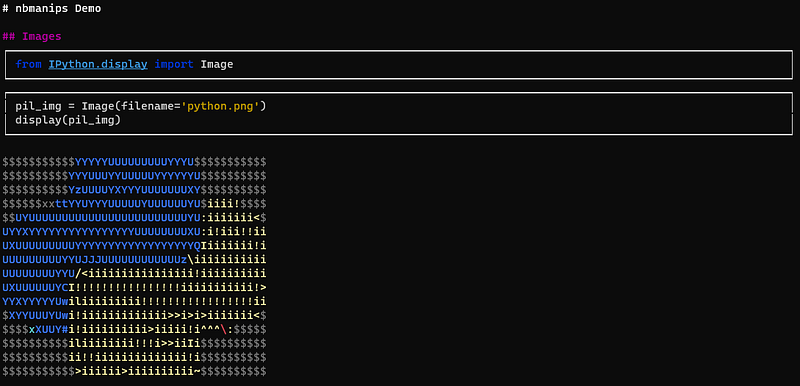
Imagine you’ve got a code sample, buried inside an old Jupyter code and can’t remember which one it is. Two simple solutions are available to you:
1. Spin a Jupyter instance and manually search through all of your notebooks 2. Open your notebooks in a text editor and search for a specific text
Both ways aren’t ideal, since :
- It takes time to load each notebook in Jupyter and search through it
2. Big notebooks are not very readable in JSON format
What if there was a third way that solves both of those issues and you can use it without leaving your terminal?
Meet nbmanips , a python package that we created especially to handle, explore, and transform notebooks.
💡Disclaimer: This is a package we, Dhia Hmila and I, created.
Table Of Contents:
. 1 — How to Install
. 2 — nbmanips in Python
  ∘ 2.1 — Reading a notebook
  ∘ 2.2 — Filtering/Selecting Notebook Cells
  ∘ 2.3 — Handling Multiple Notebooks
. 3 — nbmanips in the Terminal
1 - How to Install
Installing nbmanips is very simple if you use pip:
pip install nbmanipsThrough this package, it is possible to display your Jupyter notebook content on your terminal even if it contains images. Yes, you read that right! It will render the contained images if you install the following optional requirement:
pip install nbmanips[images]You can test the following library with your own notebook files if you want. But in case you need test notebooks, here’s a great Git repository with over 30 Machine Learning related notebooks.
2 - nbmanips in Python
2.1 - Reading a notebook
Reading a Jupyter notebook is pretty straightforward :
Once, you’ve read the notebook you can print it to the screen with the show method:
nb.show()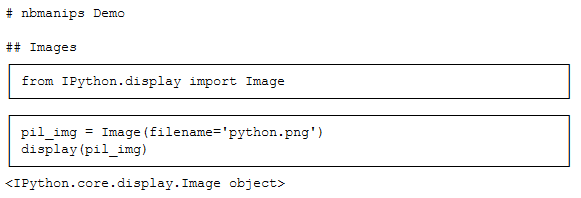
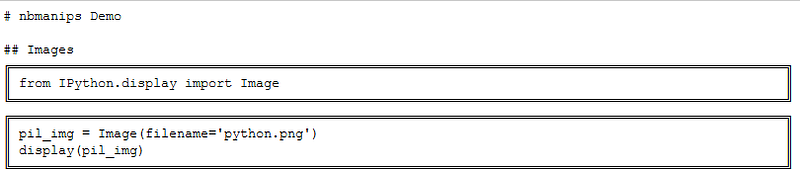
Different styles are available for you for the display:
# Possible values: ['single', 'double', 'grid', 'separated', 'rounded', 'dots', 'simple', 'copy']
nb.show(style='double')
💡 Hint: the copy style is ideal to copy/paste code from the terminal 😉
📓 Other interesting parameters are:
width: width of the cellsexclude_output: True if you want to hide the cells' outputs.
2.2 - Filtering/Selecting Notebook Cells
Now we have a way to visualize our notebooks in a readable way without leaving our terminal
Jupyter notebooks, however, can have a huge amount of cells and we don’t necessarily want to see all of them on screen.
This is where Selectors come into play. They are used to specify on which cells we will apply a given action (like show or delete). In our example, the action is simply to display the cell.
To select cells on which to apply the previous operations, you can use:
1. Filter using indexing
2. Filter using a predefined selector
The available predefined selectors in nbmanips are the following:
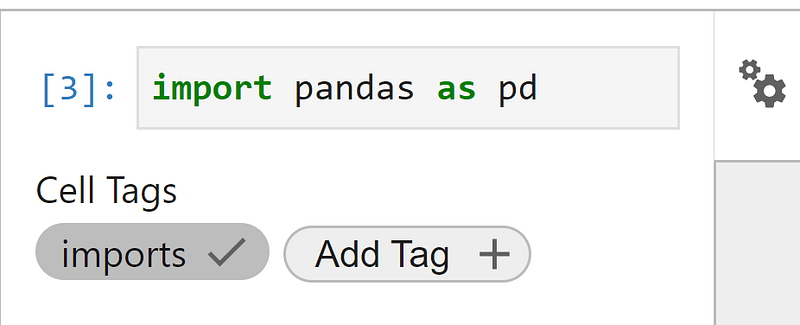
code_cells/markdown_cells/raw_cells: Select cells with the given typecontains: Selects Cells containing a certain text/keywordis_empty/empty: Selects empty cellshas_output: Checks if the cell has any outputhas_output_type: Selects cells that have a given output_typehas_byte_size: Selects cells with byte size within a given range of values. This is especially useful to filter out cells containing large images.has_html_tag: Selects markdown cells that have a certain HTML taghas_tag: Selects cells that have a certain cell tag. For those who didn’t know it, it is possible to add a tag to Jupyter Notebook cell:
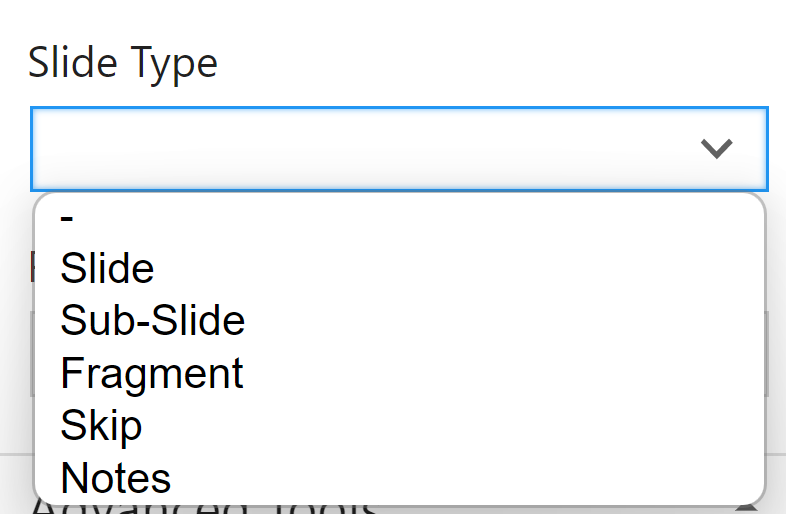
has_slide_type: Selects cells that have a given slide typeis_new_slide: Selects cells where a new slide/sub-slide starts:
3. Filter using a user-defined function
The function takes a Cell object and returns True if the cell should be selected:
4. Combining filters
- The first way to combine selectors is simply by using a list.
- Combine selectors by chaining select statements:
nb.select('markdown_cells').select('is_empty').show()- Combine selectors using binary operators:
2.3 — Handling Multiple Notebooks
Now that we know how to display specific cells in each notebook, let’s apply that to all notebooks in a given folder.
3 - nbmanips in the Terminal
nbmanips also comes with a CLI and therefore all that we have seen previously can be done in a few lines.
For example, to preview a notebook, you can run the show subcommand:
nb show nb.ipynbIf you want to see the available parameters, you can pass the --help option:
You can use filters, by piping them in this way:
You can also use the --help option to get more information:
Final Thoughts
Jupyter notebooks are very helpful for interactively exploring data or quickly trying out new ideas. However, once you are done with them, you are often left with a quick and dirty code.
nbmanips tries to offer a way to quickly explore the code, but also to easily restructure the cells and transform the notebook.
Stay tuned for our next article to see how to split and merge different Notebooks.
You can find all the Python scripts gathered in one place in this GitHub repository. If you have questions, please don’t hesitate to leave them in the responses section and we’ll be more than happy to answer.
Thank you for sticking around this far, stay safe and we will see you in our next article! 😊
More Articles To Read