
Python Markdown Notebook in Atom
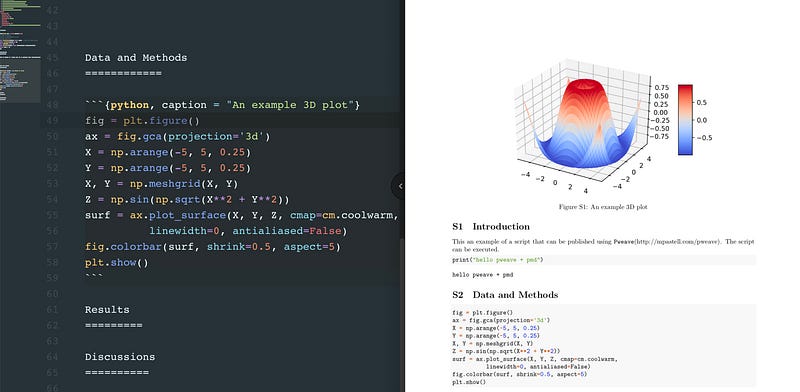
I am trying to deploy the environments for python markdown notebook in Atom, so that you can compile your python script (*.pmd) into a pdf file. This configuration is tailored for markdown lovers and R users, who are looking for a python IDE similar to Rstudio. It is also useful for researchers who want to attach their scripts as well-formed pdfs in the publications. I include the template files, scripts and other settings in my github repository.
- install Pweave via pip
>> pip3 install --upgrade Pweave2. download and install Atom
3. install the necessary packages via Atom package manager
>> apm install Hydrogen document-outline linter-ui-default atom-file-icons expand-region markdown-cell-highlight atom-html-preview expand-selection-to-quotes minimap atom-material-syntax find-selection platformio-ide-terminal atom-shell-commands hydrogen-cell-separator python-autopep8 autocomplete hydrogen-launcher python-debugger autocomplete-python hydrogen-python python-indent autocomplete-python-jedi intentions restart-atom brunel-syntax jvpr-dark-syntax simple-center-screen busy-signal kite cell-navigation language-weave default-language linter document-outline4. configurations for Atom
To compile the python notebook (template.pmd), you need to set up the Atom configurations, such as adding the shell commands, shortcuts, and background colors.
(1) fish function (autoweave.fish) and shortcut (shift-cmd-k) to compile template.pmd
The fish function is used to compile the template.pmd into pdf via pweave and pandoc. Please first install the fish shell, and test the function on your computer. You may need to change the paths according to your own environments. If you are using bash or zsh shell, you can translate it into a bash script. If you succeed in running the fish function in the terminal, you can add the following code in Atom’s config.cson (Atom-config). It maps the shortcut (shift-cmd-k) to execute the autoweave.fish script under the hood.
"atom-shell-commands":
  commands: [
    {
      arguments: [
        "-c autoweave {FileName}"
      ]
      command: "fish"
      name: "pmd2pdf"
      options:
        cwd: "{FileDir}"
        keymap: "shift-cmd-k"
    }
  ]
(2) add shortcut (shift-cmd-i) to insert a python chunk
To insert a python chunk, you need to put the following code in Atom’s init.coffee (Atom-init script).
atom.commands.add 'atom-text-editor',
  'custom:insert-pycell': ->
atom.workspace.getActiveTextEditor()?.insertText("""```{python}```""")After that, you still need to specify a shortcut, e.g., shift-cmd-i, to insert the python cell. You can append the chunk below in Atom’s keymap.cson (Atom-keymap).
'atom-text-editor':
  'shift-cmd-i': 'custom:insert-pycell'
(3) color the python code chunk
You can also color the python code chunk by inserting the following code in Atom’s style.less (Atom-stylesheet). I specifically pick up the color based on my own Atom theme (UI theme: Atom dark; syntax theme: atom material).
atom-text-editor.editor {
  .line {
    position: relative;
  .syntax--embedded {
      &::before {
        position: absolute;
        top: 0;
        left: 0;
        width: 100%;
        height: 200%;
        content: '';
        display: block;
        z-index: -1;
      }
      &.syntax--python::before{
        background-color: fade(#282828, 35%);
      }
    }
  }
}
(4) shortcuts for cell navigation
To jump over python cells, I am editing the source code of cell-navigation package by replacing the original cell marker (# %%) as /^```.?python|^# %%/ in the cell-navigation/utils.coffee and spec/00-utils-spec.coffee files. Of course, you can adjust this regular expression to match other code chunks. Here I also map the shortcuts as ctrl-n/b to jump to the next or previous chunk.
(5) override keybindings
Atom incorporates a package called “keybinding-resolver” to detect and resolve the shortcuts conflicts. In order to override a keybinding, you can define the new key mappings in the keymap.cson file, for example:
'.editor:not([mini])':
  'alt-j': 'find-selection:find-next'
  'alt-k': 'find-selection:find-previous'
(6) map multiple commands with a single keystroke
You can define a series of actions or commands, and map them to one single keystroke. Here is an example of running the next code chunk (1. move to the next chunk; 2. run the code chunk). You can put the following code block in your init.coffee.
atom.commands.add 'atom-text-editor', 'custom:run-next-cell', ->
  editor = atom.views.getView(atom.workspace.getActiveTextEditor())
  atom.commands.dispatch(editor, 'cell-navigation:next-cell')
  atom.commands.dispatch(editor, 'hydrogen:run-cell-and-move-down')
With the defined command “custom:run-next-cell”, you can specify a key in your keymap.cson, e.g., “shift-cmd-n”.
'atom-text-editor':
  'shift-cmd-n': 'custom:run-next-cell'
(7) contrast colors for python syntax errors
The error messages in python do not have sufficient color contrasts in Atom, especially for dark themes. It would be better to change the color setting in kernel.json file inside this directory.
>> jupyter kernelspec list
#  python3      /Users/jakejing/Library/Jupyter/kernels/python3
You can change the color as ‘NoColor’ in kernel.json.
"ipykernel_launcher",
"--colors='NoColor'",
"-f",
You can also change the background color for the hygrogen output cell by appending the following code in Atom’s style.less file.
atom-text-editor {
  .hydrogen {
    .hydrogen_cell_display{
        background-color: #4f4850;
    }
  }
}
(8) show the document outline
It is also nice to have an outline view of your markdown files (.md, .pmd or .jmd), especially for long documents with many sections and subsections. To enable the document outline, I am using a package called “document-outline”. It will automatically detect the structure of your documents (CommonMark formats), and produce a panel of outline view, so that you can easily navigate between sections.
But it seems that python markdown format (.pmd) is not listed in the package, and you need to edit the source script by simply adding the line ‘source.pweave.md’: MarkdownModel in the “/lib/document-outline.js” (see the code chunk below). The outline view is activated by default. But if it is not shown in your computer, you can open the command palette (shift-cmd-p) and search for “document outline” to enable it.
const MODEL_CLASS_FOR_SCOPES = {
  'source.gfm': MarkdownModel,
  'text.md': MarkdownModel,
  'source.weave.md': MarkdownModel,
  'source.pweave.md': MarkdownModel,
  'text.tex.latex': LatexModel,
  'text.tex.latex.beamer': LatexModel,
  'text.tex.latex.knitr': LatexModel,
  'text.knitr': LatexModel,
  'text.restructuredtext': ReStructuredTextModel,
  'source.asciidoc': AsciiDocModel
};
Screencast for my python markdown notebook
Useful links:
- My github for detailed instructions and other settings: https://github.com/JakeJing/setup-atom-python
- Similar setting for Rmarkdown lovers in Rstudio: https://github.com/JakeJing/knitr-markdown-engines
Related pages: