
Python For Beginners: Install and Run Your First Code
Take one step at a time.

Python is a great language for those starting in coding. You can install and quickly start programming in a matter of minutes.
If you’re learning to code and entering the field of machine learning or data science in general, there is no better language than Python. Among other characteristics, it contains powerful libraries for efficiently managing data (collection, extraction, cleaning) — that’s a key reason for being so popular.
In this tutorial, we’ll go through the installation and five ways (yes, five!) to run your first code, the famous “Hello World”.
Python installation
For the installation, we’ll use Anaconda.
What, Anaconda?!
Yes, Anaconda is a toolkit that not only installs Python on your computer but offers other features to help you with learning as well. It’s perfect for beginners.
Here’s what it says on the Anaconda website.
….the open-source Individual Edition (Distribution) is the easiest way to perform Python/R data science and machine learning on a single machine. Developed for solo practitioners, it is the toolkit that equips you to work with thousands of open-source packages and libraries.
Further below, I explain other options for installing Python and running your code, but for now, let’s look at Anaconda.
Installing Anaconda
- Go to https://www.anaconda.com/products/individual and click on the “Download” button. The individual edition is free and open source.
- You will be redirected to the section represented in the image below. You need to choose which version to install based on which operating system (OS) you have — Windows, MacOS or Linux. The first item (64-Bit) in each OS is probably the one you should click unless you have a much older computer.
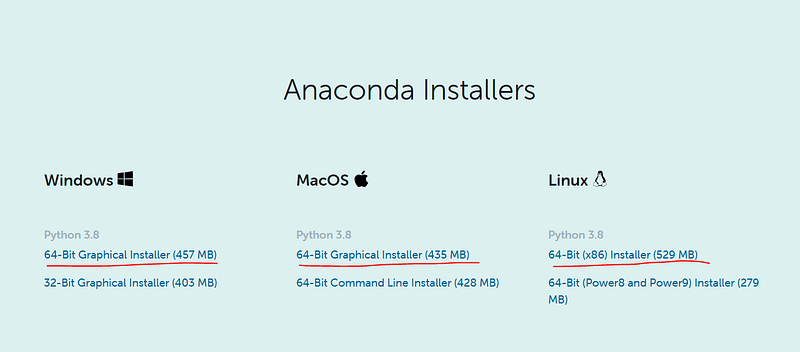
3. After clicking in 64-Bit respective to your OS, the download will start, and you can ignore the screen that shows up right next.
4. After the download finishes, you click on the file, and the installation shall begin. The installation steps are pretty self-explanatory. Only click Nex/Agree, leave with the default and recommended settings.
5. After you finish, you search on your computer for Anaconda Navigator. Once you open, you “Launch” the Jupyter Notebook on the Anaconda Navigator's Home screen. I’ll dive into more detail about the Jupyter Notebook further below.
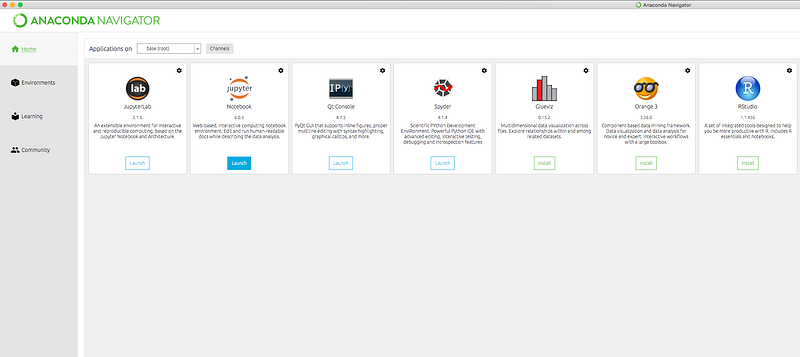
Running Your Code
Here I explain five ways to run your first code. All of them are straight forward. Let’s see the detail.
Directly in command line
The easiest way is to use the command line/terminal. You don’t need to install Anaconda for that. If you want, you only download Python from Python.org, install it and type python in the terminal.
To quit the Python console, you type quit() or press Ctrl-D.
Text Editors
Instead of typing the code directly in the terminal, you write the code in a separate file. For example, using Atom text editor, you write the code in the file, save it with extension .py, and from the terminal, you do the following. python <.py file path>. Check out below.
Notebooks
Notebooks come in handy for beginners. You can split your python program into sections of code and comments. Each code section can be executed individually.
After opening Anaconda Navigator — you launch Jupyter Notebook. You navigate to any folder on your computer and click on New, then on Python 3.
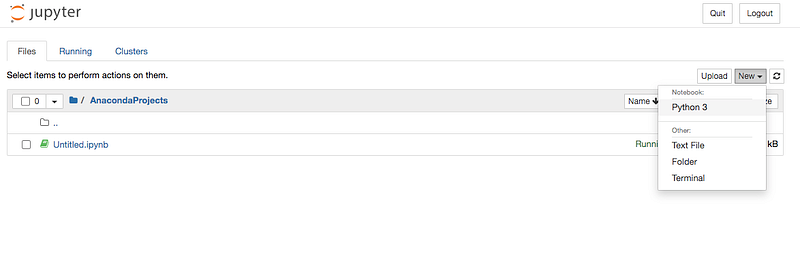
A similar screen as below opens up. It’s where you can type your code and comments.
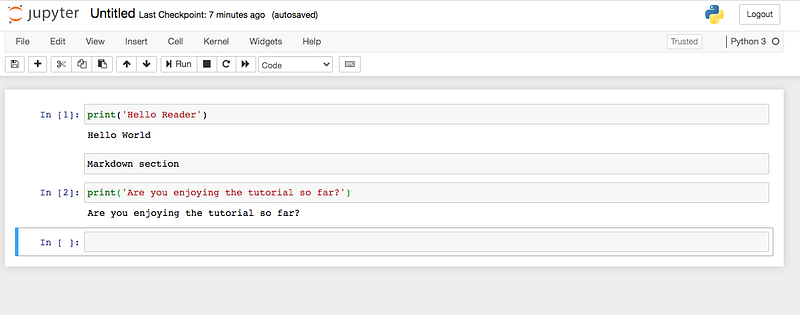
Although you use Jupyter Notebook in the browser, you don’t need internet for it. If you didn’t notice, the URL points to localhost. For example, in my case is http://localhost:8888/tree/AnacondaProjects. AnacondaProjects is an existing folder on my computer.
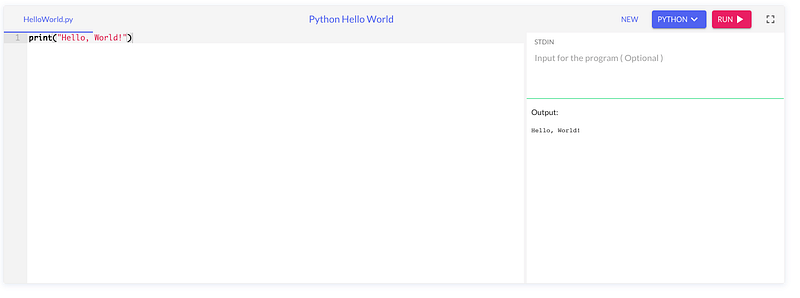
Online
There are online tools that allow you to run Python code without even installing Python on your computer.
OneCompiler is one example.
IDEs
IDEs stands for Integrated Development Environment. It’s an application that provides various features to facilitate your program development and troubleshooting. It’s much richer in terms of functionality than a text editor.
There are several IDEs you can use for Python. Search on Google “Python IDE”, and you’ll see. Spyder, PyCharm and Visual Code Studio are popular ones. PyCharm is most complete with features. There is the paid and free version.
Conclusion
This tutorial provided a quick overview of installing Python and running your first code. I tried to target first-time coders in general and programmers starting with Python. If you face any issue, don’t hesitate to comment. I’m happy to help.
Thanks for reading.
Here are other stories you might like.


