avatarEsteban Thilliez

Free AI web copilot to create summaries, insights and extended knowledge, download it at here

4249

Abstract

an>] + <span class="hljs-number">100</span>, mouse_position[<span class="hljs-number">1</span>], duration=<span class="hljs-number">1</span>) pyautogui.moveRel(<span class="hljs-number">0</span>, <span class="hljs-number">100</span>, duration=<span class="hljs-number">1</span>) pyautogui.dragRel(<span class="hljs-number">100</span>, <span class="hljs-number">0</span>, duration=<span class="hljs-number">1</span>)</pre></div><h2 id="4294">Controlling the Keyboard</h2><p id="917f">The main action you can do with a keyboard is typing text. PyAutoGUI allows you to simulate typing using the <code>typewrite()</code> function:</p><div id="2100"><pre>pyautogui.typewrite(<span class="hljs-string">"Hello"</span>)</pre></div><p id="9b91">If you want to introduce a delay between each keypress, you can pass an optional <code>interval</code> argument to the <code>typewrite()</code> function. The <code>interval</code> specifies the number of seconds to wait after typing each character.</p><div id="421d"><pre>pyautogui.typewrite(<span class="hljs-string">"Hello"</span>, interval=<span class="hljs-number">0.1</span>)</pre></div><p id="7bd4">In addition to typing text, PyAutoGUI allows you to simulate the pressing and releasing of specific keys using the <code>press()</code> and <code>release()</code> functions, respectively. These functions accept key names or keycodes as input. For example, to simulate pressing the Enter key, you can use the following code:</p><div id="828a"><pre>pyautogui.press(<span class="hljs-string">"enter"</span>)</pre></div><p id="3a0a">And to release it:</p><div id="18eb"><pre>pyautogui.release(<span class="hljs-string">"enter"</span>)</pre></div><p id="46ba">PyAutoGUI also provides a handy <code>keyDown()</code> and <code>keyUp()</code> functions to hold a key down and release it, respectively. These functions are useful when simulating keyboard shortcuts.</p><div id="c4ef"><pre>pyautogui.keyDown(<span class="hljs-string">"ctrl"</span>) pyautogui.press(<span class="hljs-string">"s"</span>) pyautogui.keyUp(<span class="hljs-string">"ctrl"</span>)

<span class="hljs-comment"># you just saved a document!</span></pre></div><h2 id="6881">Displaying Messages</h2><p id="e91c">If you want to provide information or feedback during the automation process, you can use some PyAutoGUI functions.</p><p id="c3b4">To display messages with PyAutoGUI, you can use the <code>alert()</code> function. This function creates a pop-up dialog box with a message and an OK button for the user to acknowledge.</p><div id="3f96"><pre>pyautogui.alert(<span class="hljs-string">"Hello world!"</span>)</pre></div><p id="9493">The <code>alert()</code> function halts the execution of the program until the user clicks the OK button in the dialog box.</p><p id="5c0c">In addition to the <code>alert()</code> function, PyAutoGUI also provides the <code>confirm()</code> function. This function displays a dialog box with a message and two buttons: OK and Cancel. The user can choose either option, and the function returns a boolean value indicating the user's selection.</p><div id="5491"><pre>result = pyautogui.confirm(<span class="hljs-string">"Do you want to proceed?"</span>)

<span class="hljs-keyword">if</span> result: <span class="hljs-built_in">print</span>(<span class="hljs-string">"Proceeding with the task..."</span>) <span class="hljs-keyword">else</span>: <span class="hljs-built_in">print</span>(<span class="hljs-string">"Task aborted."</span>)</pre></div><p id="3edc">Finally, you can let the user type a string using <code>prompt()</code> :</p><div id="65b4"><pre>beverage = pyautogui.prompt(<span class="hljs-string">"Tea or coffee?"</span>)</pre></div><h2 id="b501">Working with Images</h2><p id="a451">If your automation needs are a little more complex, you’ll certainly need to identify images on screen, or take screenshots. PyAutoGUI lets you do just that.</p><p id="a8b0">First, you have the <code>locateOnScreen()</code> function. This function takes an image file path as input and searches for the presence of that image on the screen. If the image is found, the function returns the coordinates of the first occurrence of the image.</p><div id="7759"><pre><span class="hljs-attr">ima

Options

ge_location</span> = pyautogui.locateOnScreen(<span class="hljs-string">"image.png"</span>)</pre></div><p id="018a">If you want to locate several images that are the same, you just have to use <code>locateAllOnScreen</code> instead. This function will return a generator for all the locations the image is found on the screen.</p><p id="70ca">Alternatively, you can use <code>locateCenterOnScreen</code> to get the x and y coordinates of the middle of where the image is found on the screen.</p><div id="b624"><pre>pyautogui.locateCenterOnScreen(<span class="hljs-string">'image.png'</span>)</pre></div><p id="7d4e">If the image is not found, these functions return <code>None</code> .</p><p id="22a5">Finally, you can just take a screenshot using <code>screenshot()</code> . It returns a Pillow/PIL Image object. If you provide this function a path, it will save the screenshot:</p><div id="1819"><pre>pyautogui.screenshot(<span class="hljs-string">"src/images/screenshot.png"</span>)</pre></div><h2 id="c109">Example: Cookie Clicker Automation</h2><p id="afab">A perfect use case for this library is a cookie-clicker game. The only actions you need to do are clicking and buying upgrades. Let’s translate this into PyAutoGUI:</p><div id="4a14"><pre><span class="hljs-keyword">def</span> <span class="hljs-title function_">cookie_clicker_automation</span>(): cookie_location = pyautogui.locateCenterOnScreen(<span class="hljs-string">'cookie.png'</span>)

<span class="hljs-keyword">for</span> i <span class="hljs-keyword">in</span> <span class="hljs-built_in">range</span>(<span class="hljs-number">10</span>):
    pyautogui.moveTo(cookie_location)

    <span class="hljs-keyword">for</span> j <span class="hljs-keyword">in</span> <span class="hljs-built_in">range</span>(<span class="hljs-number">100</span>):
        pyautogui.click()
        time.sleep(<span class="hljs-number">0.05</span>)

    upgrade_location = pyautogui.locateCenterOnScreen(<span class="hljs-string">'upgrade.png'</span>)
    pyautogui.moveTo(upgrade_location)
    pyautogui.click()</pre></div><h2 id="78a7">Final Note</h2><p id="c30a">When it comes to automation, there are many possible solutions. The advantage of using Python is that you have access to the whole ecosystem of libraries on the side to build something really complex, so I can only recommend PyAutoGUI!</p><p id="2b05">If you want to discover other Python libraries, click below!</p><div id="ecfb" class="link-block">
      <a href="https://readmedium.com/know-more-about-python-libraries-9ba70e056a4f">
        <div>
          <div>
            <h2>Know More About Python Libraries</h2>
            <div><h3>Well, after making a bunch of articles about Python libraries, I think it’s time to gather all of them here, for a more…</h3></div>
            <div><p>medium.com</p></div>
          </div>
          <div>
            <div style="background-image: url(https://miro.readmedium.com/v2/resize:fit:320/0*BrtQxt3OKXnOTJpm)"></div>
          </div>
        </div>
      </a>
    </div><p id="e697"><i>If you liked the story, don’t forget to clap and maybe follow me if you want to explore more of my content :)</i></p><p id="7f8d"><i>You can also subscribe to me via email to be notified every time I publish a new story, just click <a href="https://medium.com/subscribe/@estebanthi">here</a>!</i></p><p id="8079"><i>If you’re not subscribed to Medium yet and wish to support me or get access to all my stories, you can use my link:</i></p><div id="23b1" class="link-block">
      <a href="https://medium.com/@estebanthi/membership">
        <div>
          <div>
            <h2>Join Medium with my referral link — Esteban Thilliez</h2>
            <div><h3>Read every story from Esteban Thilliez (and thousands of other writers on Medium). Your membership fee directly…</h3></div>
            <div><p>medium.com</p></div>
          </div>
          <div>
            <div style="background-image: url(https://miro.readmedium.com/v2/resize:fit:320/0*IoN4BofrwCNWA_bS)"></div>
          </div>
        </div>
      </a>
    </div></article></body>

PyAutoGUI: Automation with Python
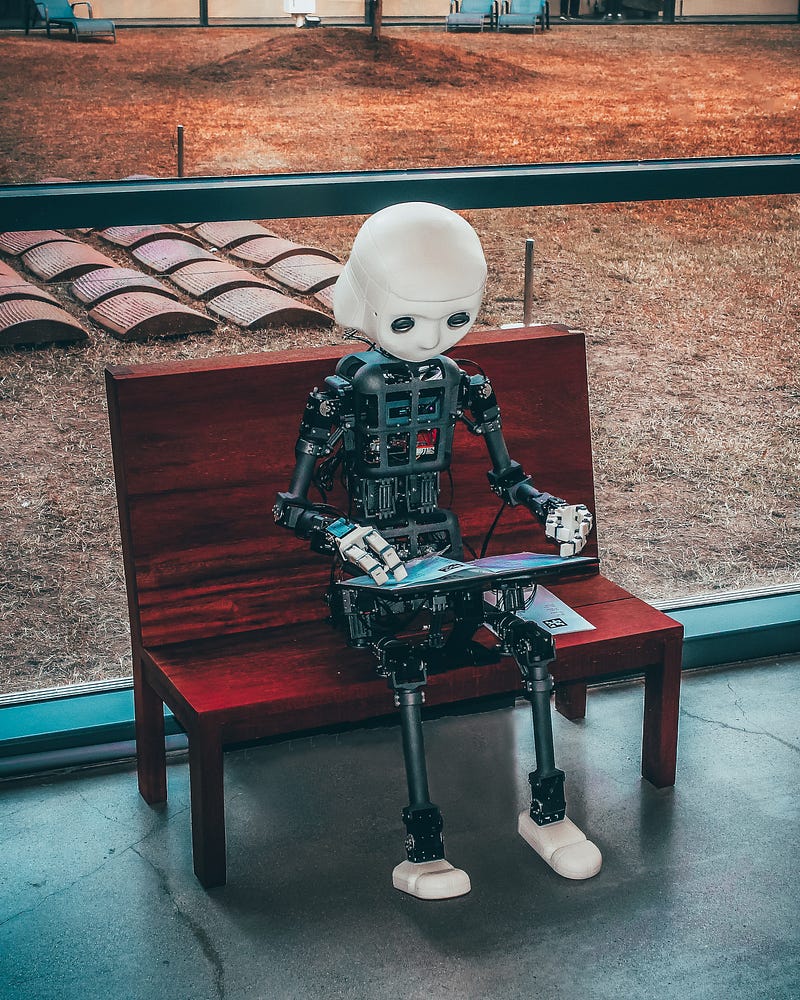
Photo by Andrea De Santis on Unsplash

This article is part of the Python Libraries Series. Find more below!

PyAutoGUI is a Python library that allows you to automate tasks by controlling your mouse and keyboard. This way, you can create, bots, macros, etc…

Let me introduce you to this library.

Getting Started with PyAutoGUI

First, you need to install PyAutoGUI. It can be done easily with pip :

pip install pyautogui

Once it is installed, you can import PyAutoGUI into your Python scripts using:

import pyautogui

Controlling the Mouse

The main thing you do when it comes to controlling GUIs is move your mouse. With PyAutoGUI, you can do it with the following code:

pyautogui.moveTo(x, y)

In addition to moving the cursor, PyAutoGUI allows you to simulate mouse button clicks. The click() function enables you to perform a primary (left) click at the current cursor position. To perform a secondary (right) click, you can use the rightClick() function. These functions can be combined with moveTo() to click at specific coordinates on the screen. For example:

import pyautogui

pyautogui.moveTo(500, 500)
pyautogui.click()

If the mouse movement should take some time, you can specify its duration (in seconds):

pyautogui.moveTo(200, 300, duration=1)

PyAutoGUI also provides functions to perform other types of clicks, such as double-clicking, middle-clicking, and dragging. The doubleClick() function allows you to simulate a double-click at the current cursor position, while the middleClick() function performs a middle click. To drag the mouse, you can use the dragTo() function, specifying the target coordinates after dragging from the current position.

Besides mouse movements and clicks, PyAutoGUI offers additional functionalities for mouse-related automation. You can retrieve the current mouse position using the position() function, which returns a tuple containing the x and y coordinates. The scroll() function allows you to simulate mouse scrolling by specifying the number of units to scroll vertically and horizontally.

You can also use moveRel and dragRel if you want to perform actions depending on the current position of the mouse without having to first get the current position.

    mouse_position = pyautogui.position()
    print(mouse_position)
    
    pyautogui.dragTo(mouse_position[0] + 100, mouse_position[1], duration=1)
    pyautogui.moveRel(0, 100, duration=1)
    pyautogui.dragRel(100, 0, duration=1)

Controlling the Keyboard

The main action you can do with a keyboard is typing text. PyAutoGUI allows you to simulate typing using the typewrite() function:

pyautogui.typewrite("Hello")

If you want to introduce a delay between each keypress, you can pass an optional interval argument to the typewrite() function. The interval specifies the number of seconds to wait after typing each character.

pyautogui.typewrite("Hello", interval=0.1)

In addition to typing text, PyAutoGUI allows you to simulate the pressing and releasing of specific keys using the press() and release() functions, respectively. These functions accept key names or keycodes as input. For example, to simulate pressing the Enter key, you can use the following code:

pyautogui.press("enter")

And to release it:

pyautogui.release("enter")

PyAutoGUI also provides a handy keyDown() and keyUp() functions to hold a key down and release it, respectively. These functions are useful when simulating keyboard shortcuts.

pyautogui.keyDown("ctrl")
pyautogui.press("s")
pyautogui.keyUp("ctrl")

# you just saved a document!

Displaying Messages

If you want to provide information or feedback during the automation process, you can use some PyAutoGUI functions.

To display messages with PyAutoGUI, you can use the alert() function. This function creates a pop-up dialog box with a message and an OK button for the user to acknowledge.

pyautogui.alert("Hello world!")

The alert() function halts the execution of the program until the user clicks the OK button in the dialog box.

In addition to the alert() function, PyAutoGUI also provides the confirm() function. This function displays a dialog box with a message and two buttons: OK and Cancel. The user can choose either option, and the function returns a boolean value indicating the user's selection.

result = pyautogui.confirm("Do you want to proceed?")

if result:
    print("Proceeding with the task...")
else:
    print("Task aborted.")

Finally, you can let the user type a string using prompt() :

beverage = pyautogui.prompt("Tea or coffee?")

Working with Images

If your automation needs are a little more complex, you’ll certainly need to identify images on screen, or take screenshots. PyAutoGUI lets you do just that.

First, you have the locateOnScreen() function. This function takes an image file path as input and searches for the presence of that image on the screen. If the image is found, the function returns the coordinates of the first occurrence of the image.

image_location = pyautogui.locateOnScreen("image.png")

If you want to locate several images that are the same, you just have to use locateAllOnScreen instead. This function will return a generator for all the locations the image is found on the screen.

Alternatively, you can use locateCenterOnScreen to get the x and y coordinates of the middle of where the image is found on the screen.

pyautogui.locateCenterOnScreen('image.png')

If the image is not found, these functions return None .

Finally, you can just take a screenshot using screenshot() . It returns a Pillow/PIL Image object. If you provide this function a path, it will save the screenshot:

pyautogui.screenshot("src/images/screenshot.png")

Example: Cookie Clicker Automation

A perfect use case for this library is a cookie-clicker game. The only actions you need to do are clicking and buying upgrades. Let’s translate this into PyAutoGUI:

def cookie_clicker_automation():
    cookie_location = pyautogui.locateCenterOnScreen('cookie.png')
    
    for i in range(10):
        pyautogui.moveTo(cookie_location)
    
        for j in range(100):
            pyautogui.click()
            time.sleep(0.05)
    
        upgrade_location = pyautogui.locateCenterOnScreen('upgrade.png')
        pyautogui.moveTo(upgrade_location)
        pyautogui.click()

Final Note

When it comes to automation, there are many possible solutions. The advantage of using Python is that you have access to the whole ecosystem of libraries on the side to build something really complex, so I can only recommend PyAutoGUI!

If you want to discover other Python libraries, click below!

If you liked the story, don’t forget to clap and maybe follow me if you want to explore more of my content :)

You can also subscribe to me via email to be notified every time I publish a new story, just click here!

If you’re not subscribed to Medium yet and wish to support me or get access to all my stories, you can use my link:

Python
Automation
Programming
Coding
Productivity
Recommended from ReadMedium