
Puzzle: Fragment stack pop cause issue on toolbar
Using fragment, with toolbar is so commonly done these days, and I don’t expect to find any issue with it, until this week. I faced this seemingly weird issue and uncovering the cause of it took me about 2 days. Sharing this so you could learn about it early if you ever see such behavior.
Also I have a related puzzle below for you to solve 😉.
Background
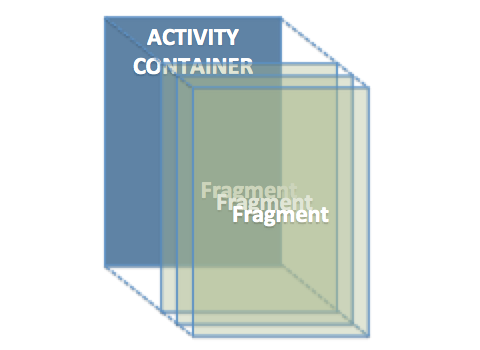
I have an app, with a layout container in the activity. The container took up the entire width of the activity, and it is inflated with fragment or fragments.
Toolbar setup in each fragment
In my app, each of the fragment would have their respective toolbar with it’s menu. As there’s no common toolbar, it is set in the fragment instead of the activity. The code as below
(activity as AppCompatActivity).setSupportActionBar(toolbar)In all my toolbar, I have menu that enable one to click and
override fun onOptionsItemSelected(item: MenuItem): Boolean {
    if (item.itemId == android.R.id.home) {
        activity?.onBackPressed()
        return true
    } else {
        // Do some other things to other menu
        return super.onOptionsItemSelected(item)
    }
}
On my activity, my back-press is to pop the fragment
override fun onBackPressed() {
    if (supportFragmentManager.backStackEntryCount > 0) {
        supportFragmentManager.popBackStackImmediate()
    } else {
        super.onBackPressed()
    }
}
Mixture of add and replace fragment usage
Besides, for some cases I use replace to add my fragment to the stack, and sometimes I use add to add my fragment to the stack.
private fun addFragment(fragment: Fragment, name: String) {
    supportFragmentManager.beginTransaction()
            .add(R.id.container, fragment, name)
            .addToBackStack(name).commit()
}

private fun replaceFragment(fragment: Fragment, name: String) {
    supportFragmentManager.beginTransaction()
            .replace(R.id.container, fragment, name)
            .addToBackStack(name).commit()
}
Note: Using
replacefragment is preferred over usingadd, as it doesn’t store unnecessary fragments in the memory, and also reduce the UI rendering need. However if the current fragment contains a webview, to open the next fragment, usingaddis better, this is in the event when you pop that “next” fragment, your existing fragment with webview is retain and doesn’t need to be reloaded.
Example App
That’s my app behavior. To illustrate this better, I create an app with 8 buttons, 4 buttons is adding Fragment 1–4, and 4 buttons is for replacing with Fragment 1–1.
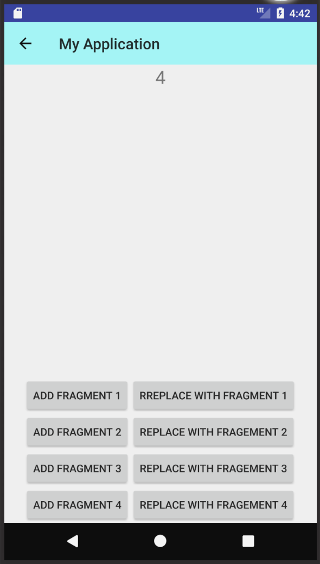
The code could be accessed below.
The issue illustration
With the App above, as you click on any button, a fragment will be added or replaced onto the activity container. For either of it (add or replace), they are track in the back-stack so that user could pop them back in a reverse order.
To illustrate this better, you could click
Add 4 fragments
Add Fragment 1 → Add Fragment 2 → Add Fragment 3 → Add Fragment 4, then you’ll have 4 fragments stack up in the container.
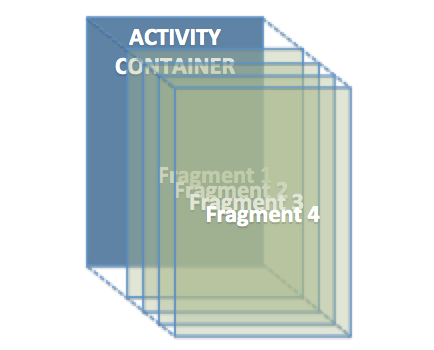
When you press back button on the menu (i.e. the ← key on the top left), each of the fragment will get pop up, till it reach the original state (where there is no fragment).
This is all good.
The other scenario would be
Replace 4 fragments
Replace with Fragment 1 → Replace with Fragment 2 → Replace with Fragment 3 → Replace with Fragment 4, then you’ll have one fragment i.e. fragment 4 remaining.
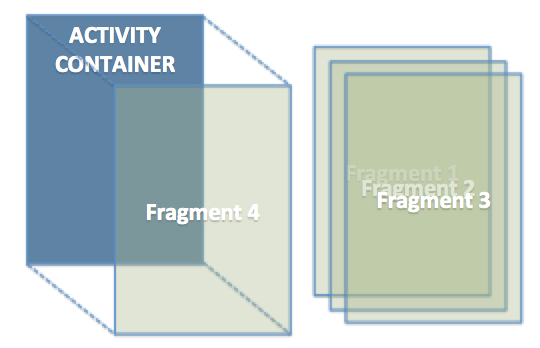
As you press the back button on the menu (i.e. the ← key on the top left), the fragment in the container will get pop, replace by the previous fragment, one at a time. All this is good, as we could reach the original state where there’s no fragment in the container.
This is all good as well.
Some puzzle time — Mixing Add and Replace in adding to the stack
There are various possible combination when mixing the add and replace. In some of these combination, when we start popping the fragment, it would got stuck at some point (i.e. press the ← key on the top left, doesn’t pop the fragment 💥).
The workaround is, use the Hardware key back, still can pop the fragment. It’s just that the toolbar ← no longer works. Strange strange behavior.
Let me pick a few combinations and tell you which is fine and which is not (I’ll abbreviate add fragment x as Add x and replace with fragment x as Rep x, and press ← to pop as pop).
Based on the result, see if you could detect the pattern of the combination that cause the issue?
Rep 1→Rep 2→Add 3→Add 4:Popall 4 fragments fine.Add 1→Rep 2→Add 3→Add 4:Popall 4 fragments fine.Add 1→Rep 2→Rep 3→Rep 4:Popall 4 fragments fine.Add 1→Rep 2→Rep 3→Add 4:Popall 4 fragments fine.Add 1→Add 2→Rep 3→Add 4:Popstuck at fragment 1 💥Rep 1→Add 2→Rep 3→Add 4:Popstuck at fragment 1 💥Rep 1→Add 2→Add 3→Rep 4:Popstuck at fragment 2 💥Add 1→Rep 2→Add 3→Rep 4:Popstuck at fragment 2 💥
Can you discover the pattern causing causing the issue from above? Treat it like a little puzzle solving problem.
If you think the given combinations above are not sufficient, to generate more patterns for the puzzle, you could compile the given code above, and test out. See if you could identified the problematic issue. Happy hunting …
Tips, when your pop using ← button on toolbar fails, you could use the hardware back button, it should still able to pop it.
Don’t worry if you can’t get it, the answer is below 😉.
Demo illustration
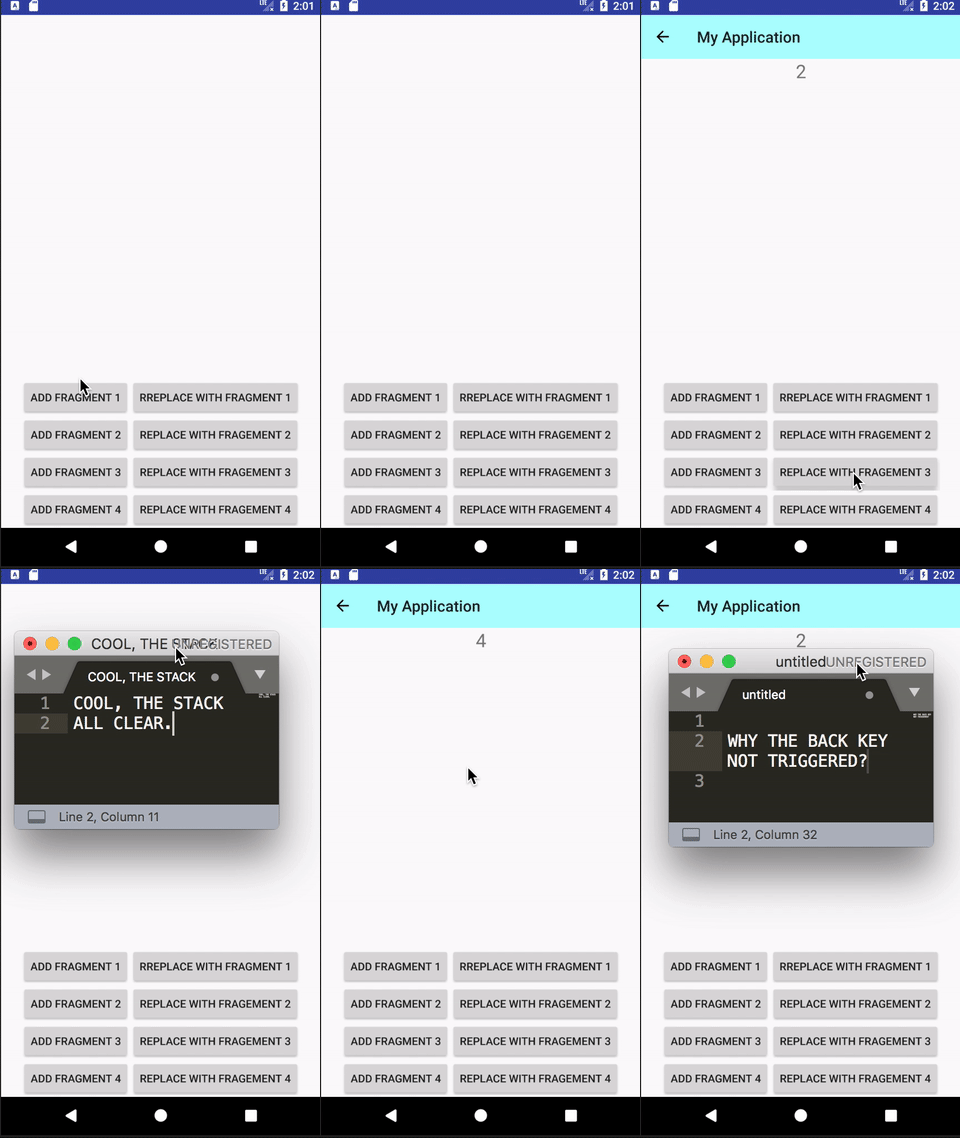
Anyway, for those just like to read, to illustrate the issue more clearly. Below is the video showing 3 scenarios
Add 1→Add 2→Add 3→Add 4: Allpopwell. (note the number overlap as the background is transparent to show each fragment added on top of each other)Rep 1→Rep 2→Rep 3→Rep 4: Allpopwell (the number no longer overlap, as the fragment was replaced)Add 1→Rep 2→Add 3→Rep 4: Thepopstuck at Fragment 2 💥. Why?!!?
The troubling pattern identified — answer to the puzzle.
After some investigation, found the troubling pattern causing the issue.
The pattern is for every add and replace that has a fragment already shown before that, the pop will stuck at that fragment. e.g.
Add or Rep 1 → Add 2 → Rep 3. Then the pop will stuck at 1.
You could reverify the above 8 combinations given, and affirm that this pattern is exhibited in the 4 combinations that cause the issue, and not on the other 4.
Deep dive into the issue
With the troubling pattern identified, now it would be easier to consistently duplicate the issue using the minimal steps that reproduce the issue. Let’s use the flow below.
Rep 1 → Add 2 → Rep 3
To deep dive, let’s trace how the fragment stack works.
Step 1 : Rep 1 : Replace the empty container with Fragment 1. The diagram below illustrated.
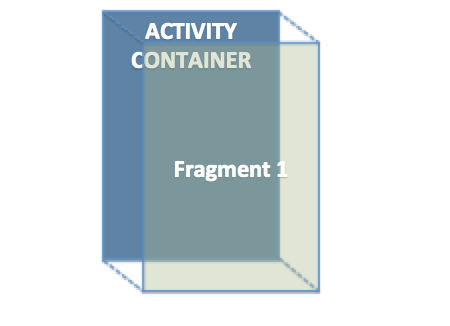
Step 2: Add 2 : Add Fragment 2, on top of Fragment 1. The diagram below illustrated.
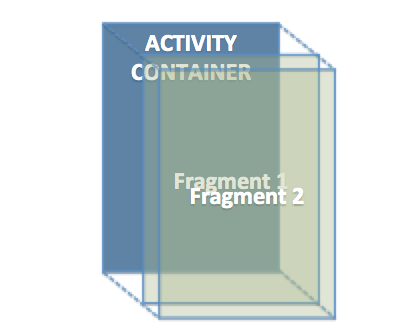
Step 3: Rep 3 : Replace the container with Fragment 3. With that, the Fragment 1 and 2 was push out of the container.
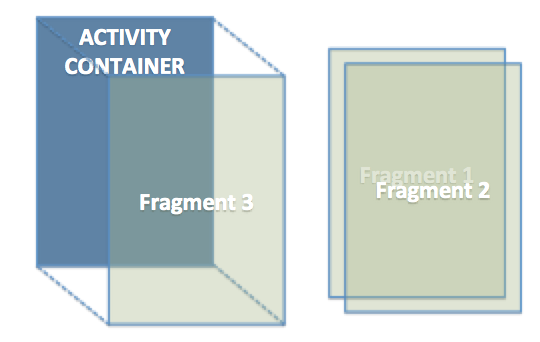
Step 4: Pop 3 : Press the ← key on the top left, to pop Fragment 3 out. When Fragment 3 is pop out, Fragment 1 and 2 is brought back into the Container by the System.
Step 5: Pop 2 : Press the ← key on the top left again, to pop Fragment 2 out. Fragment 1 is still retained in Container.
Step 6: Pop 1 💥 : Press the ← key on the top left again, expect to pop Fragment 1, but nothing happens??!! 💥. The ← key on the top left no longer works!! Why why?
The culprit of the problem
Apparently the culprit of the issue is not in step 6. The trigger point happens in step 4 above. That’s when both Fragment 1 and 2 is got restored into the Container.
At that time both fragment got recreated. When both fragment got recreated, both fragment call to
(activity as AppCompatActivity).setSupportActionBar(toolbar)Ideally this should work, as the sequence of the call is still correct where Fragment 1 got restored first, and followed by Fragment 2. However for some reason , given that both called at almost a very similar time, the toolbar for fragment 1 doesn’t work anymore.
I highly suspect this is the issue with the SDK library on
setSupportActionBar. I filed an issue to Google in https://issuetracker.google.com/issues/73793626
The workaround of the issue
Given this seems like a google bug to me, I don’t think I have a good resolution to it. I can’t also wait for Google, as so far based on experience, it takes month for any reported issue to fix unless it’s super obvious that affects everyone.
So I have to workaround.
From using the App point of view, using the Hardware Back Button still able to trigger the onBackPressed() function in the Activities, and hence popping the fragment is still possible. But user really expect to press the ← key on the top left to pop the stack.
So how?
Code that makes the toolbar came alive
I also discover that if there’s a change upon Fragment 2 got pop, if I could let Fragment 1 call the below again, the toolbar will come back to life.
(activity as AppCompatActivity).setSupportActionBar(toolbar)
However when Fragment 2 got pop, no codes in Fragment 1 will get triggered, given that Fragment 1 is already alive within Container.
The workable workaround
With the above idea, the approach I use is, whenever a pop happens, let the fragment at the top level call this
(activity as AppCompatActivity).setSupportActionBar(toolbar)
This would ensure the top level fragment always has it’s toolbar reset and come alive.
To detect the fragment pop I use the below in my activity, calling the onResume of the top fragment.
supportFragmentManager.addOnBackStackChangedListener {
    val currentFragment = supportFragmentManager
                            .findFragmentById(R.id.container)
    currentFragment?.onResume()
}
Note the
onBackStackChangedListenerget trigger on both push and pop of the fragment. I didn’t differentiate them there.
For all the fragment I explicitly make the onResume as below
override fun onResume() {
    super.onResume()
    (activity as AppCompatActivity)
                            .setSupportActionBar(toolbar_actionbar)
}
With these code in, all my push and pop of the fragment, regardless of using add or replace, in any sequence, can be pop with the ← button on the toolbar now.
I don’t think my workaround is ideal as well. But at least it get the things working. If you ever know there’s a better resolution to this issue, please feel free to share. You could also post it on stackoverflow as below
If not, sincerely hopes Google get some resolution to fix this issue though what I reported in https://issuetracker.google.com/issues/73793626
Hope this post is helpful and you appreciate it. Do share with others.
You could check out my other interesting topics here.
Follow me on medium, Twitter or Facebook for issues discovered, little tips and learning on Android, Kotlin etc related topics. ~Elye~


