Project | Real-Time Twitter Sentiment Analysis
In this blog post, we’ll walk through the implementation of a Real-Time Twitter Sentiment Analysis project using Python. This project will analyze tweets, classify them into positive, neutral, or negative sentiments, and display the results in real time through a simple interactive dashboard.

Step 1: Importing Required Libraries
First, we import the necessary libraries to handle data processing, model training, and visualization.
import pandas as pd
import matplotlib.pyplot as plt
import seaborn as sns
from wordcloud import WordCloud
from sklearn.feature_extraction.text import CountVectorizer
from sklearn.model_selection import train_test_split
from sklearn.naive_bayes import MultinomialNB
from sklearn.metrics import accuracy_score, confusion_matrix, classification_report
import ipywidgets as widgets
from IPython.display import display
import re
import zipfile
import requests
from io import BytesIOStep 2: Loading the Dataset
We’ll be using a public dataset from Stanford, which contains labeled tweets for sentiment analysis.
url = "https://cs.stanford.edu/people/alecmgo/trainingandtestdata.zip"
response = requests.get(url)
zip_file = zipfile.ZipFile(BytesIO(response.content))
csv_file = zip_file.open('training.1600000.processed.noemoticon.csv')
tweets = pd.read_csv(csv_file, encoding='latin-1', header=None)
tweets.columns = ['polarity', 'id', 'date', 'query', 'user', 'text']
tweets = tweets[['text', 'polarity']]
tweets.head()Here, we’re downloading the dataset directly from the internet, unzipping it, and loading it into a Pandas DataFrame. The dataset contains various fields like text, user information, and polarity (sentiment), but we only keep the text and polarity columns.
Step 3: Data Preprocessing
Next, we clean the tweet text and map the polarity values to sentiments: 1 for positive, 0 for neutral, and -1 for negative.
def preprocess_text(text):
text = text.lower()
text = re.sub(r'http\S+', '', text)
text = re.sub(r'@\w+', '', text)
text = re.sub(r'#\w+', '', text)
text = re.sub(r'\d+', '', text)
text = re.sub(r'[^\w\s]', '', text)
return text
tweets['text'] = tweets['text'].apply(preprocess_text)
tweets['polarity'] = tweets['polarity'].map({4: 1, 2: 0, 0: -1})This function removes unwanted content from the tweets such as URLs, mentions, hashtags, numbers, and punctuation. Additionally, it standardizes all the text to lowercase for uniformity.
Step 4: Feature Extraction and Data Splitting
We convert the text data into a format that the machine learning model can understand using the CountVectorizer. Then, we split the data into training and testing sets.
vectorizer = CountVectorizer(stop_words='english')
X = vectorizer.fit_transform(tweets['text'])
y = tweets['polarity']
X_train, X_test, y_train, y_test = train_test_split(X, y, test_size=0.2, random_state=42)Here, CountVectorizer is used to transform the text data into a bag-of-words model, which represents the text as a matrix of token counts.
Step 5: Training the Sentiment Classifier
We use the Multinomial Naive Bayes classifier to train a sentiment analysis model.
model = MultinomialNB() model.fit(X_train, y_train)
The model is trained on the training data, and we use it to predict the sentiment of the test data.
Step 6: Evaluating the Model
We evaluate the model’s performance using accuracy, confusion matrix, and classification report.
y_pred = model.predict(X_test)
print("Accuracy:", accuracy_score(y_test, y_pred))
print("Confusion Matrix:\n", confusion_matrix(y_test, y_pred))
print("Classification Report:\n", classification_report(y_test, y_pred))This gives us an idea of how well the model is performing in terms of predicting the correct sentiments.
Step 7: Creating a Dashboard for Data Visualization
We will create a simple dashboard to visualize the sentiment distribution, word cloud, and confusion matrix.
def create_dashboard():
fig, axes = plt.subplots(2, 2, figsize=(15, 10))
# Sentiment Distribution
sns.countplot(x='polarity', data=tweets, ax=axes[0, 0])
axes[0, 0].set_title('Sentiment Distribution')
# Word Cloud
text = ' '.join(tweets['text'])
wordcloud = WordCloud(width=800, height=400, background_color='white').generate(text)
axes[0, 1].imshow(wordcloud, interpolation='bilinear')
axes[0, 1].axis('off')
axes[0, 1].set_title('Word Cloud')
# Sentiment Pie Chart
sentiment_counts = tweets['polarity'].value_counts()
# Check the unique values in the 'polarity' column
labels = sentiment_counts.index.tolist()
axes[1, 0].pie(sentiment_counts, labels=labels, autopct='%1.1f%%', startangle=140) #Use the labels derived from the sentiment_counts variable
axes[1, 0].set_title('Sentiment Pie Chart')
# Confusion Matrix
sns.heatmap(confusion_matrix(y_test, y_pred), annot=True, fmt='d', cmap='Blues', ax=axes[1, 1])
axes[1, 1].set_title('Confusion Matrix')
axes[1, 1].set_xlabel('Predicted')
axes[1, 1].set_ylabel('Actual')
plt.tight_layout()
plt.show()
create_dashboard()Output:
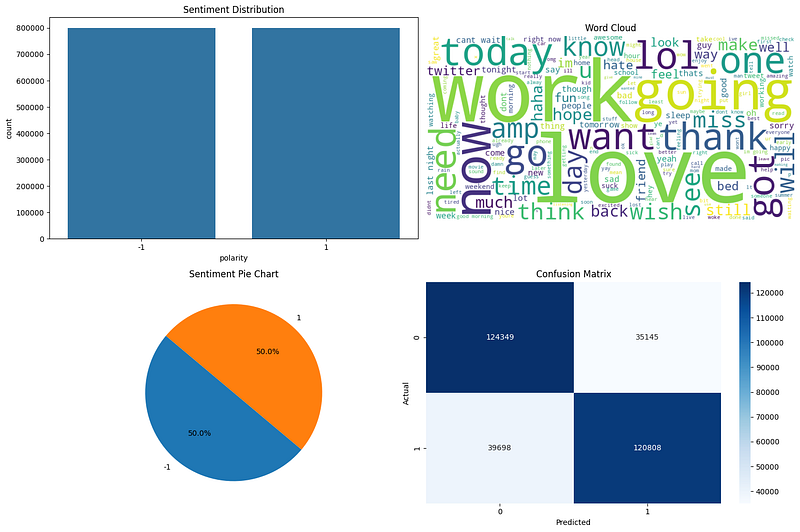
This dashboard includes four components:
- Sentiment Distribution — A bar chart showing the number of positive, neutral, and negative tweets.
- Word Cloud — A visual representation of the most common words in the dataset.
- Sentiment Pie Chart — A pie chart showing the percentage distribution of sentiment categories.
- Confusion Matrix — A heatmap showing the performance of the model’s predictions.
Step 8: Real-Time Tweet Sentiment Prediction
We add a function to predict the sentiment of a tweet entered by the user. Using ipywidgets, we create a simple input box for the user to enter a tweet and get real-time sentiment predictions. We also display sample tweets on demand.
import ipywidgets as widgets
from IPython.display import display, clear_output
import matplotlib.pyplot as plt
# Predict sentiment function
def predict_sentiment(text):
text = preprocess_text(text)
text_vectorized = vectorizer.transform([text])
prediction = model.predict(text_vectorized)
sentiment = 'Positive' if prediction == 1 else 'Neutral' if prediction == 0 else 'Negative'
return sentiment
# Function to handle input from the user and display the sentiment
def on_text_submit(change):
with output:
clear_output() # Clear previous output
user_text = tweet_input.value # Get the input text
sentiment = predict_sentiment(user_text) # Predict the sentiment
sentiment_label.value = f"Sentiment: {sentiment}" # Update sentiment label
# Display corresponding image based on sentiment
if sentiment == 'Positive':
img = plt.imread('/content/positive.png')
elif sentiment == 'Neutral':
img = plt.imread('/content/neutral.png')
else:
img = plt.imread('/content/negative.png')
plt.imshow(img)
plt.axis('off')
plt.show()
# Adjust the height of the output widget based on the image size
output.layout.height = 'auto'
# Function to handle clicking on a sample tweet
def on_tweet_click(b):
tweet_input.value = b.description # Set the clicked tweet in the input field
# Function to show random sample tweets from the dataset with clickable buttons
def show_sample_tweets(b):
with sample_output:
clear_output() # Clear previous output
sample_tweets = tweets.sample(5)
tweet_buttons = []
for _, row in sample_tweets.iterrows():
tweet_text = row['text']
button = widgets.Button(
description=tweet_text,
layout=widgets.Layout(width='100%', height='auto')
)
button.on_click(on_tweet_click)
tweet_buttons.append(button)
    tweet_box = widgets.VBox(tweet_buttons)
    display(tweet_box)
# Input text box for entering tweets
tweet_input = widgets.Text(
value='',
placeholder='Type a tweet...',
description='Tweet:',
layout=widgets.Layout(width='70%', height='30px'), # Adjust the size for better appearance
style={'description_width': 'initial'}
)
# Button to analyze the tweet
analyze_button = widgets.Button(
description="Analyze Sentiment",
button_style='info', # Apply some color to the button for better visual appeal
layout=widgets.Layout(width='100%', height='40px')
)
# Label to display the result of the sentiment analysis
sentiment_label = widgets.Label(
value="",
layout=widgets.Layout(width='100%', height='40px', font_size='200px')
)
# Output area to show the sentiment image
output = widgets.Output(layout=widgets.Layout(width='100%', height='auto'))
# Button to display sample tweets
sample_button = widgets.Button(
description="Show Sample Tweets",
button_style='primary',
layout=widgets.Layout(width='100%', height='40px')
)
# Output area for displaying sample tweets
sample_output = widgets.Output(layout=widgets.Layout(width='100%', height='auto'))
# Event handling for buttons
analyze_button.on_click(lambda b: on_text_submit(None)) # Call the sentiment analysis function on click
sample_button.on_click(show_sample_tweets)
# Adding a container (window) to visually encapsulate the UI elements
ui_container = widgets.Box(
[
widgets.HTML(value="<h2 style='text-align:center;'>Real-Time Twitter Sentiment Analysis</h2>"),
tweet_input,
widgets.HBox([analyze_button], layout=widgets.Layout(justify_content='center')),
widgets.HBox([sentiment_label], layout=widgets.Layout(justify_content='center')),
widgets.HBox([output], layout=widgets.Layout(justify_content='center')),
widgets.HBox([sample_button], layout=widgets.Layout(justify_content='center')),
sample_output
],
layout=widgets.Layout(
display='flex',
flex_flow='column',
align_items='center',
border='solid 1px #ccc',
padding='20px',
width='90%'
)
)
# Display the UI inside the container
display(ui_container)Output:
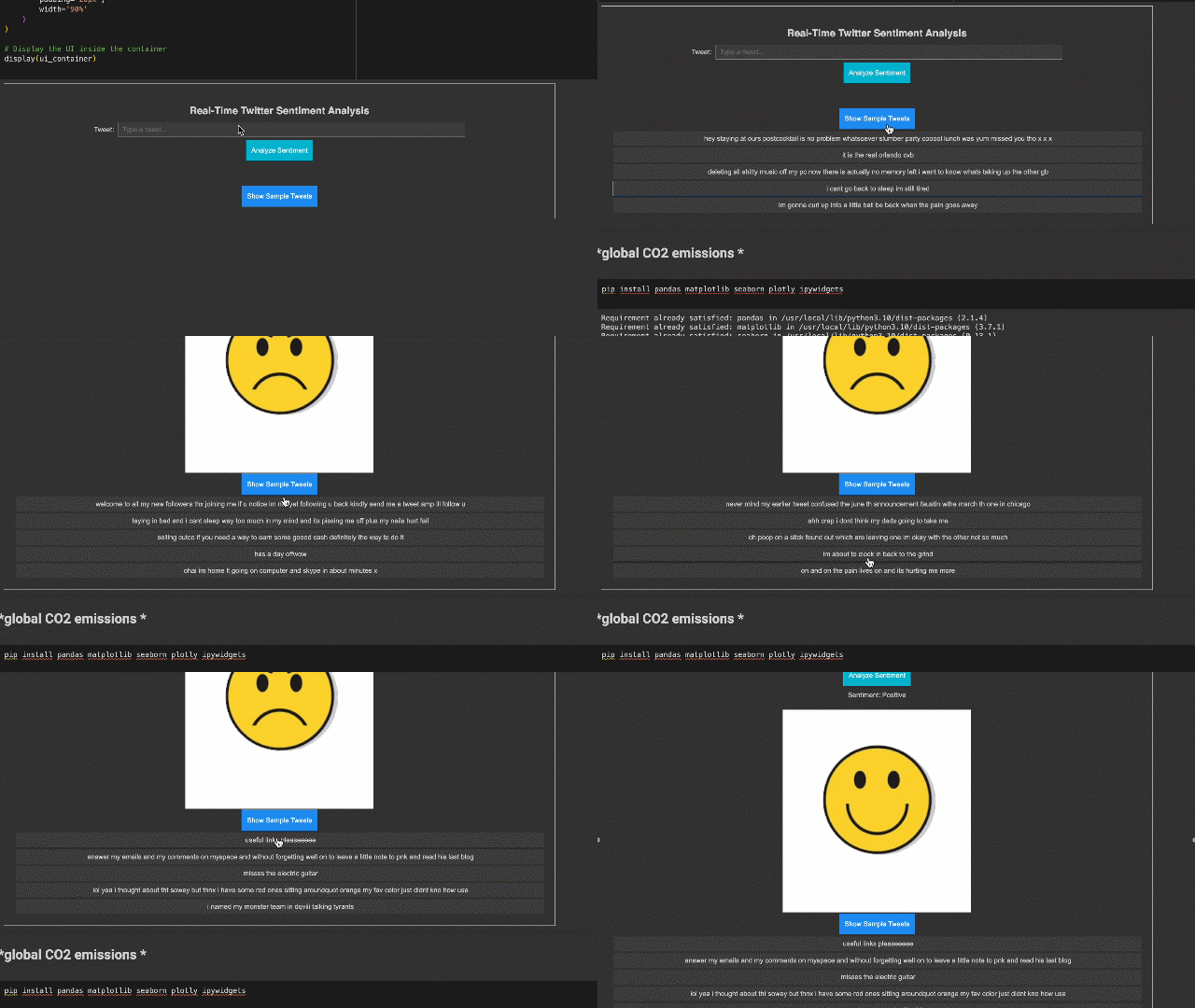
This section allows users to type a tweet and instantly get a sentiment prediction. It also has a button that shows random sample tweets with their corresponding sentiment labels.
Github code: Real_Time_Twitter_Sentiment_Analysis
Conclusion
This Real-Time Twitter Sentiment Analysis project uses machine learning to classify tweets into sentiments and provides an interactive interface for real-time predictions. You can extend this project by integrating it with live Twitter feeds or building a full web application.


