
Preview your Jupyter Notebooks in the terminal with nbpreview
With nbpreview, you can read and inspect Notebooks without leaving the terminal!
There are a lot of programmers who love to do as much as possible from the terminal. And while I am not necessarily one of them, it is often very convenient to carry out some operations straight from the command line. Speaking of the terminal — who has not spent a considerable amount of time tweaking what the terminal looks like (theme, fonts, etc.)…
Today, I have stumbled upon a Python library that adds one more thing that we can now easily do from the terminal — preview Jupyter Notebooks. And this includes the outputs of the cells — DataFrames and plots included!
Let me show you how to do it all with nbpreview.
nbpreview
nbpreview is a CLI and library that allows us to render Jupyter Notebooks in the terminal. It works a bit like the cat command for .ipynb files.
The library offers the following features:
- syntax highlighting for code cells
- it detects not only Python, but also languages such as Julia
- renders markdown, DataFrames, LaTeX
- draws images
- parses HTML
- renders stderr output and tracebacks
Installation
We can install the library by running:
pip install nbpreviewHands-on example
For this article, we will preview a Notebook from my 2021 recap article. I chose it as it contains a few elements that we would like to preview, for example, DataFrame output, plots, etc.
Using nbpreview is very simple and intuitive. We can get preview a Notebook simply by running the following command in the terminal:
nbpreview file_name.ipynbThe path to the .ipynb file is the only required argument of the nbpreview command. Naturally, there are quite a lot of optional arguments we can play around with. But first, let’s see what the default output looks like.
Below we can see how the Notebook is rendered in the terminal. We already see that the DataFrame was nicely visualized, just as in a normal Jupyter Notebook.
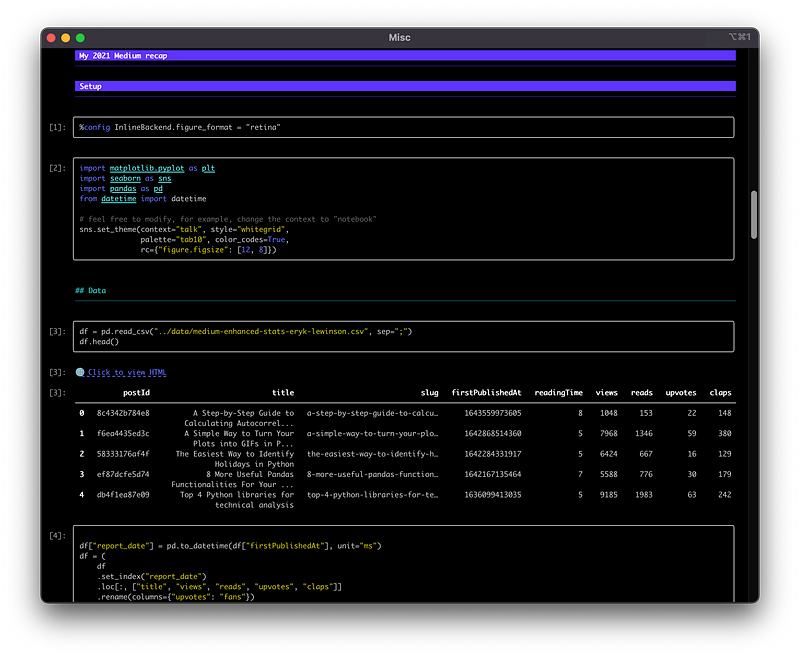
Also, outputs like DataFrames and images get a clickable link which you can follow to view the original output.
Personally, I was most curious about the images. Below, you can see how a bar chart is rendered in the terminal.
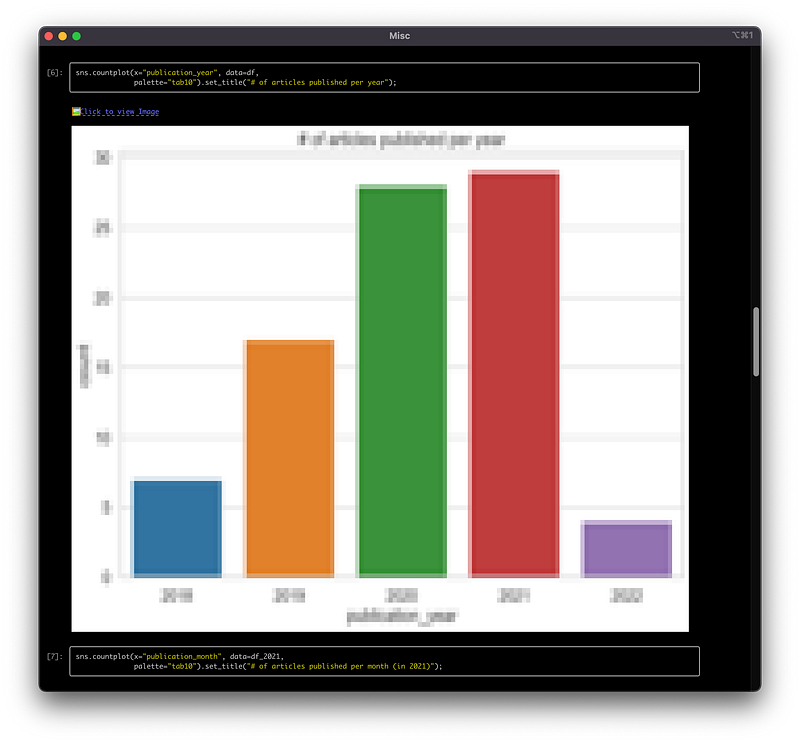
By default, the images are drawn as blocks. We can also use one of the two other settings: character or braille.
nbpreview --image-drawing character file_name.ipynb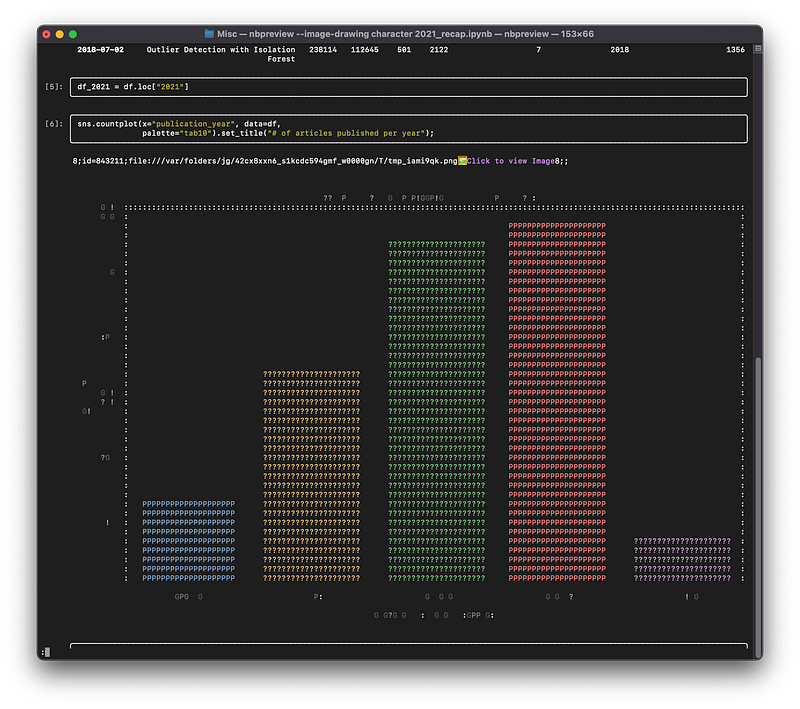
nbpreview --image-drawing braille file_name.ipynb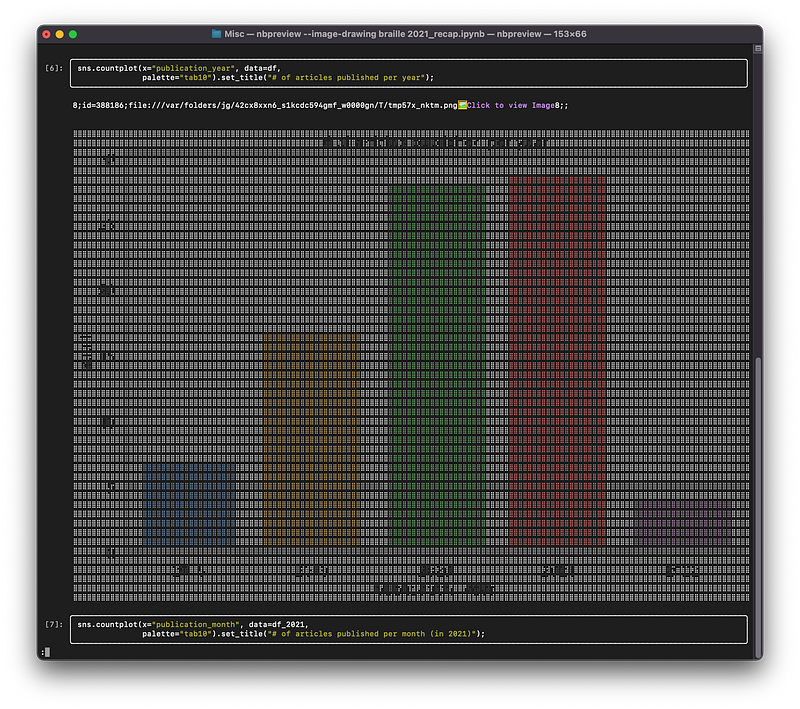
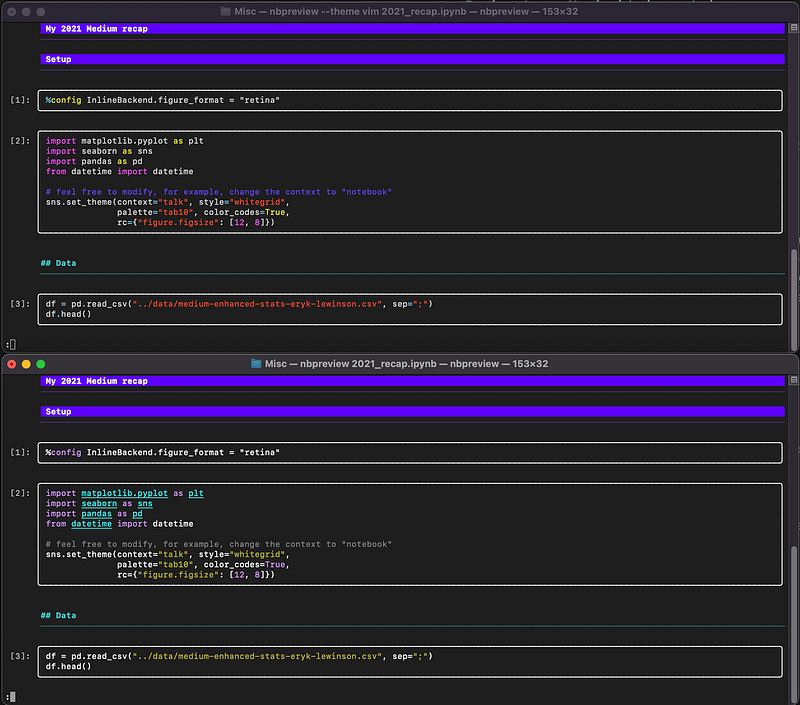
For the code highlighting, we can choose from dozens of available themes (including some popular ones like emacs, vim, dracula). We can change the theme by using the theme argument:
nbpreview --theme vim file_name.ipynbIn the image below, you can see the same Notebook rendered with the vim theme (upper) and default dark theme (lower).
Lastly, let’s have a side-by-side look at the Notebook rendered in the terminal and by VS Code:
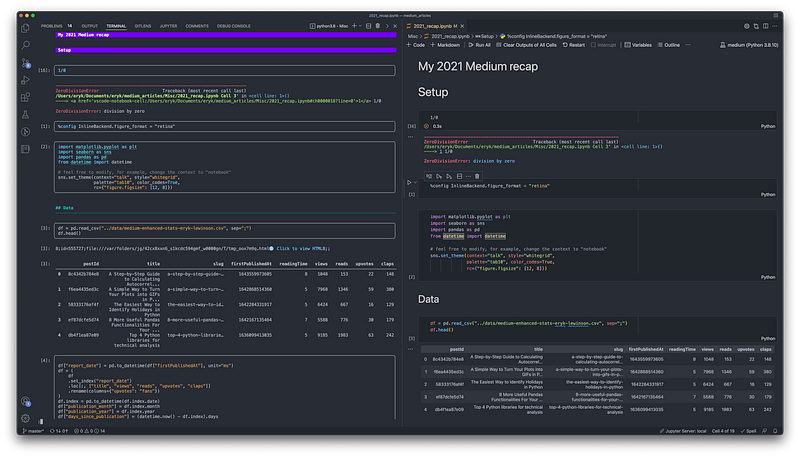
While it might not be clearly readable without squinting, we threw an error on purpose (division by zero) to show that stderr is also captured by nbpreview.
To learn more about the functionalities offered by nbpreview, we can read the documentation on all options by running:
nbpreview --helpOr refer to the documentation available here.
Takeaways
nbpreviewis a Python library/CLI that allows for previewing Jupyter Notebooks in the terminal,- it handles rendering DataFrame outputs, images, markdown, LaTeX, and more.
As always, any constructive feedback is welcome. You can reach out to me on Twitter or in the comments.
Liked the article? Become a Medium member to continue learning by reading without limits. If you use this link to become a member, you will support me at no extra cost to you. Thanks in advance and see you around!
You might also be interested in one of the following:


