
Prettify your Terminal Text With Termcolor and Pyfiglet
Bored with Your Terminal Output? Let’s Change its Color and Shape!
Motivation
If you are working with Python, you probably print the output on the terminal either to debug or to be informed of the process. However, if the output is lengthy, it is difficult to keep track of the output.
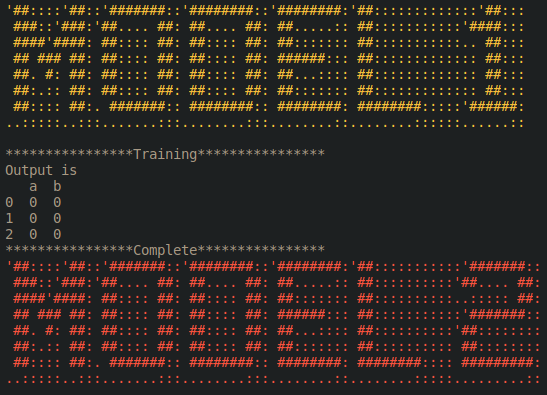
Is there a way that you can make the important terminal output stand out more such as adding color, and enlarging the text like below?
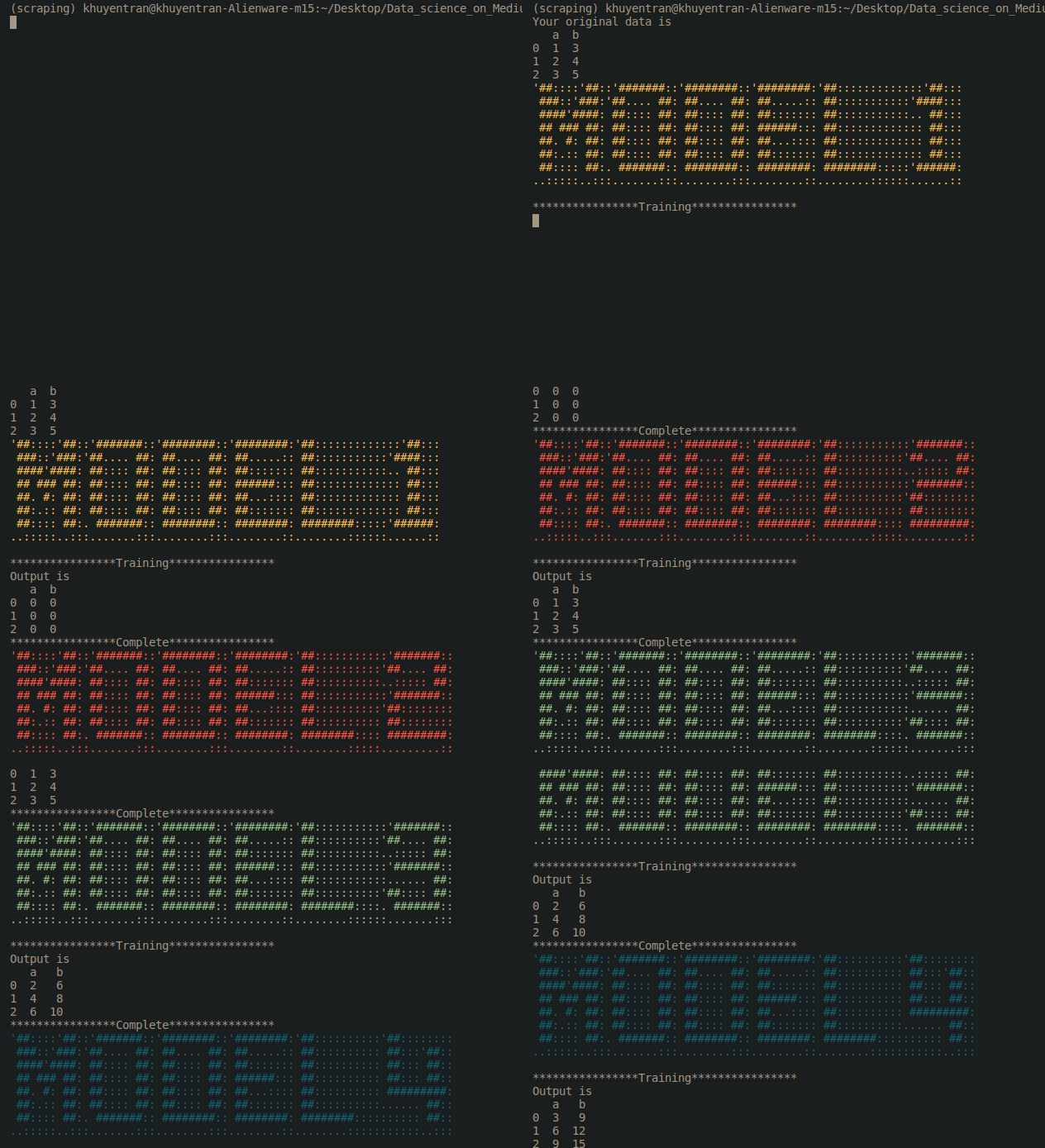
Yes, you can do that with termcolor and pyfiglet. In this tutorial, I will show you how to create something like the above in 1 line of code.
Change Text Color
Get Started
To change the text color, we use a Python library called termcolor. To install termcolor, use
pip install termcolorNow let’s see how it works! To change a white text into a red text on your terminal, simply use colored(text, 'red') like below
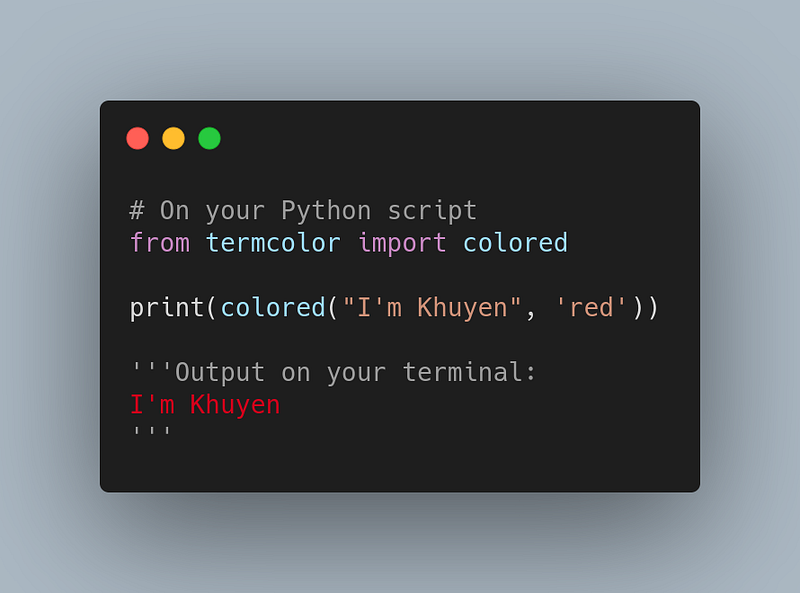
Now you have a red text on your terminal!
Colored Print
You might want to repeat printing some text in red, but you might find it inconvenient to keep repeating the function colored(text, 'red') . Is there an easier way to print text in red?
Yes! You can create a function to print red text like below:
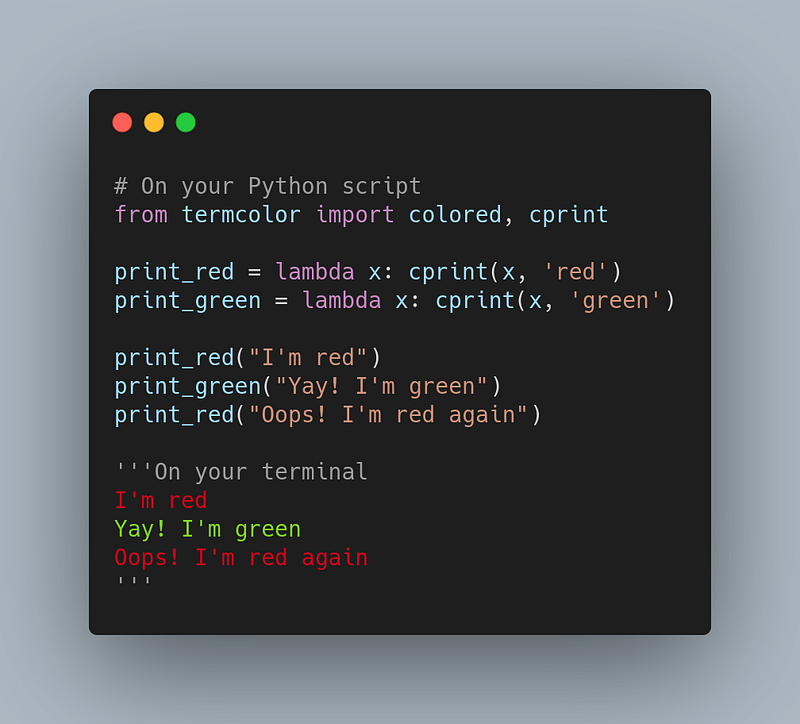
After assigning cprint toprint_red and print_green , you can print red or green by just calling print_red() or print_green() . How cool is that?
Change Text Font
Your text is colorful now, but you want it to be bigger and probably “prettier”. How can you do that? That is when pyfiglet comes in handy.
Pyfiglet allows you to take ASCII text and render it in ASCII art fonts like below
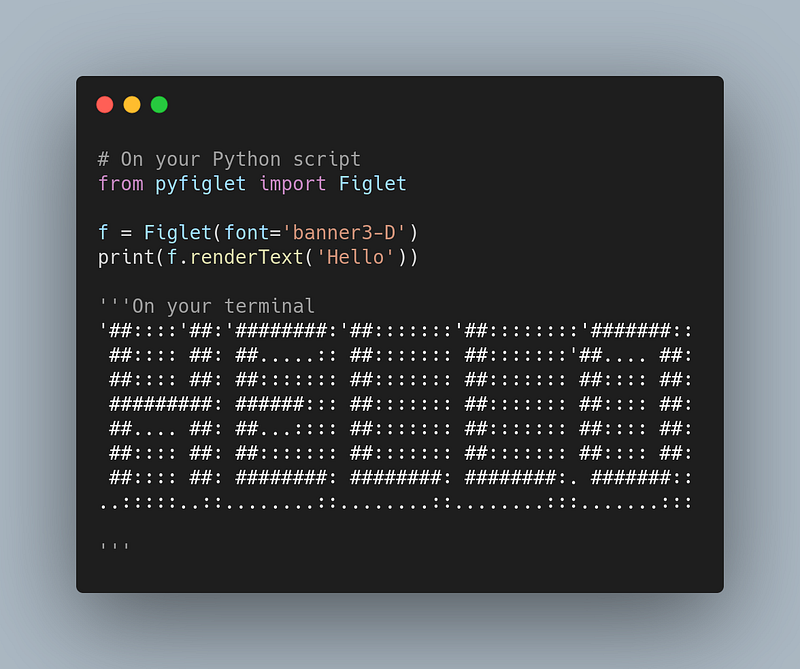
Find other fonts here.
To add color to our stylish text, we can combine pyfiglet and termcolor to create pretty text like below:
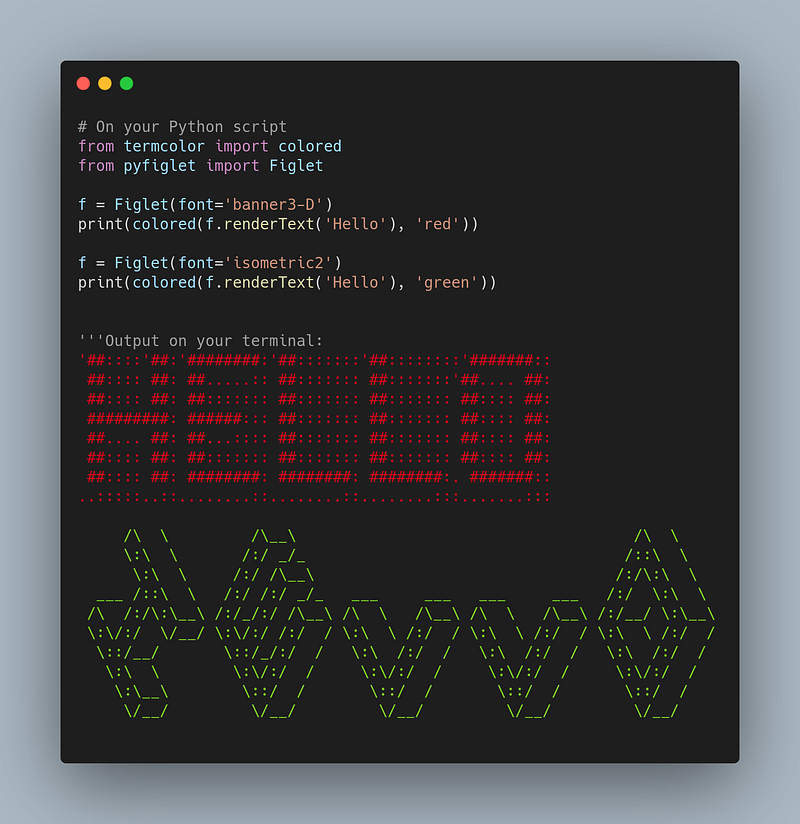
This is cool! Let’s make something useful with what we have learned.
Applications
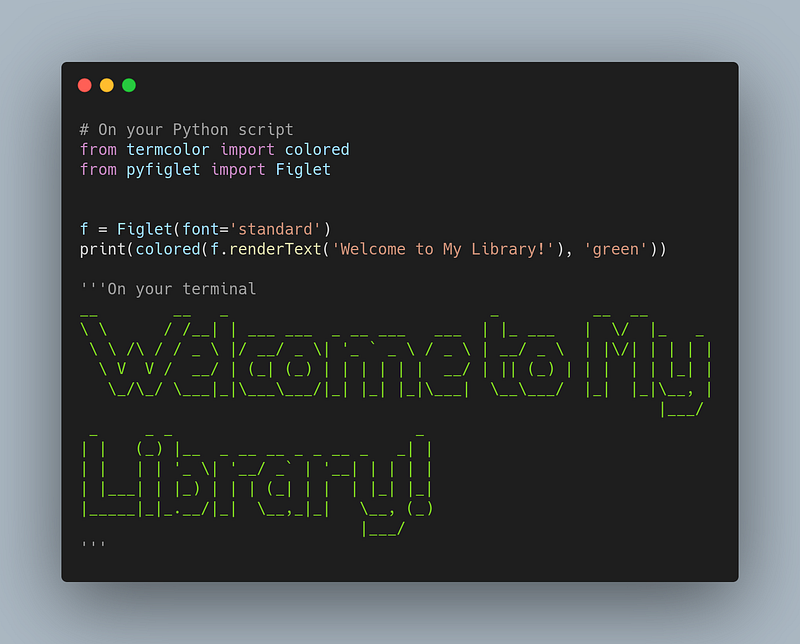
Print Welcome Message for your Python Package
If you are developing a Python package, it looks much cooler with a welcome message when users first use the package. And it is a plus to have a stylish and colorful text like below!
Print Model Name to Keep Track of which Model is Being Used
Imagine you are running a lengthy code to train your model. You might want to make it easier to recognize the text that specifies which model is being used. That is when a big and colorful text will be really useful!
I will use Gist now so you can copy and paste the code below to observe the magic.
Now do the same thing with your script and impress your teammates!
Conclusion
Congratulations! You have just learned how to prettify your terminal text. I hope this will give you the motivation to create a nice terminal output.
Feel free to star and play with the code for this article in this Github repo.
I like to write about basic data science concepts and play with different algorithms and data science tools. You could connect with me on LinkedIn and Twitter.
Star this repo if you want to check out the codes for all of the articles I have written. Follow me on Medium to stay informed with my latest data science articles like these:


