avatarIT. Delinquent

Free AI web copilot to create summaries, insights and extended knowledge, download it at here

3049

Abstract

</pre></div><p id="67ed">You would get this popup:</p><figure id="766c"><img src="https://cdn-images-1.readmedium.com/v2/resize:fit:800/0*WxBwkqk-o_H9FBdk.png"><figcaption>The Show-Command utility with Test-NetConnection</figcaption></figure><p id="ad31">I hope you can see how this would certainly be useful. Having a graphical input and dropdown menus make learning and debugging commands so much easier.</p><p id="efe3">The window is also resizable and includes the most command parameters for whatever command you use the <a href="https://learn.microsoft.com/en-us/powershell/module/microsoft.powershell.utility/show-command?view=powershell-7.4#:~:text=Show%2DCommand%20is%20a%20very,commands%20in%20all%20installed%20modules.">Show-Command</a> utility on. You can see that I’ve opened the <b>Command Parameters</b> section in the above screenshot to show off this use case.</p><p id="9071">What’s fairly weird about the <a href="https://learn.microsoft.com/en-us/powershell/module/microsoft.powershell.utility/show-command?view=powershell-7.4#:~:text=Show%2DCommand%20is%20a%20very,commands%20in%20all%20installed%20modules.">Show-Command</a> utility, and <a href="http://learn.microsoft.com/en-us/powershell/">PowerShell </a>in general, is that there doesn’t seem to be a single syntax option for running a command. You’ve seen me complain about this before, <a href="https://mharwood.uk/using-set-azureaduser-to-update-attributes/">in my recent post</a> where I complained about the built-in <b>-filter</b> loop being so much slower than piping objects to the <a href="https://learn.microsoft.com/en-us/powershell/module/microsoft.powershell.core/where-object?view=powershell-7.4"><b>Where-Object</b> </a>command.</p><p id="f011">What I mean by this is you can launch the <a href="https://learn.microsoft.com/en-us/powershell/module/microsoft.powershell.utility/show-command?view=powershell-7.4#:~:text=Show%2DCommand%20is%20a%20very,commands%20in%20all%20installed%20modules.">Show-Command</a> utility with various syntaxes. I’ve put a couple of these below:</p><div id="fb10"><pre><span class="hljs-keyword">Show</span><span class="hljs-operator">-</span>Command Test<span class="hljs-operator">-</span>NetConnection <span class="hljs-keyword">Show</span><span class="hljs-operator">-</span>Command <span class="hljs-operator">-</span>Name "Test-NetConnection"</pre></div><h1 id="1242">Did You Know?</h1><p id="dd4d">Hey! You! Yes you! Did you know that you can also specify the size of the graphical menu that the<a href="https://learn.microsoft.com/en-us/powershell/module/microsoft.powershell.utility/show-command?view=powershell-7.4#:~:text=Show%2DCommand%20is%20a%20very,commands%20in%20all%20installed%20modules."> Show-Command </a>utility launches?</p><p id="5203">You can do this by passing the <b>-Height</b> and <b>-Width</b> parameters.</p><p id="200a">So if you wanted a custom sized window, you could do something like this:</p><div id="5ccd"><pre>Show-Command -Name "Test-NetConnection" -<span class="hljs-attribute">Height</s

Options

pan> <span class="hljs-number">300</span> -<span class="hljs-attribute">Width</span> <span class="hljs-number">300</span></pre></div><h1 id="5d0a">Bad Sides</h1><p id="8ad7">Once bad side effect to this utility, is that whatever terminal you use to run the <a href="https://learn.microsoft.com/en-us/powershell/module/microsoft.powershell.utility/show-command?view=powershell-7.4#:~:text=Show%2DCommand%20is%20a%20very,commands%20in%20all%20installed%20modules.">Show-Command</a> utility becomes locked until the graphical output is closed. It’s not a big issue, but it doesn’t hang up a <a href="http://learn.microsoft.com/en-us/powershell/">PowerShell </a>process, and I wonder what happens if the graphical menu crashes. Does the <a href="http://learn.microsoft.com/en-us/powershell/">PowerShell </a>process crash too or does it just stay locked, forever waiting to hear back from the graphical menu?</p><p id="3a1a">You also cannot pipe objects to this utility, which is weird because that was my first instinct. <a href="https://www.microsoft.com/en-gb">Microsoft </a>continues to keep developers on their toes by having different syntaxes for every command!</p><h1 id="bf17">Profiles</h1><p id="e8bc">You can also add your custom settings to your <a href="http://learn.microsoft.com/en-us/powershell/">PowerShell </a>profile or just to the current <a href="http://learn.microsoft.com/en-us/powershell/">PowerShell </a>session. You can do this by specifying the settings you want in the <a href="https://devblogs.microsoft.com/powershell-community/how-to-use-psdefaultparametervalues/"><b>PSDefaultParameterValues</b></a> variable. For now, the only settings you can change are the <b>Height, Width</b> and <b>ErrorPopup</b> parameters.</p><p id="c35f">For example, you could do something like this:</p><div id="e9a9"><pre><span class="hljs-variable">PSDefaultParameterValues</span> = @{ <span class="hljs-string">"Show-Command:Height"</span> = 300 <span class="hljs-string">"Show-Command:Width"</span> = 300 <span class="hljs-string">"Show-Command:ErrorPopup"</span> = <span class="hljs-variable">$False</span> }</pre></div><p id="526e">Running just that in your <a href="http://learn.microsoft.com/en-us/powershell/">PowerShell </a>window will set those values for the entire duration of that particular session. If you wanted these settings to load for every <a href="http://learn.microsoft.com/en-us/powershell/">PowerShell </a>session, you can add this variable to your <a href="http://learn.microsoft.com/en-us/powershell/">PowerShell </a>profile, which is documented <a href="https://learn.microsoft.com/en-us/powershell/module/microsoft.powershell.core/about/about_profiles?view=powershell-7.4">here.</a></p><p id="71d7">Well I hope you enjoyed this post and learnt something new!</p><p id="3803">I knew as soon as I saw this utility, I just had to share it. I suppose I’m quite late to this one but non the less, I wanted to discuss how I would use the command going forward.</p><p id="2acf">Enjoy! 🎉</p></article></body>

PowerShell’s Show-Command | The Best Visual Alternative To Scripting

This is you after finding this trick!

Today, we’re going to take a quick look into the Show-Command utility built into the Windows version of PowerShell

Before we jump into the use cases, lets go over some surface level stuff!

I also posted this on my own blog, in case you prefer reading it over there!

Show-Command Aliases

Currently, you can use shcm as an alias for the Show-Command utility.

Limitations

Show-Command is only available on the Windows platform. So PowerShell for Linux installs won’t have this utility. Sorry!

Description

The Show-Command cmdlet allows you to use any PowerShell command in a graphical window. This allows you to learn command faster as you can see the parameters graphically versus pressing the Shift key multiple times to cycle through the options.

The Show-Command utility was introduced in PowerShell version 7.

Lets Jump In!

Okay, let me show you the simplest example that I can think of. If you were to run:

Show-Command Test-NetConnection

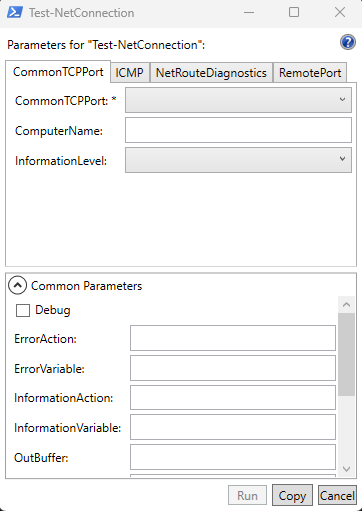
You would get this popup:

The Show-Command utility with Test-NetConnection

I hope you can see how this would certainly be useful. Having a graphical input and dropdown menus make learning and debugging commands so much easier.

The window is also resizable and includes the most command parameters for whatever command you use the Show-Command utility on. You can see that I’ve opened the Command Parameters section in the above screenshot to show off this use case.

What’s fairly weird about the Show-Command utility, and PowerShell in general, is that there doesn’t seem to be a single syntax option for running a command. You’ve seen me complain about this before, in my recent post where I complained about the built-in -filter loop being so much slower than piping objects to the Where-Object command.

What I mean by this is you can launch the Show-Command utility with various syntaxes. I’ve put a couple of these below:

Show-Command Test-NetConnection
Show-Command -Name "Test-NetConnection"

Did You Know?

Hey! You! Yes you! Did you know that you can also specify the size of the graphical menu that the Show-Command utility launches?

You can do this by passing the -Height and -Width parameters.

So if you wanted a custom sized window, you could do something like this:

Show-Command -Name "Test-NetConnection" -Height 300 -Width 300

Bad Sides

Once bad side effect to this utility, is that whatever terminal you use to run the Show-Command utility becomes locked until the graphical output is closed. It’s not a big issue, but it doesn’t hang up a PowerShell process, and I wonder what happens if the graphical menu crashes. Does the PowerShell process crash too or does it just stay locked, forever waiting to hear back from the graphical menu?

You also cannot pipe objects to this utility, which is weird because that was my first instinct. Microsoft continues to keep developers on their toes by having different syntaxes for every command!

Profiles

You can also add your custom settings to your PowerShell profile or just to the current PowerShell session. You can do this by specifying the settings you want in the $PSDefaultParameterValues variable. For now, the only settings you can change are the Height, Width and ErrorPopup parameters.

For example, you could do something like this:

$PSDefaultParameterValues = @{
    "Show-Command:Height" = 300
    "Show-Command:Width" = 300
    "Show-Command:ErrorPopup" = $False
}

Running just that in your PowerShell window will set those values for the entire duration of that particular session. If you wanted these settings to load for every PowerShell session, you can add this variable to your PowerShell profile, which is documented here.

Well I hope you enjoyed this post and learnt something new!

I knew as soon as I saw this utility, I just had to share it. I suppose I’m quite late to this one but non the less, I wanted to discuss how I would use the command going forward.

Enjoy! 🎉

Powershell
Command Line
Powershell Script
Commands
Graphical User Interface
Recommended from ReadMedium