
Plot Stock Chart Using mplfinance in Python
An introductory guide to plot a candlestick chart along with volume, MACD & stochastic using mplfinance.
If you are a Python user, there’s a high chance you have worked with matplotlib before. To make it easier to work with financial data, a new matplotlib finance API called mplfinance was created (it was first released as mpl-finance but was later renamed).
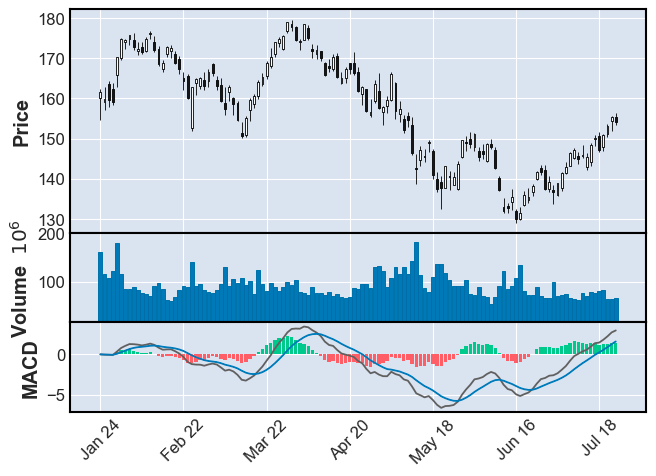
In this tutorial, we are going to learn how to use mplfinance to plot the following financial chart.

If you want to know how to plot the above chart using plotly, check out this article too:
Let us begin!
1. Download stock price & plot candlestick chart
First thing first, let’s get ourselves some stock prices to plot. To do that, we will be using the yfinance library.
Then, we are ready to plot our first candlestick chart of the day.

That’s all we need. We now have a simple-looking candlestick chart.
2. Add moving averages and volume
Let’s spice things up a little by adding some moving averages and volume to the chart. With mplfinance, it is as easy as this:

Note that the mav argument in the plot method is only for simple moving average. To plot other types of moving average like exponential moving average, we will need to calculate and add it to the chart separately.
3. Add MACD & Stochastics as subplots
Here comes the good part. Let’s begin with MACD.
3.1 MACD
- Line 2–11: A function that calculates and returns the MACD.
- Line 13: Call the MACD function with periods of 12, 26, and 9.
- Line 14–19:
We are utilizing the
make_addplotfunction to construct a list of plots we want to add to the main chart: 1. MACD line 2. Signal line 3. Histogram (green bar) 4. Histogram (red bar) - Line 21: Add MACD plots to the main chart
Running the code above gives us the following chart:
3.2 Stochastic Oscillator
Let’s proceed with the stochastic oscillator.
- Line 2–10: A function that calculates and returns the stochastic values.
- Line 12: Call the Stochastic function with window=14 and smoothing_window=3.
- Line 13–15:
Again, we are utilizing the
make_addplotfunction to construct the plot we want to add to the main chart - Line 17: Add the Stochastic plot to the main chart
And we get:

4. Customization
Before we put everything together, let’s explore some of the customizations we can perform in mplfinance.
4.1 Styles
As you have realized, so far, we have been using the default mplfinance style and it looks kinda dull. mplfinance does provide some preset styles and here are some examples:
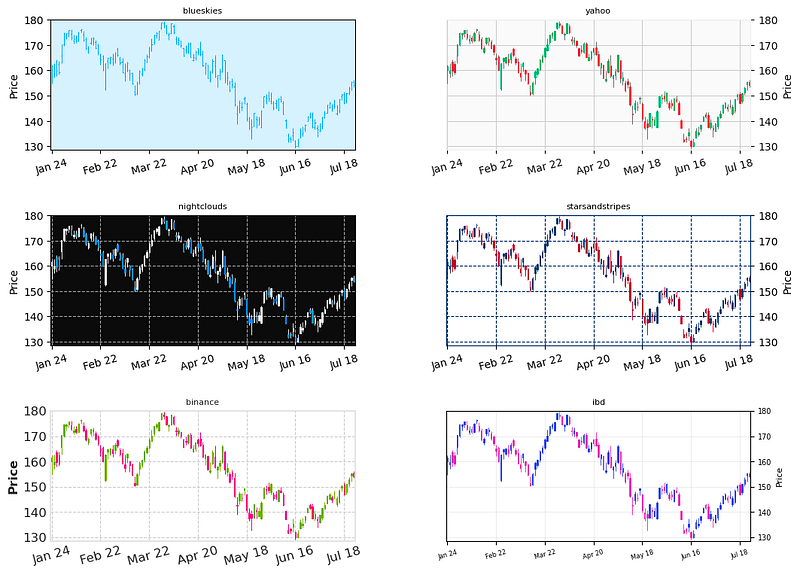
To get all the available styles:
from mplfinance import _styles
_styles.available_styles()
# ['binance', 'blueskies', 'brasil', 'charles', 'checkers', 'classic', 'default', 'ibd', 'kenan', 'mike', 'nightclouds', 'sas', 'starsandstripes', 'yahoo']4.2 Figure size
There is a very convenient way to change the figure size in mplfinance using figscale:
mpf.plot(df, type='candle', figscale=1.5)4.3 Subplot size ratio
When dealing with multiple subplots, oftentimes we want to adjust the ratio between different subplots. To do that in mplfinance, we simply use the panel_ratios option:
mpf.plot(df, type='candle', volume=True, addplot=macd_plot, panel_ratios=(4,1,3))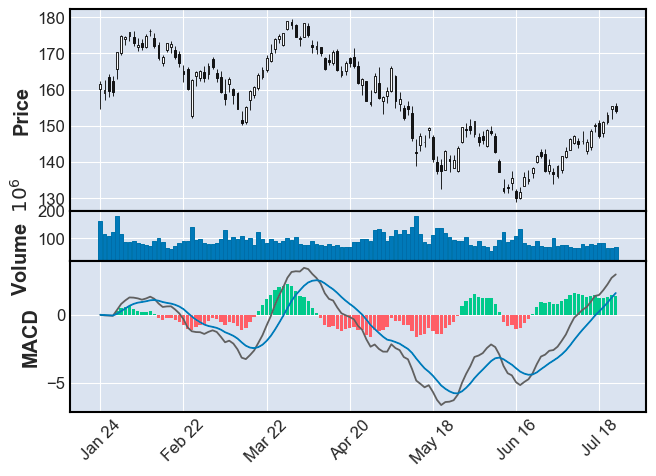
To see more examples of customization, you can check out the official examples here.
5. Putting everything together
Putting everything together, we can use the following codes to create the plot we saw earlier:
The full code and demo notebook of this tutorial is available here.
I create quality content and tutorials on stock technical analysis using Python. If you like what you see, and are not subscribed to Medium yet, feel free to do so via this link and follow me along my journey (part of the fee will go directly to me). If you prefer one-time support, you can buy me a coffee too. Thanks for your support.
More content at PlainEnglish.io. Sign up for our free weekly newsletter. Follow us on Twitter and LinkedIn. Check out our Community Discord and join our Talent Collective.


