
Playing short audio clips in Flutter with Just Audio
Article updated: October 20, 2021
There are a million variables when talking about playing audio in a Flutter app, so this tutorial will seek to limit the scope to one basic task: playing short audio clips. Short audio clips don’t require a background service, setting a playlist, seeking to some position, buffering, or adjusting playback speed. That makes this an ideal topic for your first audio tutorial in Flutter.
There are a number of audio packages on Pub, but this tutorial will be using Just Audio. It supports Android, iOS, web, macOS, Windows, and Linux.
Short audio clips are used in many types of apps. Here are a few examples:
- Game sounds
- Button click sounds
- Language learning app
- Dictionary with recorded audio
These sounds are all likely to be just a few seconds long at the most. You can also use Just Audio to play longer media items like songs and podcasts, but this tutorial won’t cover that today.
Follow along step by step to get the most out of this lesson.
Setup
Creating the UI layout
Create a new Flutter project and replace main.dart with the following layout:
Run that and you should see the following:
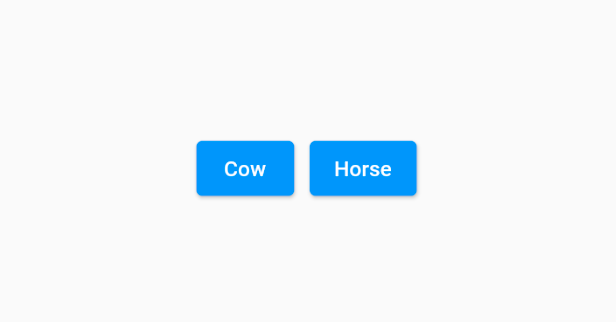
The goal is to play a cow sound when you press the Cow button and a horse sound when you press the Horse button. If you press them now, though, they won’t do anything. That’s because the onPressed callbacks are currently empty.
Installing just_audio
Open pubspec.yaml and add the just_audio plugin.
dependencies:
  just_audio: ^0.9.13
And get it with
flutter pub getThen add the import at the top of main.dart:
import 'package:just_audio/just_audio.dart';Playing audio from assets
Just Audio supports playing audio from assets, files, and URLs. First you’ll play some audio assets.
Adding audio assets to your project
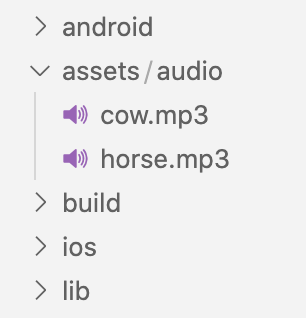
Create an assets folder in the root of your project and add a subfolder to it called audio.
Now find some audio clips to put in there. Here are some public domain mp3 files:
Name them cow.mp3 and horse.mp3 and add them to the assets/audio folder.
Declaring the assets
Just like you would do for image assets, you also need to declare your audio assets in pubspec.yaml. Add the following assets location:
flutter:
  assets:
    - assets/audio/
Now Flutter knows where to find your animal sounds.
Creating the audio player
At the top of _MyAppState in main.dart, add the following code:
late AudioPlayer player;@override
void initState() {
super.initState();
player = AudioPlayer();
}@override
void dispose() {
player.dispose();
super.dispose();
}This initializes AudioPlayer when the UI loads. It will also dispose the audio player and release the resources when the app closes.
Playing sounds
Replace the Cow button’s onPressed property with the following code:
onPressed: () async {
  await player.setAsset('assets/audio/cow.mp3');
  player.play();
},
And the Horse button’s with this:
onPressed: () async {
  await player.setAsset('assets/audio/horse.mp3');
  player.play();
},
First you wait for the player to set the correct audio asset before you play it. The wait isn’t noticeable, though, for short audio clips in the assets bundle.
Restart the app and try it out.
It works!
You’ll notice if you quickly press both buttons in succession, though, that the player cuts off the current clip and starts playing the new one.
You’ll solve that problem next.
Playing different audio clips simultaneously
You can play more than one audio source at a time by creating more than one AudioPlayer instance.
Add the following declaration at the top of _MyAppState:
late AudioPlayer player2;And in initState add this:
player2 = AudioPlayer();And this in dispose:
player2.dispose();Now change the Horse button’s onPressed callback so that it uses player2:
onPressed: () async {
  await player2.setAsset('assets/audio/horse.mp3');
  player2.play();
},
Run the app again to see the difference:
Both audio files overlap each other without clipping.
Playing audio clips from the web
If you have a web app or if there are a large number of sounds that you want to use, you might want to play the audio clips by providing a URL.
In order to do that, just replace setAsset with setUrl:
Cow button
final url = 'https://www.applesaucekids.com/sound%20effects/moo.mp3';
await player.setUrl(url);
Horse button
final url = 'https://www.applesaucekids.com/sound%20effects/horse_whinney_2.mp3';
await player2.setUrl(url);
Run the app again and try it out.
It still works, though there is a slight delay while the file loads. If this is an issue you might want to give some visual feedback like a spinning circle. I’ll leave that for another tutorial, though.
Additional notes
- If you use HTTP URLs instead of HTTPS ones, then you’ll need to permit that for Android, iOS, and macOS apps. See this answer and the documentation for how to do that.
- There are a few other platform-related notes, so check out the documentation to make sure you follow them.
Conclusion
This tutorial was a simple introduction to using Just Audio. There is a lot more that you can do with it, though. Check out the next tutorial in the series for more:
Tutorial source code
Here is the full source code for this tutorial.
If you find any problems add a comment below or open an issue in GitHub.


