
The 2020 Guide to Growing Your Audience With Pinterest
A step-by-step tutorial on an underrated source of organic traffic
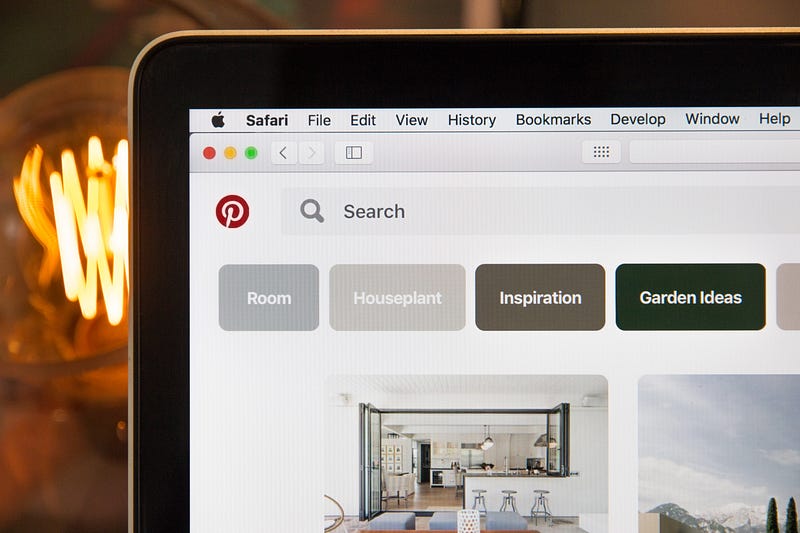
What’s Pinterest?
Ben Silbermann, CEO and co-founder of Pinterest, describes the platform as a “catalog of ideas” that inspires users to “go out and do that thing,” rather than an image-based social network. (We can, however, use it this way.)
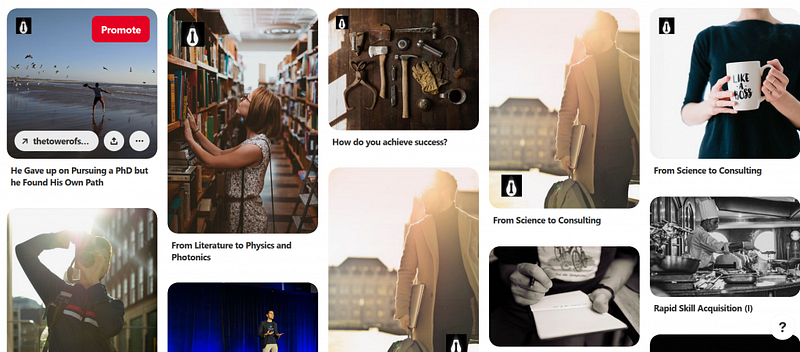
In Pinterest, shared images are called Pins. Pins feature an image plus a title and description.
Unlike Instagram, users are directed to your website with the simple click of an image.
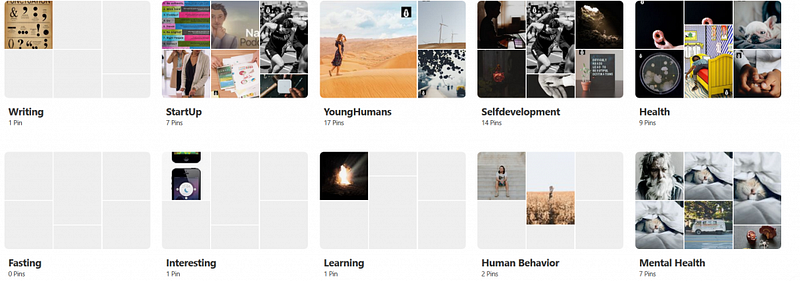
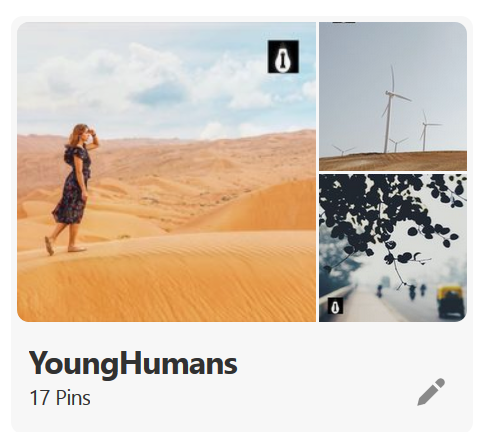
Pins can be arranged into different categories called Pinterest boards (as shown above). Boards make it easier for users to find what they’re looking for.
Additionally, users can name their boards. In my case, I have boards for YoungHumans, Health, and Human Behavior (to name a few).
Sharing useful content can help increase brand awareness and reach potential customers.
If you find learning to use a new platform a pain, follow this step-by-step guide.
Getting Started
Create a business account on the platform. To do this, simply register and choose the business account option. You can use your business name instead of the typical First + Last Name formula with this option.
Write a short bio including keywords that users can easily search for. Tip: search for the keywords you’re planning to use and see what other users are posting (these are popular Pins for the keywords).
Why use a business account?

Different Terms of Service
The terms of service are a little different for businesses (read them). It’s because you’re using the account for commercial purposes.
The Acceptable Use Policy and Pin Etiquette Policy are the same with a few additions for commercial use:
- Don’t promote spam
- Don’t ask pinners to vote with a repin or like
- Don’t run contests, or promotions “too often”
- Don’t “suggest that Pinterest sponsors or endorses” your business
Educational Materials
Pinterest has created educational materials to teach you how to effectively market your business.
This includes Pinstitute — interactive workshops for businesses to learn how to connect with Pinners (what Pinterest calls its users) — webinars and other resources for small businesses.
Pinterest Analytics
You have access to tracking information with a business account. This helps you measure which strategies and content are working (or not) so you can constantly improve your marketing.
Now that we’ve covered the benefits of using a business account, let’s dive into using the platform.
How To Find Keywords: Practical Examples
Example 1: Keyword search for career
Pinterest will suggest popular topics based on the text you enter in the search bar (from the moment you start typing actually).
Once you click enter, you’ll see the most searched keywords related to the topic (as shown below).

You can start pulling these keywords to use in your profile and Pin descriptions.
Typically, the first options you see are fairly broad. If you want to narrow your focus or be more specific, click on the different terms to see the keywords associated with each topic.
It’s quite hard to rank first for a broad category like career. Find additional descriptors that apply to your content — this helps users narrow the search field and increases your probability of being seen. The more specific, the better (see below).

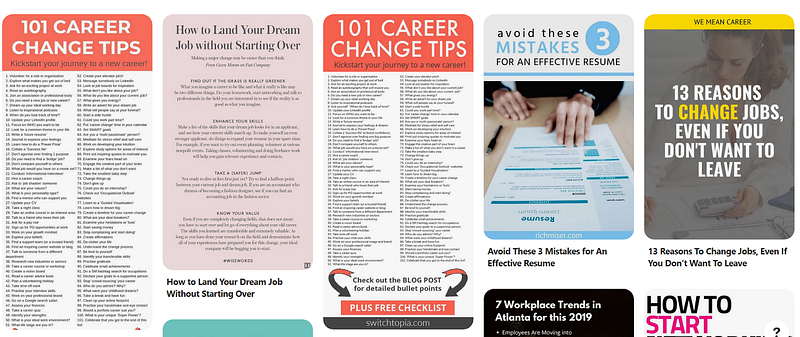
Take a look at the Pins that are ranking the best within a given keyword search. What color Pins are generating the most traffic? Are the most popular Pins with words or only with images?
Utilizing this information can help with naming, refining your content, and reaching a larger audience.
For example, the most popular Pins for a keyword search of career contain text and use images in blog format (see below).
Example 2: Keyword search for lifepath
A keyword search for lifepath yields numerology images — this isn’t the audience we’re looking for. Knowing this, we can avoid using lifepath as a keyword for our business account bio and Pins.

Pay attention to what kinds of images are being used — this can help steer you towards or away from images like the ones you were going to use.
In the case of searching for career, popular Pins feature images of women. This implies that using images of women may increase visibility.
Google and Pinterest
Another place to search for keywords and their relevance is Google. Typically, popular searches on Google are also popular on Pinterest.
Once you identify popular searches, use them to help name and describe your Pins.
The next step is learning how to optimize your Pinterest profile.
Optimizing Your Pinterest Profile
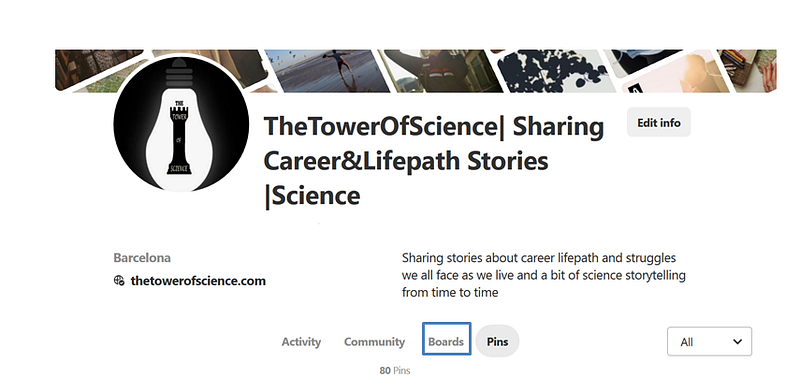
Make sure you’re using keywords in your profile since profiles are searchable on Pinterest.
Name and bio
Write a keyword-rich bio — one that speaks to what you do and who you do it for — so users can easily find you in a keyword search. Board descriptions and titles are also searchable.
Your keywords should:
- Integrate seamlessly with your brand
- Help your target audience in some way
- Attract people that will pay for your services/products
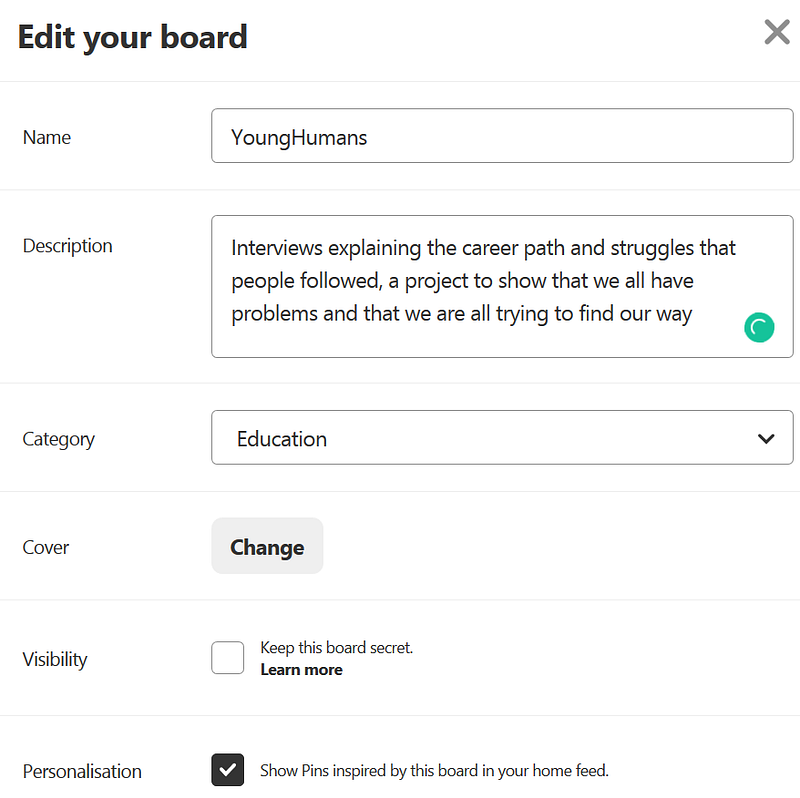
To add a description to your board: Go to boards, click the pencil icon on the board you want to modify, and voila, start editing! (shown below)
Basic Design of Your Account
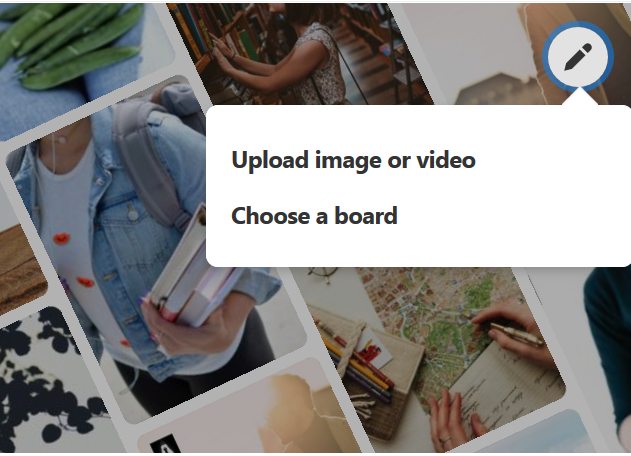
Choose a cover board
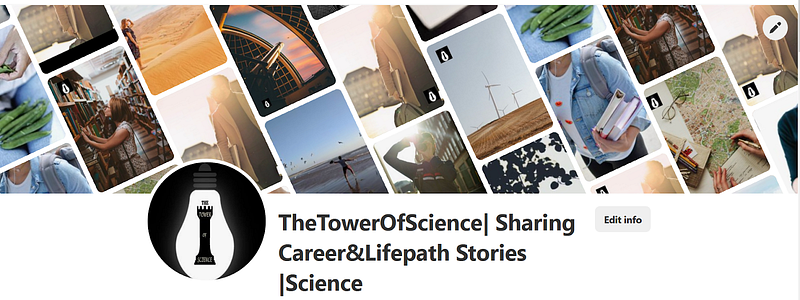
Pinterest allows users to choose a cover board that shows Pins from an existing board.
Note: The individual Pins aren’t clickable but there’s a link to the board at the corner of the cover image.
Choose the board that best represents your business. Over time, change it to reflect your most popular boards.
Here’s how the link appears to users accessing your profile.
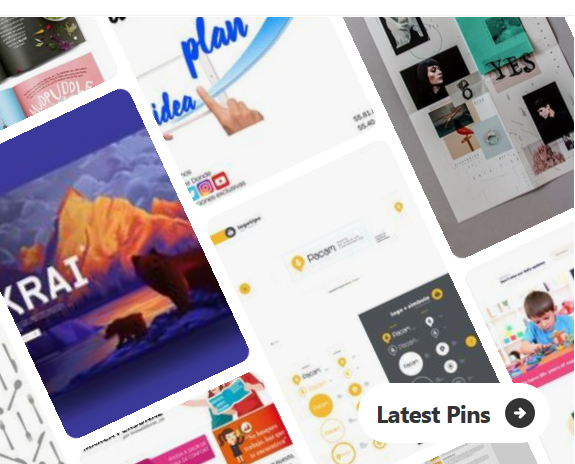
Here’s how the board appears to you and how to choose the board that appears on top.
(You can also opt to show the board with the most current post).
Featured boards
You can choose the five boards that appear directly below your profile (name and bio).
How To Create a Great Pin
When it comes to creating content for Pinterest, there are a few tactics to follow.
Optimal sizing
Pinterest recommends vertical Pins instead of horizontal Pins. Typically, vertical Pins help create a more cohesive look.
The optimal size for a Pinterest graphic is a 2:3 ratio. The maximum size a Pin can be before getting cut off at the bottom is a 1:2.8 ratio.
Logo placement
For brand recognition purposes, put your logo on all of the graphics you Pin (see image below).

Find ways to place your logo that play with the image, or at the very least, make it as unobtrusive as possible.
High-quality images
Use beautiful, high-quality images within your Pins. Unsplash is a great resource for stock photos.
Using a collage of photos can help improve your Pin’s performance. Try to keep it around four images or less so it doesn’t look overcrowded.
Images that look best on the platform are at least 600 pixels wide. To keep in line with the 2:3 ratio, this would be a minimum of 600 x 900 pixels.
How to Pin from your website
You can add plugins to make it easier for people to share the content from your site on Pinterest.
A good option is Pin It Button for WordPress. You just have to install it and select the parameters you want to make sharable and it starts working.
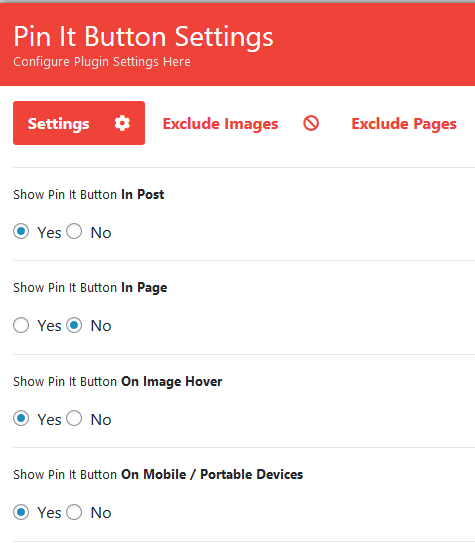
You’re more likely to grow on the platform if users can easily share your content.
Pinterest Analytics
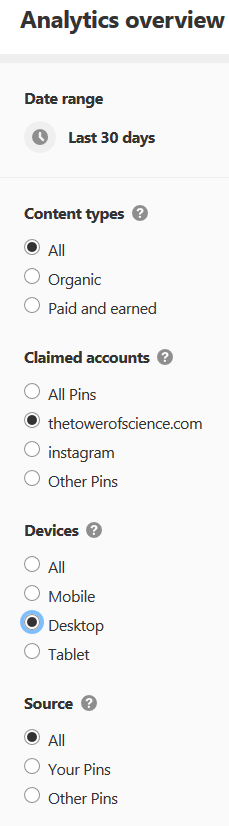
Pinterest Analytics allows you to 1) see link clicks (website traffic) by device (mobile, tablet, desktop), 2) compare the performance of organic Pins vs. paid Pins (Prompted Pins), and 3) view the engagement generated by Pins from other claimed accounts like Instagram and YouTube.
Using Pinterest Analytics
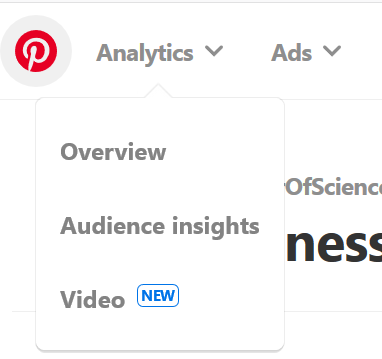
Select analytics from your Pinterest business account menu to see analytics for your Pins (see below). You can view data from up to the last 90 days.

Metrics definitions
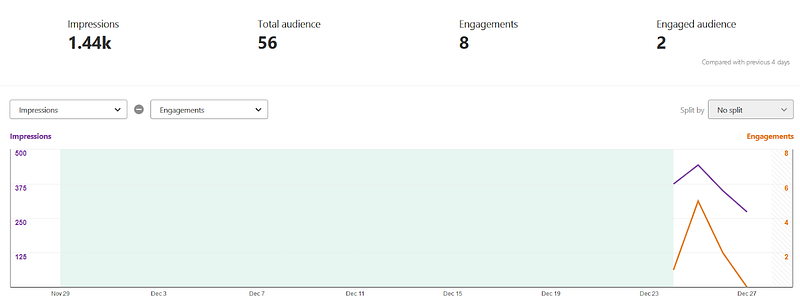
- Impressions: The total number of times your Pins were shown.
- Engagements: The total number of engagements on your Pins. This includes saves, close-ups, link clicks, and carousel card swipes.
- Closeups: The total number of times people viewed a close-up version of your Pin.
- Saves: The total number of times people saved your Pins to a board.
- Link clicks: The total number of times people have clicked on your Pin to a destination on or off of Pinterest.
- Video views: the number of views for at least 2 seconds with 50% of video in view.
- Average watch time: the average time someone spent watching your video.
- 95% views: the number of times your video was viewed to 95% of its length
- Total watch time: the total watch time for your video in minutes
For more information about Pinterest Analytics, view Pinterest’s article.
Tips for Optimizing Your Profile
Write interesting Pin descriptions
Describe what your Pin is about. Don’t try and stuff it with keywords (no more than 20 hashtags). Make the description engaging!
Include a call to action. For example, “Repin to your inspiration board.”
Pin in the optimal ratio
Pinners have gone mobile. About 85% of all Pinterest searches happen on smartphones. Consequently, Pins with vertical images often perform better than square or horizontal pictures.
Best times to Pin
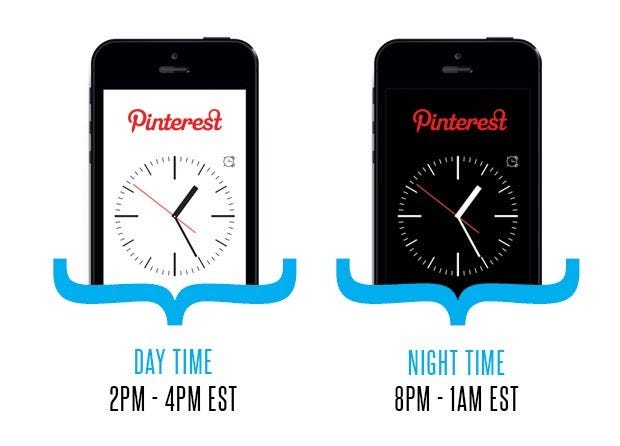
According to SocialFresh, the best times to post are between 2–4 PM EST and 8 PM-1 AM EST. Another post by HubSpot found that Saturday morning is the best time to post.
Claim your website
Pinterest prioritizes Pins that are created by the website’s owner. You’ll need to claim your website to connect your website with your content on Pinterest.
By claiming your website, you’ll unlock additional analytics on Pinterest and website content performance.

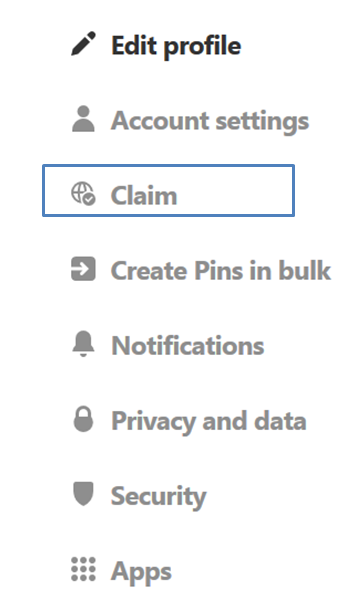
After claiming your account, you’ll receive an email within 24 hours. Click the link contained in the email and you’re all set.
Engage to Build Relationships and Gain New Followers
Now that you know what kinds of Pins are popular and how to get your Pins seen, the next step in Pinterest marketing is using your Pins to build relationships with followers. This is done through kindness.
Knowing what users want will allow you to give them just that, and in turn, grow your following.
In general, if you have sharable content on your website it should do well on Pinterest.


