avatarCoucou Camille

Free AI web copilot to create summaries, insights and extended knowledge, download it at here

3120

Abstract

oad_page(page_id=<span class="hljs-number">0</span>) <span class="hljs-comment"># OR</span> <span class="hljs-attribute">doc</span>[<span class="hljs-number">0</span>]</pre></div><div id="648f"><pre><span class="hljs-comment"># load last page</span> <span class="hljs-attribute">doc</span>[-<span class="hljs-number">1</span>]</pre></div><h2 id="fd11">Page Iteration</h2><div id="051e"><pre><span class="hljs-comment"># for in sequence</span> <span class="hljs-attribute">for page in doc</span><span class="hljs-punctuation">:</span> <span class="hljs-comment"># todo</span></pre></div><div id="9b2f"><pre><span class="hljs-comment"># read backwards</span> <span class="hljs-attribute">for page in reversed(doc)</span><span class="hljs-punctuation">:</span> <span class="hljs-comment"># todo</span></pre></div><div id="8542"><pre><span class="hljs-meta"># use slicing</span> <span class="hljs-keyword">for</span> page in doc.<span class="hljs-built_in">pages</span>(start, end, step): <span class="hljs-meta"># todo</span></pre></div><h2 id="4c01">Links in Page</h2><div id="da30"><pre><span class="hljs-attr">links</span> = page.get_links() <span class="hljs-comment"># Python dictionary</span></pre></div><h2 id="7f4e">Annotations or Widgets in Page</h2><div id="250b"><pre><span class="hljs-attribute">annots</span> <span class="hljs-operator">=</span> page.annots() <span class="hljs-attribute">widgets</span> <span class="hljs-operator">=</span> page.widgets()</pre></div><h2 id="f694">Create a Page Image as a Pixmap Object</h2><p id="68a8">Pixmaps objects here represent plane rectangular sets of pixels. Each pixel is described by a number of bytes (“components”) defining its color, plus an optional alpha byte defining its transparency.</p><div id="5f9c"><pre><span class="hljs-attribute">pixmap</span> <span class="hljs-operator">=</span> page.get_pixmap()</pre></div><p id="0a91">The image could be saved as PNG file:</p><div id="f34f"><pre>pixmap.<span class="hljs-built_in">save</span>(f<span class="hljs-string">"page{page.number}.png"</span></pre></div><h2 id="f2bc">Extract Texts and Images</h2><div id="1856"><pre><span class="hljs-attribute">text</span> <span class="hljs-operator">=</span> page.get_text(opt)</pre></div><p id="cedf">For the parameter <code>opt</code> , you could choose from the following output format options: “text” (default), “blocks”, “words”, “html”, “xhtml”, “xml”, “dict”, “json”, “rawdict”, “rawjson”.</p><h2 id="9042">Word Search</h2><p id="6fc8">The function returns a list of Rect objects, each representing one instance of the word “Jun”, including information about the exact locations the word appears in the page.</p><div id="908c"><pre><span class="hljs-keyword">page</span>.search_for(<span class="hljs-string">"Jun"</span>)</pre></div><h1 id="eebd">File Operations</h1><p id="3c9c">PDF is the only format that could be edited using <code>PyMuPDF</code> , the other formats are all read-only. However, you could convert any document to PDF format using <code>doc.convert_to_pdf()</code> and edit the converted file instead.</p><h2 id="30e6">Page Editing

Options

</h2><ul><li>Deletion:</li></ul><div id="37d2"><pre><span class="hljs-meta">doc</span>.delete<span class="hljs-number">_p</span>age() <span class="hljs-meta">doc</span>.delete<span class="hljs-number">_p</span>ages()</pre></div><ul><li>Copying:</li></ul><div id="bf3b"><pre><span class="hljs-meta">doc</span>.copy<span class="hljs-number">_p</span>age() <span class="hljs-meta">doc</span>.fullcopy<span class="hljs-number">_p</span>age()</pre></div><ul><li>Organization:</li></ul><div id="5e0a"><pre><span class="hljs-meta">doc</span>.move<span class="hljs-number">_p</span>age()</pre></div><ul><li>Selection</li></ul><p id="0e85"><code>doc.select()</code> allows you to select certain pages and remove the rest, for example, odd pages only, first page only, last 10 pages, etc.</p><ul><li>Insertion</li></ul><div id="82a7"><pre><span class="hljs-meta">doc</span>.insert<span class="hljs-number">_p</span>age() <span class="hljs-meta">doc</span>.<span class="hljs-keyword">new</span><span class="hljs-number">_p</span>age()</pre></div><p id="3e02">There are also other operations such as rotation, annotation and text/image insertion.</p><h2 id="ffd7">Merging &amp; Spliting</h2><ul><li>Merging using <code>doc.insert_pdf()</code></li></ul><p id="b9c8">For example, to append doc2 to the end of doc1: <code>doc1.insert_pdf(doc2)</code></p><ul><li>Spliting</li></ul><p id="08c9">The following codes are used to split and get the first 5 and last 2 pages of the original document and save into a new file.</p><div id="0284"><pre><span class="hljs-comment"># create a new empty PDF</span> <span class="hljs-attr">new_doc</span> = fitz.open()</pre></div><div id="a3ef"><pre><span class="hljs-meta"># insert first 5 pages</span> <span class="hljs-keyword">new</span><span class="hljs-type">_doc</span>.insert_pdf(doc, to_page=<span class="hljs-number">4</span>)</pre></div><div id="75d6"><pre><span class="hljs-comment"># insert the last 2 pages</span> new_doc.insert_pdf(doc, <span class="hljs-attribute">from_page</span>=len(doc)-2)</pre></div><div id="dfdc"><pre><span class="hljs-meta"># save the new file</span> <span class="hljs-keyword">new</span><span class="hljs-type">_doc</span>.save(<span class="hljs-string">"first5_and_last2.pdf"</span>)</pre></div><h2 id="6e92">Saving File</h2><p id="a0ab"><code>doc.save()</code> always saves the file as its current status. You could append the changes to the original file instead by adding a parameter <code>incremental=True</code> without completely overwriting the file.</p><h2 id="ede2">Closing File</h2><p id="1180"><code>doc.close()</code> helps to close the file so that it could be accessed and updated elsewhere.</p><p id="a5c8"><b>Hope this helps and thanks all for reading!</b></p><figure id="f73b"><img src="https://cdn-images-1.readmedium.com/v2/resize:fit:800/0*H2D-KWAlVzKJQV6e.png"><figcaption></figcaption></figure><h2 id="fb32">If this post was helpful, please click the clap 👏 button below a few times to show your support for the author 👇</h2><h2 id="81c6">🚀Developers: Learn and grow by keeping up with what matters, JOIN FAUN.</h2></article></body>

PDF Operations Using Python

Automate your daily tasks that concerns PDF files: extraction of texts and graphics, decryption, editing/merging/re-organizing/saving and deleting of PDF pages.

Overview of the PDF Operations to be covered:

Python Library: PyMuPDF Document Information Page ProcessingPage LoadingPage IterationLinks in PageAnnotations or Widgets in PageCreate a Page Image as a Pixmap ObjectExtracting Texts and Images Word Searching File OperationsPage EditingMerging & SplitingSaving FileClosing File

Python Library: PyMuPDF

PyMuPDF is a Python binding for MuPDF, which is a lightweight PDF, XPS and E-book viewer, renderer and toolkit. MuPDF is compatible with PDF, XPS, OpenXPS, CBZ, EPUB and FictionBook2 formats. Using PyMuPDF, you could access files of all these extensions, as well as image file extensions including PNG, JPG, BMP, TIFF.

  • Installation: pip install PyMuPDF
  • Import: import fitz

Document Information

First, open the file like follows:

doc = fitz.open("camille-medium.pdf")
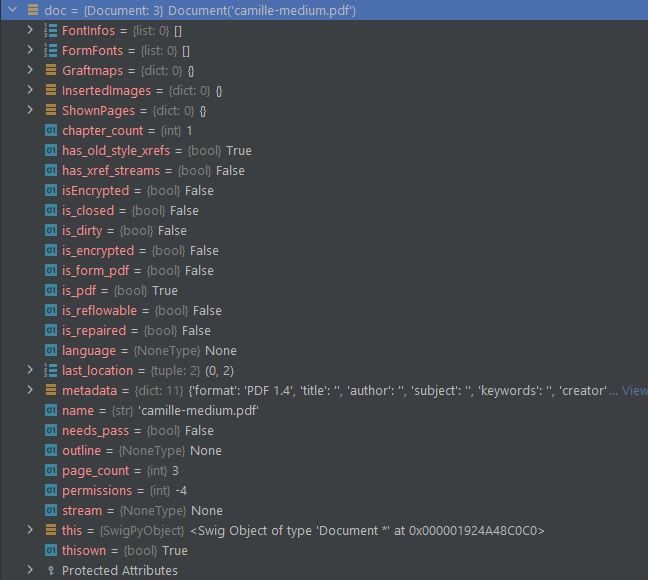
Using the doc file obtained, you could retrieve information such as number of pages, document metadata, table of content or other fields as shown in the picture.

# get number of pages
doc.page_count
>>> 3
# get file metadata
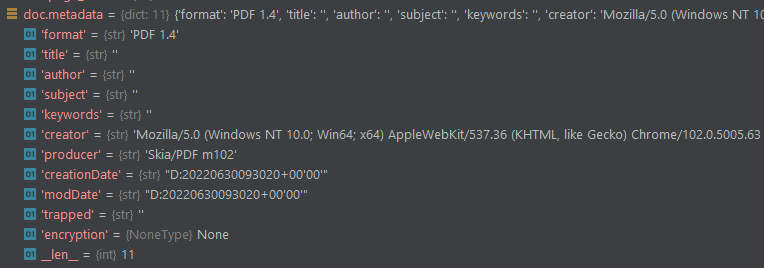
doc.metadata
# get table of content as list
doc.get_toc()
>>> []

A sample output for doc.metadata :

Page Processing

Page Loading

The doc object works like a sequence here

# load first page
doc.load_page(page_id=0)
# OR
doc[0]
# load last page
doc[-1]

Page Iteration

# for in sequence
for page in doc:
    # todo
# read backwards
for page in reversed(doc):
    # todo
# use slicing
for page in doc.pages(start, end, step):
    # todo

Links in Page

links = page.get_links() # Python dictionary

Annotations or Widgets in Page

annots = page.annots()
widgets = page.widgets()

Create a Page Image as a Pixmap Object

Pixmaps objects here represent plane rectangular sets of pixels. Each pixel is described by a number of bytes (“components”) defining its color, plus an optional alpha byte defining its transparency.

pixmap = page.get_pixmap()

The image could be saved as PNG file:

pixmap.save(f"page{page.number}.png"

Extract Texts and Images

text = page.get_text(opt)

For the parameter opt , you could choose from the following output format options: “text” (default), “blocks”, “words”, “html”, “xhtml”, “xml”, “dict”, “json”, “rawdict”, “rawjson”.

Word Search

The function returns a list of Rect objects, each representing one instance of the word “Jun”, including information about the exact locations the word appears in the page.

page.search_for("Jun")

File Operations

PDF is the only format that could be edited using PyMuPDF , the other formats are all read-only. However, you could convert any document to PDF format using doc.convert_to_pdf() and edit the converted file instead.

Page Editing

  • Deletion:
doc.delete_page()
doc.delete_pages()
  • Copying:
doc.copy_page()
doc.fullcopy_page()
  • Organization:
doc.move_page()
  • Selection

doc.select() allows you to select certain pages and remove the rest, for example, odd pages only, first page only, last 10 pages, etc.

  • Insertion
doc.insert_page()
doc.new_page()

There are also other operations such as rotation, annotation and text/image insertion.

Merging & Spliting

  • Merging using doc.insert_pdf()

For example, to append doc2 to the end of doc1: doc1.insert_pdf(doc2)

  • Spliting

The following codes are used to split and get the first 5 and last 2 pages of the original document and save into a new file.

# create a new empty PDF
new_doc = fitz.open()
# insert first 5 pages
new_doc.insert_pdf(doc, to_page=4)
# insert the last 2 pages
new_doc.insert_pdf(doc, from_page=len(doc)-2)
# save the new file
new_doc.save("first5_and_last2.pdf")

Saving File

doc.save() always saves the file as its current status. You could append the changes to the original file instead by adding a parameter incremental=True without completely overwriting the file.

Closing File

doc.close() helps to close the file so that it could be accessed and updated elsewhere.

Hope this helps and thanks all for reading!

If this post was helpful, please click the clap 👏 button below a few times to show your support for the author 👇

🚀Developers: Learn and grow by keeping up with what matters, JOIN FAUN.

Python
Pdf
Recommended from ReadMedium