
Outlook — My Inbox Zero strategy
Email still remains the primary method of communication between businesses. Today we receive emails like never seen before, and that will end up distracting us, impacting negatively our productivity. So, it’s clear that everyone can benefit from better email management.
Inbox Zero
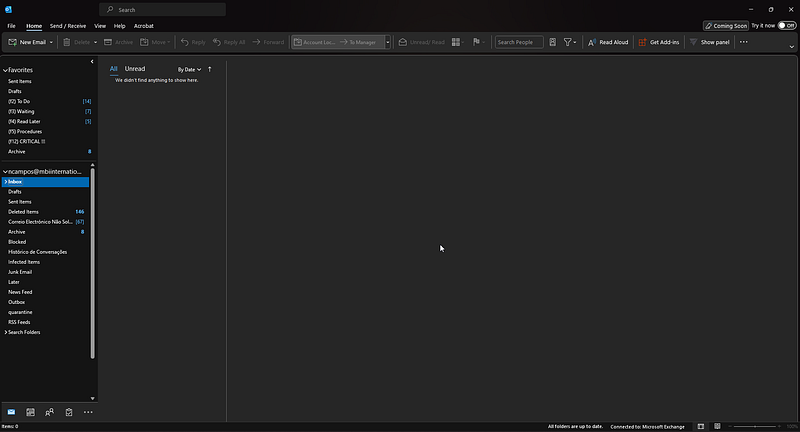
What is the Inbox Zero Method? Inbox Zero is an approach to email management that aims to keep the inbox empty. It’s about taking efficient decisions about incoming messages as they arrive. It’s about communicating more effectively via email, in less time.
There are a lot of different ways to achieve it, but let’s look at how I do it.
I use Microsoft Outlook, which is, undoubtedly, one of the best mail clients, but you can easily implement it on other mail clients.
My Inbox Zero Method
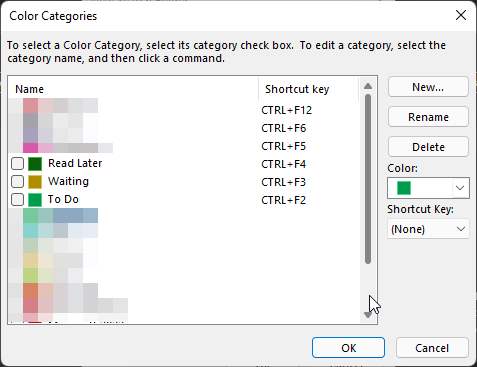
- Create the Categories To do, Waiting, Read Later and assign an hotkey for each (Ctrl + Fxx)
2. Create corresponding Search folders and pin them to Favorites
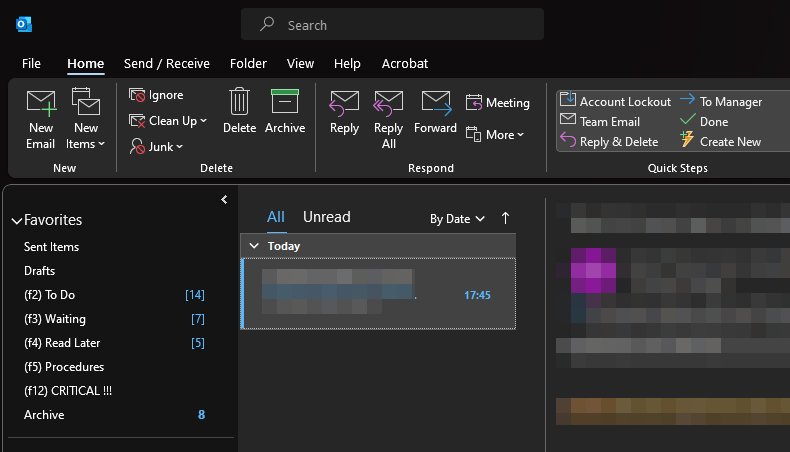
3. Process email periodically throughout the day. For each message, we should decide whether delete or archive it and categorize it if required.
- Does this email require action from you? Does it contain any information you might need to refer back to? If the answer to both those questions is no, you can delete the email right away, but if you need to keep, archive it.
- If the email requires action from you, categorize the message as To Do, and archive, unless you can respond very quickly, then archive or delete it, and move on to the next message in your inbox.
- For every sent email, if you expect a reply, categorize it as Waiting, then archive it, and move on to the next message in your inbox.
- If the email contains information you need to read, but can wait, set Read Later category, then archive it, and move on to the next message in your inbox.
Having done this for every message on the mailbox, you’ll end up with an empty inbox. Now it’s time to process the tasks represented by the To Do messages, and also verify the Waiting messages. When these are completed, or feedback is received, you can clear the categories, and the message is removed from the To Do / Waiting Search Folder. 😁
Some people like to create folders for people, or subjects. I prefer to archive all emails, and then create Search Folders for the contacts I search more often or use keywords to create a Search folder for a specific subject. I also like to create categories for projects, so I can also create search folders for projects based on categories.
So, this is basically how I organize my email, and how I get an Inbox Zero.
This strategy was based on Jeff Su’s video:


