
Python
OpenPyXL: Create Multi-Sheets Excel Files With This Handy Python Library
This Python library helps you to export dataframes to different sheets within one Excel file

Even though Python is mighty, Excel will play a large chunk of work for most data analysts and scientists. Yes, Python can do most of what Excel can do, but most non-technical teams prefer to get their reports in Excel because it’s easier to interact and make changes when working in a multi-department company. However, sometimes Python and Excel files don’t talk to each other in the most effective ways.
Imagine the following scenario: you are working on a project with Python, and you need to export multiple related datasets. All the datasets need to be in the same Excel file but in different tabs; what would you do? I can say what I used to do. I would export each data into different CSV files, one for each dataframe. Then, I would open each file, copy the data, and paste it into an Excel file. I would repeat this process for each file. Finally, I would save the file, and the job would be done.
This doesn’t sound like the most practical way of doing things, and that’s because it’s not.
I have good news for you. There is a Python library that will solve this issue, and it’s called OpenPyXL. Not the best name, but it’s worth learning about it, and that’s what we will do now.
OpenPyXL
In short, OpenPyXL allows us to save multiple dataframes into different tabs in the same Excel file. It might not sound like a game-changer Python library at first, but you will love it when you get to a scenario where you need to use it. Thus, let’s learn how to use it.
Getting Started
Installing OpenPyXL is as easy as installing any other Python library. Just type !pip install openpyxl in your Jupyter notebook. Now, we can import Pandas and OpenPyXL to your notebook by typing the following line of code:
import pandas as pd
from openpyxl import Workbook
Now, let’s learn how to use it. I will use the following datasets: All Playstation 4 Games, Video Games Dataset, Video Games Sales Dataset. Since we are just demonstrating OpenPyXL, we will not change the datasets. You can use any datasets you need or make any changes or EDA to the datasets. The only important step is to have dataframes that we can export.
ps_games = pd.read_csv('playstation_4_games.csv')
ps_sales = pd.read_csv('PS4_GamesSales.csv', header=0, encoding='unicode_escape')
all_games = pd.read_csv('Video Games Dataset.csv')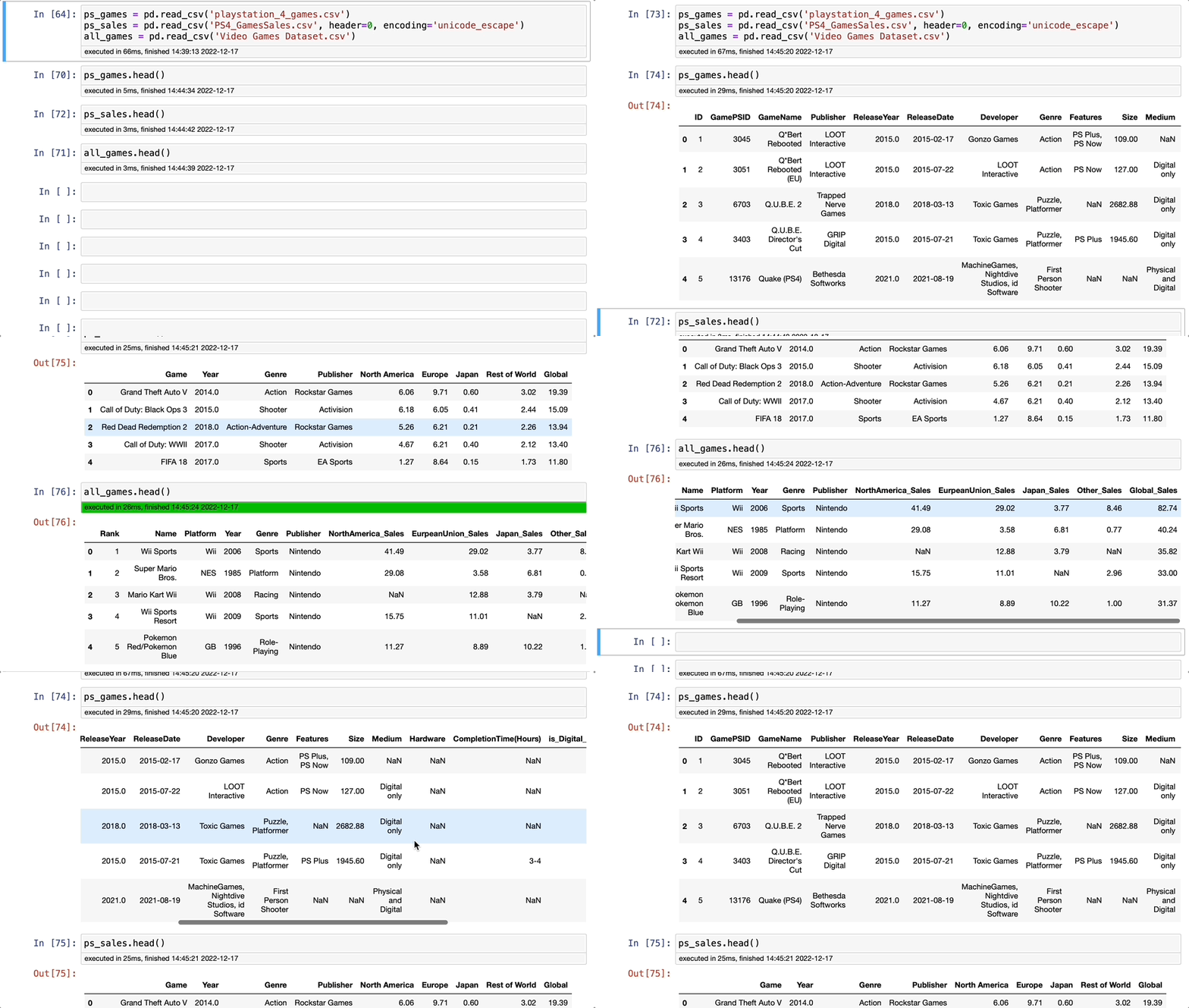
Now, let’s export all the datasets in 3 steps. First, we will need to create the Excel file to include the dataframes and choose a name for it. Then, we will add each dataframe to a different sheet and choose the sheet's name. Finally, we will save the file. Done!
To better explain the code below, in the first part, I created an XLSX file names games_datasets.xlsx and added it to the variable save. I’m exporting each dataframe to excel, including it to the variable save, and choosing the sheet’s name. Finally, I saved the XLSX file, and we are ready to open it.
# Create an Excel file
save = pd.ExcelWriter('Games Datasets.xlsx', engine='xlsxwriter')

# Create tabs
all_games.to_excel(save, sheet_name='All Games')
ps_games.to_excel(save, sheet_name='PS Games')
ps_sales.to_excel(save, sheet_name='PS Games Sales')

# Save and close Excel
save.save()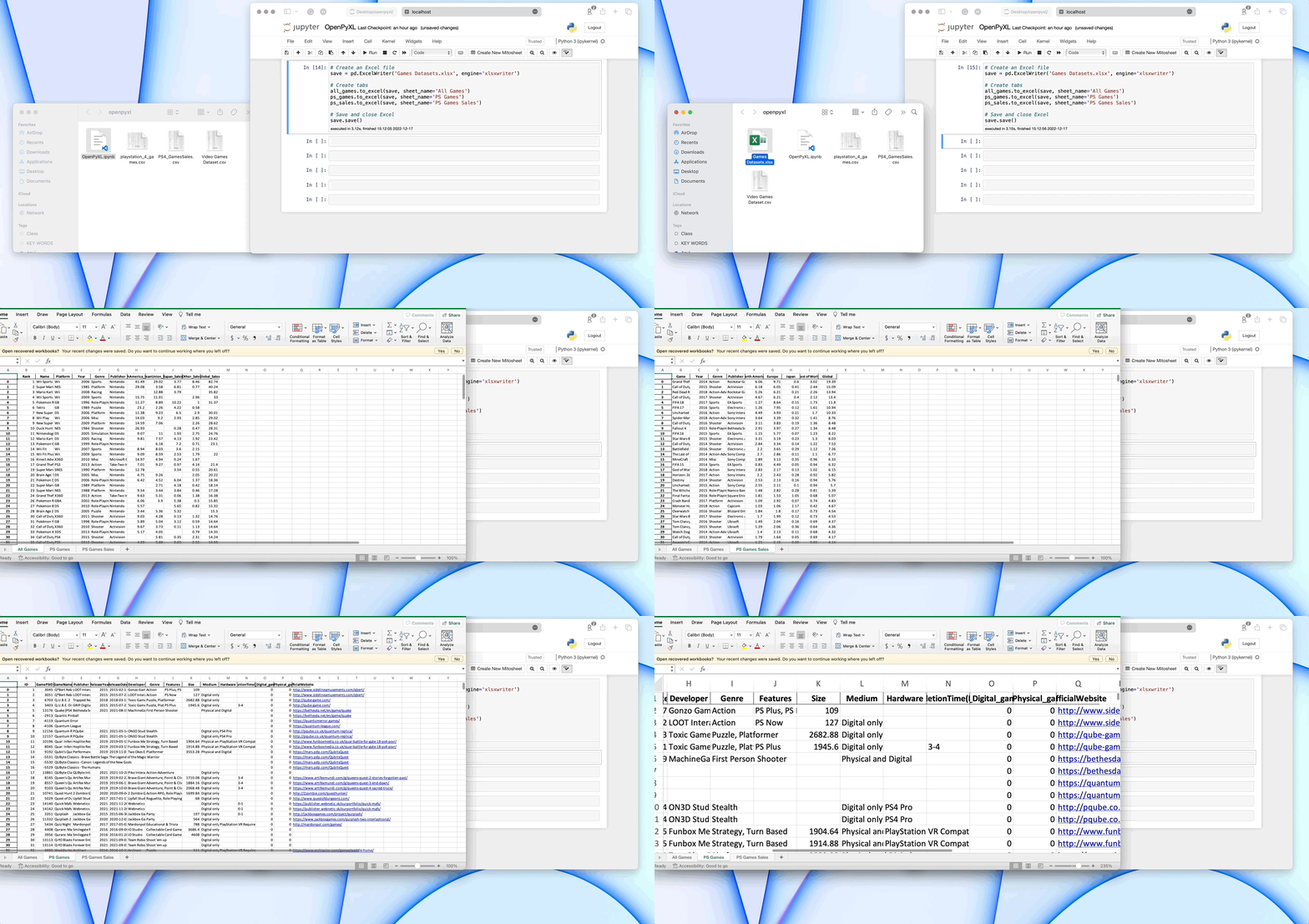
If you look at the GIF above, you can see how quick it is to export the file and how each dataframe comes in a different sheet. Cool, right?
Final Thoughts
Today we learned how to export different dataframes to an Excel file with multiple sheets. If you work with Python and often need to export reports or data analyses and send them to other teams, OpenPyXL will save you some time by creating only one file.
If you decide to test it, let me know how it goes. There are other cool functionalities with OpenPyXL that I haven't explored yet. If you try them, don’t forget to let me know. Happy Coding!


