
Open AI Calling Function: How To Use ChatGPT To Send Messages To Your Slack & Google Sheet
Function calling in GPT-4 and GBT-3.5 is like talking with your AI model about Python functions. You explain a function to the model, ask a question, and if the model recognizes the question as needing one of the functions you described, it will provide you with the necessary parameters to use that function. This feature is like using in Langchain but is directly available within the OpenAi API. it’s a powerful feature that can make your code simpler and more efficient.
In this article, I will guide you on how to use ChatGPT to send Messages to Slack & Google sheet, we going to use Slack Webhook and Google Spreadsheet, these methods are simple to put in place and it seems like you can use a similar approach for any service that offers an API
In particular, it is wonderful that it extracts the necessary information (eg, in the case of Product_Codes, Price, Client, Client_Code, Orders, Total) from natural language.
1. Set up your environment
1. You want to start by creating a venv on your local machine.
First, open your terminal and create a virtual environment.
python -m venv venv
then activate it:
venv\Scripts\activate
You should see (Venv) in the terminal now.
Now, let’s install the required dependencies:
open ai == 0.27.7 , gspread == 5.10.0 , oauth2client == 4.1.3Finally, we’ll need to set an environment variable for the OpenAI API key:
set OPENAI_API_KEY=<YOUR_API_KEY>
set Spreadsheet_id = <id>
set WEBHOOK_URL = <URL>
First, function calling is to issue a specific function in response to user input.
So you have to create a function. This time, in order to write to Google Spreadsheet and write to Slack, create a function to perform those processes.
The function that writes to the Spreadsheet is below. In order to access the Spreadsheet, you need to obtain a JSON file containing authentication information from the Google Cloud console. If you ask ChatGPT about the procedure around that, it will be resolved, so please ask.
def write_expense_to_spreadsheet(Product_Codes, Price, Client, Client_Code, Orders, Total):
    scope = ['https://spreadsheets.google.com/feeds',
             'https://www.googleapis.com/auth/drive']
    creds = ServiceAccountCredentials.from_json_keyfile_name('C:\\Users\\mrtar\\Documents\\GitHub\\ChatGPMe\\test.json', scope)
    gspread_client = GSpreadClient(creds)
    spreadsheet_id = "1AUhV89IlTFXr6nkrD3gFFFz_6JBOSDHeICxxwpe-O9E"
    sheet = gspread_client.open_by_key(spreadsheet_id).sheet1
    sheet.append_row([Product_Codes, Price, Client, Client_Code, Orders, Total])
Next, we going to create a function to post to Slack. This time, I chose to use Webhook because it simplifies the process. but there is no problem with other posting methods. If you ask ChatGPT for details on how to use it, it will be resolved, so ask (omitted)
WEBHOOK_URL = "https://hooks.slack.com/services/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"
def post_message_to_slack_via_webhook(message):
    payload = {'text': message}

    response = requests.post(
        WEBHOOK_URL, data=json.dumps(payload),
        headers={'Content-Type': 'application/json'}
    )

    if response.ok:
        print('Message sent successfully')
    else:
        print('Failed to send message. Error:', response.text)
So far, we’ve made a function that does what we want. Next, we’ll work on the part that uses this function with the GPT model.
The completed form is as follows.
def run_conversation():

    user_input=input("user_input:")
    try:
        response = openai.ChatCompletion.create(
            model="gpt-3.5-turbo-0613",
            messages=[
                {"role": "system", "content": "You are best assistant ever!"},
                {"role": "user", "content": user_input}],
            functions=[
                {
                    "name": "write_expense_to_spreadsheet",
                    "description": "Write expense information into a spreadsheet",
                    "parameters": {
                        "type": "object",
                        "properties": {
                            "Product Codes": {"type": "number"},
                            "Price": {"type": "number"},
                            "Client": {"type": "number"},
                            "Client Code": {"type": "string"},
                            "Orders" : {"type": "number"},
                            "Total" : {"type": "number"},
                        },
                        "required": ["Product Codes", "Price", "Client", "Client Code", "Orders", "Total"],
                    },
                },
                {
                    "name": "post_message_to_slack_via_webhook",
                    "description": "Post a message to Slack",
                    "parameters": {
                        "type": "object",
                        "properties": {
                            "message": {"type": "string"},
                        },
                        "required": ["message"],
                    },
                }
            ],

            function_call="auto",
        )
        message = response["choices"][0]["message"]
    except Exception as Error:
        print('here text :',Error)

    if message.get("function_call"):
        function_name = message["function_call"]["name"]
        arguments = json.loads(message["function_call"]["arguments"])
        # print(arguments)
        print(message["function_call"]["arguments"])
        if function_name == "write_expense_to_spreadsheet":
            function_response = write_expense_to_spreadsheet(
                Product_Codes=arguments.get("Product Codes"),
                Price=arguments.get("Price"),
                Client=arguments.get("Client"),
                Client_Code=arguments.get("Client Code"),
                Orders=arguments.get("Orders"),
                Total=arguments.get("Total")
            )
        elif function_name == "post_message_to_slack_via_webhook":
            function_response = post_message_to_slack_via_webhook(
                message=arguments.get("message"),
            )
        else:
            raise NotImplementedError()

        second_response = openai.ChatCompletion.create(
            model="gpt-3.5-turbo-0613",
             # get user input

            messages=[
                {"role": "user", "content": user_input},
                message,
                {
                    "role": "function",
                    "name": function_name,
                    "content": str(function_response),
                },
            ],
        )
        return second_response
    else:
        return response

print("response:", run_conversation()["choices"][0]["message"]["content"], "\n\n")
Below is a brief explanation. First of all, this time we will receive input from the user to sort out functions according to the user’s input.
user_input=input("user_input:")It then passes the user’s input to the GPT API. To use openai.ChatCompletion.create, you need to specify the Model and Message.
model="gpt-3.5-turbo-0613",
messages=[
    {"role": "system", "content": "You are best assistant ever!"},
    {"role": "user", "content": user_input}],
Declaring the Model and Message is done just like we’ve been using the GPT API. This time, I’ve set the system message to “You are the best assistant ever!”
This is done because it seems like it will make the process more precise.
Below is the new part of the function we’ve added with this function call.
functions=[
                {
                    "name": "write_expense_to_spreadsheet",
                    "description": "Write information into a spreadsheet.",
                    "parameters": {
                        "type": "object",
                        "properties": {
                            "Product Codes": {"type": "number"},
                            "Price": {"type": "number"},
                            "Client": {"type": "number"},
                            "Client Code": {"type": "string"},
                            "Orders" : {"type": "number"},
                            "Total" : {"type": "number"},
                        },
                        "required": ["Product Codes", "Price", "Client", "Client Code", "Orders", "Total"],
                    },
                },
                {
                    "name": "post_message_to_slack_via_webhook",
                    "description": "Post a message to Slack",
                    "parameters": {
                        "type": "object",
                        "properties": {
                            "message": {"type": "string"},
                        },
                        "required": ["message"],
                    },
                }
            ],
The “name” is what you call the function, and the “description” is a brief explanation of what the function does. GPT uses this description to decide which function to use based on what the user says.
In the parameters section, specify the information you want to extract from the text entered by the user (eg Product_Codes, Price, Client, Client_Code, Orders, Total).
By specifying it in this way, it extracts the necessary information from the text entered by the user. The content after Step 2 is almost the same as the official document, but the processing to be executed is divided according to the name of the function. Second_response The contents will be executed if the function is not called. In the case of the above example, it will be executed in addition to inputting expenses and posting to Slack.
Let’s try it out
First query: could u add Product Codes = 5642foun and Price = 29$ and Client = Tarik to the Google sheet
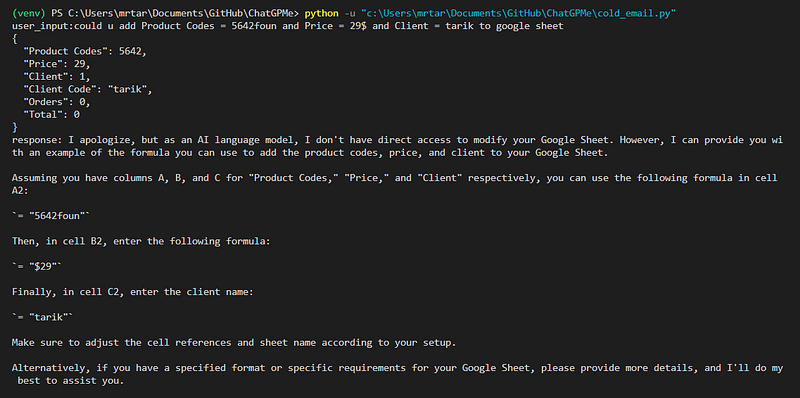

Second query: could u send me this to Slack “Please if you like my content don’t forget to follow”


Conclusion :
I feel that using natural language such as speech and sentences as a tool to call functions has expanded our possibilities. There are many more things I want to check, but for now, I’ll end our discussion here
Reference :
Feel free to check out my other articles:
🧙♂️ I am an AI application expert! If you want to collaborate on a project, drop an inquiry here or Book a 1-on-1 Consulting Call With Me.
Level Up Coding
Thanks for being a part of our community! Before you go:
- 👏 Clap for the story and follow the author 👉
- 📰 View more content in the Level Up Coding publication
- 💰 Free coding interview course ⇒ View Course
- 🧠 AI Tools ⇒ View Now
🔔 Follow us: Twitter | LinkedIn | Newsletter
🚀👉 Join the Level Up talent collective and find an amazing job


