
One ‘Apple Notes’ Trick for Your Mac You Might Have Missed
Thanks a ton, Apple. Did anyone tell you that “you are the best” :)

Having used a Mac for a few years now, I’m constantly making notes — whether to jot down a phone number, remind myself of a task, or create a list of groceries I need.
I often open the Spotlight search tool (Cmd + Space), type in ‘notes,’ and write my notes in the app that appears.
Although it’s not bad, it takes a while.
However, I accidentally found this fantastic trick that enabled me to launch the Notes app and start writing.
This was so simple that I still can’t believe I didn’t realize it.
What do you think? Do you agree?

- Let’s move the cursor to the bottom right corner of the screen.
- It’s done. Anything else? Nothing.
If you move the cursor there, you’ll see a small window appear; clicking on it will open a quick note.
Indeed. It’s that note peeking out from the corner.
To activate the Notes app, Macs use a Hot Corner.
Hence, when you hover over a corner of your system, the OS triggers a predefined action. You can configure your Hot Corners, and the Notes app trick is enabled by default on Macs.
You can do it the following way:
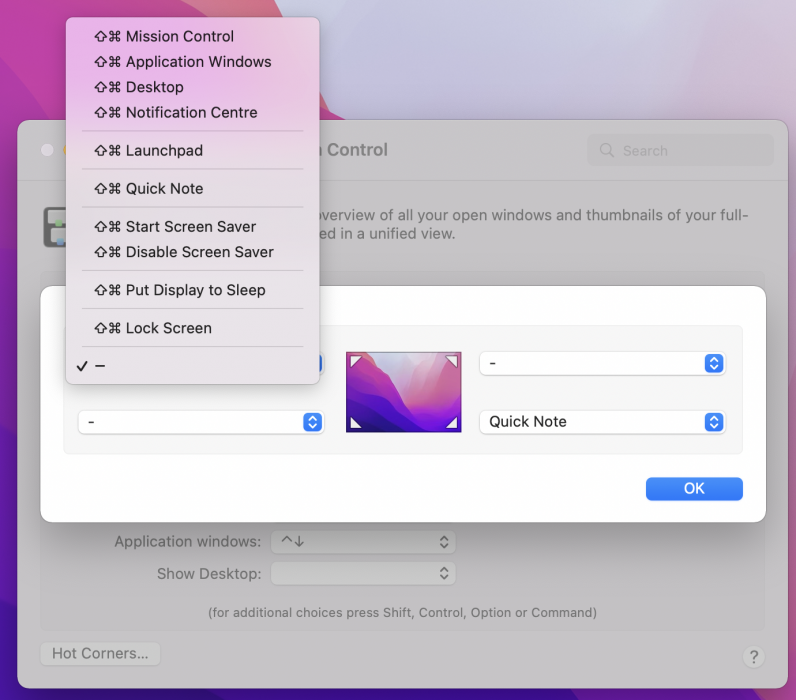
- Click on System Preferences in your Finder.
- Choose Mission Control.
- Select Hot Corners…
- Now, you can create shortcuts for all four screen corners, including Desktop, Launchpad, and Mission Control.
Enjoy, and do let me know after you have tried this or already used this for your Apple Notes.