
Okta MFA
ACM.165 Additional MFA options (like Yubikey with no seed) and enforcing MFA policies
Part of my series on Automating Cybersecurity Metrics, MFA and Passwords. The Code.
Free Content on Jobs in Cybersecurity | Sign up for the Email List
In the last post I looked at Okta IAM. Specifically we used custom roles to try to make privilege escalation by way of new user creation harder.
In this post we’ll take a look at how Okta MFA works and what our options are — at the time of this writing because things are always changing in the MFA space.
Default MFA
When you set up a new user in Okta, the user is prompted when they configure their account use the Okta authenticator app for MFA plus a phone number via SMS messages. As I’ve mentioned in other posts I really like Yubikeys for web browser based authentication. Luckily, Okta has other options for authentication and Yubikeys are on that list.
MFA options
The following documentation lists all the MFA options that Okta supports.
Before you inspect this list, note that there are two Yubikey options below, but it is not very clear. I will not be using the last item, Yubkey OTP, at this point. You may need to use this option because you want to ensure only specific devices can be used with your Okta account.
Yubikey provides the following information about the OTP option:
In order for Yubico OTP to work with YubiCloud (Yubico’s validation service) the information programmed into the YubiKey must also be uploaded to the YubiCloud. As part of the process of manufacturing every YubiKey, a Yubico OTP credential is programmed into slot 1, and its information is also transferred to YubiCloud, meaning this functionality should work out of the box with any new YubiKey.
I’ve seen how some authentication platforms handle seed files behind the scenes when assessing security products in relation to mergers and acquisitions, for example. Sometimes — it is not good. I also previously mentioned a related RSA breach involving a seed file. If you use this option you will want to assess Okta’s implementation in more detail and ask them questions about it.
One of the benefits of OTP is authentication via a Yubikey without a username. Well, we want usernames in for our solution. I also like the idea of having two separate sources validate the user via a device only the user has and can access. Also, Webauthn is considered a stronger protocol.
It is one of the standards developed by the FIDO Alliance, an organization with many members from different vendors trying to improve authentication standards.
You may have a reason that you need or want to use the Yubikey OTP option, but I want to use the Webauthn option. If you want to know more about how that technically works, this is a good explanation.
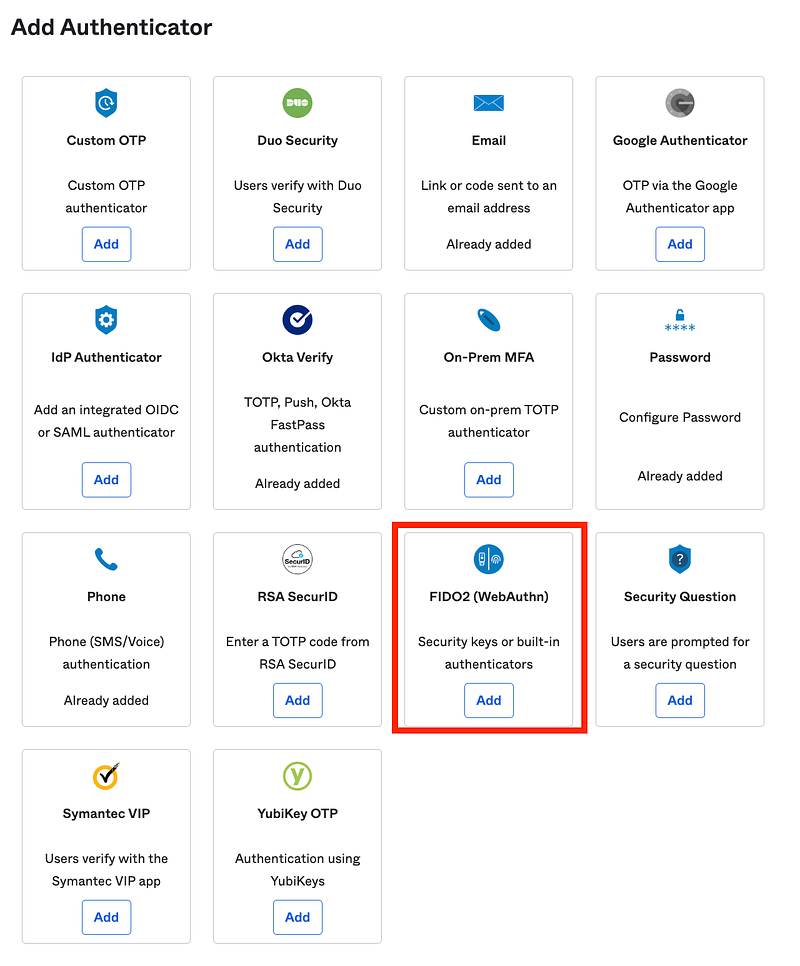
I do not want to use the biometric option. I am not sure why hardware keys and biometric are combined below. I wish Okta would separate out hardware security keys on this list and call them that. Then create a separate option for biometrics.
Here’s the full list:
Okta Verify: Okta’s own MFA option with the Okta Mobile App
Security Key, Biometric (WebAuthn)
Enable Yubikey for 2FA (using WebAuthn not OTP)
Let’s take a look at these instructions.
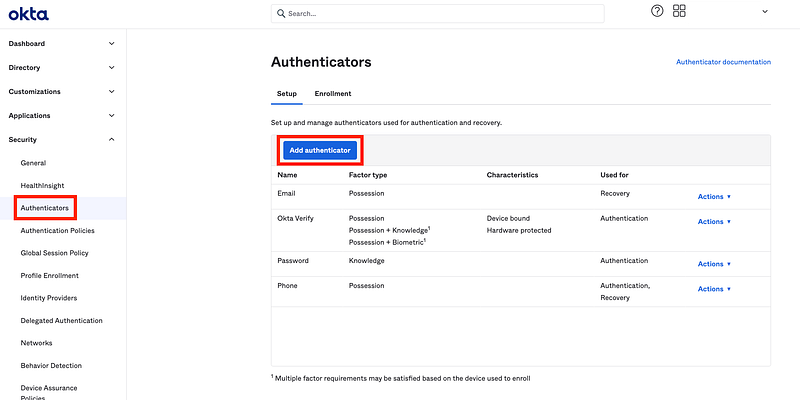
Navigate to Security > Authenticators.
You can see the authenticators currently configured.
Click Add authenticator.
Click FIDO2 (WebAuthn).
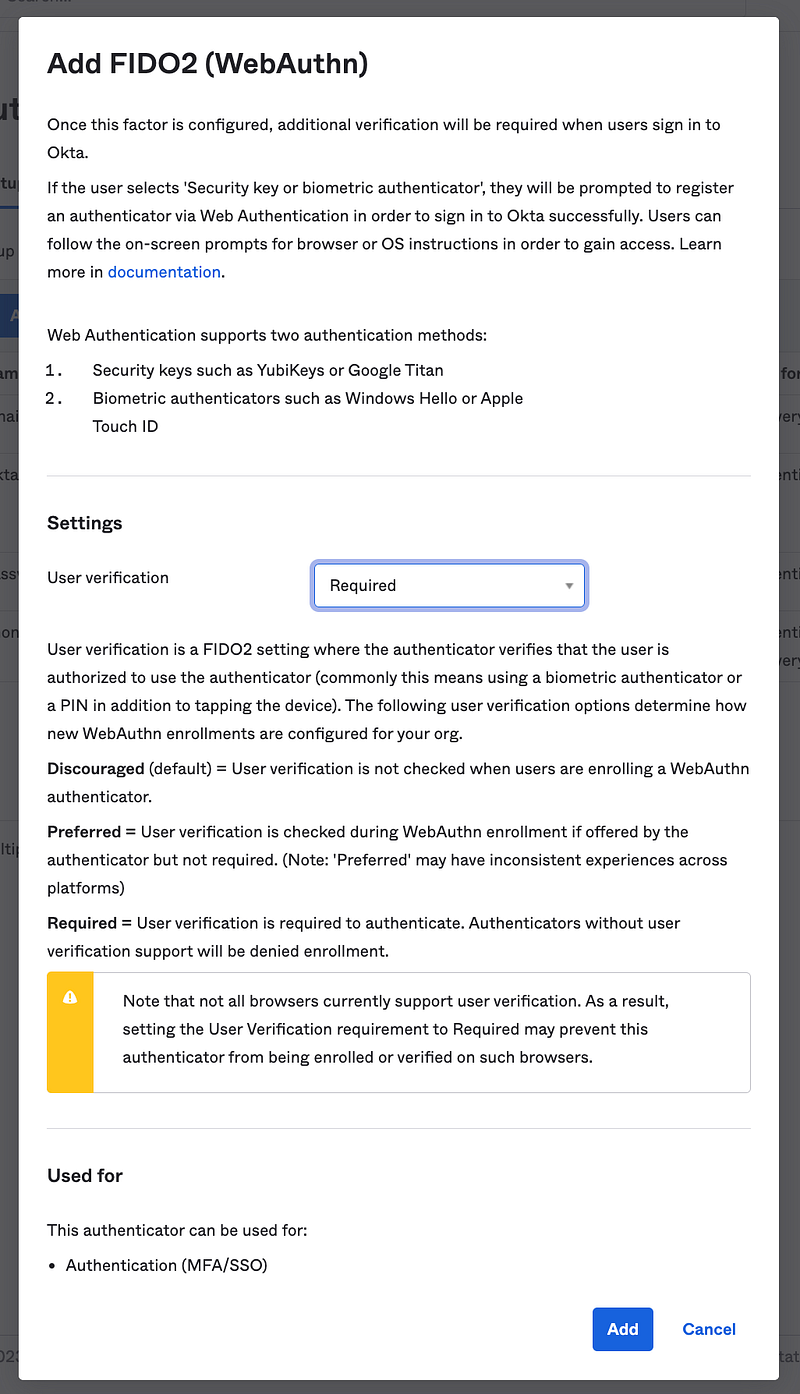
Here’s where you can configure WebAuthn. Here’s what I don’t like so much. What if I want to enforce Yubikeys in my organization and only Yubikeys, but not allow biometrics? I have no way to separate and enforce one or the other. I find this and the naming of this option a bit odd. I’m going to require a pin via the user verification drop down below and add this authenticator option.
Test adding a Yubikey to our User Admin
I’m going to login as the User Admin I created in the last post to test this out.
Click the user name on the top right of the screen and choose “My Settings”.
Here you can see my MFA devices for this user. A new option has appeared for Security Key or Biometric.
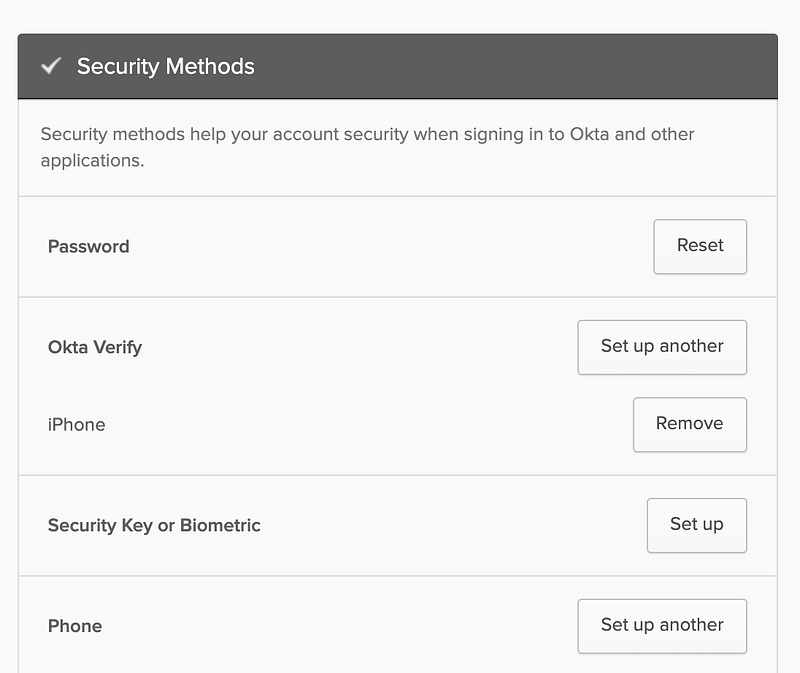
Follow the process and it’s just like setting up a Yubikey or hardware security device for any other website.
It also looks like you can set up two harware security keys, which solves some of the problems Okta is warning you about in the documentation above.
Test the security key out to make sure it works, and in my case, it does.
I really hope that Okta will consider separating security keys and biometrics in the future and making the security key option a bit more clear.
MFA for passwordless
Just a note that Okta supports passwordless as well, but only for the Okta Directory. You can read about that here.
I have noted some potential issues with the way certain vendors implement passwordless in the past. I am not going to review all of that right now. I’m going to stick with passwords and Yubikeys for the moment.
Authentication Policies
I’m not going to go into this in detail but note also that you can create MFA requirements for your organization via Authentication policies. You can also create different policies for different applications.
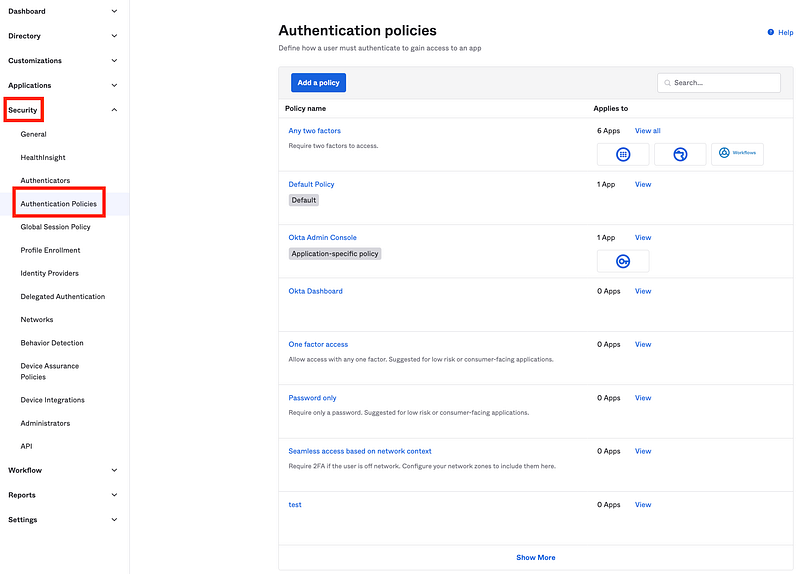
We’ll look at this option in more detail when we integrate with AWS. To start, you’ll want to make sure that users must use MFA when logging into all your Okta applications so configure that now. I need to review my settings above for Okta to make sure they are what I want.
Note that you can also enforce MFA via a global session policy which we discussed previously when I wrote about Okta networking.
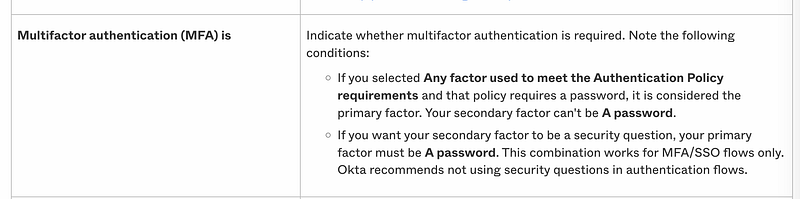
MFA when Federating to AWS
It also appears that we may be able to use MFA when federating to AWS. But we will need to test this out and see if it works when federating AWS IAM authentication to Okta and test for any caveats in the implementation.
Additionally, there’s a box to enable MFA on SAML Federation at the bottom of the SignOn settings:
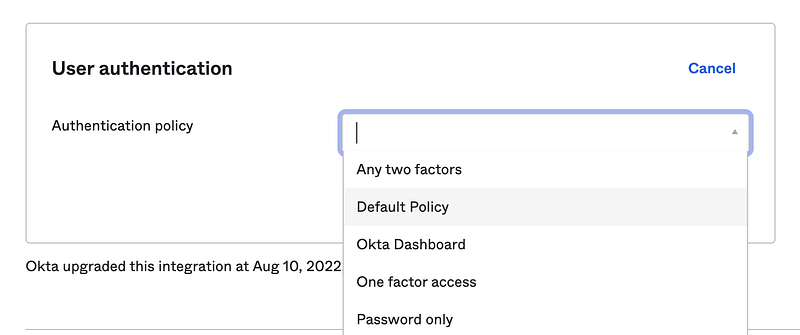
That’s great for enforcing MFA on role change as I think that’s what it is doing, but I still need to test with multiple roles.
Well, that’s what I wanted to figure out about Okta MFA at the moment. I’m going to review my policies and add two Yubikeys to my admin users, one as a backup, and make sure they have strong passwords.
Follow for updates.
Teri Radichel | © 2nd Sight Lab 2023
About Teri Radichel:
~~~~~~~~~~~~~~~~~~~~
⭐️ Author: Cybersecurity Books
⭐️ Presentations: Presentations by Teri Radichel
⭐️ Recognition: SANS Award, AWS Security Hero, IANS Faculty
⭐️ Certifications: SANS ~ GSE 240
⭐️ Education: BA Business, Master of Software Engineering, Master of Infosec
⭐️ Company: Penetration Tests, Assessments, Phone Consulting ~ 2nd Sight Lab
Need Help With Cybersecurity, Cloud, or Application Security?
~~~~~~~~~~~~~~~~~~~~~~~~~~~~~~~~~~~~~~~~~~~~~~~~~~~~~~~~~~~~~
🔒 Request a penetration test or security assessment
🔒 Schedule a consulting call
🔒 Cybersecurity Speaker for PresentationFollow for more stories like this:
~~~~~~~~~~~~~~~~~~~~~~~~~~~~~~~~~~~~~~~~~~~~~~~~~~~~~~~~~~~~~
❤️ Sign Up my Medium Email List
❤️ Twitter: @teriradichel
❤️ LinkedIn: https://www.linkedin.com/in/teriradichel
❤️ Mastodon: @teriradichel@infosec.exchange
❤️ Facebook: 2nd Sight Lab
❤️ YouTube: @2ndsightlab