
Obsidian Plugins Review — 52
Elevate Your Obsidian Experience: Discover the Best New Plugins for Enhanced Note-Taking and Boost Productivity

This week, we show you an exciting lineup of new Obsidian plugins, each designed to enhance your note-taking and knowledge-management experience. From tools that boost productivity to plugins that improve aesthetics, we cover a diverse range of plugins to cater to various needs. Here are the plugins that will be reviewed:
- View Count
- Daily Note Navbar
- Inline Pomodoro Timer
- Format Brush
- Ear Training
- Hugo Highlight
- Node Screenshot
- Line Commands
- Title Renamer
- Markdown Media Card
- Color Cycler
- Progress Clocks
Stay tuned as we explore the features and functionalities of each plugin, providing insights into how they can amplify your productivity within Obsidian!
View Count
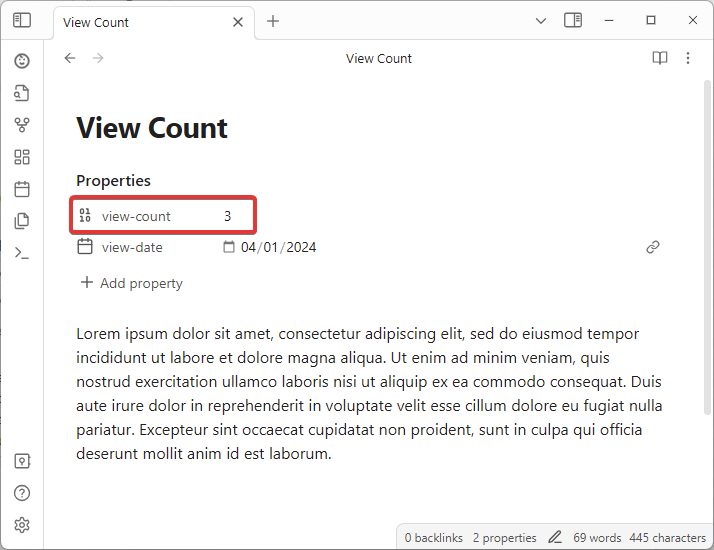
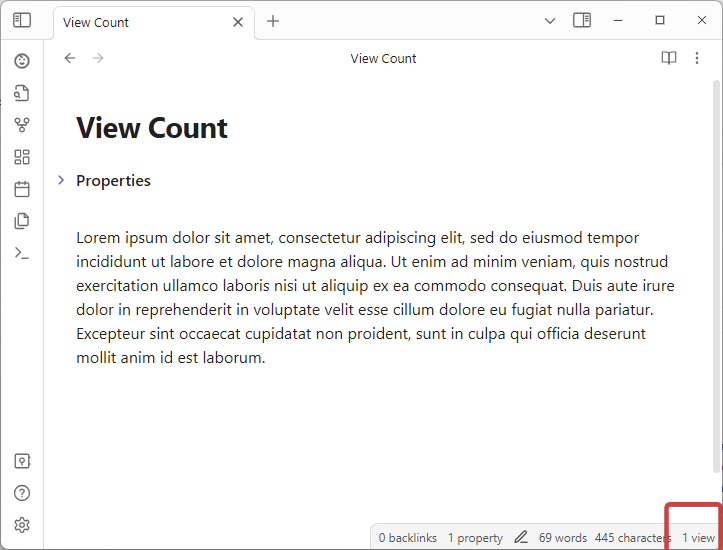
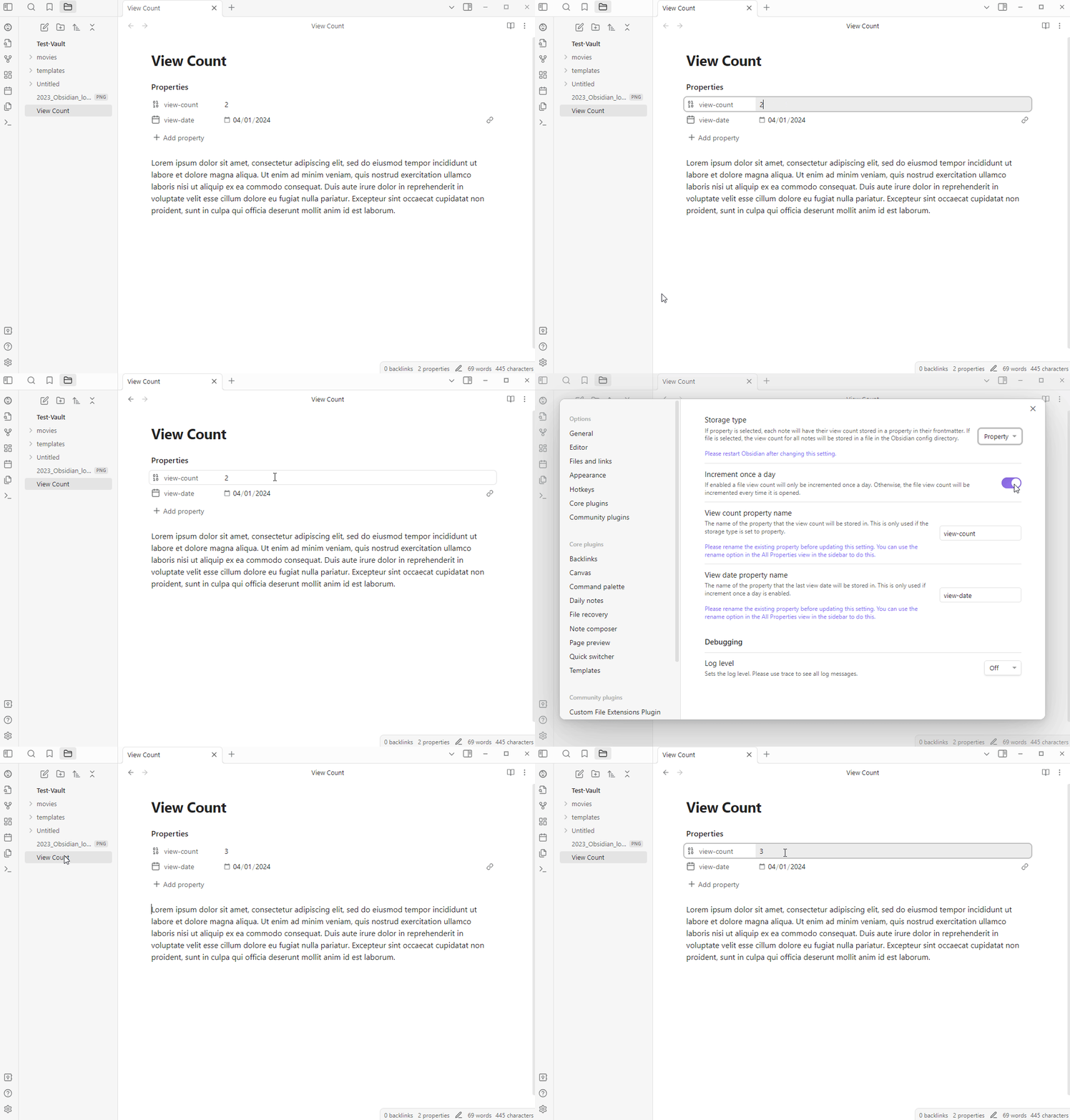
View Count is a plugin that tracks the view count for each file in an Obsidian vault. The view count can be seen as a file property or in the status bar, depending on the plugin configuration. Property storage stores view count in a note’s frontmatter, while File storage saves it in a JSON file. The plugin can be configured to increment the view count once a day or every time the file is opened. The plugin maintains a list of the 20 notes with the highest view count.
Daily Note Navbar
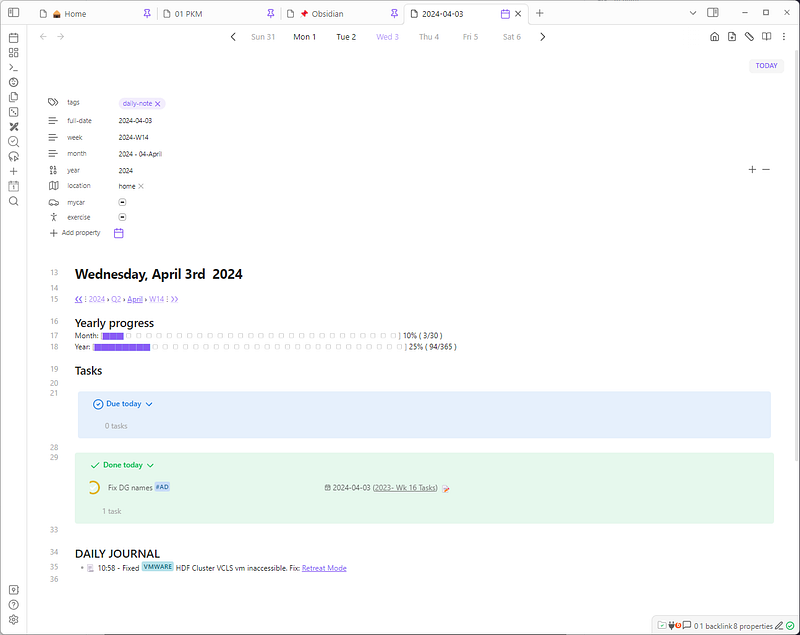
The Daily Note Navbar adds a navbar to quickly navigate between sequential daily notes. The plugin replaces the view header in daily notes files with a navbar, but the normal view header is still displayed for other files. Users can customize how the dates are formatted in the plugin’s settings tab.
Inline Pomodoro Timer
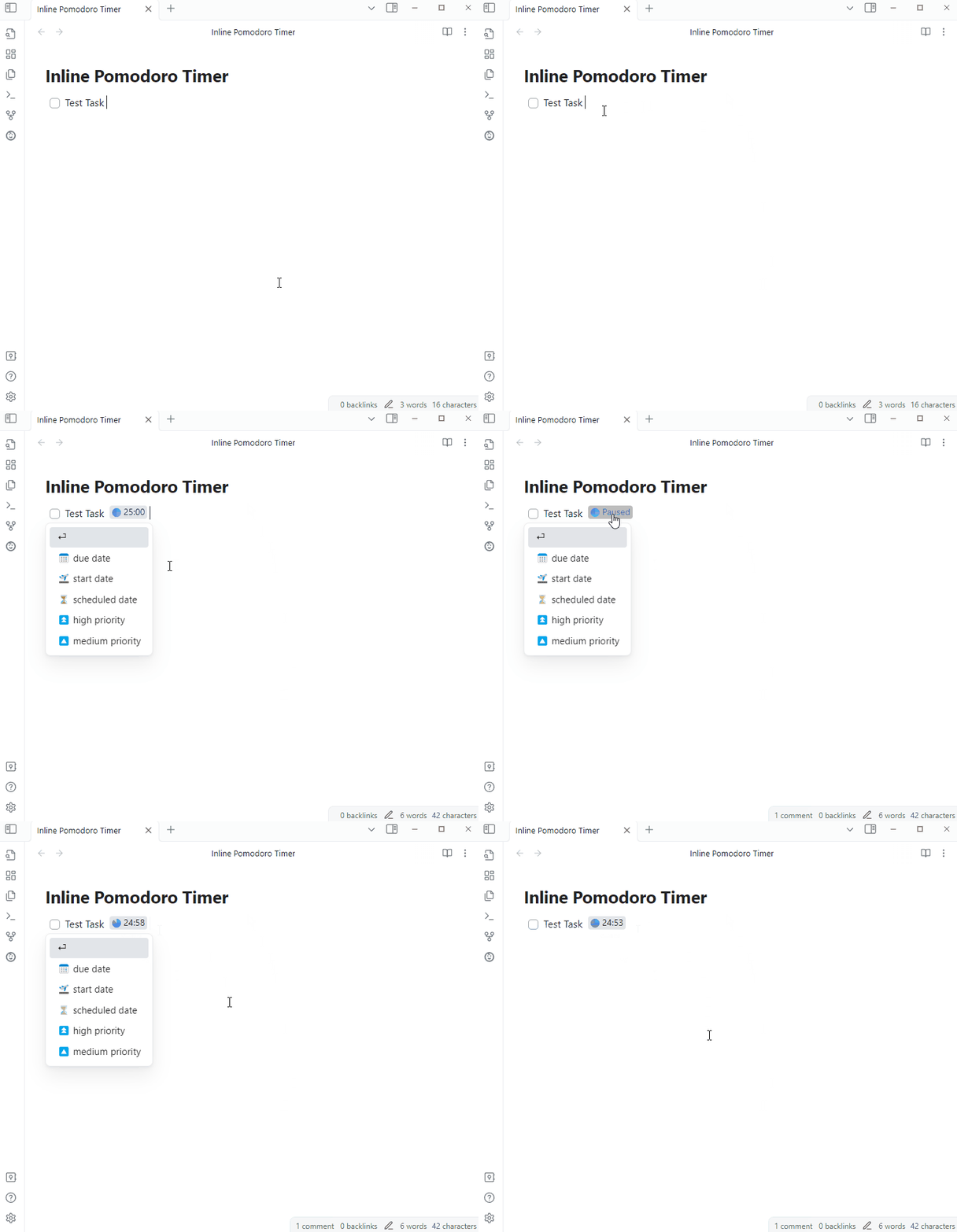
This plugin adds a Pomodor Timer anywhere in a note. Just right click where you want to place it and click Add Pomodoro Timer. You can pause and restart the timer and configure in the settings the time.
Format Brush
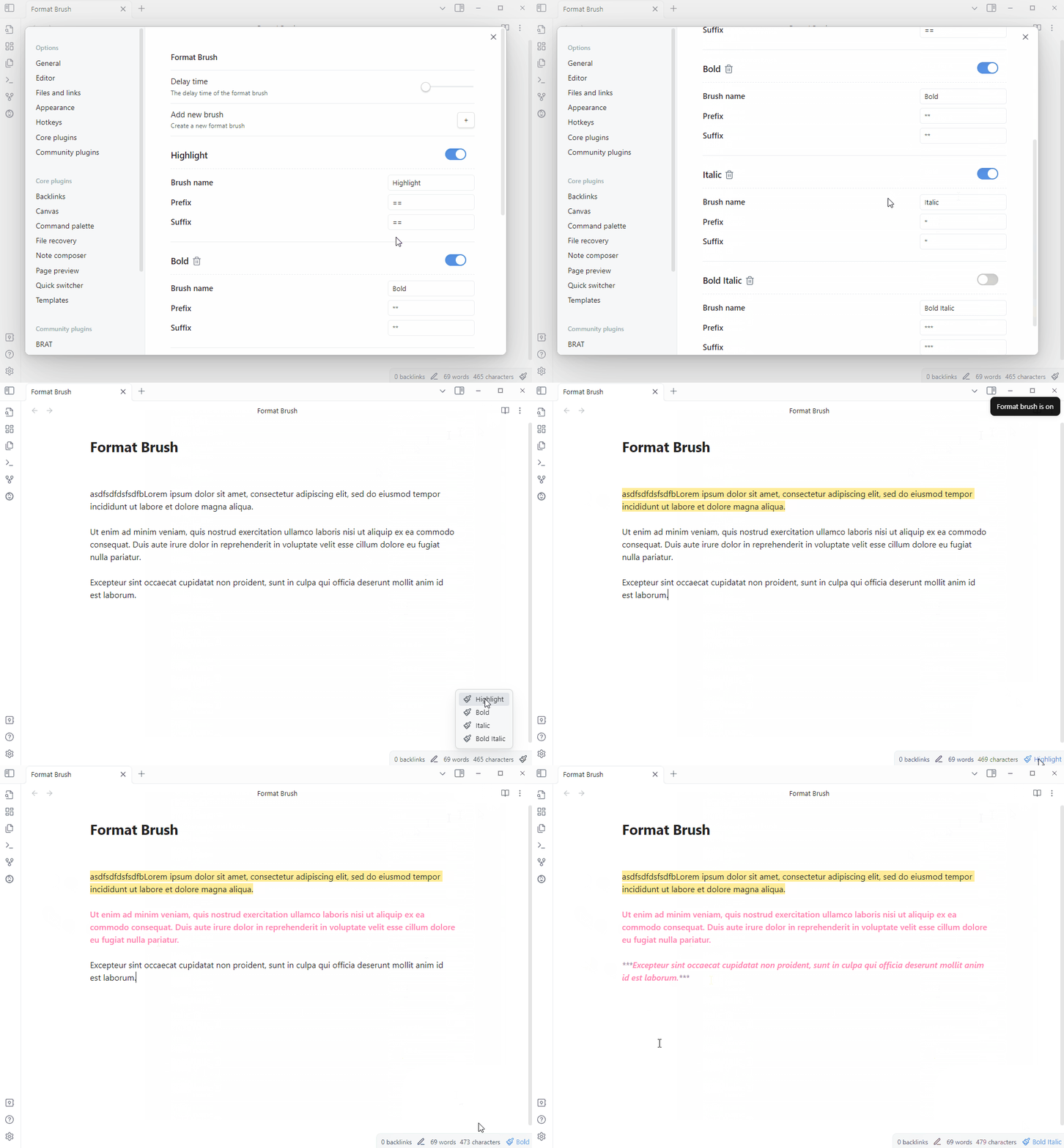
This plugin adds support to format brush in Obsidian. Add the brushes in the settings and then to use, select the brush from the status bar, and then select the text you want to format. The text will then be formatted according to the brush you selected.
Ear Training
This plugin allows you to develop your ability to recognize intervals, chords. You can practice recognizing intervals by ears or identify common chords by ear. Just click on the ribbon icon or use the command palette , customize your training settings and start practicing.
Hugo Highlight
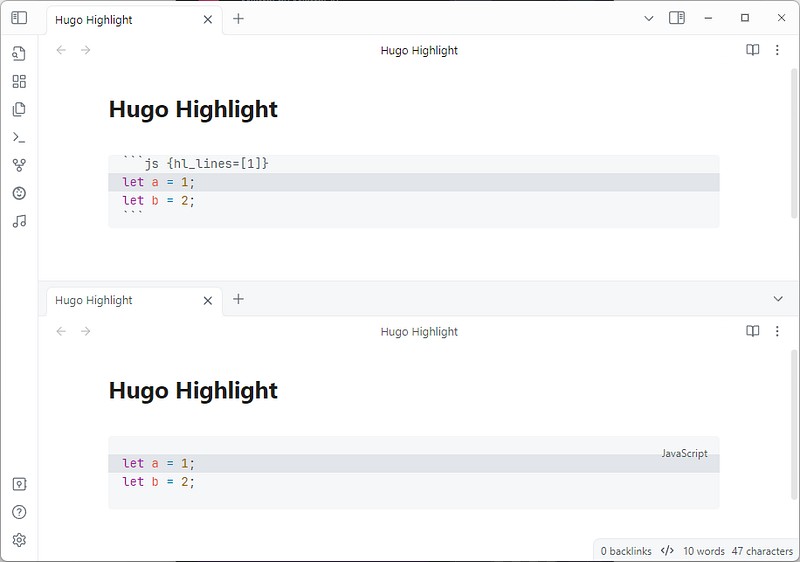
This plugin adds highlighting lines in code blocks using Hugo’s hl_lines syntax.
Node Screenshot
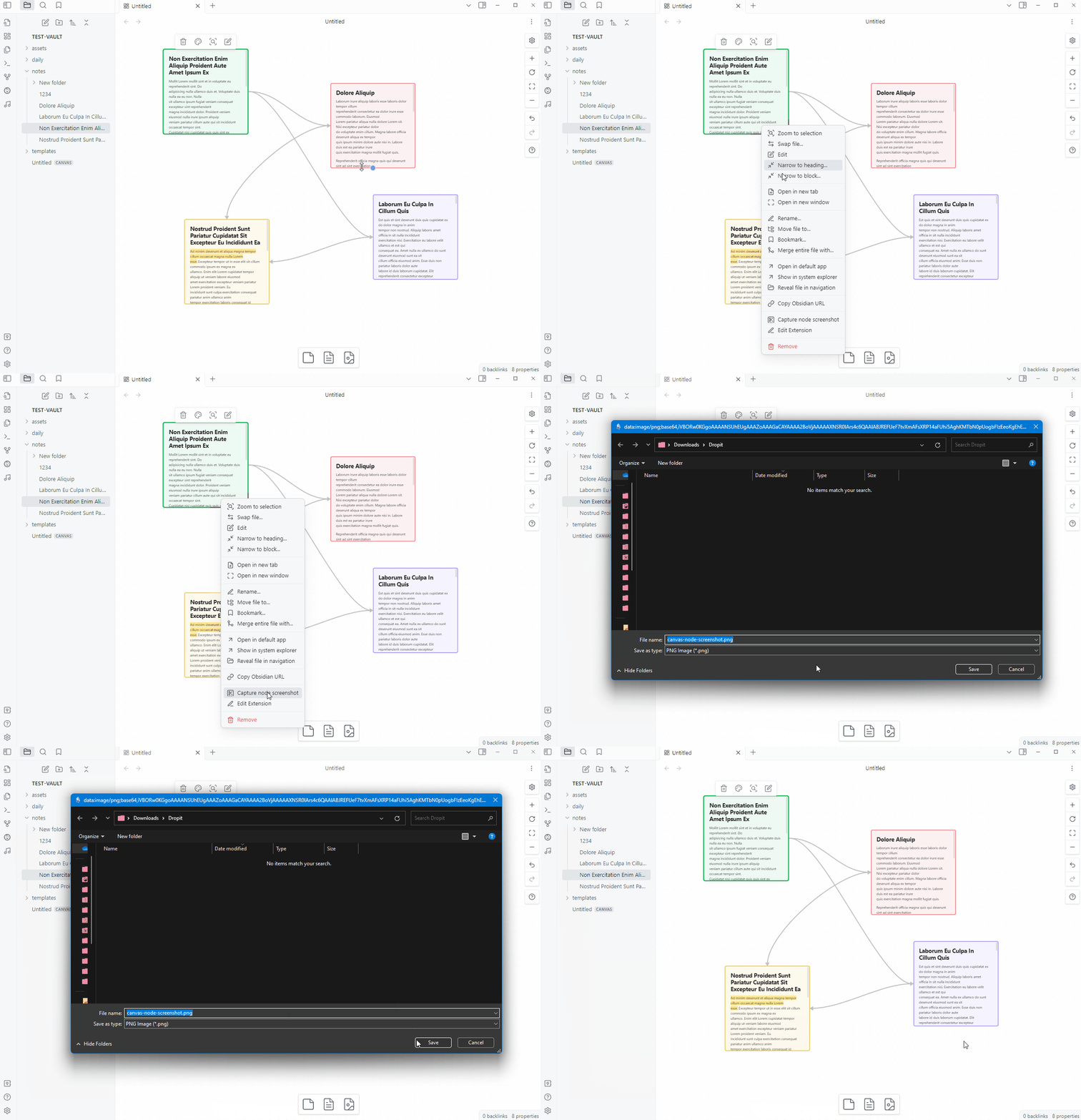
This plugin allows users to take screenshots of individual nodes in the canvas. Just right-click a node and then Capture node screenshot. Then you’ll be asked where to save the screenshot.
Line Commands
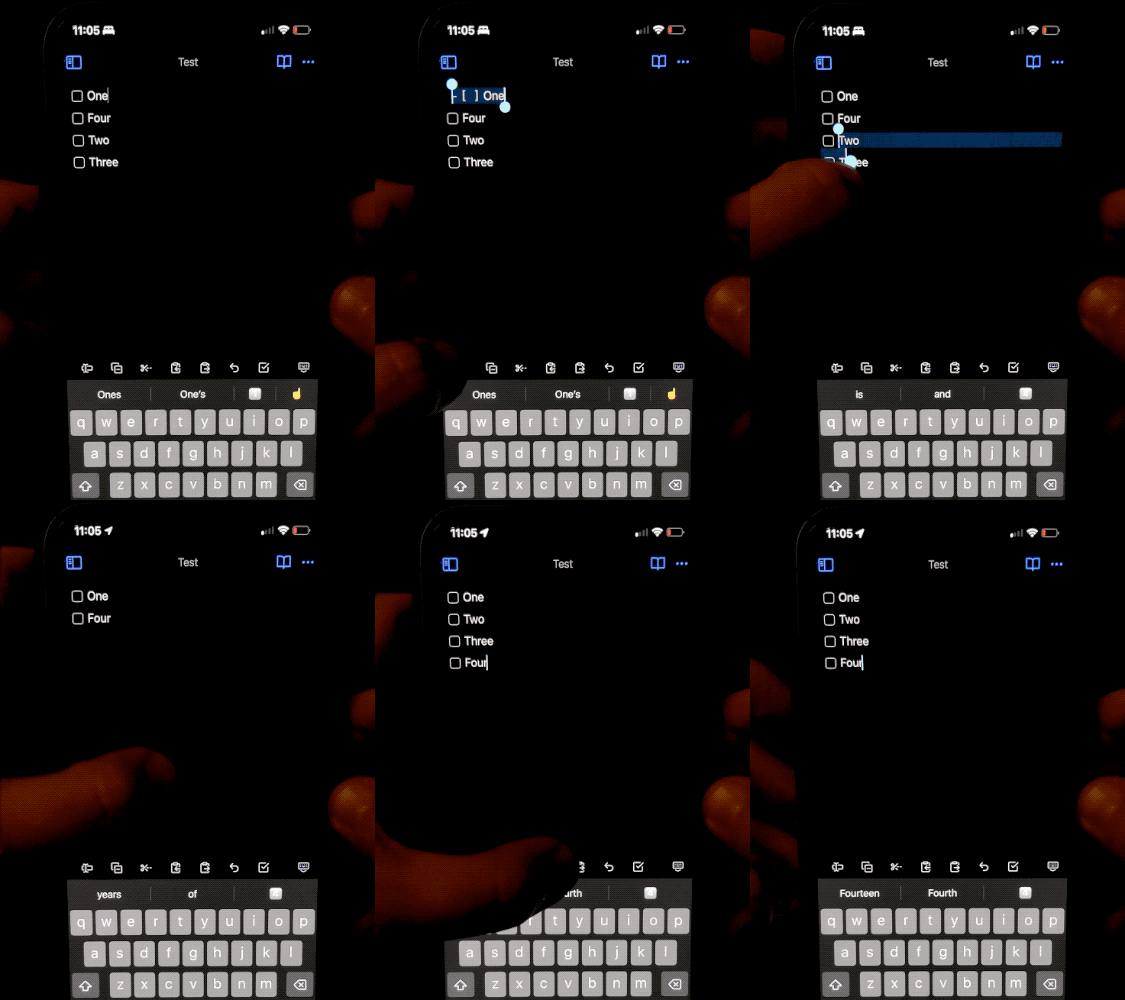
This plugin adds commands for quickly selecting, copying, cutting, and pasting lines. It’s designed to make it easier to move lines quickly on mobile devices. After install it, add the new commands available to mobile toolbar for easy access.
Title Renamer
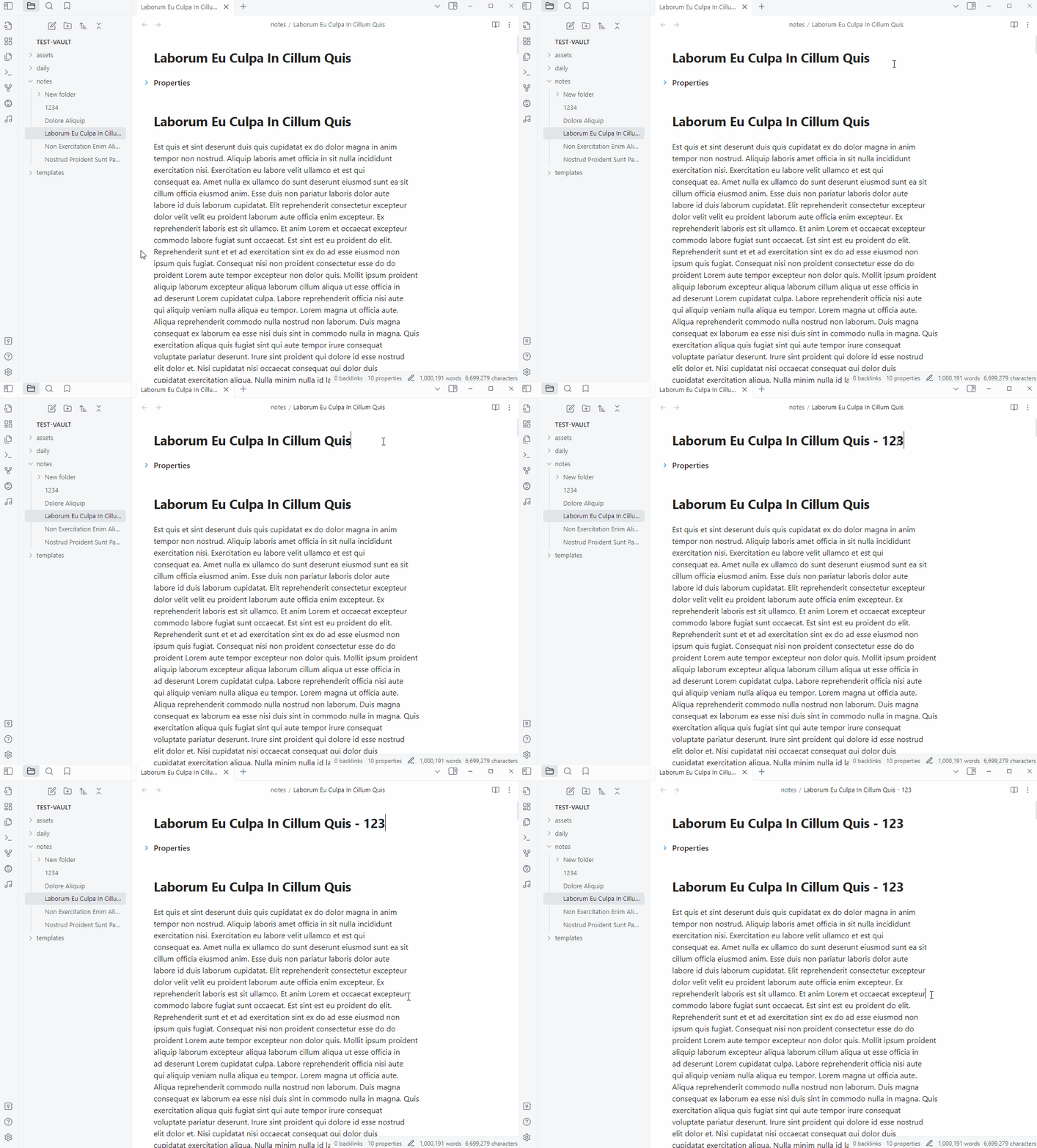
The Title Renamer plugin helps keep the inline title in a markdown file synced with the file name in Obsidian. It works by searching for an H1 in the document and updating it to reflect the new file name when the file is renamed. The plugin is designed to solve the issue of the inline title not being updated when creating new notes using templates. It only updates the first “H1” and does not modify the file if the metadata is not in sync with the latest content. It differs from the plugin Filename Heading Sync as it allows for a deliberate difference between the file name and heading. For example, Filename Heading Sync renames the file when you change the heading in the markdown contents and inserts a heading in the markdown contents when opening a file that doesn’t have one, and you might not want this to happen.
Color Cycler
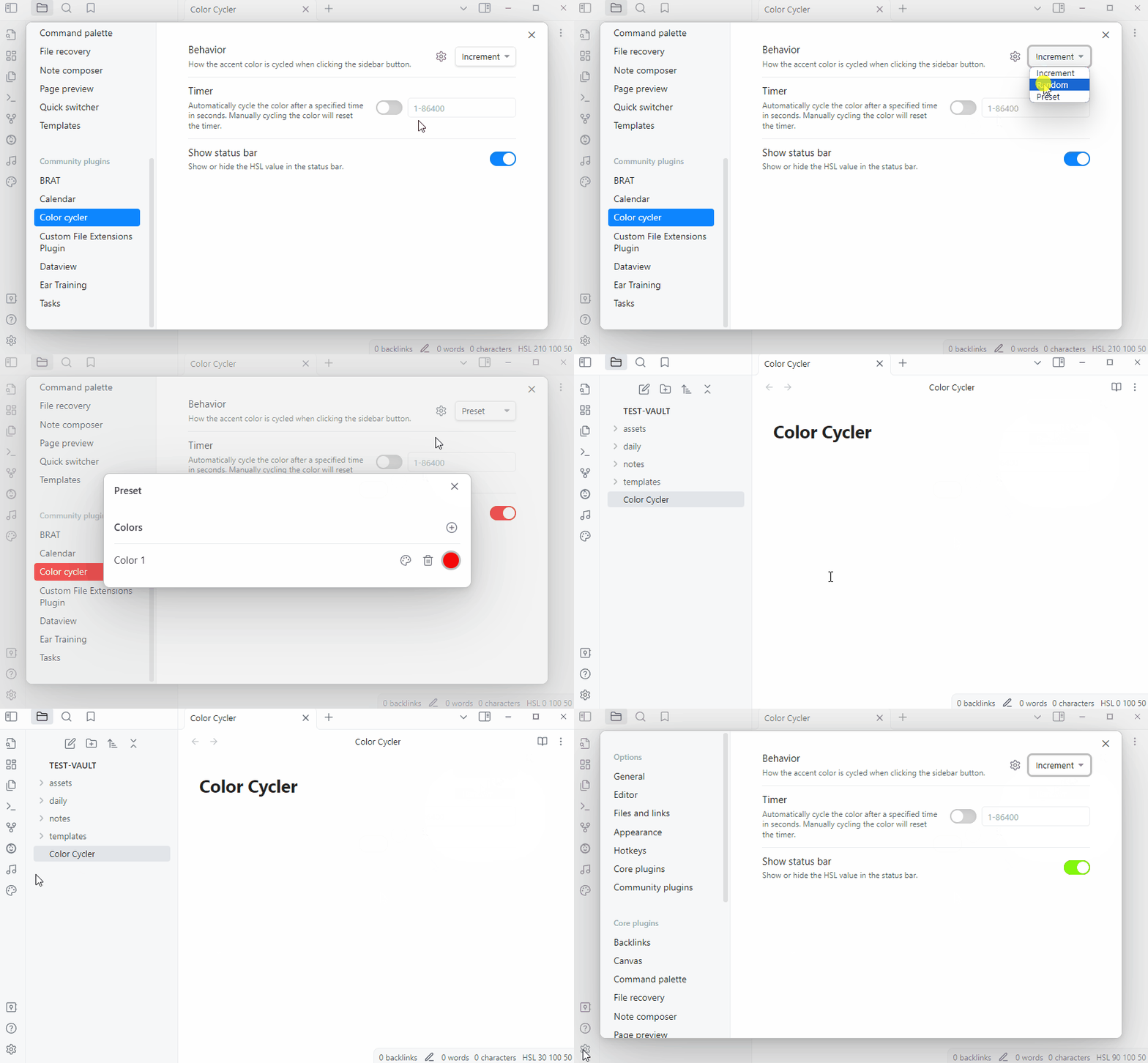
Color Cycler allows users to change the accent color dynamically. It offers three cycling behaviors:
- Increment: Cycle through the color wheel at a specified angle
- Random: Randomly select a color
- Preset: Cycle through a list of preset colors
A timer can be set to automatically cycle the color at a specified interval. The status bar displays the current HSL value of the accent color.
Progress Clocks
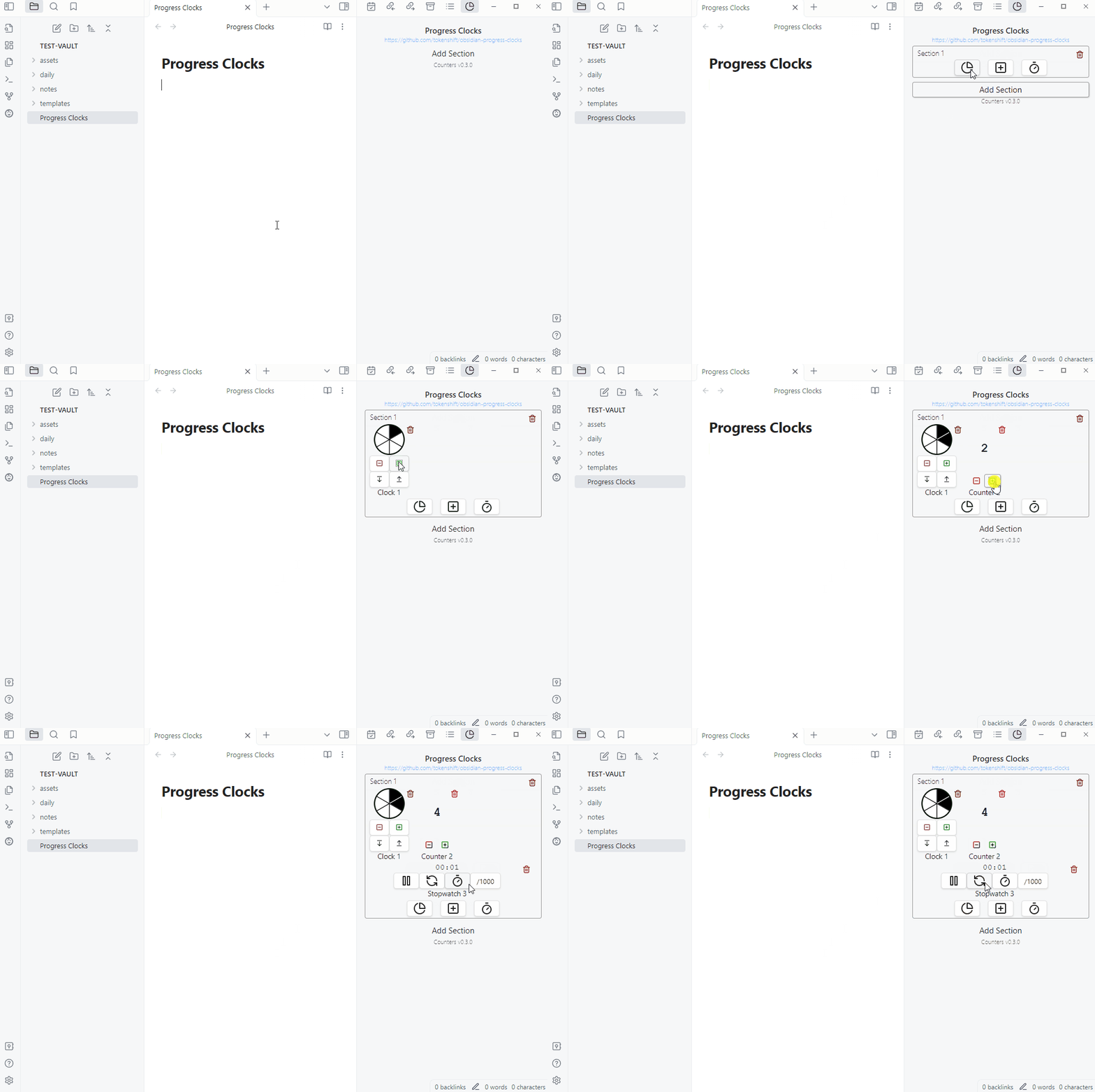
Progress Clocks is a plugin that provides pie-chart-style counters, number trackers, and stopwatches.
Progress clocks can be customized with a set number of segments and incremented as needed.
Counters display a number that can be incremented/decremented and manually set.
Stopwatches track time in seconds or milliseconds, with options to pause, reset, and record lap times.
Inline usage allows for quick clock and counter creation with simple syntax (e.g., `clock 2 / 4` or `counter 42`).
You can read the previous Obsidian articles here:
Click here to be notified every time I publish a new story 😉.


